Turning features and micro-apps on for selected users
A feature is normally on or off for the whole portal. Many features can also be turned on for selected users first, for example a pilot group, the members of a few organizations or the users of one identity provider, before they are switched on for everyone. Micro-apps, the separate applications listed in the quick shortcuts menu, can be offered the same way, one app at a time.
This guide is for staff. Support users can see the rules and test them, but not change them.
Which features can be targeted
A feature can be turned on for selected users only when its effect is the user's own view of the portal: a column, a tab, a dialog field, a chart. Such a feature has the scope user.
Features that anonymous visitors see (the cookie notice, the disclaimer area), that change what the whole deployment is (catalogue mode, externally run calls, telemetry), or that change what other people see (prices with VAT on an organization's invoices) have the scope deployment and stay one value for everyone.
The features reference lists the scope of every feature.
Turning a feature on for selected users
- Open Administration → User interface → Features and select the feature's tab.
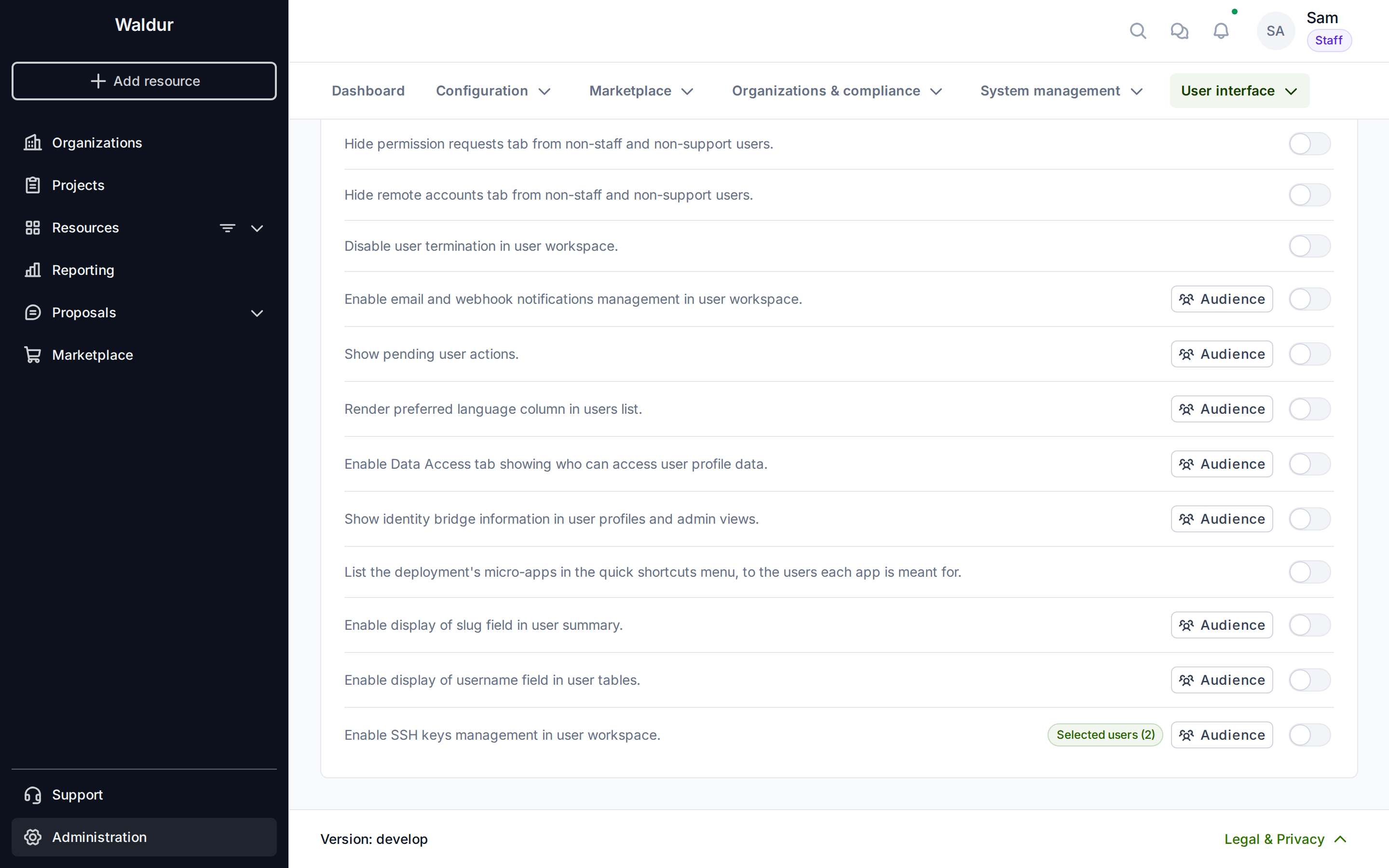
- Next to a feature with the scope user there is an Audience button. Click it.
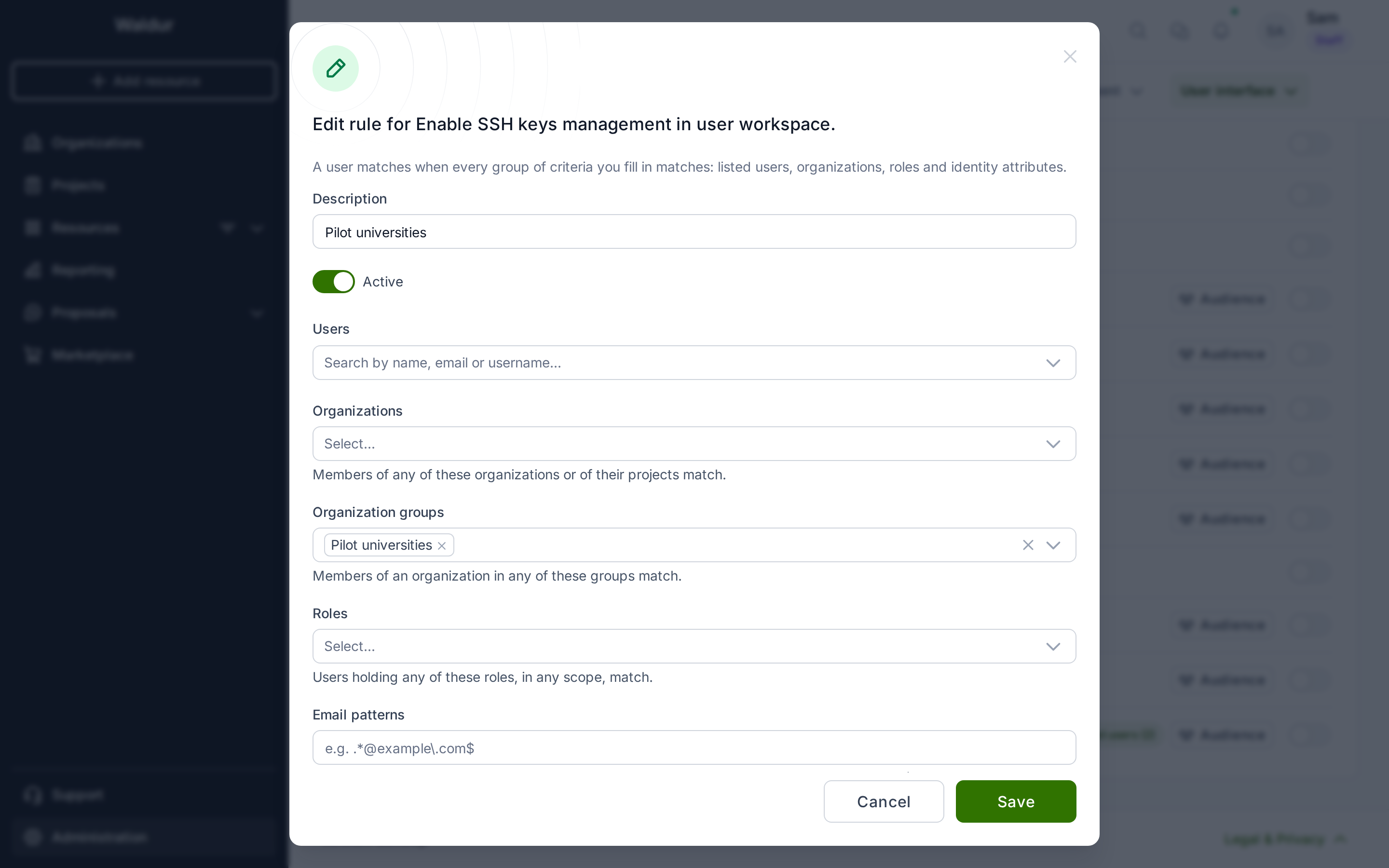
- Click Add rule and choose who the rule matches (see Criteria). Give it a description, such as Pilot group, so that the next person knows why it exists.
- Click Create.
The feature's switch stays off. Next to it, a Selected users (N) badge shows how many active rules turn it on. Users matched by any active rule get the feature the next time the portal loads their profile, usually on their next page load.
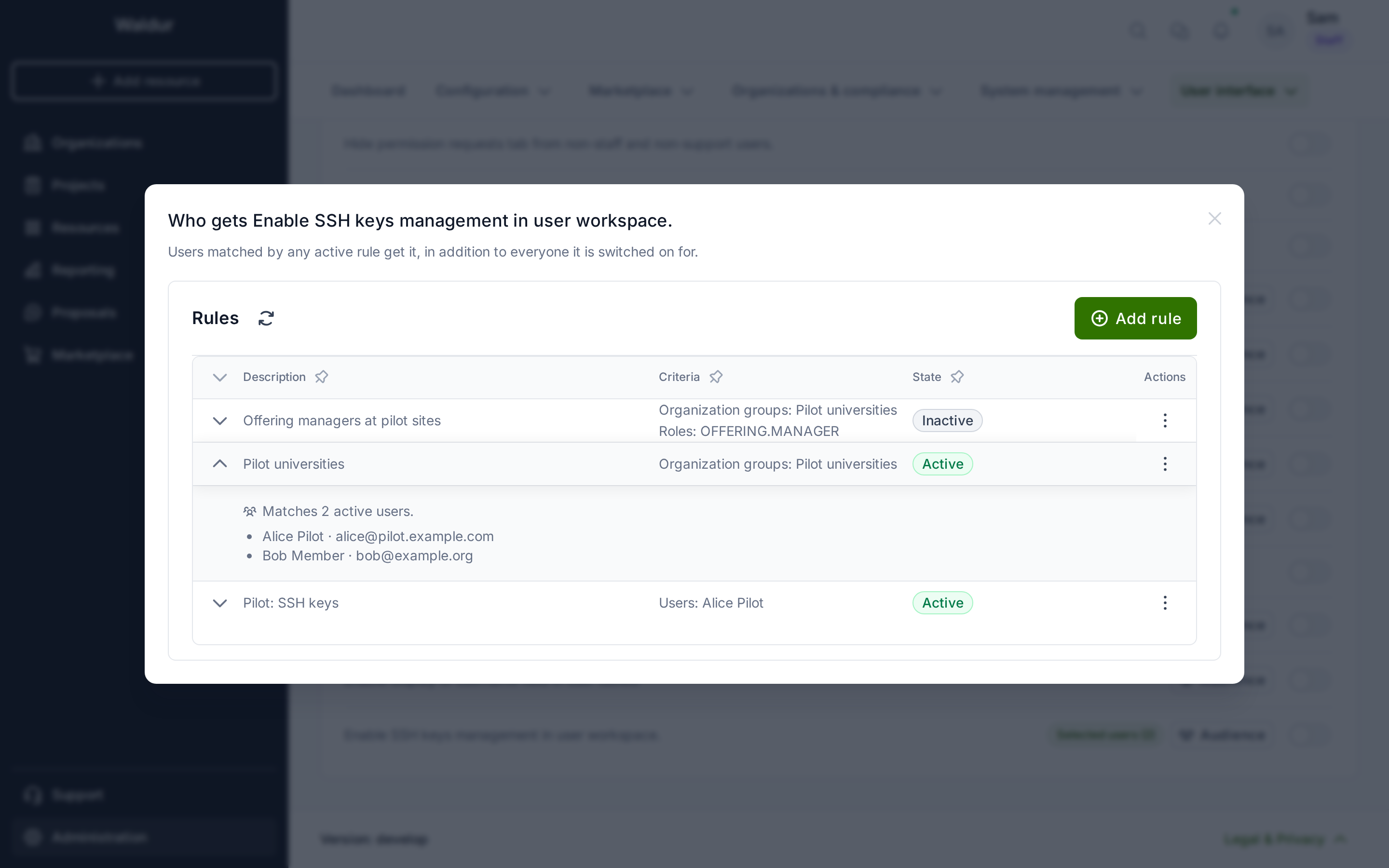
The Audience button opens the feature's rules. Expand a rule to see whom it matches now:
Tip
To turn a feature on for everyone, switch it on and click Save, as before. Its rules then change nothing, and you can delete them.
What the three states mean
| Switch | Active rules | Who gets the feature |
|---|---|---|
| On | any | everyone |
| Off | none | nobody |
| Off | one or more | the users any active rule matches |
Criteria
A rule can combine these groups of criteria. A user matches the rule when every group you fill in matches. Within one group, any value matches, except where noted.
| Criterion | A user matches when |
|---|---|
| Users | the user is listed |
| Organizations | the user holds a role in the organization or in one of its projects |
| Organization groups | the user belongs to an organization in the group |
| Roles | the user holds the role in any organization, project or offering |
| Email patterns | the email address matches one of the regular expressions; end a pattern with $ |
| Affiliations, identity sources | the user's identity provider sent one of the values |
| Identity provider claims | the user carries an accepted value for every listed claim; a value ending in * matches by prefix |
| Nationalities, organization types | the user's identity provider sent one of the values |
| Assurance levels | the user holds all of the listed levels |
For example, a rule with the organization group Pilot universities and the role Offering manager matches members of those universities who are offering managers. The groups are checked independently: the role can be held anywhere, also in an organization outside the group.
A rule without any criterion matches no one: to turn a feature on for everyone, use its switch. The rule dialog warns when no criterion is filled in, and the rules table lists such a rule as No one. A rule also ends up without criteria when the users, organizations or organization groups it lists are all deleted. It then stops matching rather than widening to everyone, and you can still edit or deactivate it.
Checking a rule
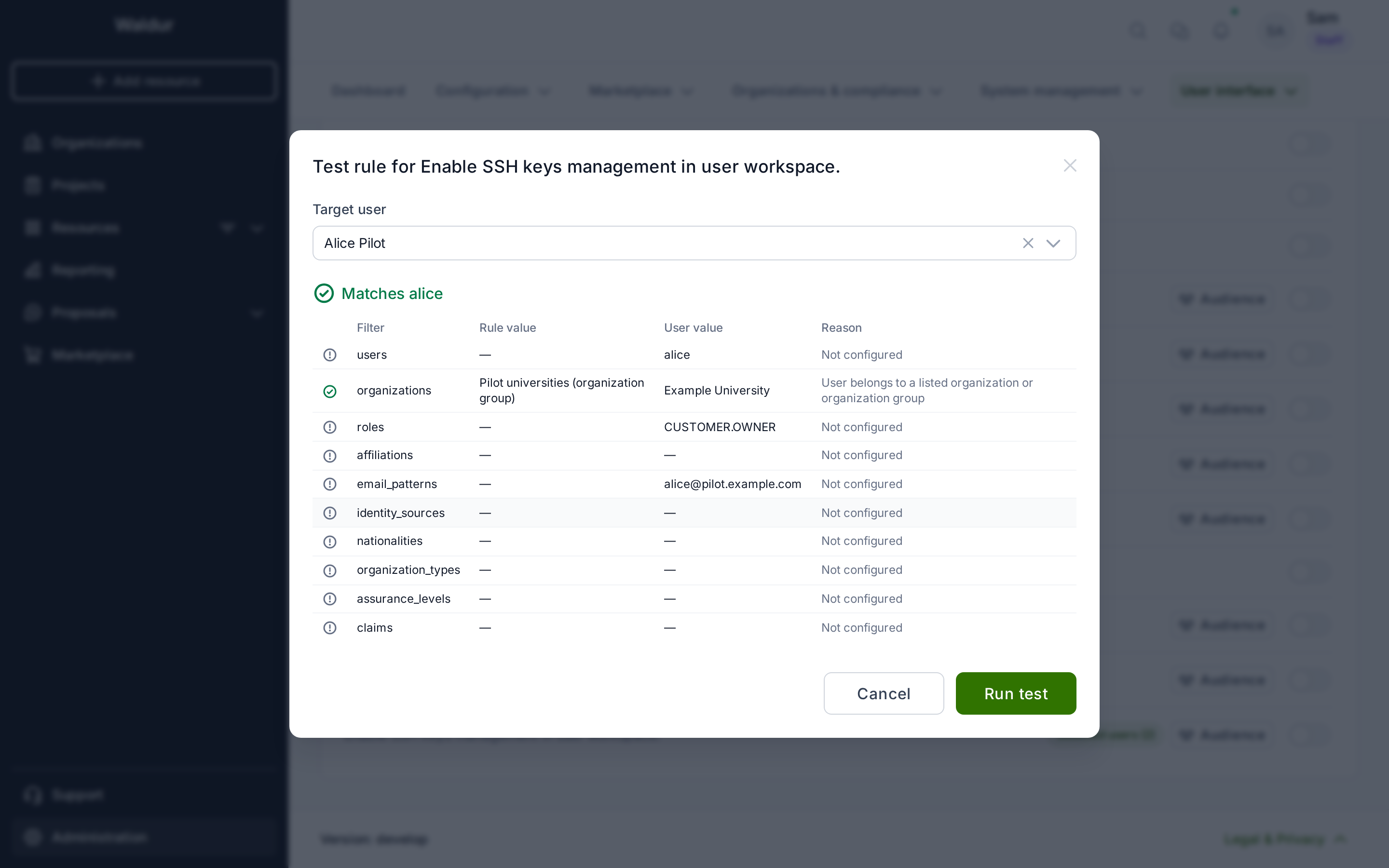
In the rules dialog, open a rule's row menu:
- Test for a user shows, for a user you choose, each criterion of the rule, the user's value and whether it matches.
- Expanding a row shows how many active users the rule matches now and the first few of them. For rules on identity attributes, Waldur checks the first 5000 candidate users and says so when the count is a lower bound.
- Deactivate keeps a rule but stops it from turning anything on. Activate brings it back.
Offering a micro-app to selected users
Open Administration → User interface → Micro-apps. The page lists the micro-apps that this portal's image contains, and the settings of apps it no longer contains as Not deployed.
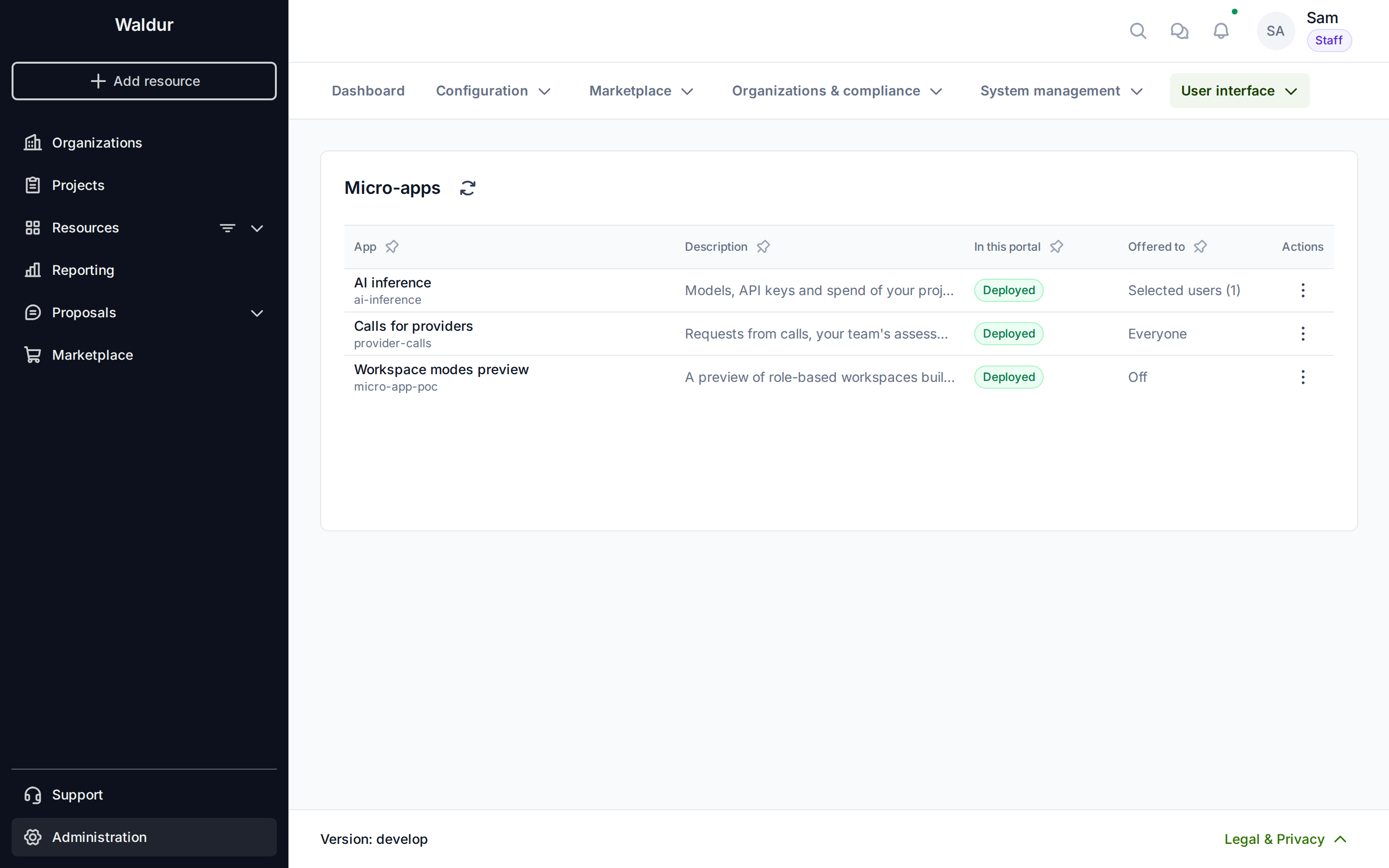
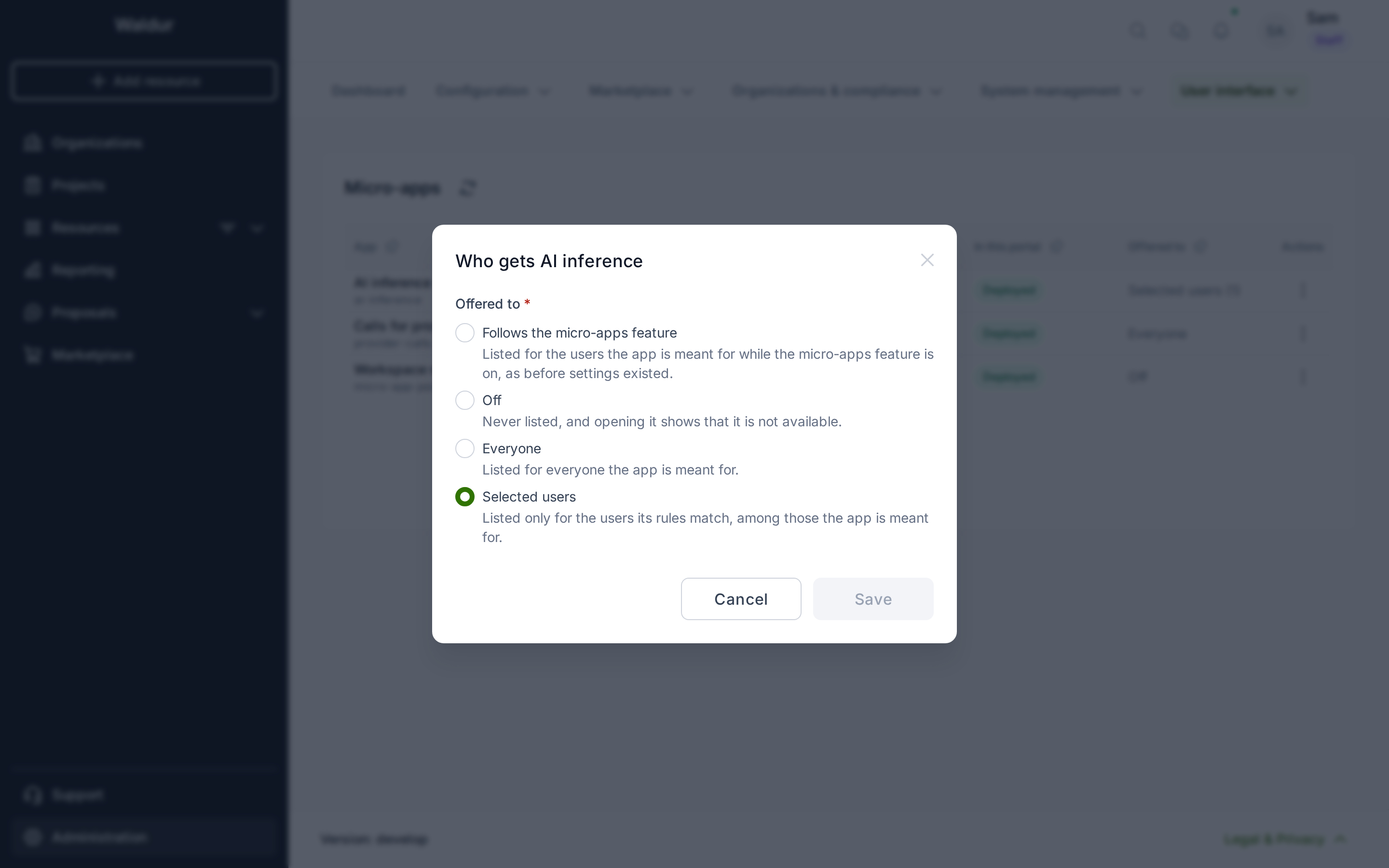
Choose Change who gets it in an app's row menu and pick one of the settings below. When Waldur can read the portal's list of apps, it refuses a setting for an app the portal does not contain, so a mistyped name cannot create a setting that does nothing.
| Setting | The app is listed for |
|---|---|
| Follows the micro-apps feature | the users the app is meant for, while the List the deployment's micro-apps in the quick shortcuts menu feature is on. This is the default and how every app behaved before these settings existed. |
| Off | nobody. A user who opens the app's address sees that it is not available to them. |
| Everyone | everyone the app is meant for, whether the micro-apps feature is on or not. |
| Selected users | the users its rules match, among those the app is meant for. Choose Edit audience to manage the rules, which work as described above. |
Whatever the setting, an app is only listed for the users it is meant for: an app for offering managers is never listed for someone without that role, even when a rule matches them. Choosing Follows the micro-apps feature again removes the app's setting and its rules.
Warning
These settings decide what the portal offers a user, not what the user may do. Access to data is still decided by the user's roles and permissions, in the app as everywhere else.
Seeing what a user gets
On a user's page (Support → Users → user → Features), staff and support see every feature's value for that user and why it has that value:
- On for everyone: the feature is switched on for the whole portal.
- On through rules (N): the feature is off for the portal and N of its rules match this user.
- Off: neither.
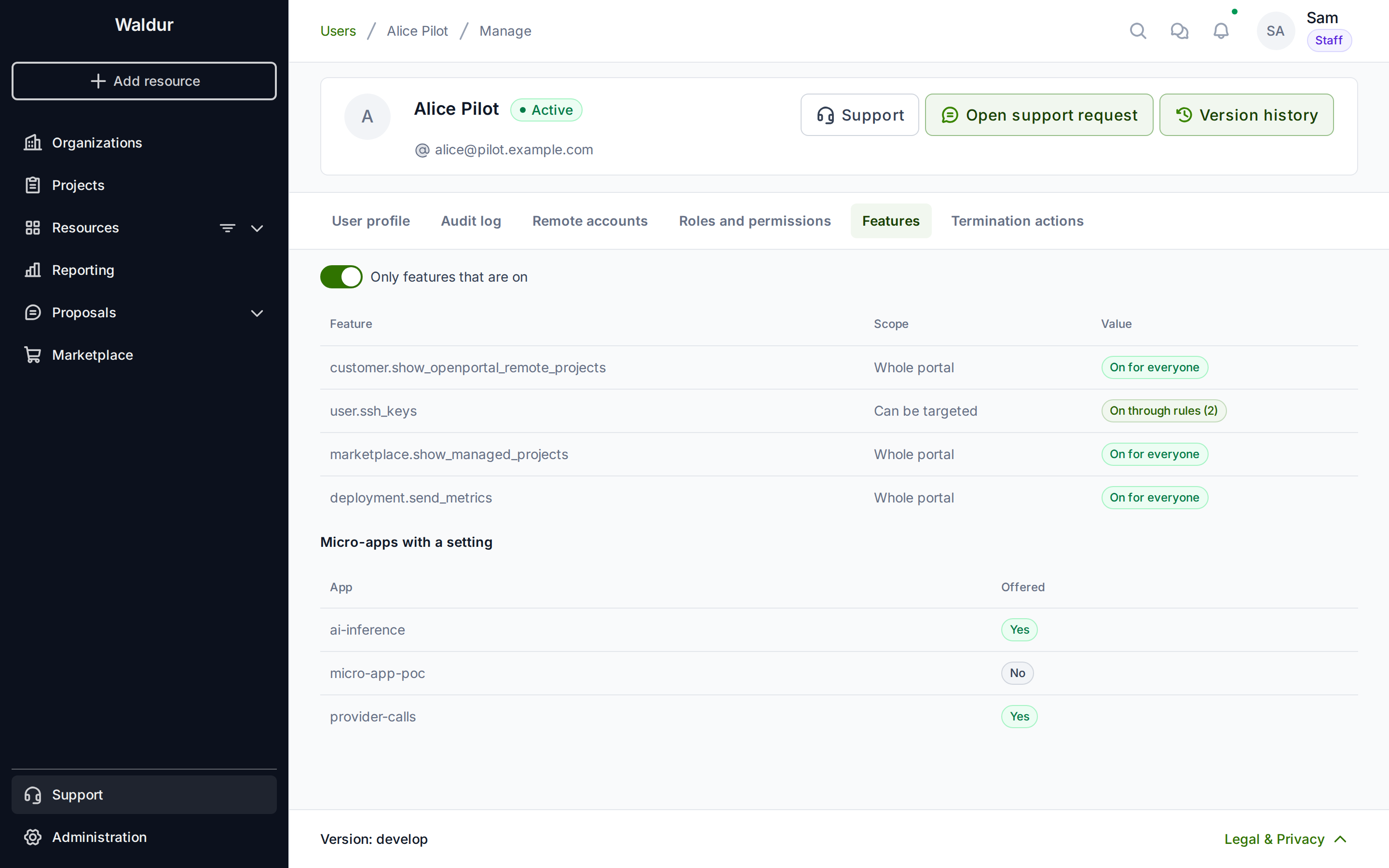
The tab also lists the micro-apps that have a setting and whether this user is offered each.
To see the portal as the user sees it, impersonate the user: while you do, the portal applies the impersonated user's features and micro-apps.
Rules without effect
A rule stops having an effect when its feature can no longer be targeted (a release changed its scope to deployment, or removed it) or when its micro-app's setting was removed. The Features page then shows a warning naming the features of such rules, and staff can delete them there. Delete them rather than leave them: if the feature became targetable again, they would apply again.
Audit
Creating, changing and deleting rules, and changing a micro-app's setting, are recorded as events in the administration event group.
API
| Endpoint | Purpose |
|---|---|
GET /api/metadata/features/ |
every feature with its scope |
/api/feature-rules/ |
the rules; feature_key is a feature (section.key) or micro_apps.<name>; ?orphaned=true lists the rules without effect |
POST /api/feature-rules/<uuid>/test-match/ |
check a rule against a user |
GET /api/feature-rules/<uuid>/matched-users/ |
count and preview of matched users |
/api/micro-app-settings/ |
the micro-app settings (off, all, audience) |
GET /api/users/<uuid>/features/ |
a user's feature values and their source |
GET /api/users/me/ |
the signed-in user's own features and micro_apps |
GET /api/configuration/, which the portal reads before anyone signs in, keeps returning the
portal-wide values only.