Resource API keys
Some resources — inference services and other API gateways — are reached with an API key. Waldur lists a resource's keys on its API keys tab. There you can reveal and rotate a key, and, where the provider supports it, request new keys, hand a key to one person, cap how much it may use, restrict it to some models, and pause or delete it.
Waldur never generates key material itself. Every change is sent to the provider's site agent, which carries it out on the backend and reports back. A key therefore shows a transitional state (Creating, Rotating, Pausing, Resuming, Updating, Deleting) until the agent confirms the change.
The keys a new resource starts with
The keys a new resource starts with depend on whether the provider manages keys one by one (see For service providers):
- Without key management, the resource is created with two keys, both shared by the project. There are two so that one keeps working while the other is rotated.
- With key management, the resource starts with no keys. Its API keys tab stays empty until someone requests a key. To replace a key without interruption, request a new one, move your clients to it, and then delete the old one.
A resource restored after termination follows the same rule. Turning key management on or off later does not add or remove keys on existing resources.
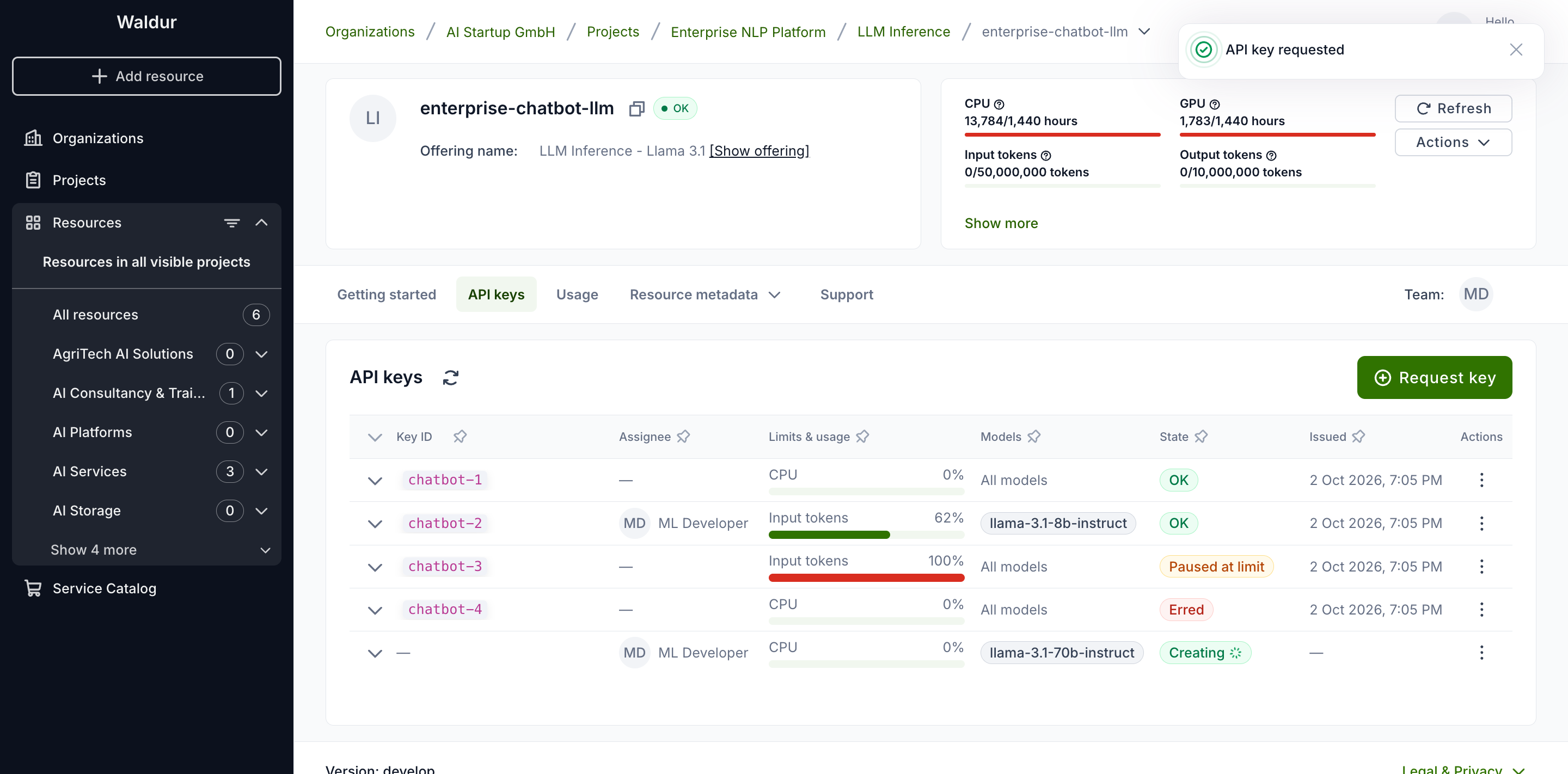
The API keys tab
Open the resource and select the API keys tab.
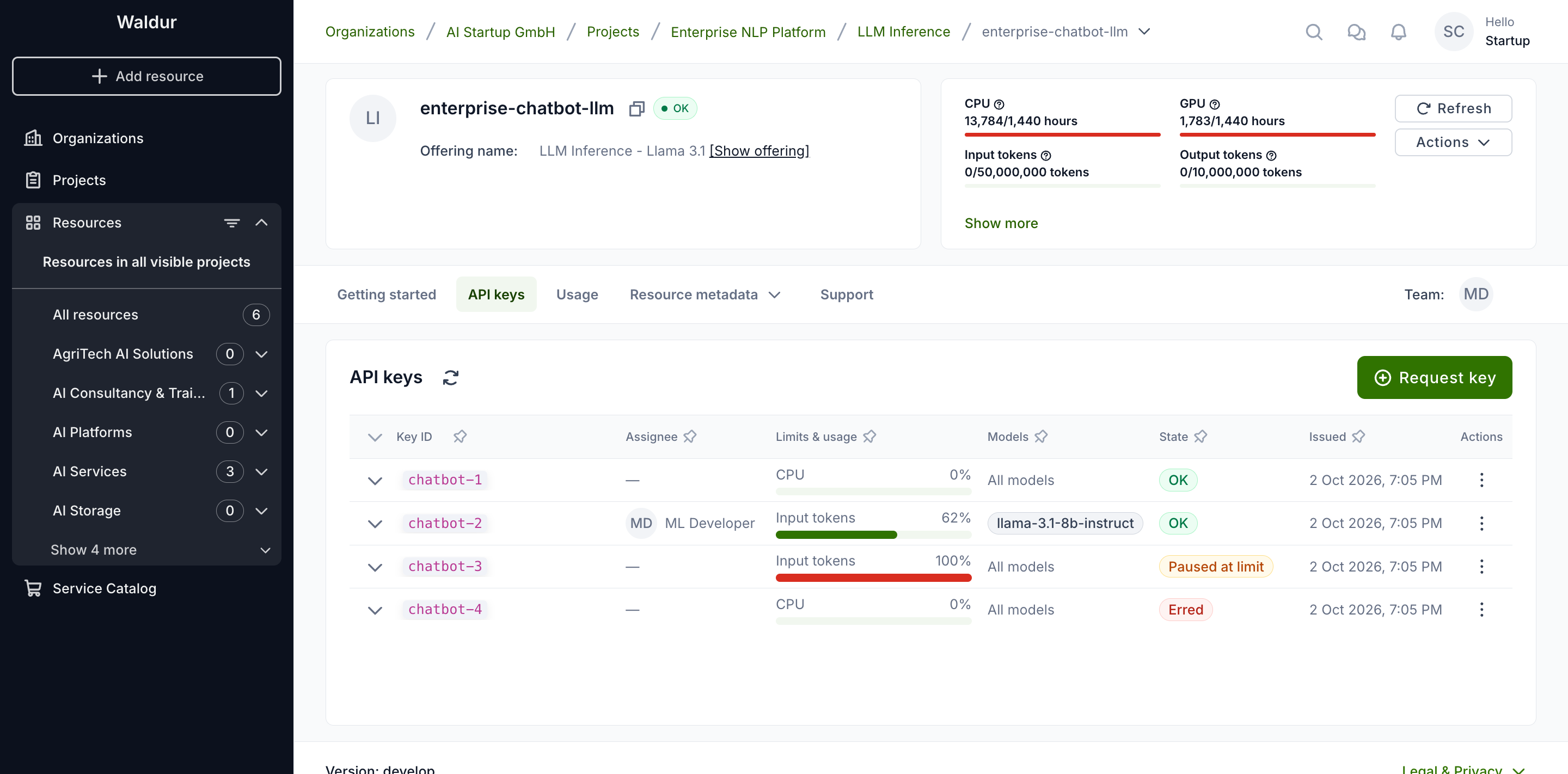
Each row is one key:
- Key ID — the identifier the backend knows the key by.
- Assignee — the person the key belongs to, or a dash for a key shared by the project.
- Limits & usage — how much of its monthly limit the key has used, for the component closest to its limit.
- Models — the models the key may call, All models, or No models for a key that cannot call any (see Models).
- State — OK, Paused, Paused at limit, Erred, or a transitional state while a change is in progress.
- Issued — when the current key value was created or last rotated.
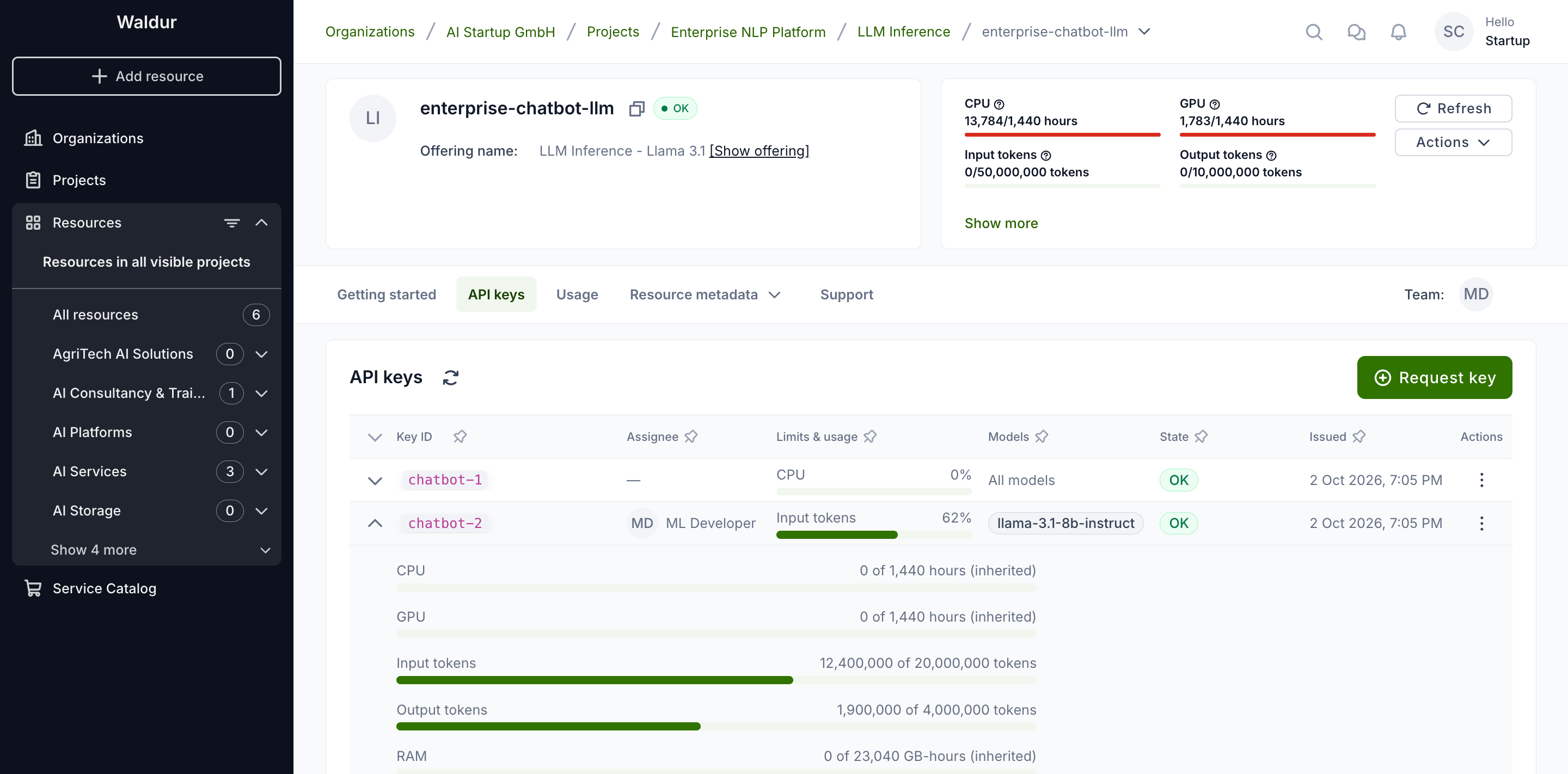
Expand a row to see every component. A limit marked (inherited) is the resource's own limit: the key has no limit of its own for that component.
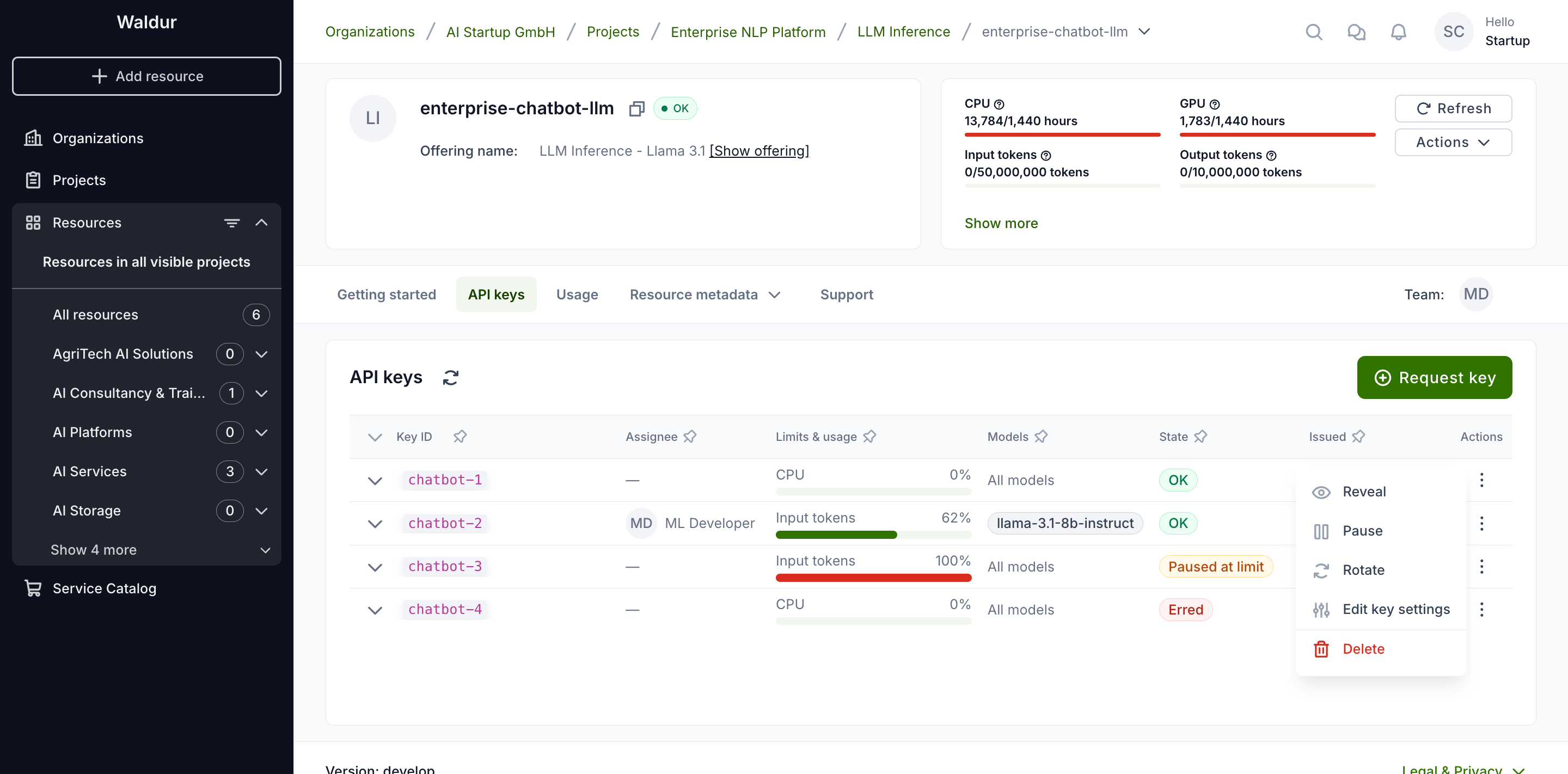
The Actions menu at the end of each row offers what the key's state allows.
Revealing a key
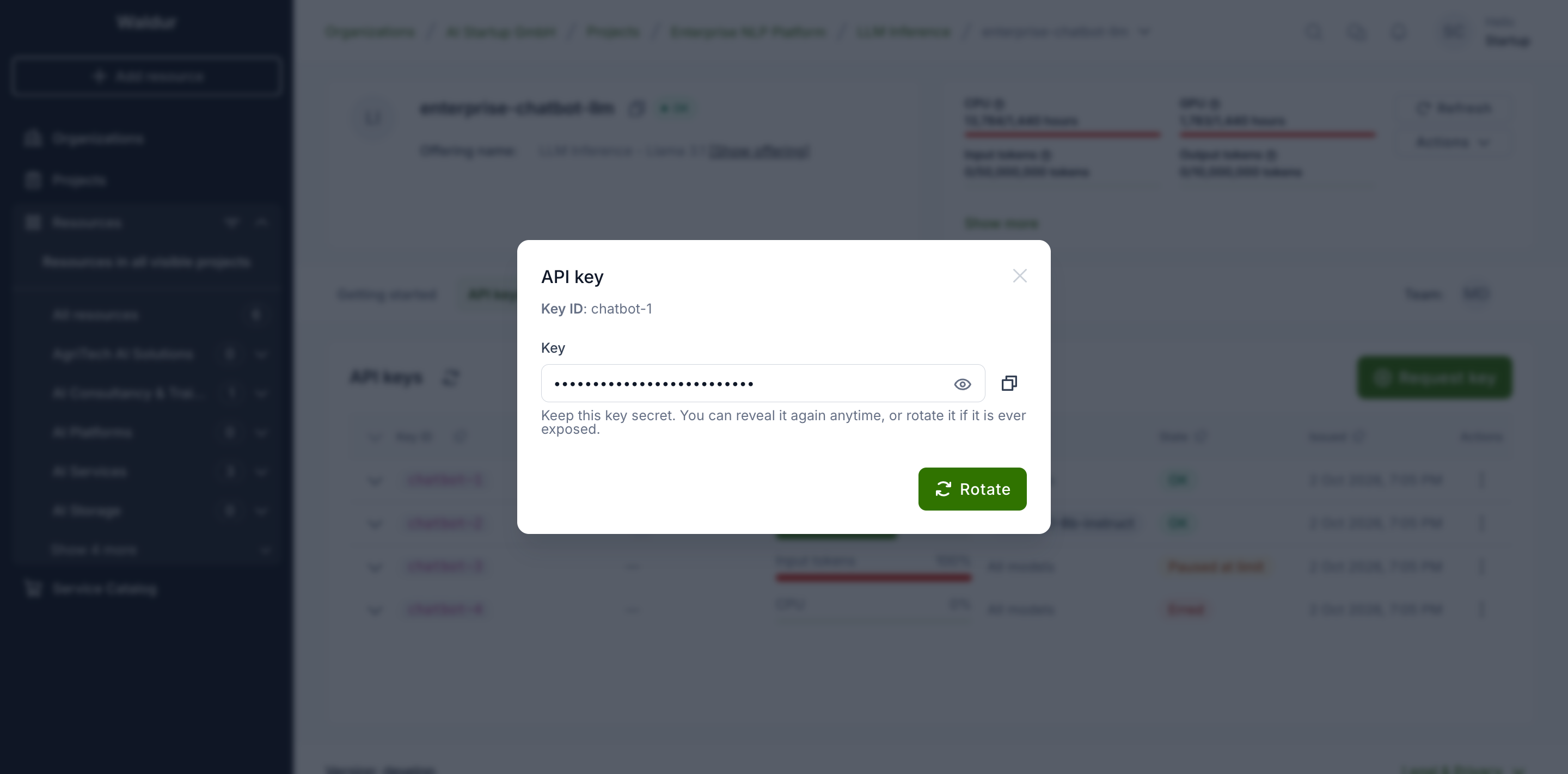
Choose Reveal to see the key value. The value is masked until you click the eye icon, and the copy button puts it on the clipboard.
Any member of the resource's project can reveal a shared key. A key with an assignee can be revealed only by that person (and by staff and support).
Tip
If a key may have been exposed, rotate it.
Rotating a key
Choose Rotate to replace a key's value. The backend issues a new value and the old one stops working, so anything using the key needs the new value afterwards. The resource's other keys are not affected.
Who can rotate a key:
- Organization owners can rotate any key of the resource.
- The assignee of a key can rotate their own key, from the Actions menu or with the Rotate button shown when revealing it. They do not need an organization owner for it, so a key that may have leaked can be replaced straight away.
- Other project members cannot rotate keys. A key shared by the project has no assignee, so it is rotated by an organization owner.
Rotating is the only change an assignee can make to their key. Pausing, resuming, deleting and editing it stay with organization owners.
A paused key cannot be rotated until it has been resumed. Where limits are enforced, an assignee also cannot rotate a key that has reached one of its monthly limits: such a key is about to be paused.
Requesting a key
Project managers and organization owners can request keys with Request key:
- Optionally choose an Assignee — only project members are offered. Leave it empty for a key shared by the project.
- Optionally set limits per component. Each field shows the resource's limit; leave a field empty to let the key use up to the resource limit.
- Choose the Models the key may call. All models is ticked to begin with. Untick it to choose models one by one (see Models).
- Click Submit.
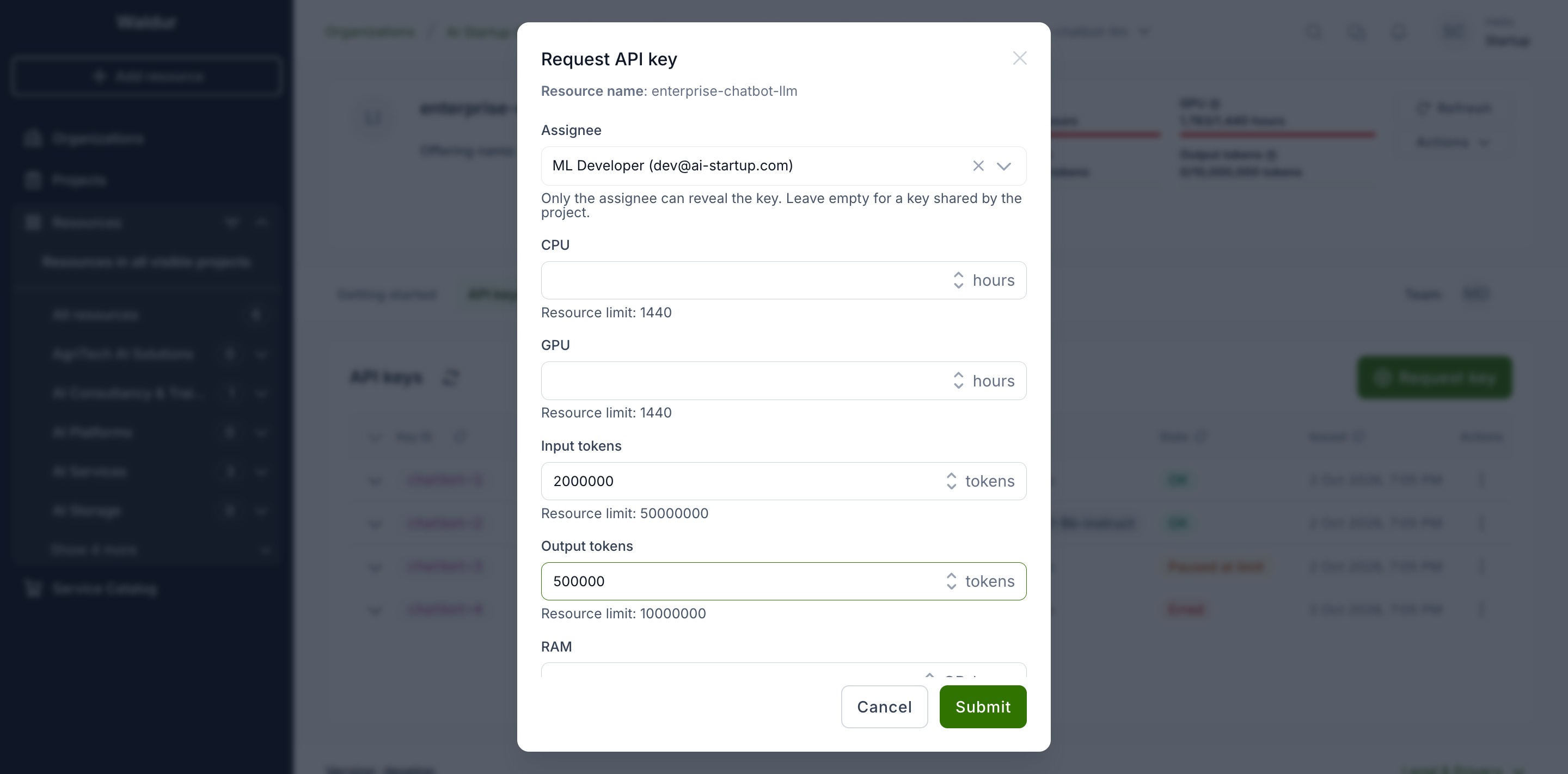
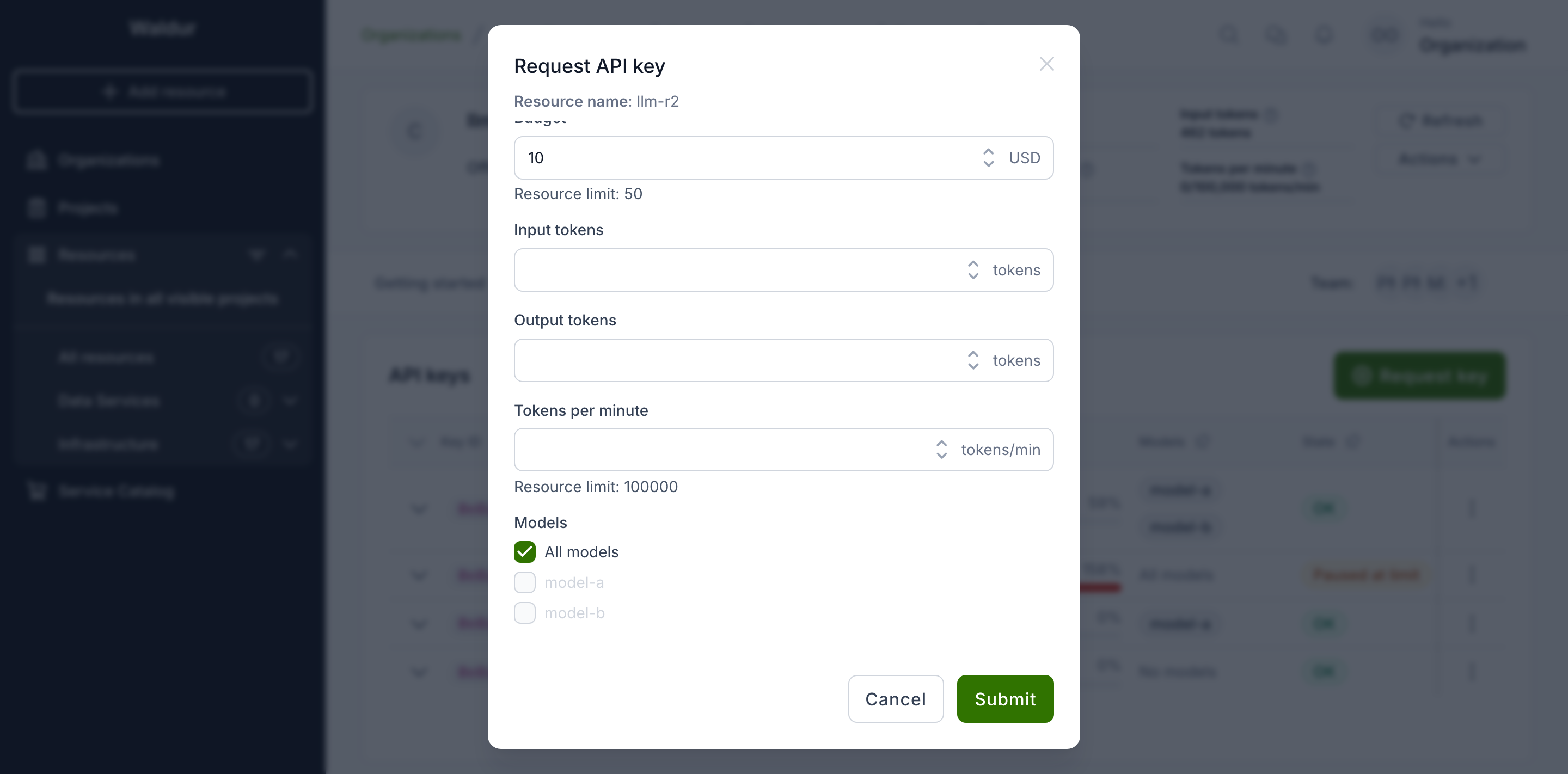
The new key appears as Creating and turns OK once the provider has created it. Its key ID is assigned at that point.
Changing a key's assignee, limits and models
Choose Edit key settings. Save stays disabled until you change something.
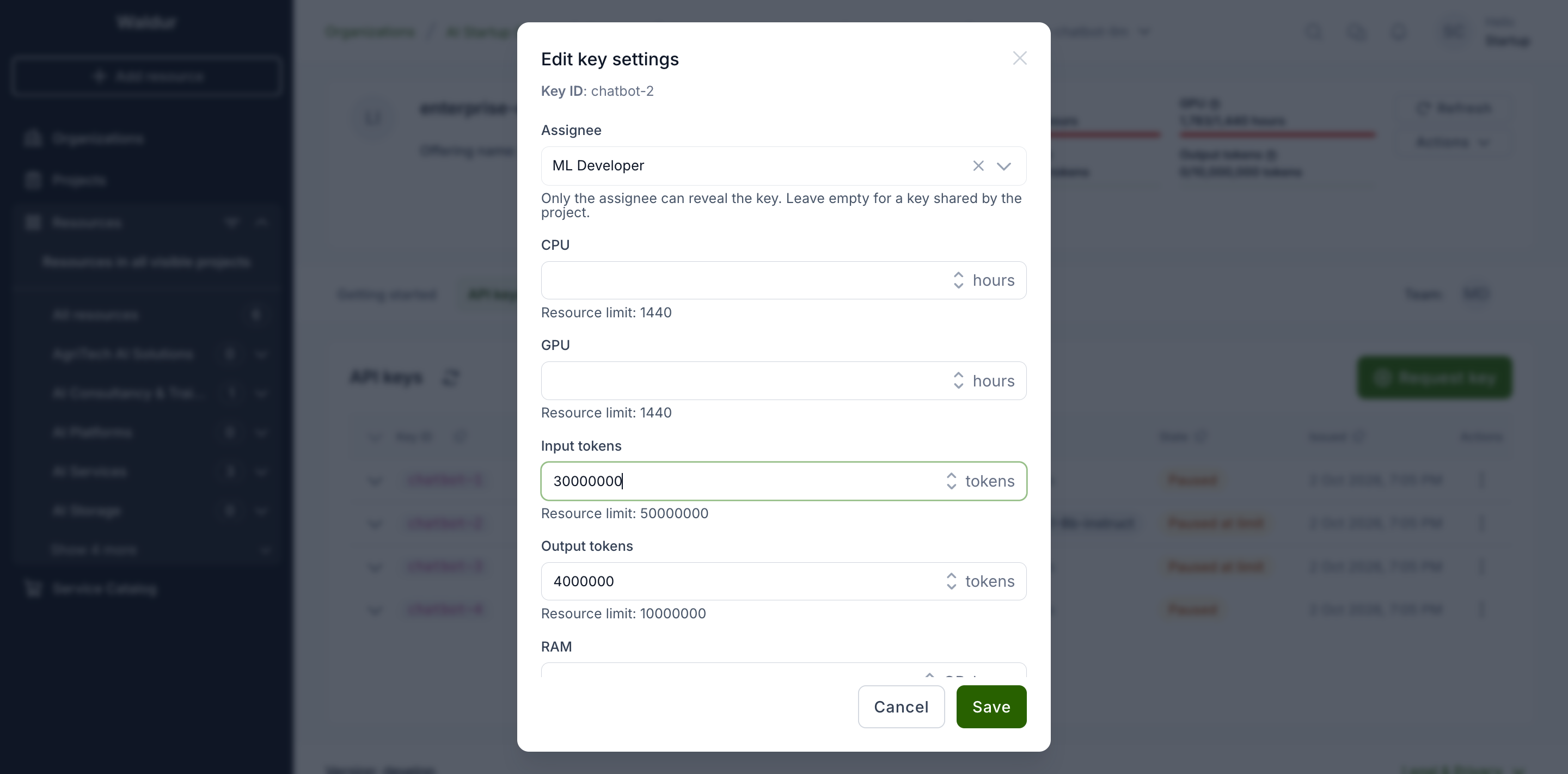
- Changing the assignee of a key that has been created rotates it: its current value stops working, and the new assignee reveals the new value. Clearing the assignee rotates it too. The dialog warns about this before you save. The assignee can be changed only while the key is OK, or Erred after a failed rotation: resume a paused key, wait for a change in progress, or retry a failed change first. A requested key that has not been created yet takes the new assignee without a rotation.
- A person can be the assignee of only one key of a resource. Choosing someone who already holds a key is refused.
- Limits and models can be changed while the key is OK or Paused. On an active key the change is sent to the provider and the key shows Updating until it is applied. On a paused key the change is stored and applied when the key is resumed.
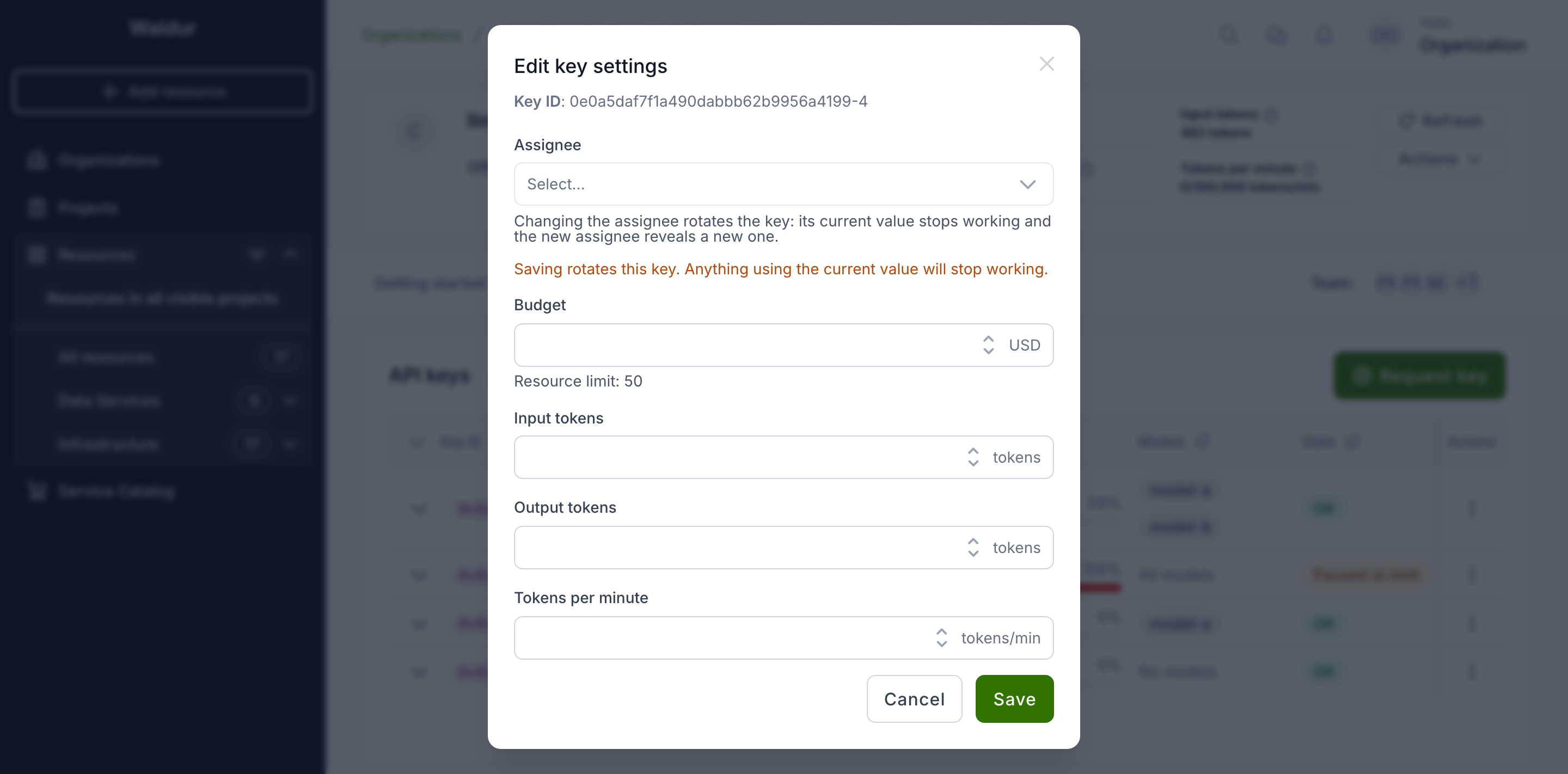
The assignee of a key can rotate it themselves, unless it has reached one of its monthly limits. Every other change stays with whoever can request keys.
Models
A key's model selection is one of three:
| Selection | The key may call | Shown as |
|---|---|---|
| All models ticked | every model the resource allows | All models |
| Some models ticked | those models only | the list of models |
| Nothing ticked | no model | No models |
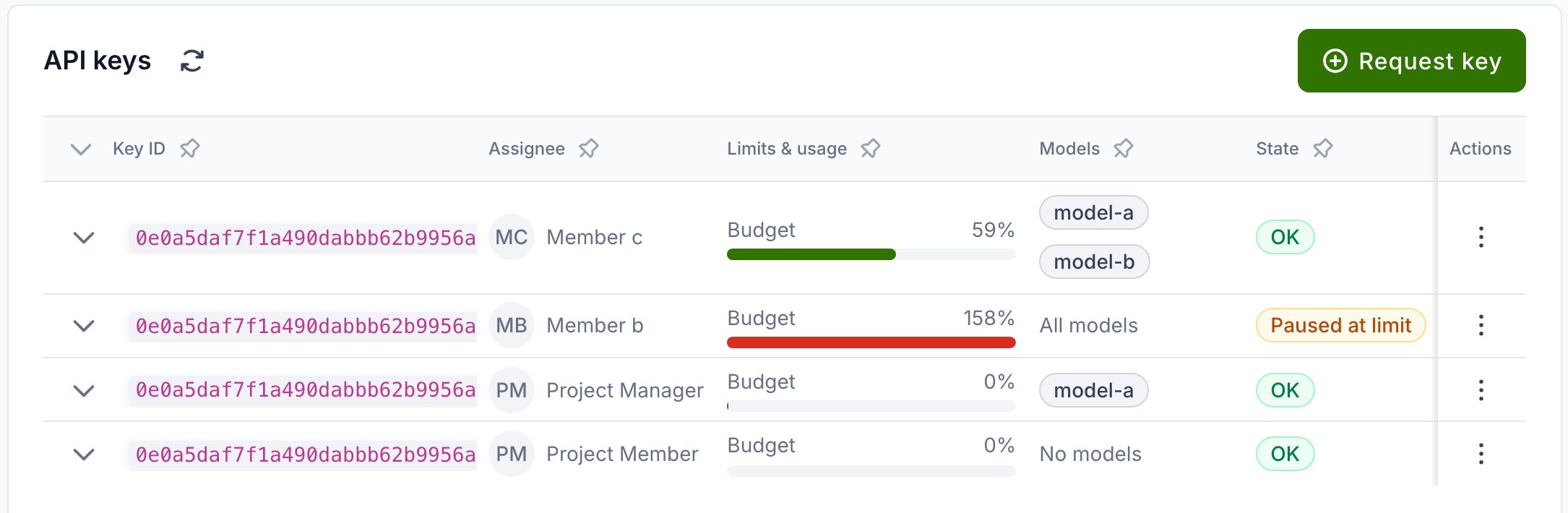
The dialogs list only the models the resource allows (see The resource's models), so a key can narrow its resource but never widen it.
Request key starts on All models. Ticking All models locks the individual ticks. Untick it to choose models one by one again.
While nothing is selected, the dialog warns that the key will not be able to call any model. The warning does not stop you from submitting.
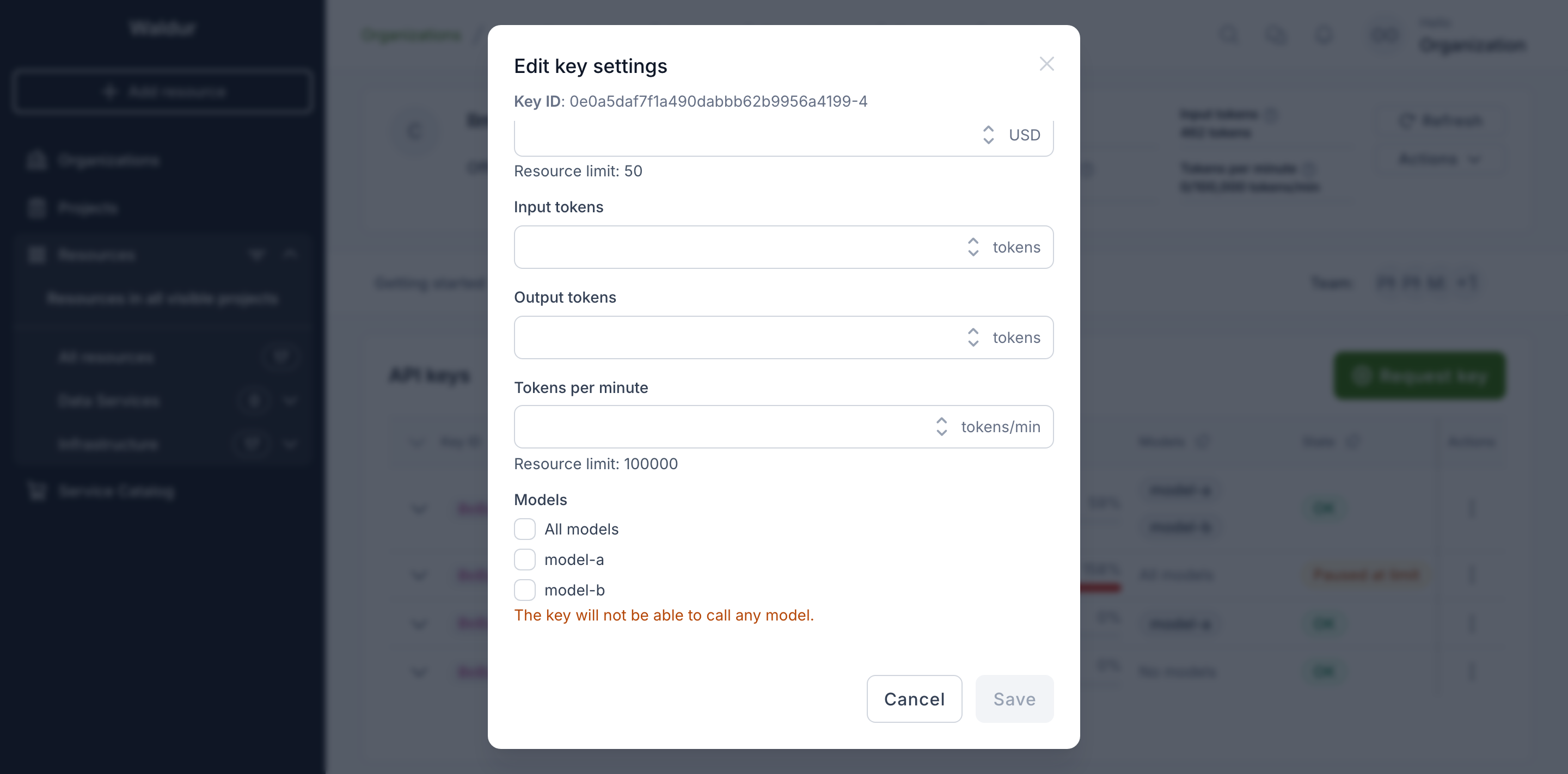
A model the provider retires, or the resource stops allowing, disappears from the list, and the key is updated at the provider so it can no longer call it. The key keeps it, and gets it back if the model returns. A key that was limited to such models only can call none of them: it shows No models, and its settings dialog opens with nothing ticked. Saving the dialog never opens such a key to every model. Tick All models, or the models it should call, to make it usable again.
Note
Not every backend can restrict a key's models. On one that cannot, such as the Envoy AI Gateway, a request or an edit that leaves a key with anything but All models fails, and the key shows Erred. After a failed edit, set the key to All models with Edit key settings. After a failed request, delete the key and request it again with All models ticked. The resource has to stay on All models too, or every key's change fails.
The resource's models
The resource's own Models option, in the resource's Options, decides which models its keys can call at all, on an offering that manages keys one by one. It takes the same three forms as a key:
| Selection | The resource's keys may call |
|---|---|
| All models ticked | every model of the offering, including ones the provider adds later |
| Some models ticked | those models only |
| Nothing ticked | no model |
A new resource starts on All models: the order form offers All models, ticked to begin with, and refuses an order with no model selected. Change the selection later with Update option on the Models row. There, nothing ticked is allowed, and the dialog warns that the resource's keys will not be able to call any model.
A key set to All models follows the resource: it can call whatever the resource allows. A key set to some models can call those of them the resource still allows. When the resource's selection changes, every key whose models change with it is updated at the provider, and shows Updating until that is applied. A paused key gets its new models when it is resumed.
Limits
Limits are monthly and enforced by Waldur:
- When a key's usage this month reaches one of its limits, Waldur pauses that key only. The resource and its other keys keep working. The key shows Paused at limit.
- A key paused at its limit is resumed automatically once it is under its limits again — when a new month begins, or when you raise or remove the limit that stopped it.
- If you resume such a key by hand while it is still over its limit, it is paused again on the next usage report.
Note
Usage is reported by the provider periodically, so a key can go somewhat over its limit before it is paused.
Pausing, resuming and deleting
- Pause stops the backend accepting the key. The key keeps its value, and Resume brings it back.
- Delete revokes the key at the backend. A deleted key disappears from the list, but the usage it reported still counts towards the resource.
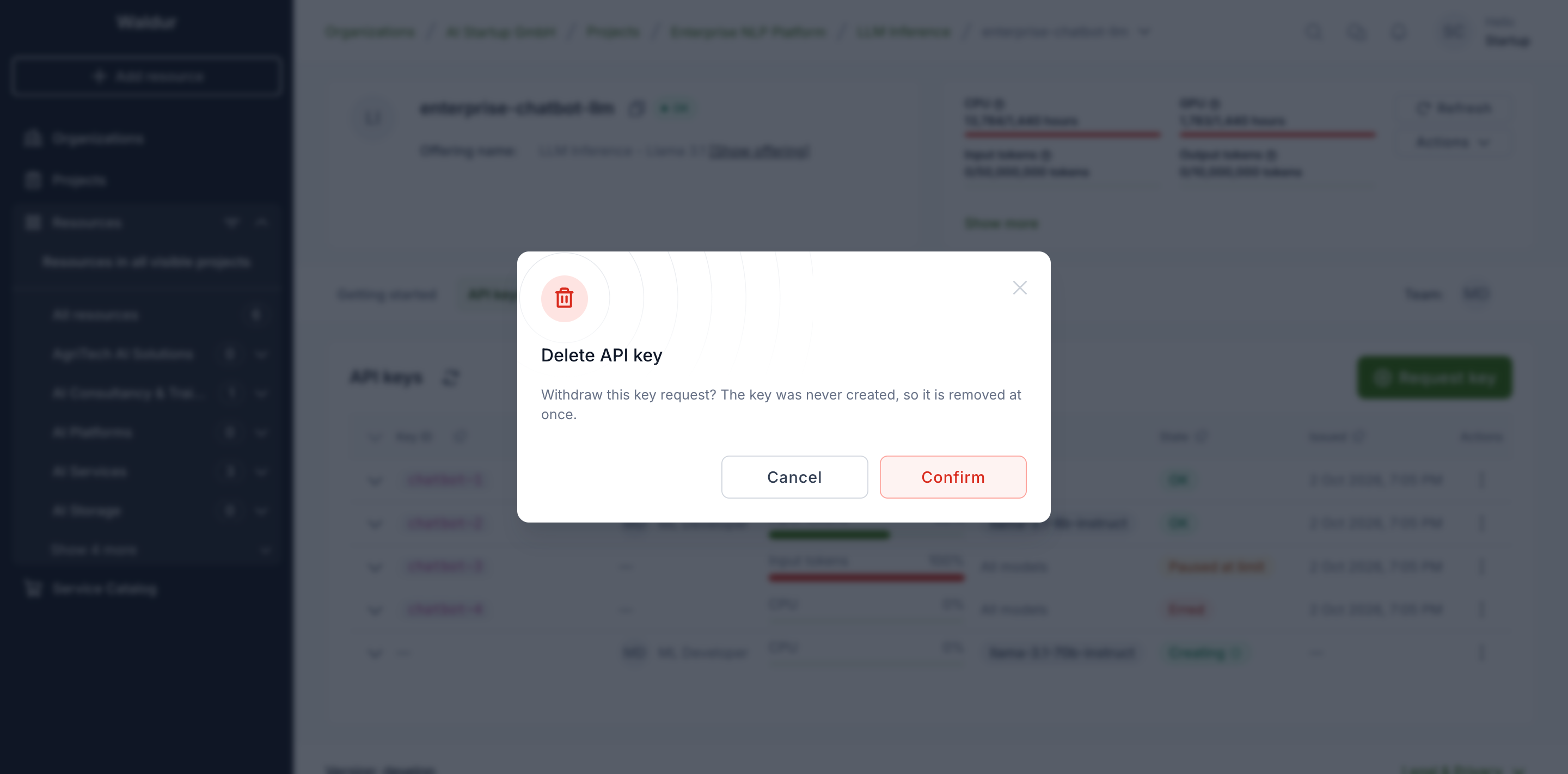
- A requested key that has not been created yet can be withdrawn with Delete. It is removed at once, without waiting for the provider.
When a change fails
If the provider cannot carry out a change, the key shows Erred and the row keeps the error message. An erred key offers Retry, which repeats the failed change, and Delete. A key whose settings update failed can also be corrected with Edit key settings, which sends the update again.
The assignee of a key is offered Retry only when the change that failed was a rotation of it. Any other failed change is retried by an organization owner.
For service providers
Two options in the offering's Integration → Resource display options control the tab:
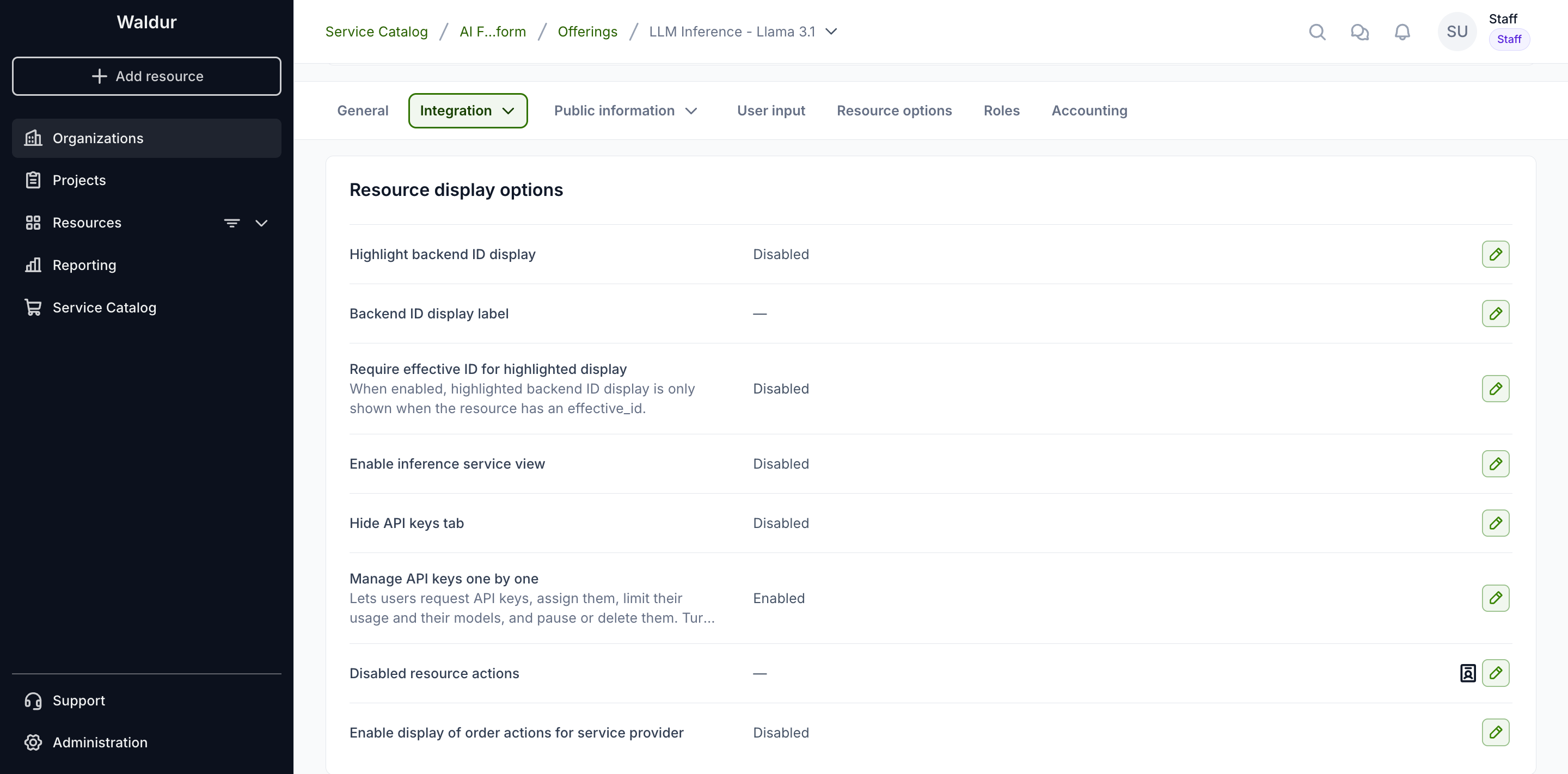
- Manage API keys one by one turns on everything above apart from revealing, rotating and resuming: requesting keys, assignees, limits, model restrictions, pausing and deleting. It is available on site-agent offerings. Turn it on only if the backend behind the site agent supports per-key management, such as the Envoy AI Gateway. Other backends, such as Ceph S3, fail those actions. With it on, new resources start with no keys instead of two shared ones; existing resources keep theirs.
- Hide API keys tab removes the tab from the offering's resources.
The models offered in the key dialogs are the choices of the offering's
models resource option, narrowed to the resource's own selection. Without
that option, the key dialogs show no model list and every requested key may
call every model. All models on a resource is a setting of its own, not a
choice: an offering that lists an "All models" entry among its model choices
should drop it, and resources that had it selected should be switched to
All models by hand.
A models option that allows several choices offers All models on any
offering, and new resources start on it, so turning on Manage API keys one by
one later finds them on every model. A single-choice models option has no
All models and does not narrow the keys.
Removing a model from the option's choices retires it: every key restricted to named models that included it is updated at the backend without it. A key on All models, on a resource on All models, is not restricted by name, so it can still call a retired model as long as the backend serves it — and on a backend that cannot restrict keys at all, such as the Envoy AI Gateway, every key can. Remove a retired model from the backend as well.
Warning
Without Manage API keys one by one, consumers can only reveal and rotate keys, and resume keys that were paused earlier. Per-key usage is not recorded, so limits are no longer enforced, but a key keeps its assignee: only that person can still reveal it. Project managers and organization owners can share such a key with the project again with Unassign.