Order management
When a customer requests a resource from your offering, an order is created and moves through a fixed state machine — see Order states for the full diagram and the numeric state codes used by the API.
Managing orders
As a service provider (organization owner, offering owner, or offering manager), you can manage orders for your offerings from the Provider dashboard under the Orders section.
Approving and rejecting orders
When an order is in Pending provider state, you can:
- Approve the order to start resource provisioning
- Reject the order with a reason that will be communicated to the customer
Marking orders as done
For offerings that are managed manually (Basic and SLURM offerings), you can mark an executing order as Done once the resource has been provisioned on the backend.
Retrying erred orders
When an order fails during processing, it enters the Erred state. If the failure was caused by a transient issue (e.g., temporary backend unavailability, network timeout), authorized users can retry the order instead of asking the customer to create a new one.
Who can retry
- Platform staff
- Organization owners of the service provider
- Offering managers
How to retry
-
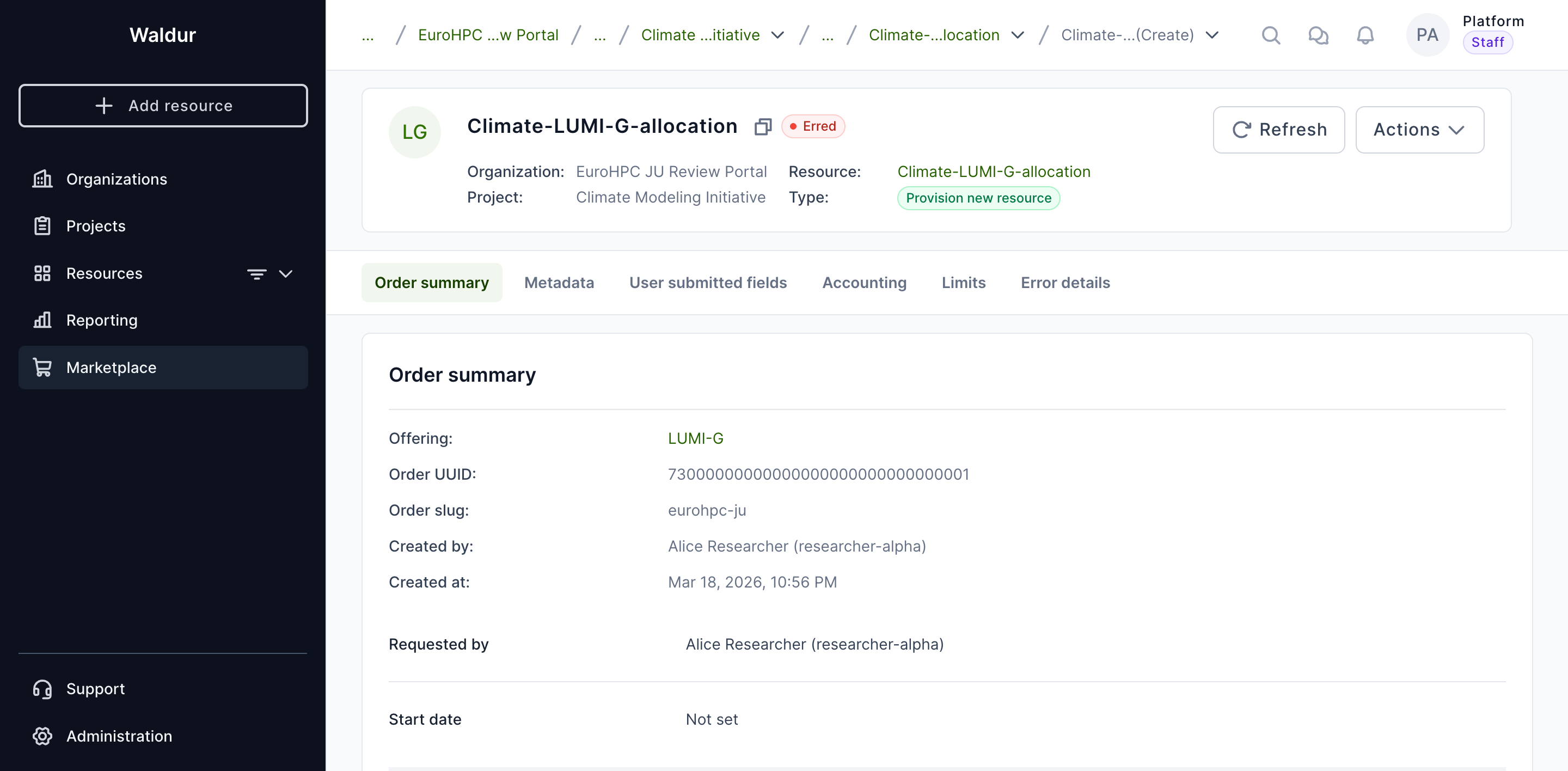
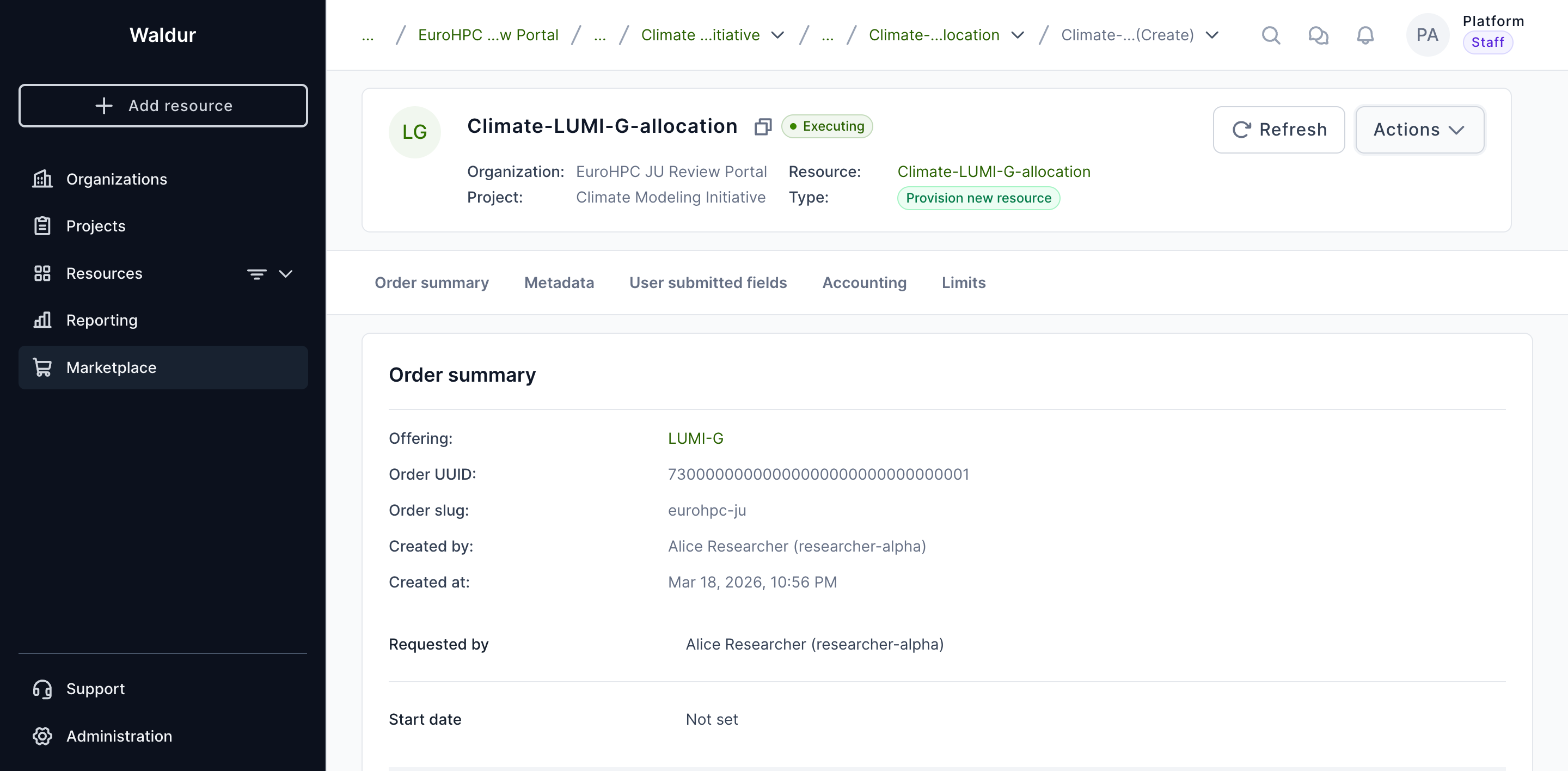
Navigate to the order details page. The order state will show as Erred with an error message describing what went wrong.
-
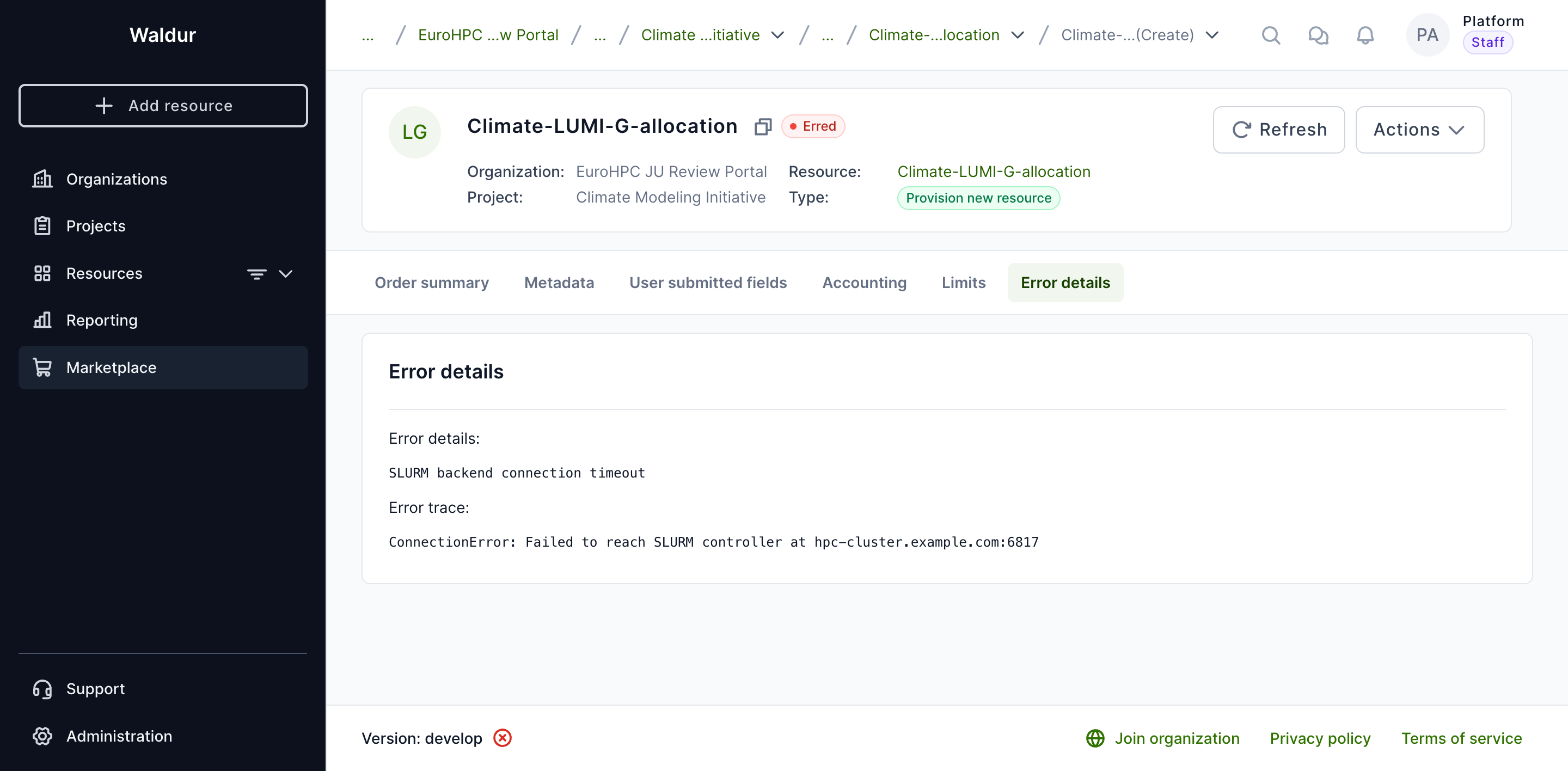
Click the Error details tab to review what went wrong before retrying.
-
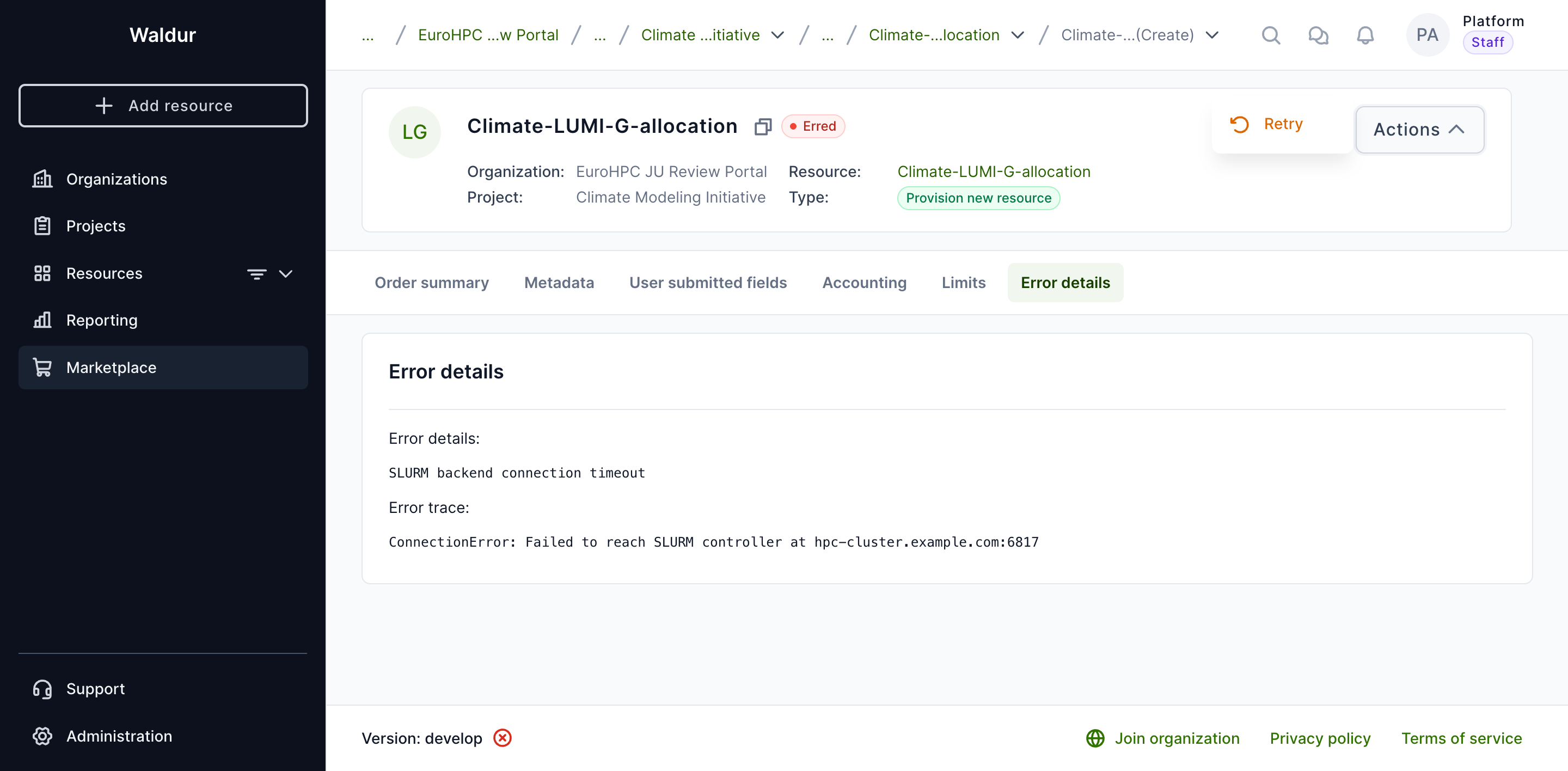
Click the Actions dropdown button and select Retry.
-
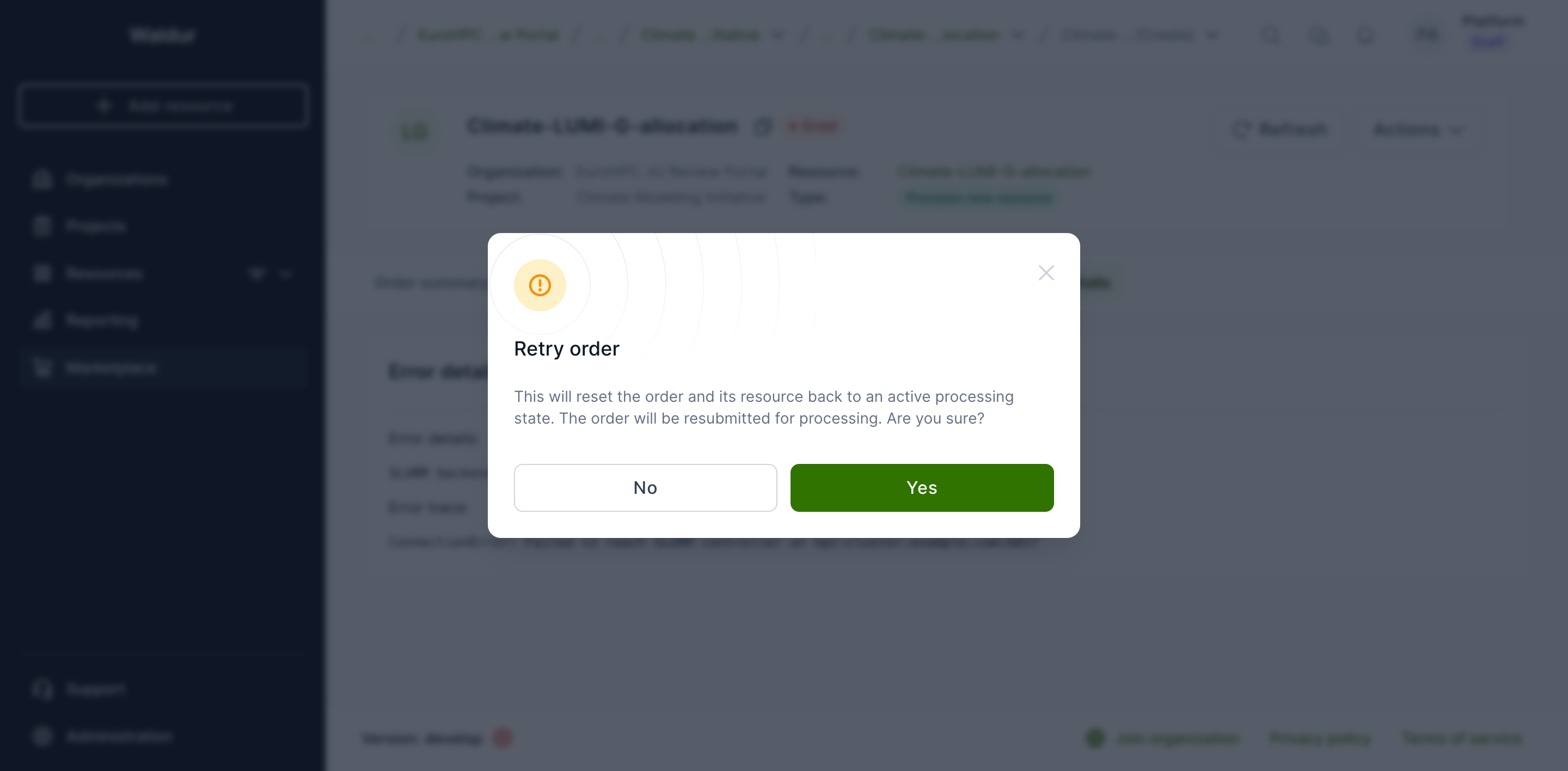
A confirmation dialog will appear explaining that the order and its resource will be reset to an active processing state. Click Yes to confirm.
-
After confirming, the order transitions back to Executing and a success notification appears.
Warning
Retrying an order clears the previous error message and traceback. If you need to preserve error details for investigation, note them down before retrying.
Note
Retry is currently supported for Basic and SLURM (site agent) offering types. Other offering types do not support this action.
What happens during retry
| Order type | Resource state after retry |
|---|---|
| Create | Creating |
| Update | Updating |
| Terminate | Terminating |
The order's error message, error traceback, and completion timestamp are cleared. The order is then resubmitted for processing through the normal provisioning pipeline.
Being told about new orders
An offering can nominate who is emailed when it receives an order. Two fields on the offering's Edit → Integration → Resource lifecycle tab carry the list: Notify roles about new orders, whose holders are resolved on the provider organization and on the offering itself, and Notify addresses about new orders, for provider-side mailboxes that do not belong to a Waldur user. Both are capped, and only users who can manage the offering's integration settings see them.
The notification is sent once the consumer side has cleared the order: when the consumer approves an order that needed their approval, or straight away for an order that needs none. Provider approval is not awaited, so you hear about the order before you accept it. Orders nobody placed are never announced — the termination sweep of a cost policy, an order mirroring activity in a remote Waldur, and a proposal's provisioning among them.
Users who turned notifications off in their own profile are skipped; an address on the second list is notified even when a Waldur user with the same address has them off.
Cancelling an order
An order that has been submitted but is still in flight can be cancelled before it completes. Cancellation aborts the order and, for Terminate orders, restores the affected resource to the OK state via the cancellation callback.
Who can cancel
- Platform staff
- Organization owners and project managers of the consumer (project / project.customer scope)
When the Cancel action is available
| Condition | Required value |
|---|---|
| Offering type | Basic or Support |
| Order state | Pending consumer, Pending provider, Pending start date, or Executing |
For other offering types (OpenStack, SLURM, Rancher, Script, Remote), the order-level cancel action is not exposed — see Recovering a resource stuck in Terminating below.
How to cancel
- Open the order details page from the resource, the orders list, or the confirmation drawer.
-
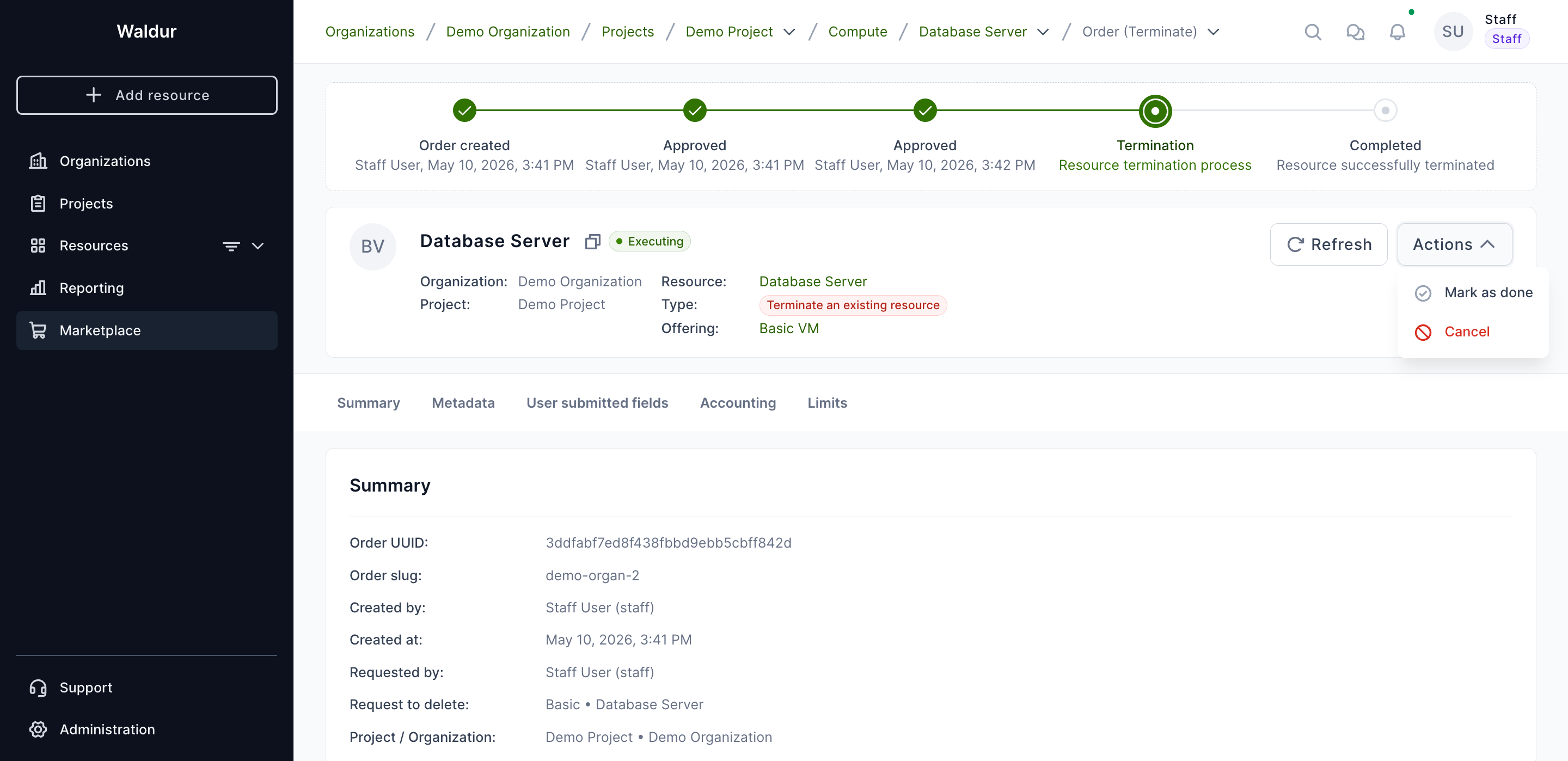
Click the Actions dropdown and select Cancel.
-
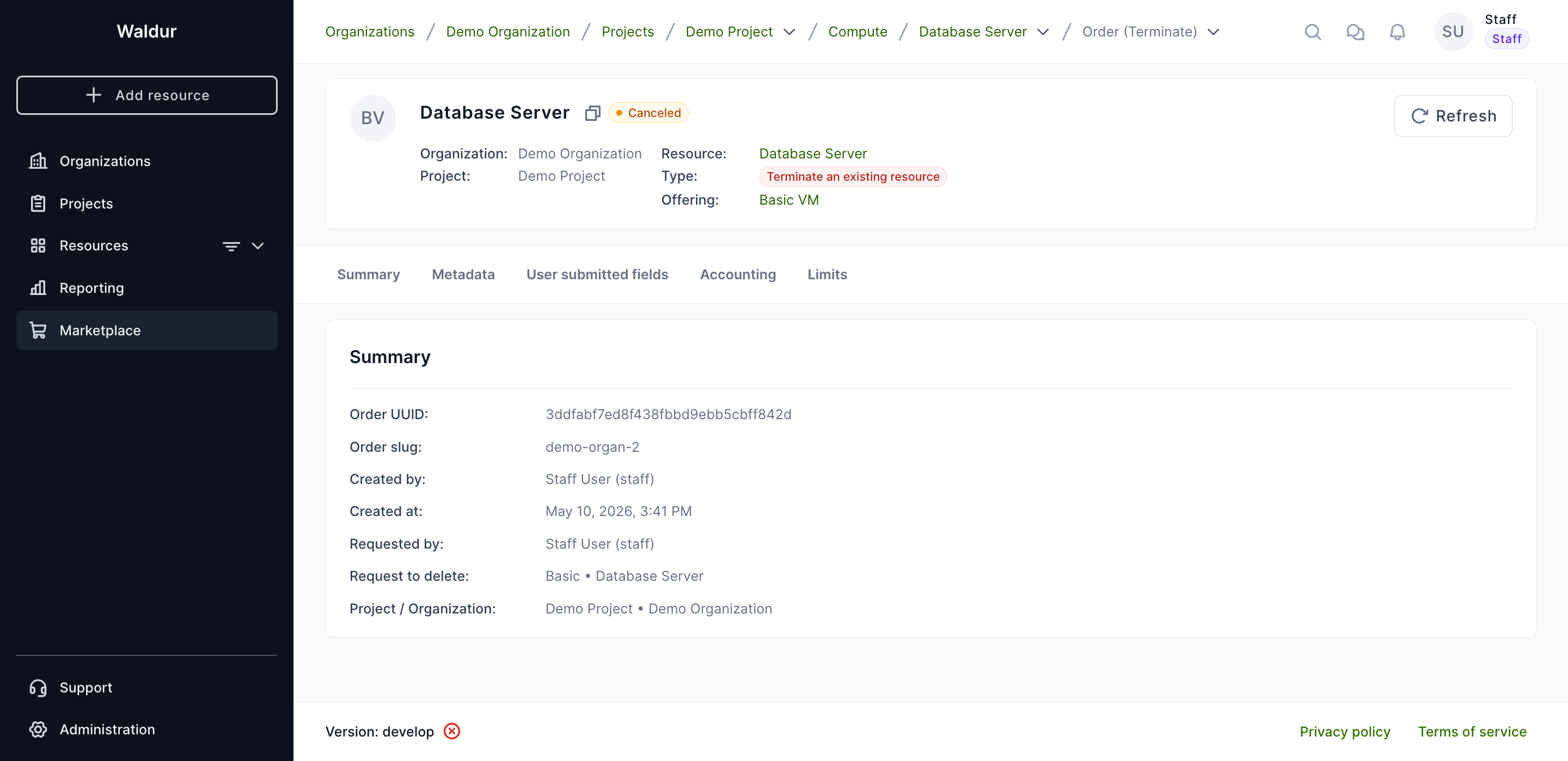
The order is cancelled immediately and a Order has been canceled. notification is shown. The order state becomes Canceled.
Note
Cancelling a Terminate order automatically returns the underlying resource to the OK state. No manual recovery step is needed.
Cancelling a Terminate order on a Remote offering
For Remote (federated) offerings, a separate staff-only action is exposed in the orders table on the resource page. It is visible only when:
- The user is platform staff.
- The order type is Terminate.
- The order is in Executing state.
The action calls the remote Waldur instance to abort the in-progress termination.
Recovering a resource stuck in Terminating
If a backend never confirms a termination (provider system unreachable, site agent offline, processor crash), the marketplace resource can remain in the Terminating state indefinitely. Service-provider users have two recovery actions on the resource detail page.
What you see
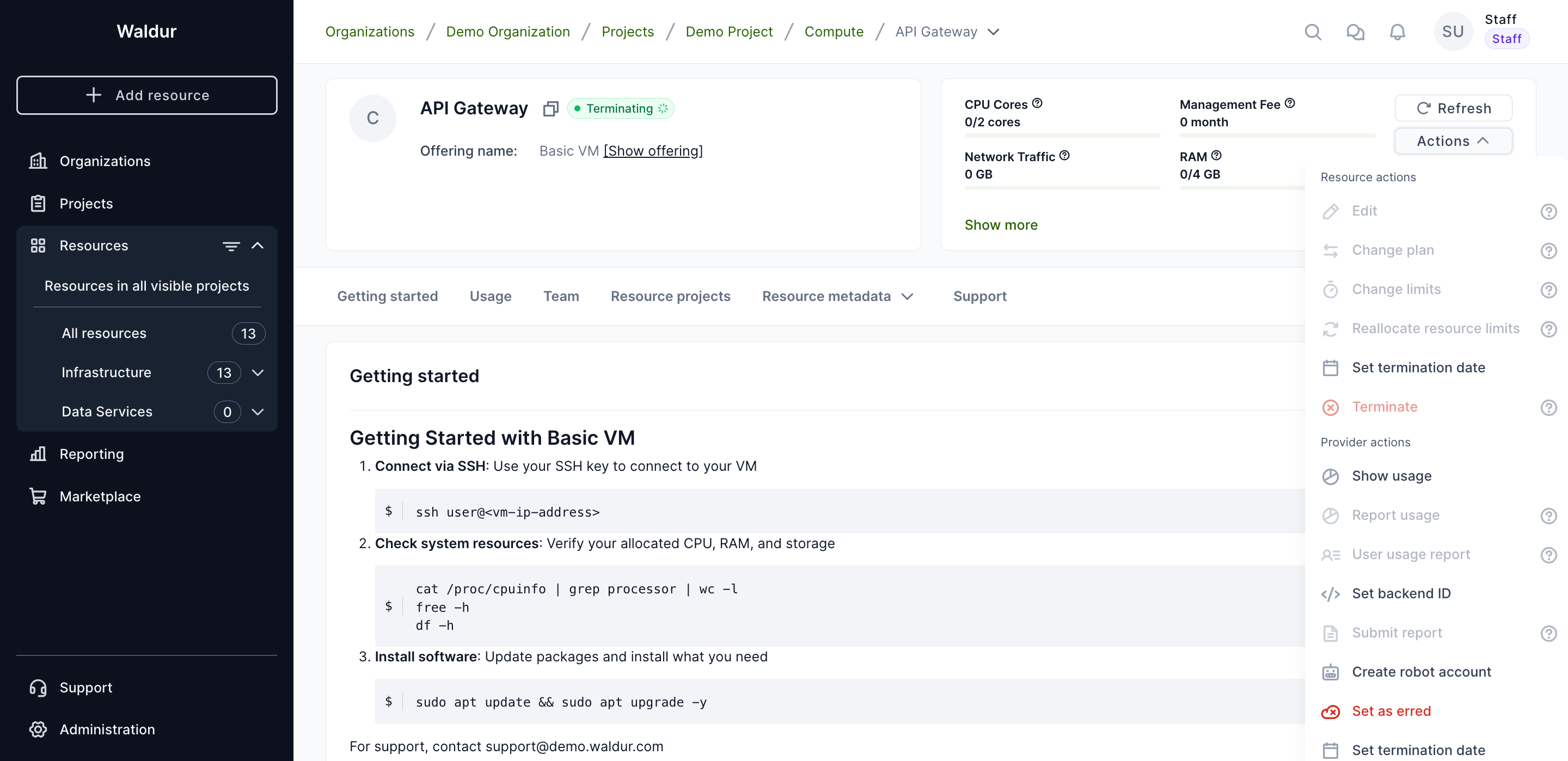
Open the resource details page and click Actions. For a resource in Terminating state, the Provider actions section exposes Set as erred. The standard Resource actions (Edit, Terminate, ...) are still listed but most operations cannot be re-issued until the resource leaves the Terminating state.
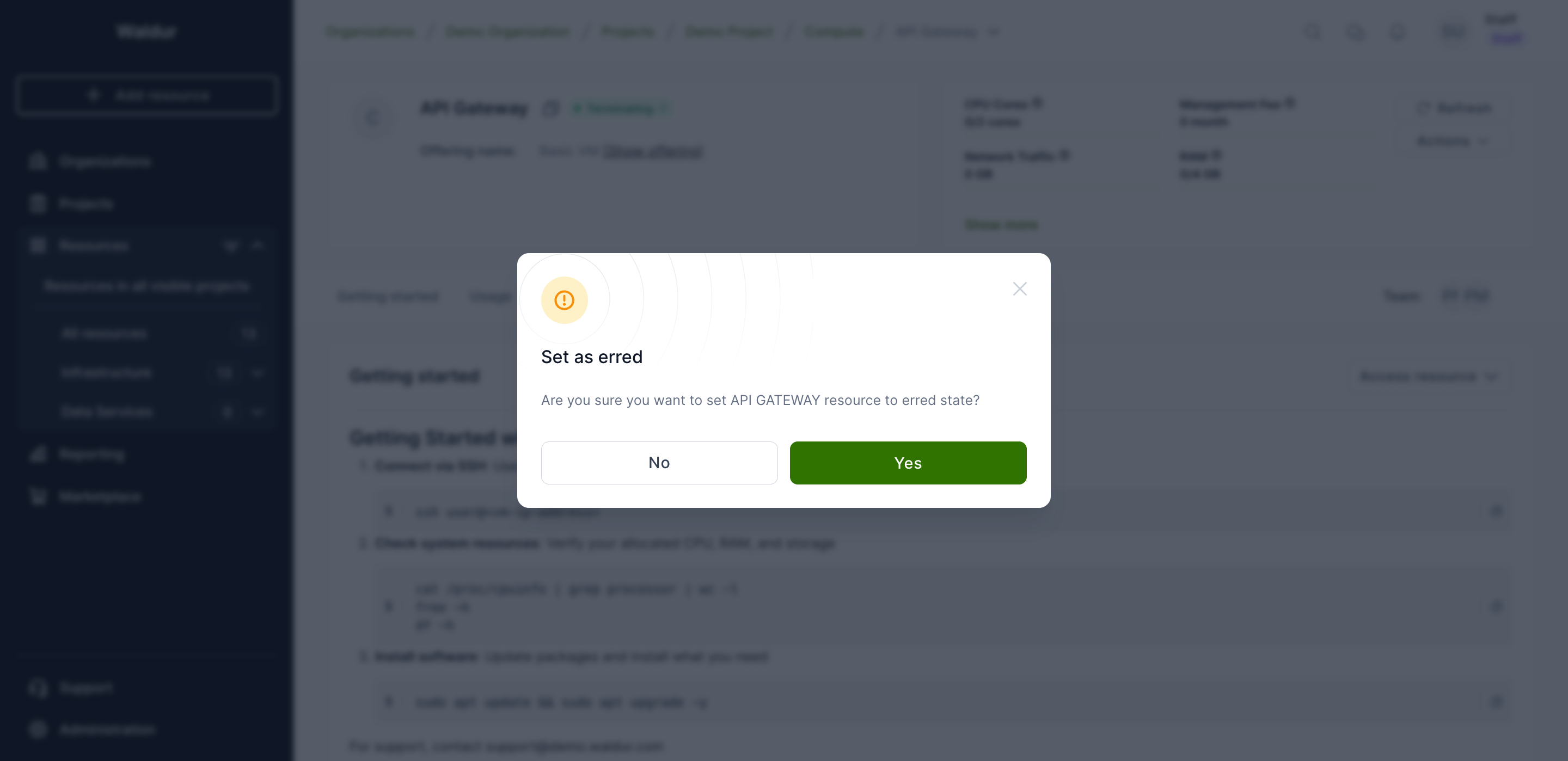
Set as erred
Use this when the underlying backend operation has failed and the consumer should see a clear error.
- Click Actions → Set as erred in the Provider actions section.
-
Confirm the dialog.
-
The resource transitions to Erred. The associated terminate order remains in its current state — review and reconcile it manually if needed.
Warning
"Set as erred" is a state override, not a backend operation. The resource still exists on the provider side if the original termination request did not actually run. Verify the backend before declaring the resource removed.
Marking the resource OK from API
The backend also accepts a direct set state OK call (POST /api/marketplace-resources/{uuid}/set_state_ok/) which transitions the resource from Terminating back to OK. This endpoint is currently exposed in HomePort only on legacy OpenStack-native detail pages — for marketplace resources of other types, staff need to call the API directly:
1 2 3 | |
The caller must hold the SET_RESOURCE_STATE permission on the offering's customer (service-provider scope) or be platform staff.
Force destroy (staff escape hatch)
When a Terminate order has already been retried and the backend cannot confirm deletion, platform staff can submit a Terminate order with attributes.action="force_destroy". On processor failure the resource jumps directly to Terminated instead of Erred, and any provider-side cleanup is skipped. There is no UI for this — it is API-only:
1 2 3 4 5 | |
Danger
force_destroy bypasses backend cleanup. Use only when the resource is known to be already gone on the provider side and Waldur has been left with stale state.
Cancellation paths by offering type
The table below summarises which recovery action is exposed in HomePort for each offering type when a resource is stuck in Terminating.
| Offering type | Cancel order (consumer) | Cancel termination (staff) | Set as erred (provider) | Set state OK |
|---|---|---|---|---|
| Basic | Yes | — | Yes | API only |
| Support | Yes | — | Yes | API only |
| Remote | — | Yes (staff) | Yes | API only |
| OpenStack | — | — | Yes | API only |
| SLURM | — | — | Yes | API only |
| Rancher | — | — | Yes | API only |
| Script | — | — | Yes | API only |