Call management
This guide walks you through the entire lifecycle of call management in Waldur, from setup to final resource allocation. It is structured in a step-by-step format to help each stakeholder understand their responsibilities in the process.
Detailed process guide
Step 1: Organization setup
Performed by: Organization owner
-
Verify organization type:
- Navigate to your organization's profile settings
- Confirm your organization is registered as a Call managing organization
- If not, contact your Waldur administrator to update your organization type
-
Review available offerings:
- Check that there are marketplace offerings available to be requested in calls
- These offerings will form the resource pool available for allocation
-
Assign Call organisers:
- Go to the Team section of your organization
- Click on the Add member button
- Search for users to assign as Call organisers
- Select the Call organiser role from the dropdown menu
- Click Add to confirm the assignment
Step 2: Call creation
Performed by: Call organiser or Organization owner
- Navigate to the Call management section, in the organisation dashboard.
- Go to the Calls section, to click "Create call".
- Fill in the following details:
- Call title
- Description and documentation
- Submission guidelines
- Assign call manager to the call
Step 3: Configure call rounds
Performed by: Call manager
- Create a Round within the call.
- Configure the round settings:
- Start and cutoff dates (or a start date with a repeat cadence to create several rounds at once)
- Review duration (in days)
- Allocation date, when the call allocates on a fixed date
- Save the round.
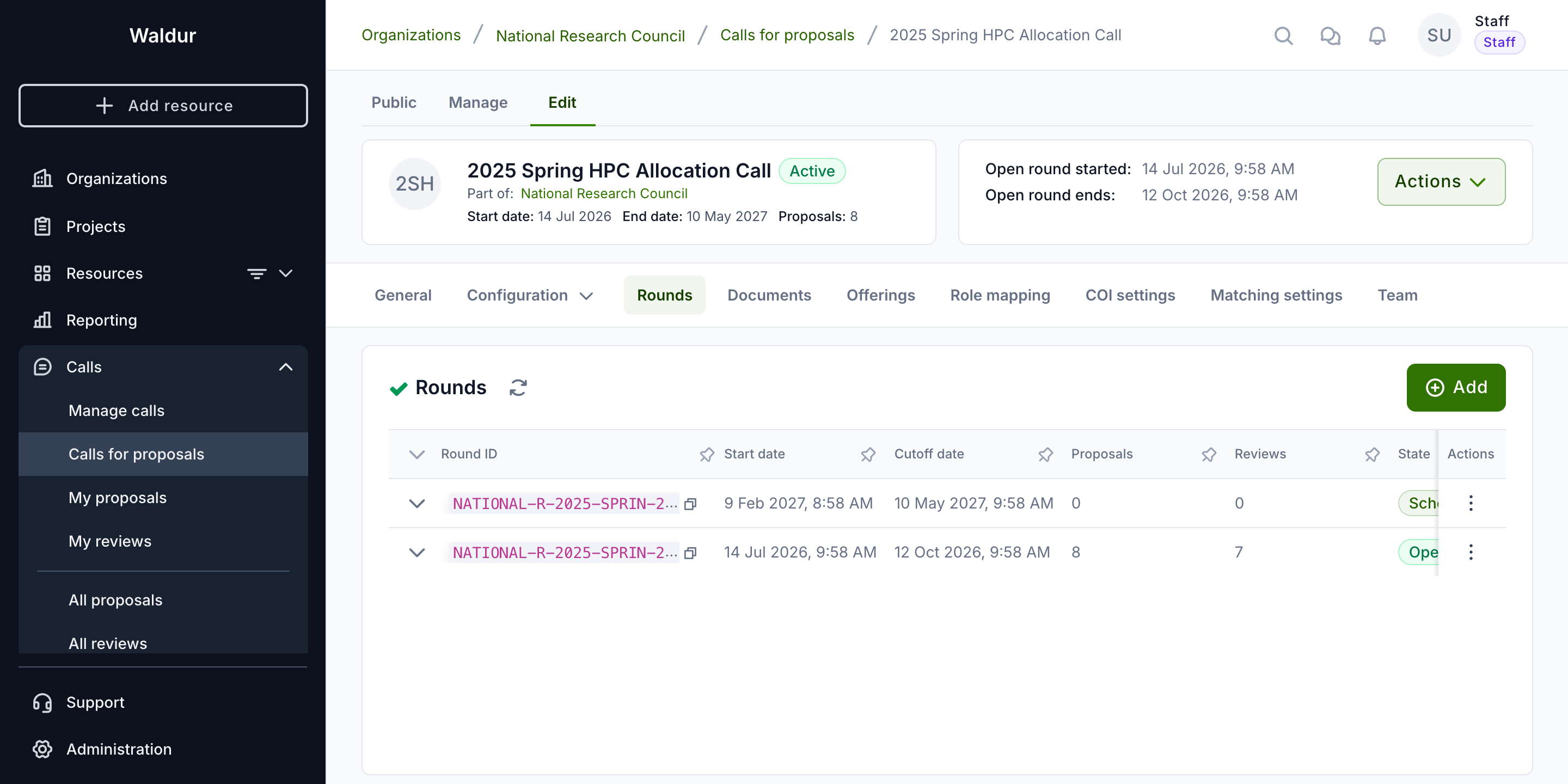
A round only schedules submission, review and allocation. How many reviewers a proposal needs, the minimum score, who decides and when resources are allocated are set on the call's workflow steps.
A round can only be deleted while it has no proposals at all, in any state — drafts, and rejected or cancelled proposals, included. Deleting a round would delete its proposals with it, and a rejection or a cancelled draft is an outcome of the round that stays on record. The Delete action is disabled with that reason on such a round.
After the cut-off a round moves through its own lifecycle — evaluating, deciding, results published, closed — described under Round lifecycle after the cut-off.
Drafts at the cut-off
A proposal left in Draft when its round's cut-off passes has no submitted content to evaluate. By default it is not cancelled: it moves on to the call's next round, keeping its sections and answers, and its creator is emailed to say which round it now belongs to and when that round's deadline is. Nothing is submitted on the applicant's behalf — the proposal stays a draft until they submit it themselves.
Two things end this:
- No later round. If the round that closed is the call's last one, the draft is cancelled; there is nowhere for it to move on to.
- The setting is off. With Carry unsubmitted drafts over to the next round turned off under Configuration → General configuration, every draft left at the cut-off is cancelled, as Waldur did before the setting existed.
Only drafts carry over. A submitted proposal stays with the round it was submitted to, whatever its outcome.
When evaluation starts
Each call decides when a submitted proposal's evaluation starts:
- On submission (the default) — the first enabled workflow step starts as soon as the applicant submits.
- At the round cut-off — every proposal stays Submitted until its round's cutoff date, and the evaluation of all of them starts together after the cut-off, so a panel can assess a round's proposals as one batch. A background job checks for such proposals every hour, so they move to In review within about an hour of the cut-off.
Choose it with Evaluation starts under Configuration → General
configuration (the call's evaluation_start field in the API). It cannot be
changed while the call has proposals that are submitted or in review.
Step 4: Call configuration and activation
Performed by: Call manager
Before activating a call, the Call manager must configure all necessary settings:
Call configuration settings
1. General configuration
Under Configuration → General configuration, set the basic call parameters:
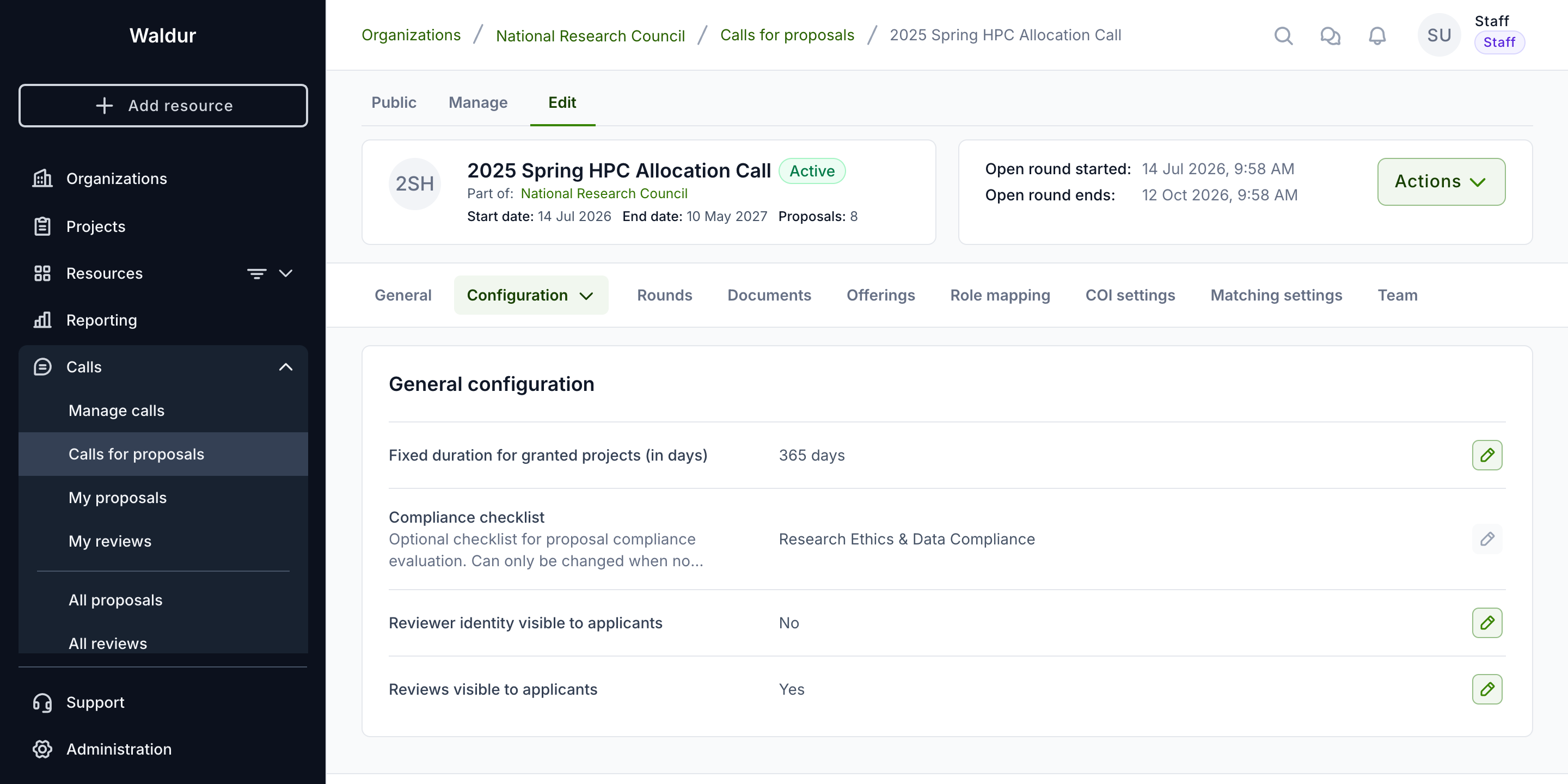
- Fixed duration for granted projects (in days): how long every granted project runs. When it is set, it decides the project's end date, and applicants can only choose subscription lengths that fit inside it. Applicants see the resulting length in the submission form; they are not asked for a duration. See How long a granted project runs.
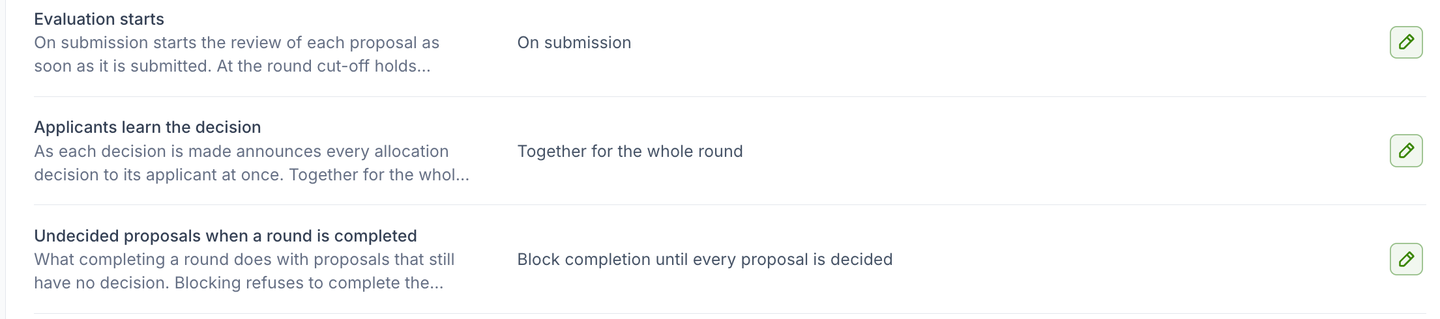
- Evaluation starts: On submission or At the round cut-off — when a submitted proposal's evaluation starts. It cannot be changed while the call has submitted or in-review proposals. See When evaluation starts.
- Applicants learn the decision: As each decision is made (the default) or Together for the whole round — whether each allocation decision is announced as soon as it is made, or held until a call manager publishes the round's results. It cannot be changed while the call holds decisions that have not been published. See Publishing a round's results.
- Undecided proposals when a round is completed: Block completion until every proposal is decided (the default) or Reject them automatically — what completing a round does with proposals that still have no decision. A round can override it. See Completing a round.
- Carry unsubmitted drafts over to the next round: on by default. A draft still open when its round's cut-off passes moves to the call's next round instead of being cancelled, and its creator is told which round it moved to and when the new deadline is. With it off the draft is cancelled at the cut-off, as are drafts left at the last round's cut-off either way. See Drafts at the cut-off.
- Compliance checklist: an optional checklist for proposal compliance evaluation. It can only be changed while the call has no proposals.
- Reviewer identity visible to applicants: whether applicants can see who is reviewing their proposals (Yes/No)
- Reviews visible to applicants: whether applicants can read the reviews and feedback (Yes/No)
How long a granted project runs
When a proposal is granted, the project's end date is decided in this order:
- The call's fixed duration, when it is set. The project ends that many days after it starts. Subscription lengths requested under the call are limited to fit inside it, and a resource never outlasts its project.
- The longest awarded subscription, when the call sets no fixed duration. The project lasts as long as the longest subscription in its awarded resources, which start as a copy of the resource requests.
- No end date, when the call sets no fixed duration and nothing requested is sold by the month. The project runs until someone sets an end date on it.
Awards that must expire
If every award from the call must end, set a fixed duration. Without one, a proposal that requests only resources not sold by the month creates a project with no end date.
Further sub-tabs sit alongside it under Configuration:
- Project details fields — what this call asks applicants for (see below)
- Applicant data visibility — which applicant data is exposed during evaluation
- Applicant eligibility — who may submit a proposal at all (see below)
- Resource templates — what applicants can request, and how many templates (see below)
1a. Project details fields
Under Configuration → Project details fields, choose what the Project details step asks the applicant for. Each field is one of:
| State | On the form | On submission |
|---|---|---|
| Required | shown, marked with a red asterisk | blocked while empty |
| Optional | shown | may be left empty |
| Not asked | not shown at all | — |
Name is always required and is not configurable: it identifies the
proposal and forms the last part of the awarded project's name — a granted
project is named <call reference or slug> - <round start date> - <proposal name>.
The project duration is not a field the applicant fills in either; it is derived
from the subscription lengths requested and the call's fixed duration, and shown
read-only. The configurable fields are Summary,
Description, Science domain and Supporting documentation.
Each row lists what the field feeds, so the cost of switching one off is visible before you do. Fields marked with a warning have a functional consumer — the summary and description are the text that automatic reviewer matching scores against reviewer profiles, so a call that does not collect them gets less accurate reviewer suggestions.
A field cannot be made required once the call has proposals. Drafts that were complete under the published form would silently stop being submittable, and nothing notifies the applicants who wrote them. Relaxing a field — making it optional, or not asking for it at all — stays possible at any time. To run a stricter round, duplicate the call: the copy starts in draft with no proposals, and its field configuration is carried over ready to tighten.
New calls start from the deployment defaults, which an administrator sets under
Proposal settings in the Constance configuration
(DEFAULT_PROPOSAL_REQUIRED_FIELDS, DEFAULT_PROPOSAL_HIDDEN_FIELDS). Those
defaults are applied when the call is created; changing them later never alters
a call that already exists.
1b. Applicant eligibility
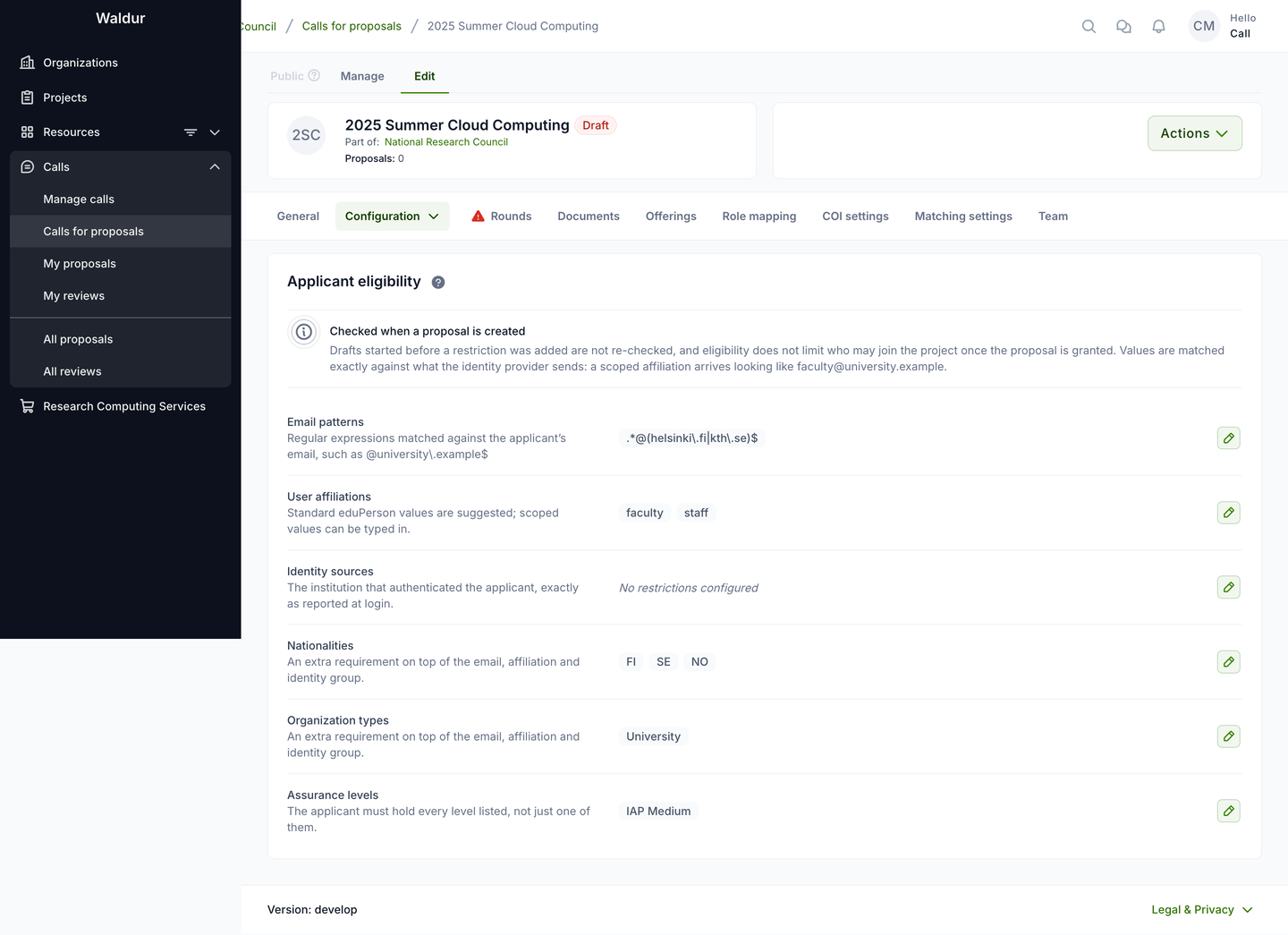
Under Configuration → Applicant eligibility, restrict who may submit a proposal to this call. Each row holds a list of values; a row left empty is not checked, and a call with every row empty is open to anyone who can sign in.
| Restriction | Matched against | Values |
|---|---|---|
| Email patterns | the applicant's email address | regular expressions, for example .*@(helsinki\.fi\|kth\.se)$ |
| User affiliations | the affiliations the identity provider asserts | standard eduPerson values are offered as suggestions; any other value can be typed in |
| Identity sources | the institution that authenticated the applicant, exactly as reported at login | free text — no suggestions, because the value comes from the applicant's home institution rather than from the providers this installation is configured with |
| Nationalities | the applicant's nationality or nationalities | picked from the country list, stored as ISO country codes |
| Organization types | the applicant's organization type | standard SCHAC values are offered as suggestions |
| Assurance levels | the assurance levels the identity provider asserts | standard REFEDS values are offered as suggestions |
Values are lists rather than one comma-separated box on purpose: a regular expression may itself contain a comma, and splitting on it would turn one working pattern into two that match nobody.
How the rows combine
This is the part worth reading twice, because the intuitive reading is the wrong one. The rows are not six independent requirements:
- Email patterns, user affiliations and identity sources form one group. An applicant who matches any one value in any one of those three rows passes the group. Listing both an affiliation and an email pattern therefore widens the call — it admits anyone matching either — rather than narrowing it to applicants who match both.
- Nationalities, organization types and assurance levels are each an extra requirement on top of that group. A configured row here must also be satisfied, so these do narrow the call.
- Assurance levels are stricter still: the applicant must hold every level listed, not just one of them.
The call in the screenshot above therefore admits an applicant who is either
faculty or staff, or has a helsinki.fi or kth.se address — and who,
in addition, holds a Finnish, Swedish or Norwegian nationality, comes from an
organization of type University, and carries the IAP Medium assurance level.
Warning
Combinations that match nobody are accepted without complaint. Restricting a call to an assurance level the identity providers in use never assert, or to an organization type nobody's home organization reports, produces a call that every applicant is turned away from. If applicants report being refused, check these rows first.
Entering values
Click the pencil on a row to edit it. Rows that have a standard vocabulary offer it as a list of suggestions — but the list is not closed, and typing a value that is not in it is deliberately allowed:
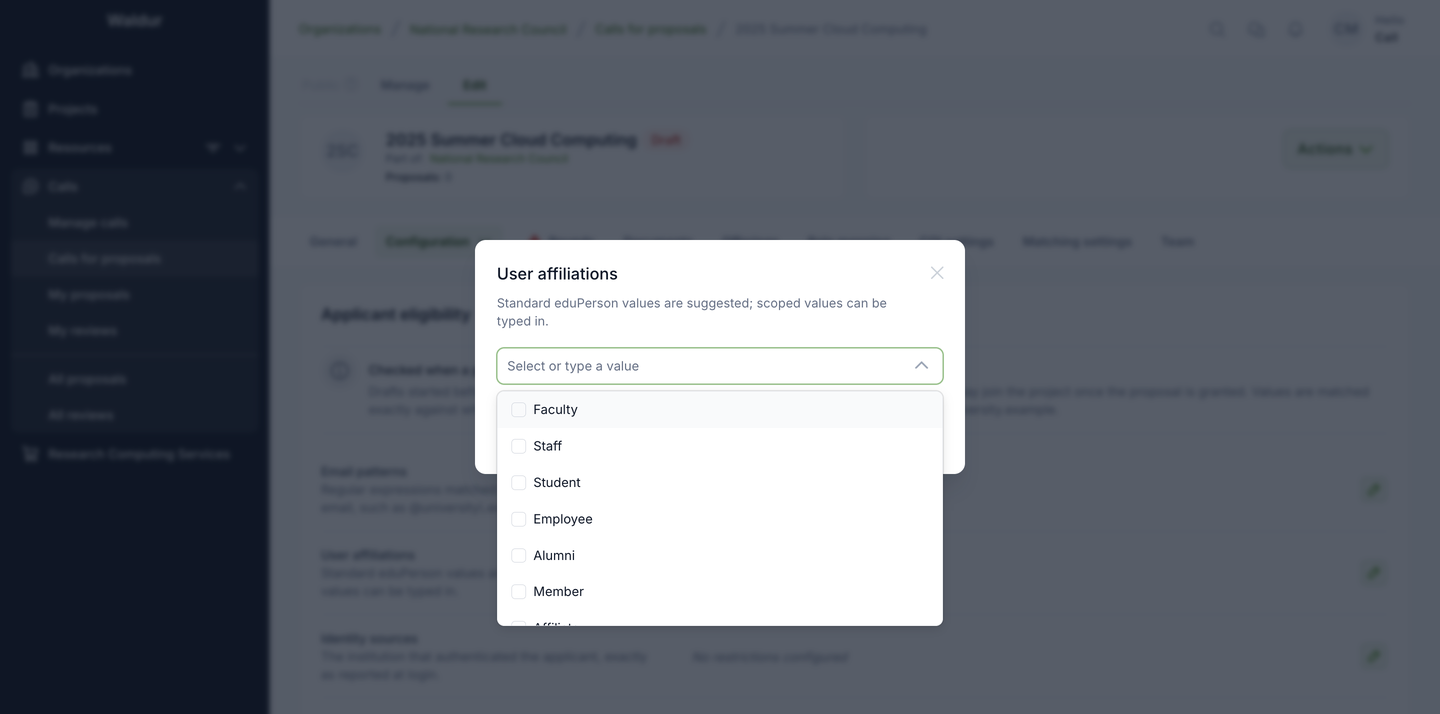
That matters most for affiliations. Identity providers routinely send scoped
values — faculty@university.example rather than plain faculty — and the
value is matched exactly, character for character, against what the provider
sends. If applicants who should qualify are refused, compare the stored value
with what actually arrives at login rather than assuming the plain form.
Note
Only attributes this installation collects get a row. A deployment that does
not collect nationality, for instance, does not show the Nationalities
row at all — an administrator controls this with
ENABLED_USER_PROFILE_ATTRIBUTES in the Constance configuration. A row that
already holds values stays visible even if its attribute is later switched
off, carrying a warning: the restriction keeps being enforced, so leaving it
in place behind a hidden row would turn every applicant away.
When eligibility is checked
Eligibility is checked when a proposal is created. Two consequences follow:
- A draft started before a restriction was added is not re-checked when it is submitted. Tightening a call that already has drafts does not retract them.
- Eligibility does not limit who may join the project once the proposal is granted. It gates who may apply, nothing further.
Applicants are not shown the restrictions themselves. A call that has any of them carries a warning in the call catalogue — This call restricts who may apply. Check the terms before submitting — and an applicant who does not qualify is refused when the proposal is created, with a message naming the restriction that failed. Spell the rules out in the call description or the external URL, so nobody writes a proposal they cannot submit.
1c. Resource templates
Under Configuration → Resource templates, define what applicants can request. A template names one of the call's offerings with a plan, its amounts (usage limits) and any preset attributes. Its attributes and subscription length are checked against the offering when you save it.
Once a call has a template, templates are the only way to request resources in it. Applicants cannot request an offering directly or change a template's amounts or attributes, and can request each template at most once. A proposal with a request that is not from a template, for example because its template was deleted, cannot be submitted until that request is replaced.
The Template selection card above the templates sets how many an applicant may choose:
| Applicants can request | On the applicant's form | Rule |
|---|---|---|
| Several templates (default) | a checkbox per template | any combination |
| One template | a radio button per template | exactly one, required to submit |
Use One template when the templates are alternatives, such as access tiers. It cannot be set while a draft proposal holds several requests.
Editing a template updates the requests made from it on draft proposals; submitted proposals keep their amounts.
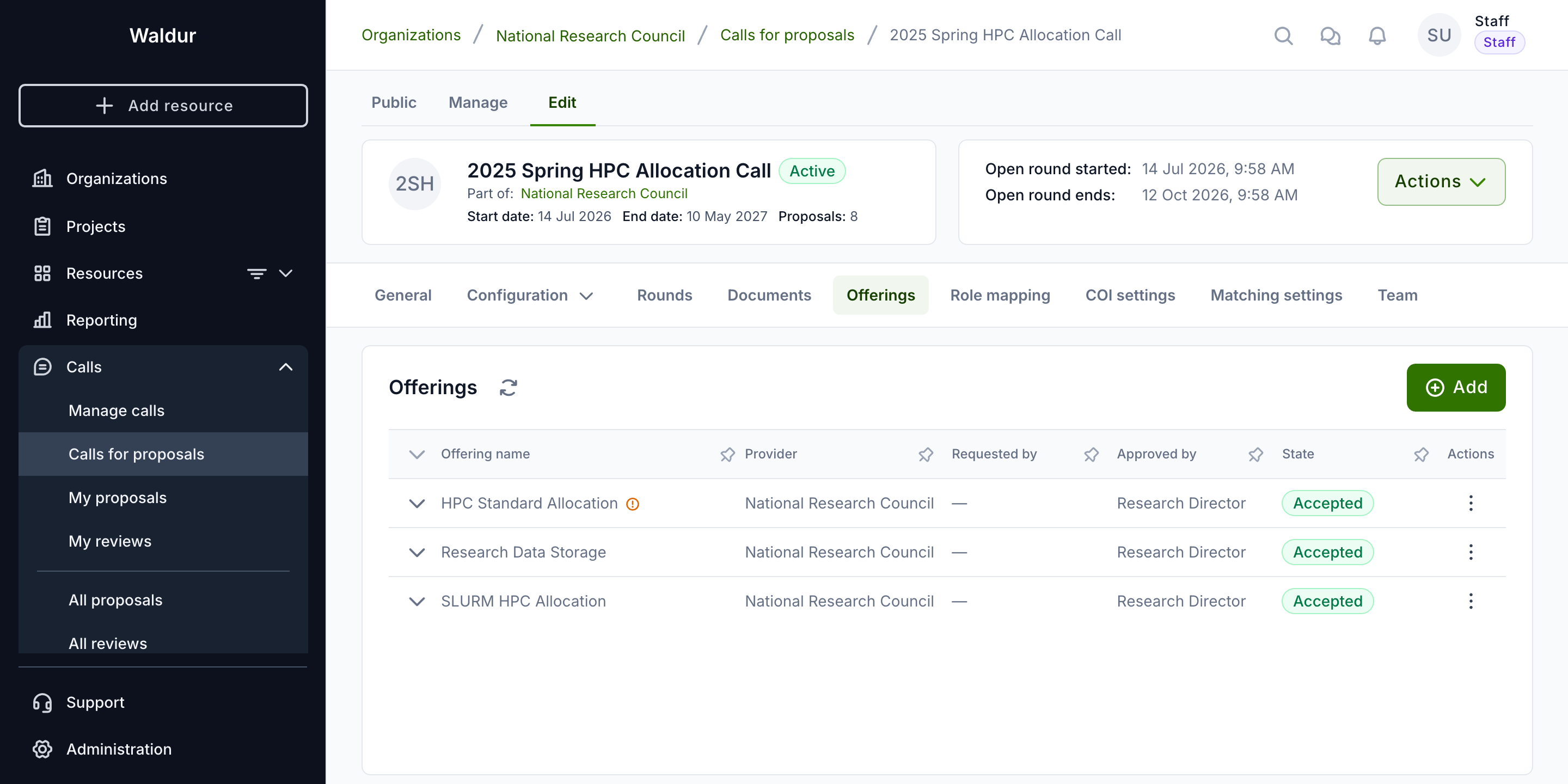
2. Offerings configuration
Define available resources:
- Add Offerings: Select which service provider offerings will be available for this call
- Ensure all required offerings have been approved by service providers
- Offerings that require a purchase order pass that requirement on to the call — see Purchase orders in calls
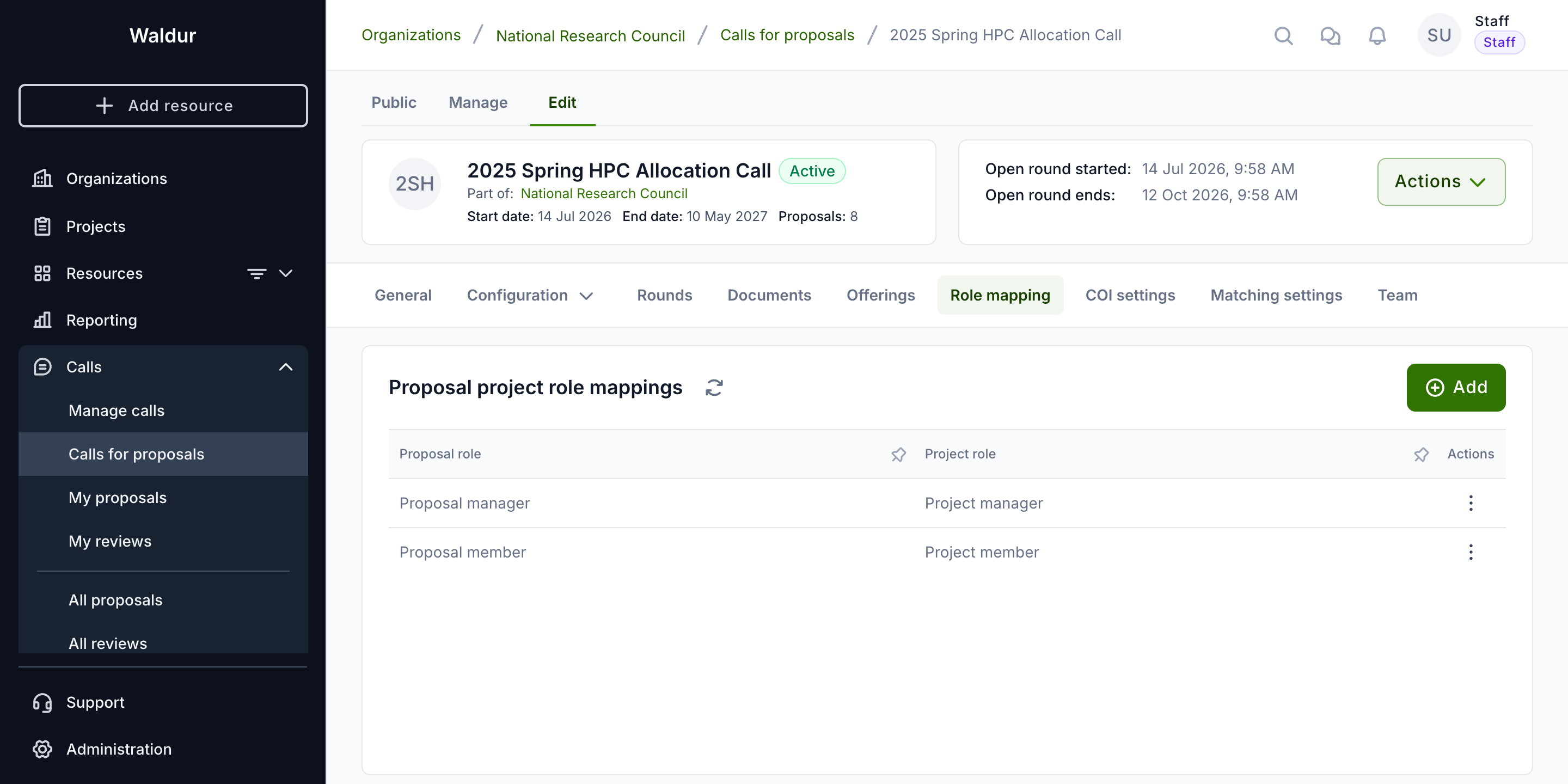
3. Role mapping
Configure project role assignments:
- Proposal project role mappings: Map each proposal role to corresponding project roles
- Each proposal role must be mapped to a project role to ensure proper access when projects are created
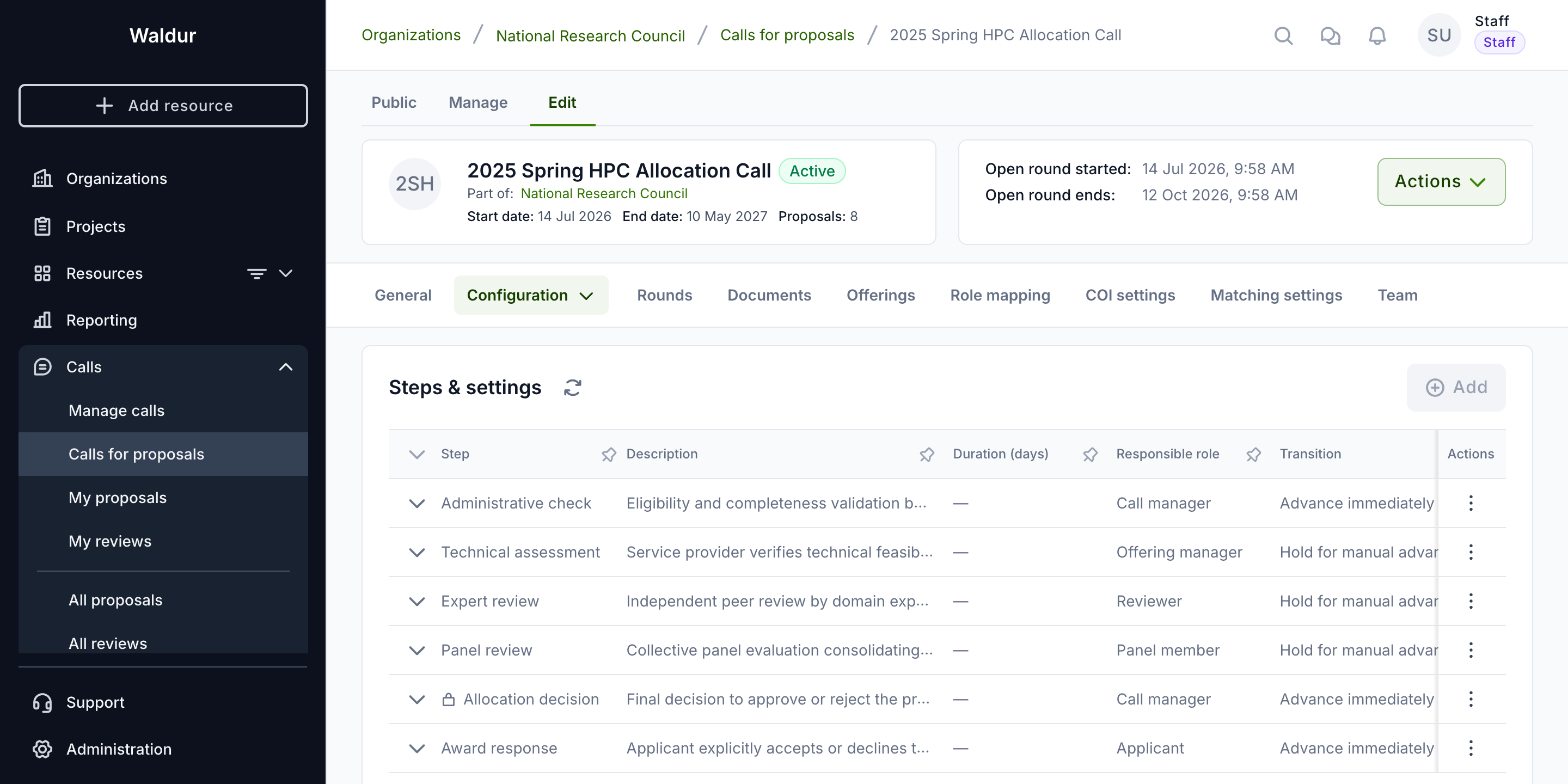
4. Workflow steps
Under Configuration → Steps & settings, configure the evaluation pipeline that submitted proposals progress through. See Workflow configuration for details.
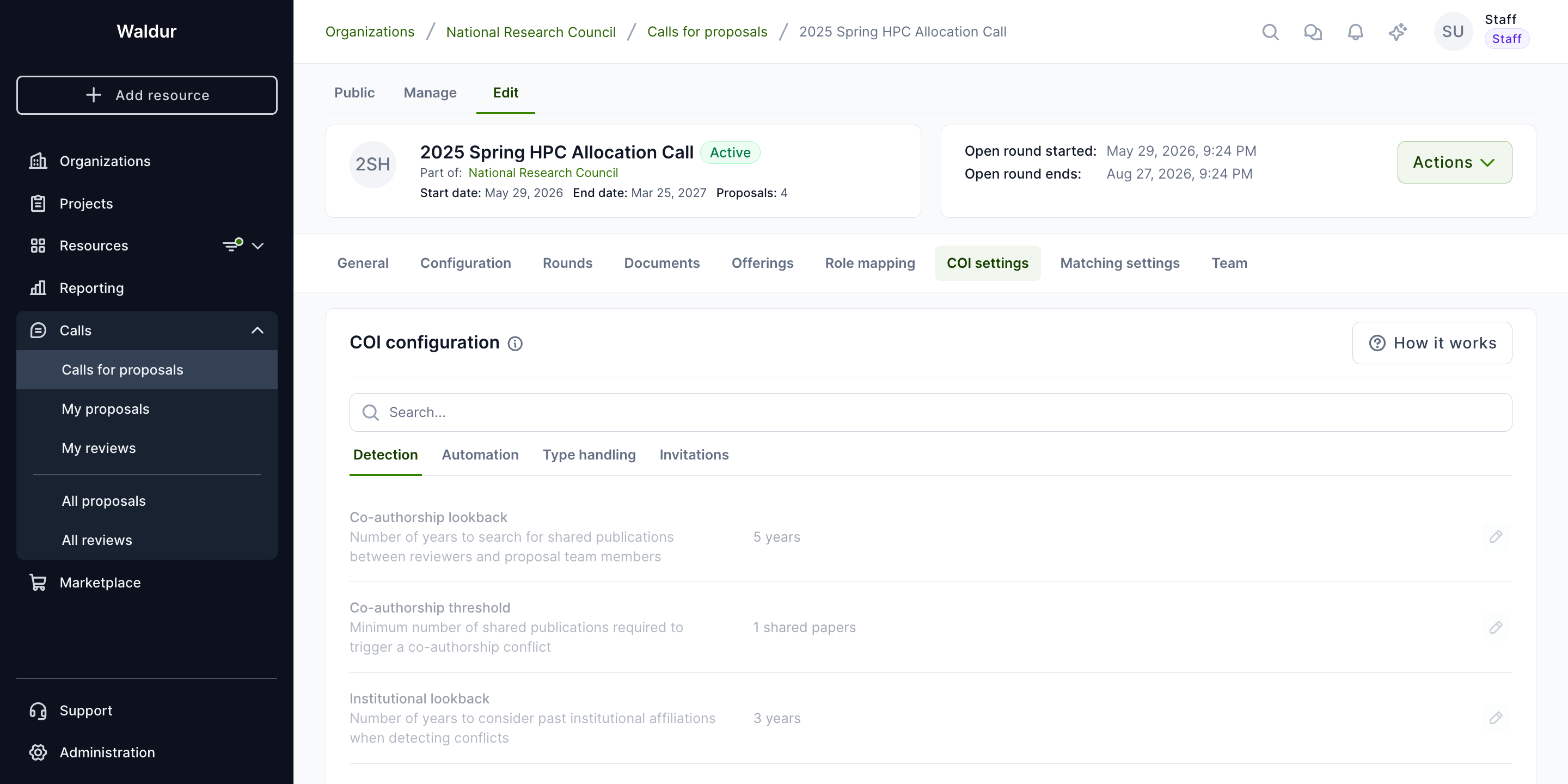
5. COI settings
Configure conflict of interest detection parameters. See Reviewer management for details.
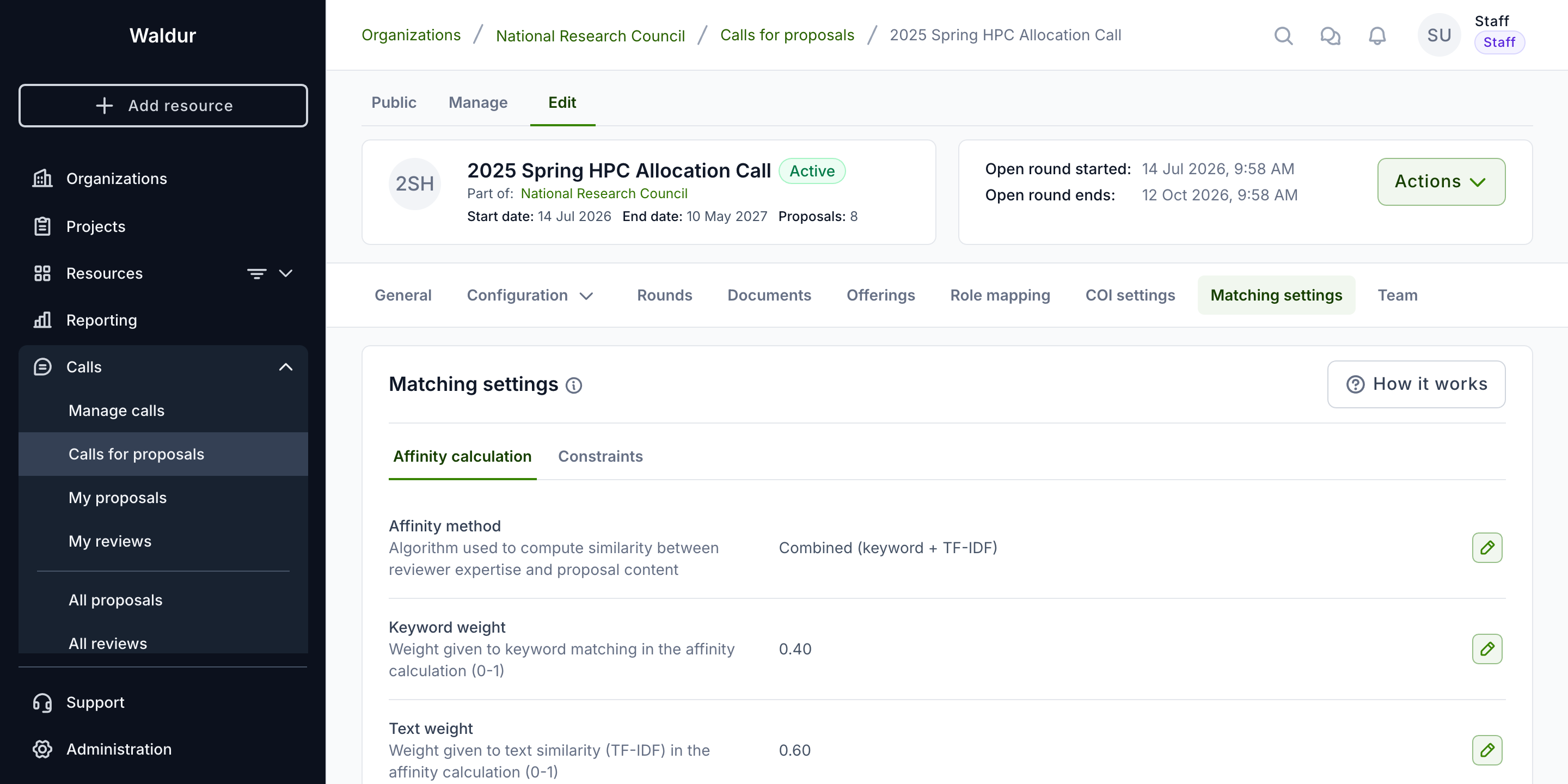
6. Matching settings
Configure the reviewer-proposal matching algorithm. See Reviewer management for details.
7. Call team
The Team tab assigns call managers and panel members to the call.
Note: The primary Call manager is added by the Call organiser during call creation.
Reviewers are not managed here — they are added to the call's reviewer pool on the call manage page. See Reviewer management.
Important: The round must be created and configured first. Only after round configuration is complete can the call be fully configured and activated.
Call activation process
Once all configurations are complete:
-
Review all configurations:
- Verify general settings are correct
- Confirm team assignments are complete
- Check that offerings are properly configured
- Ensure role mappings are defined
-
Activate the call:
- Click "Activate call" to open it for proposal submissions
- Once activated, the call becomes visible to potential applicants
- Applicants can now submit proposals during active rounds
Step 5: Submit proposal
Performed by: Call member (Applicant)
Applicants follow these steps to request resources through an active call:
-
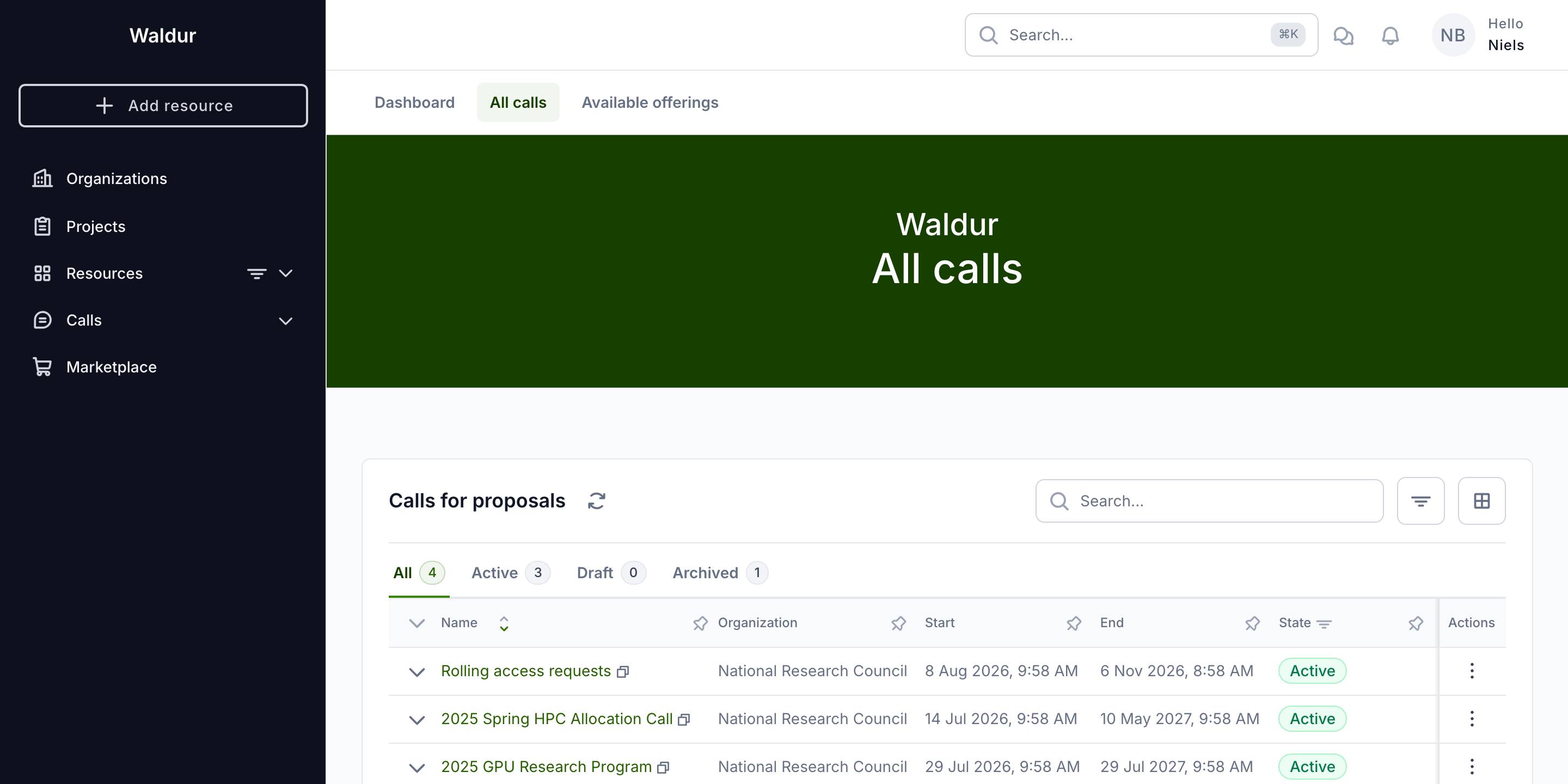
Navigate to the active call in the public calls listing.
-
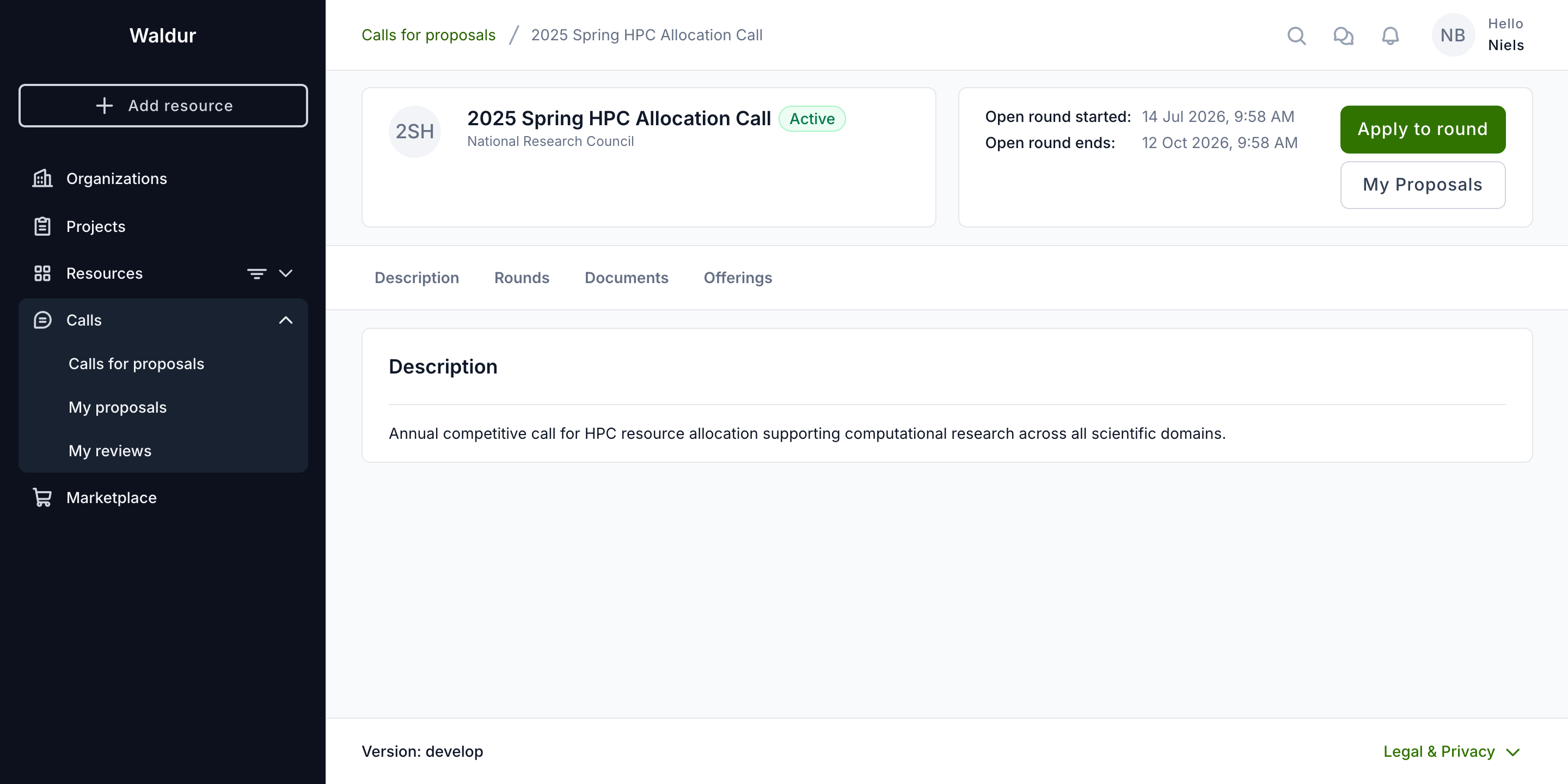
Click "Apply to round" on the call detail page.
-
Fill in the required fields.
- The project duration is not asked for. It is the call's fixed duration when the Call manager set one, otherwise the longest subscription chosen on the resource requests, and is shown read-only (see How long a granted project runs).
- Select required offerings and allocations.
- When the call has resource templates, applicants choose from them instead (see 1c. Resource templates).
- Add team members (optional).
- Upload required documentation.
- When an offering requires a purchase order, supply its reference or document on the resource request. The request can be saved without one, but the proposal cannot be submitted until it is there — see Purchase orders in calls.
- Submit the proposal.
Step 6: Review assignment and process
Building the reviewer pool
Performed by: Call manager
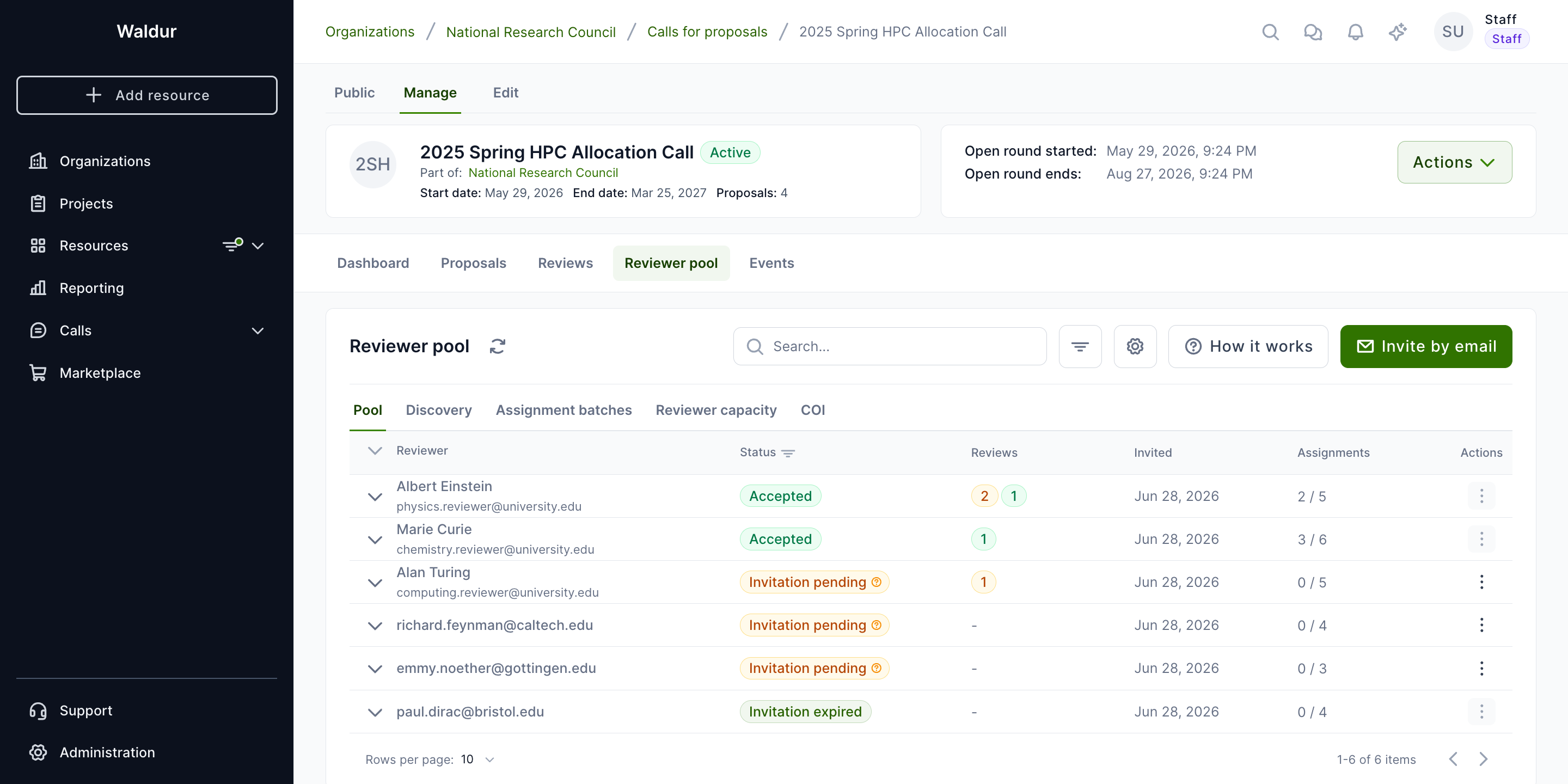
Before assigning reviews, the call manager builds a pool of qualified reviewers:
- Navigate to the call manage page and select the Reviewer pool tab
- Add reviewers by profile or email invitation
- Review the pool members with their acceptance status
Reviewer discovery and matching
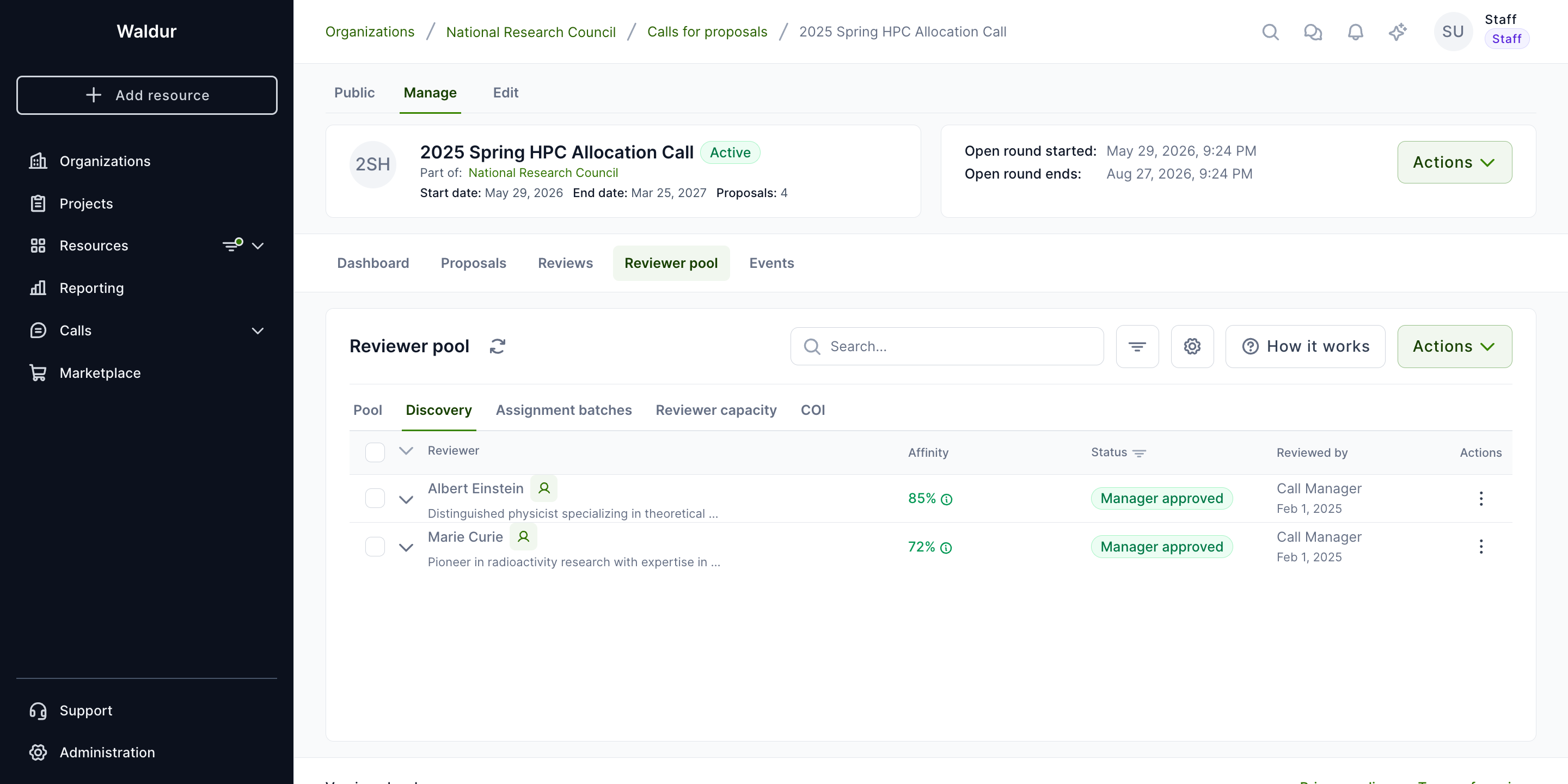
Use the Discovery tab to find reviewers using algorithmic matching:
- Click Generate Suggestions to run the matching algorithm
- Review suggestions with affinity scores
- Confirm or reject each suggestion
Managing conflicts of interest
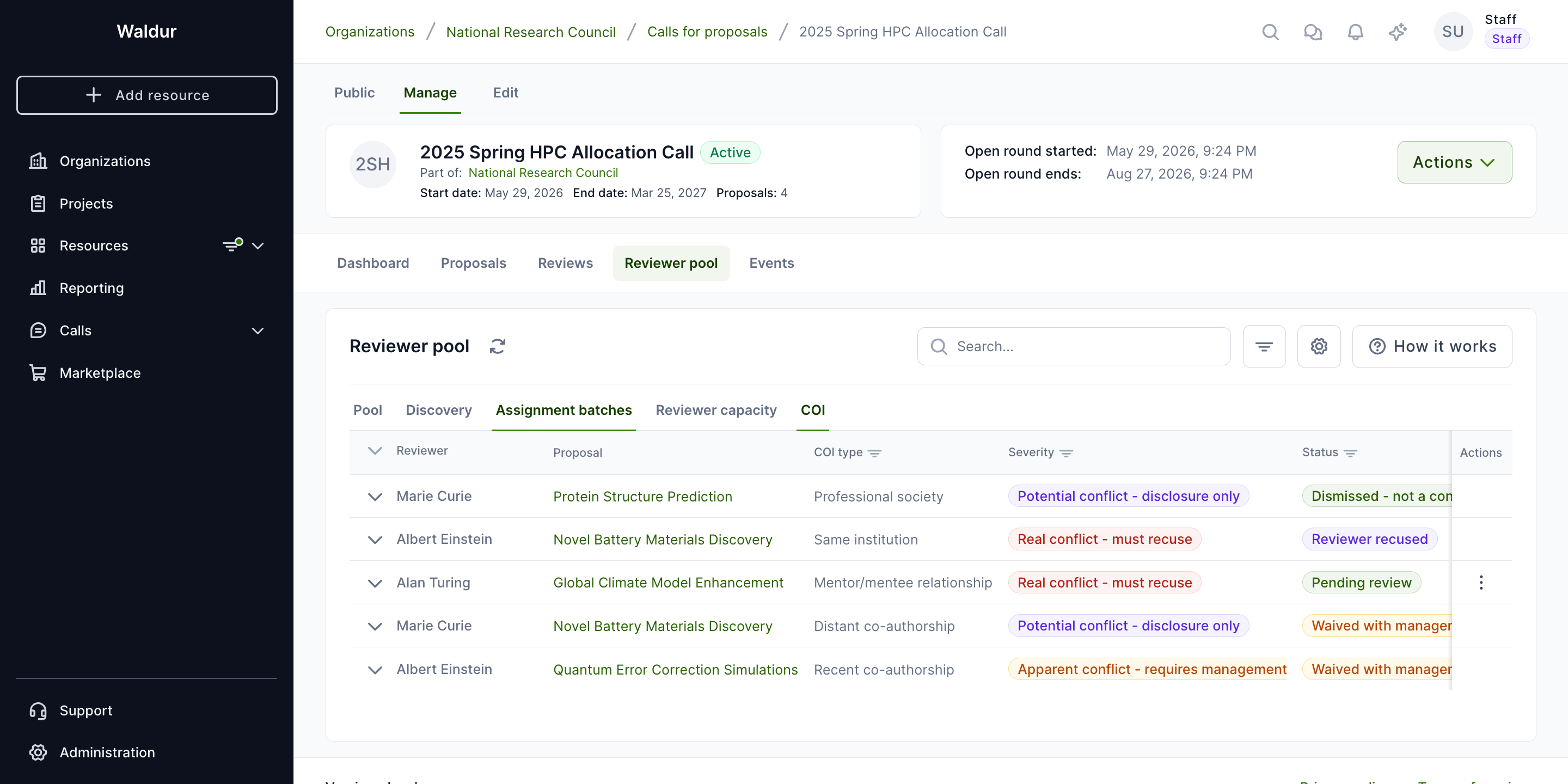
The COI tab shows detected conflicts between reviewers and proposals:
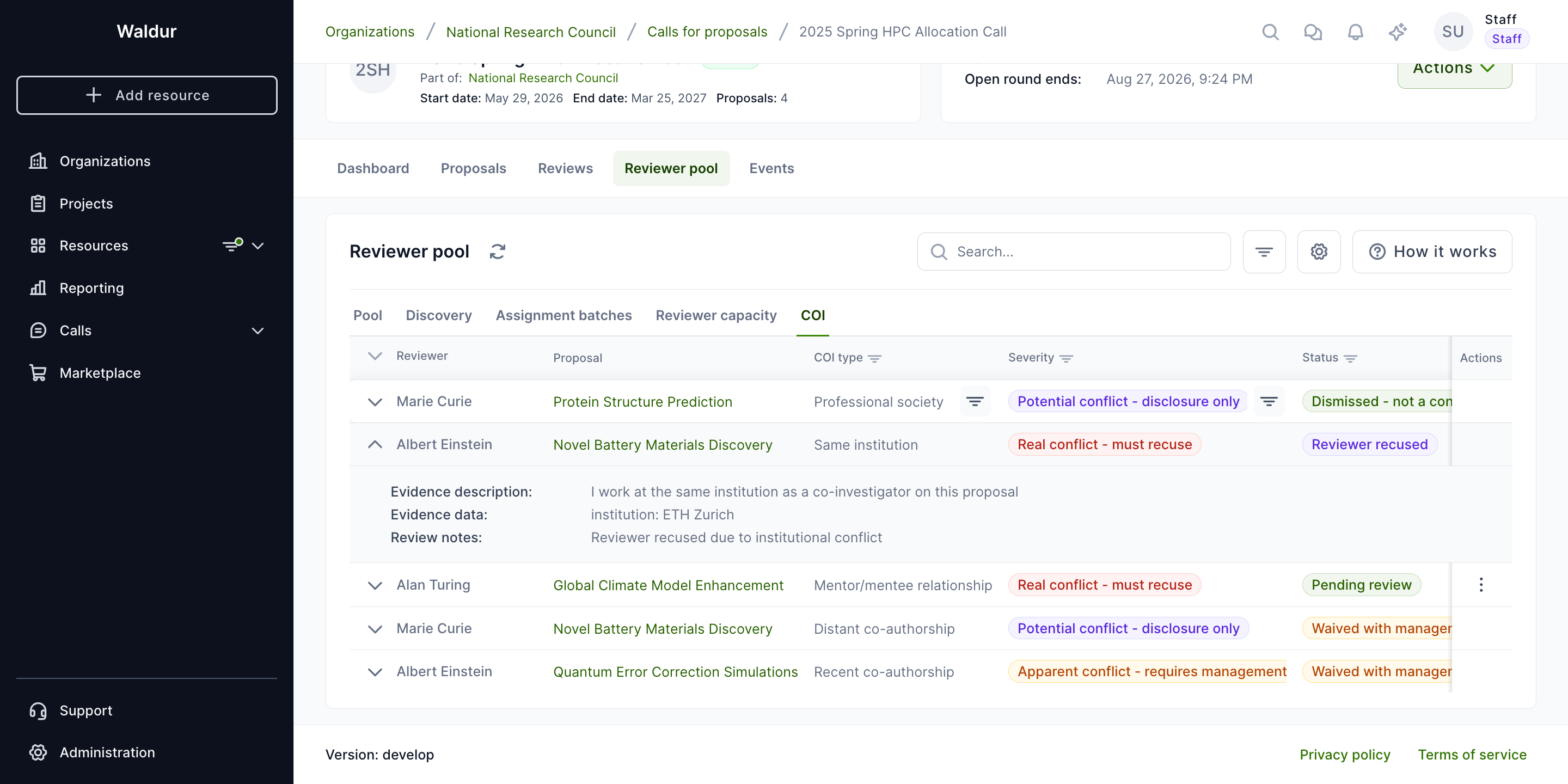
Expand a record to see evidence details and management options:
Creating assignment batches
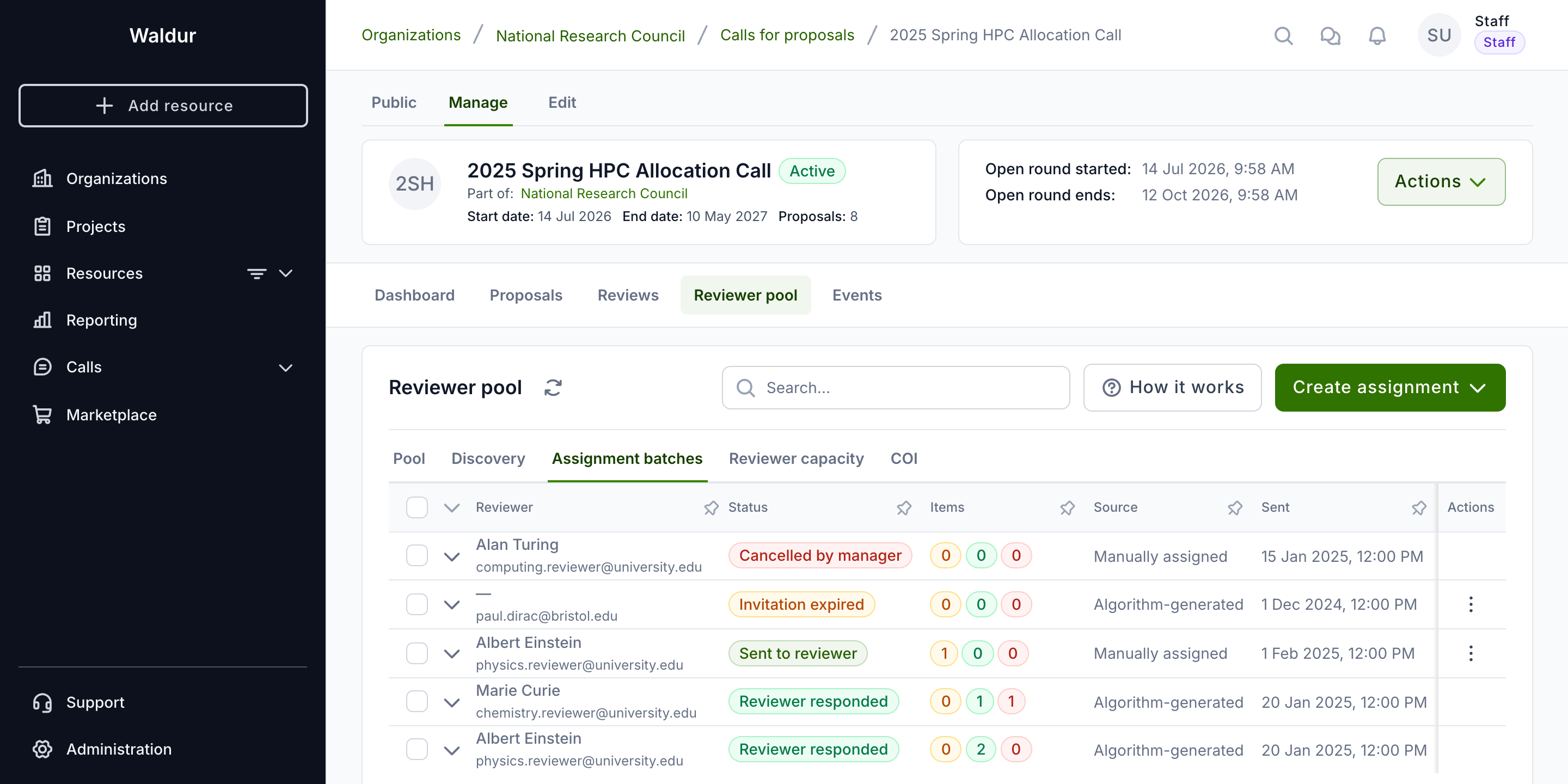
After matching, create formal assignment batches to assign proposals to reviewers:
- Go to the Assignments tab in the reviewer pool
- Create batches grouping proposals per reviewer. A reviewer is not given more open assignments than their maximum (see Managing reviewer capacity).
- Send batches. The reviewer only sees a batch once it is sent, and is emailed
the list of proposals and the response deadline when the
proposal.reviewer_assignment_invitationnotification is enabled on the deployment.
A sent batch expires after the call's assignment expiration period (7 days by default). Before that, the reviewer gets one reminder (2 days before the deadline by default); when a batch expires with proposals still unanswered, the call managers are emailed. Both emails, too, are sent only when their notifications are enabled. Use Extend deadline on a sent or expired batch to give the reviewer more time: an expired batch returns to Sent, its unanswered proposals become pending again, and a new reminder is sent before the new deadline. Reviews already accepted from the batch are not due before the batch's new deadline.
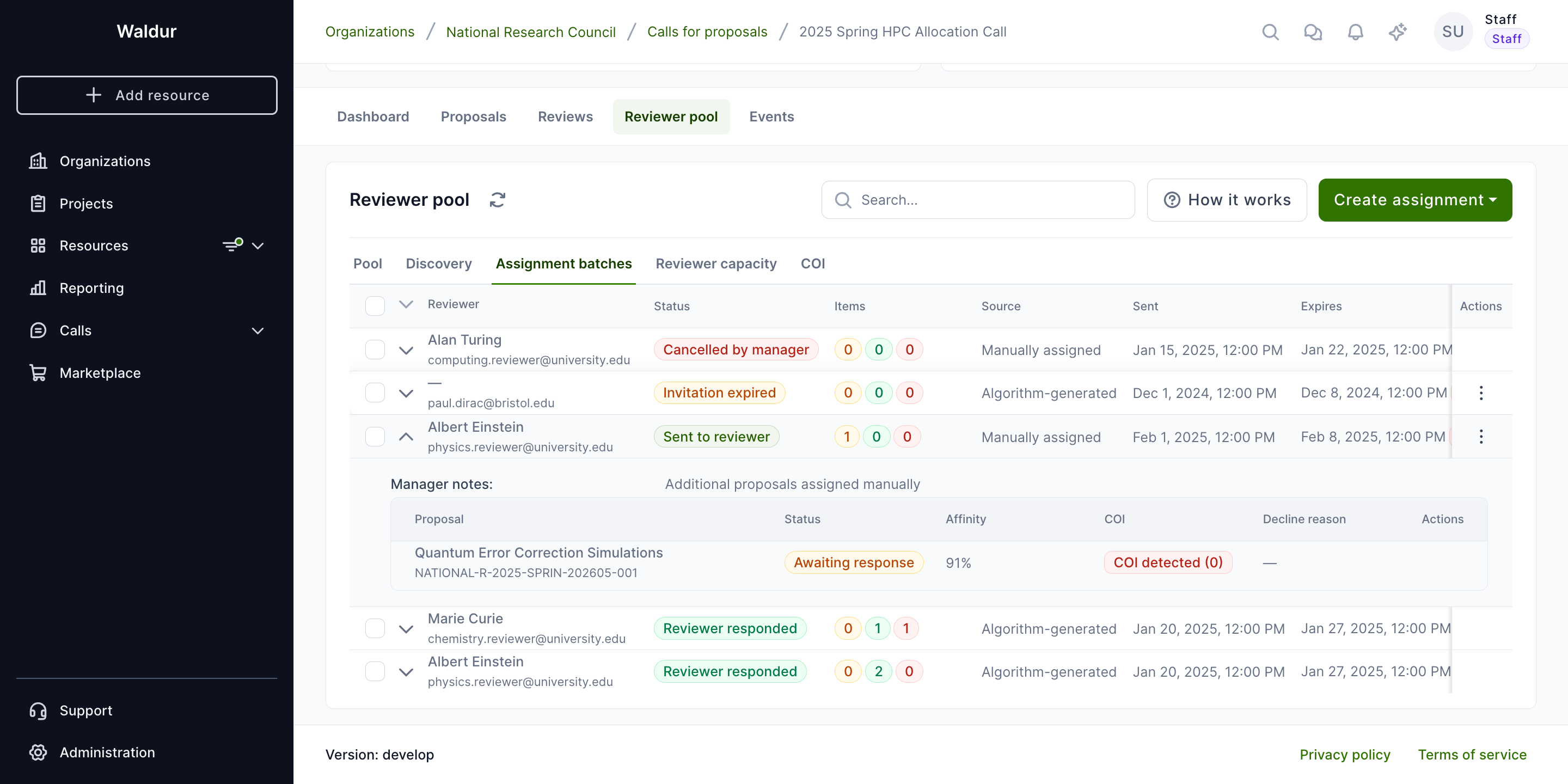
Reviewers can accept or decline each proposal. Expanded batches show individual item responses:
Review process
Performed by: Reviewer
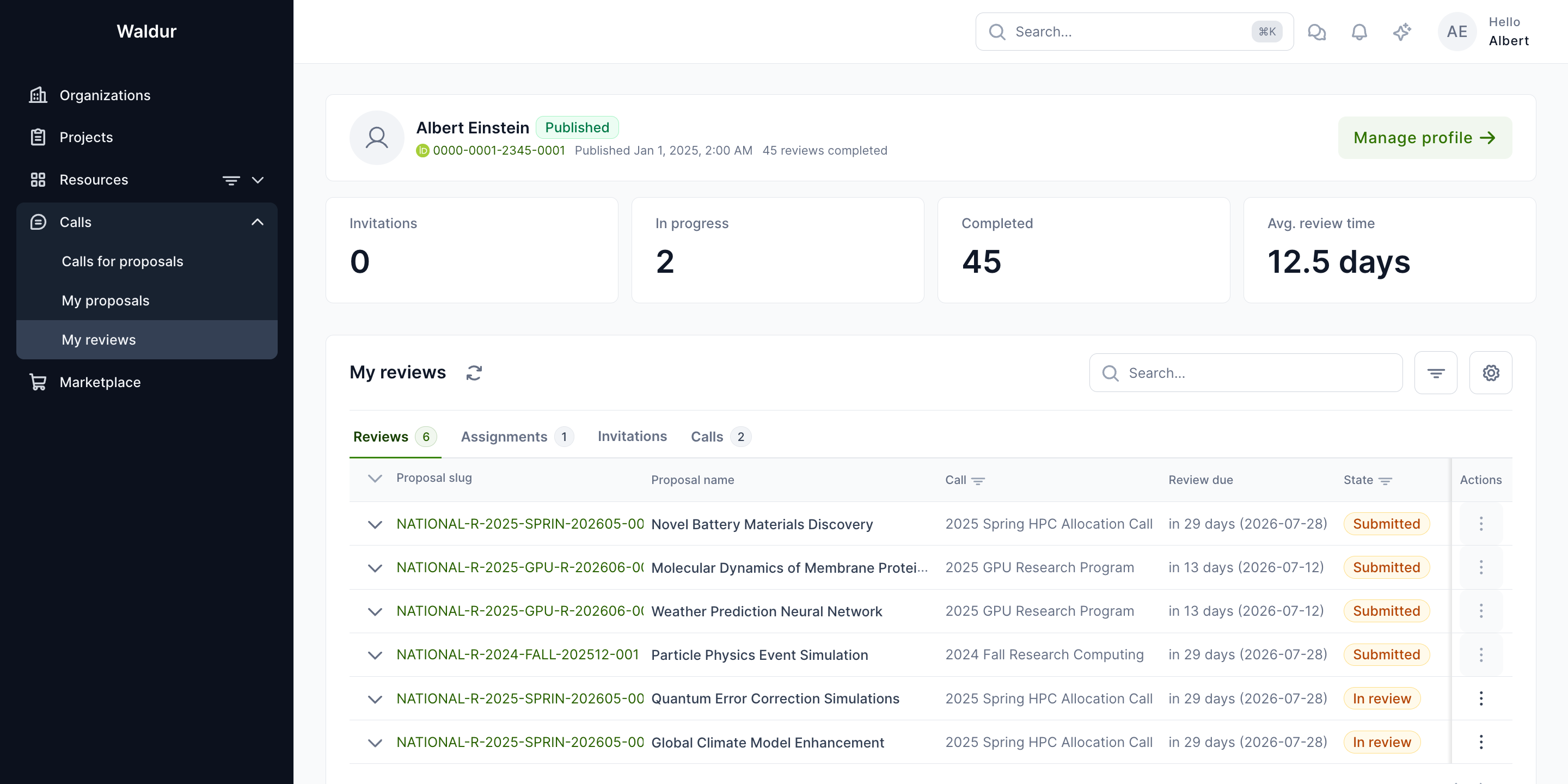
Reviewers see their assignments on the reviewer dashboard:
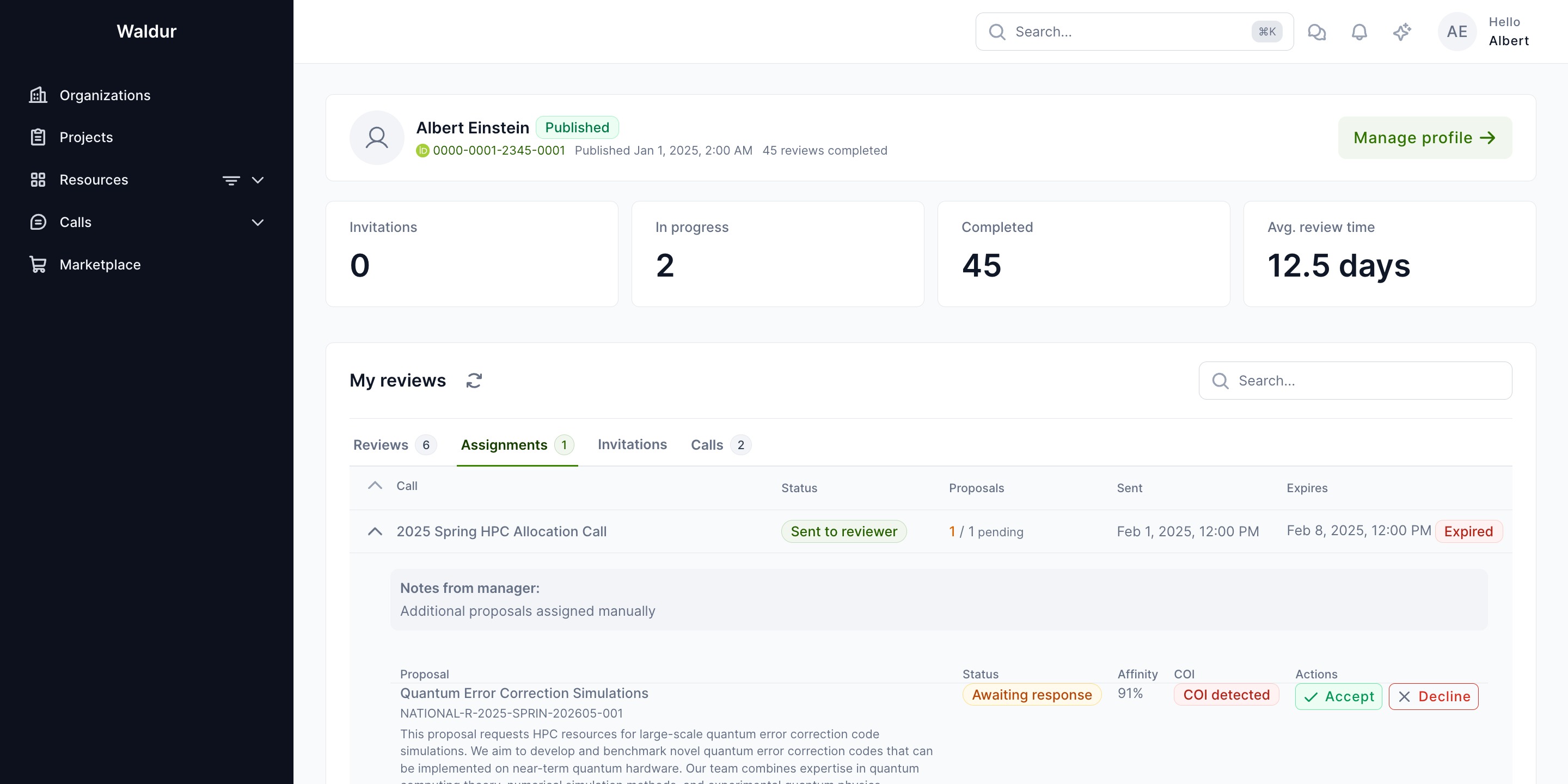
The Assignments tab shows pending batches with accept/decline actions:
Reviewers evaluate proposals using a structured assessment process:
- Open a review from the My reviews list
- Read the proposal summary, team composition, and resource requests
- Score each section and provide feedback
- Submit the review
Step 7: Decision and allocation
Performed by: The responsible role of the Allocation decision step (Call manager by default)
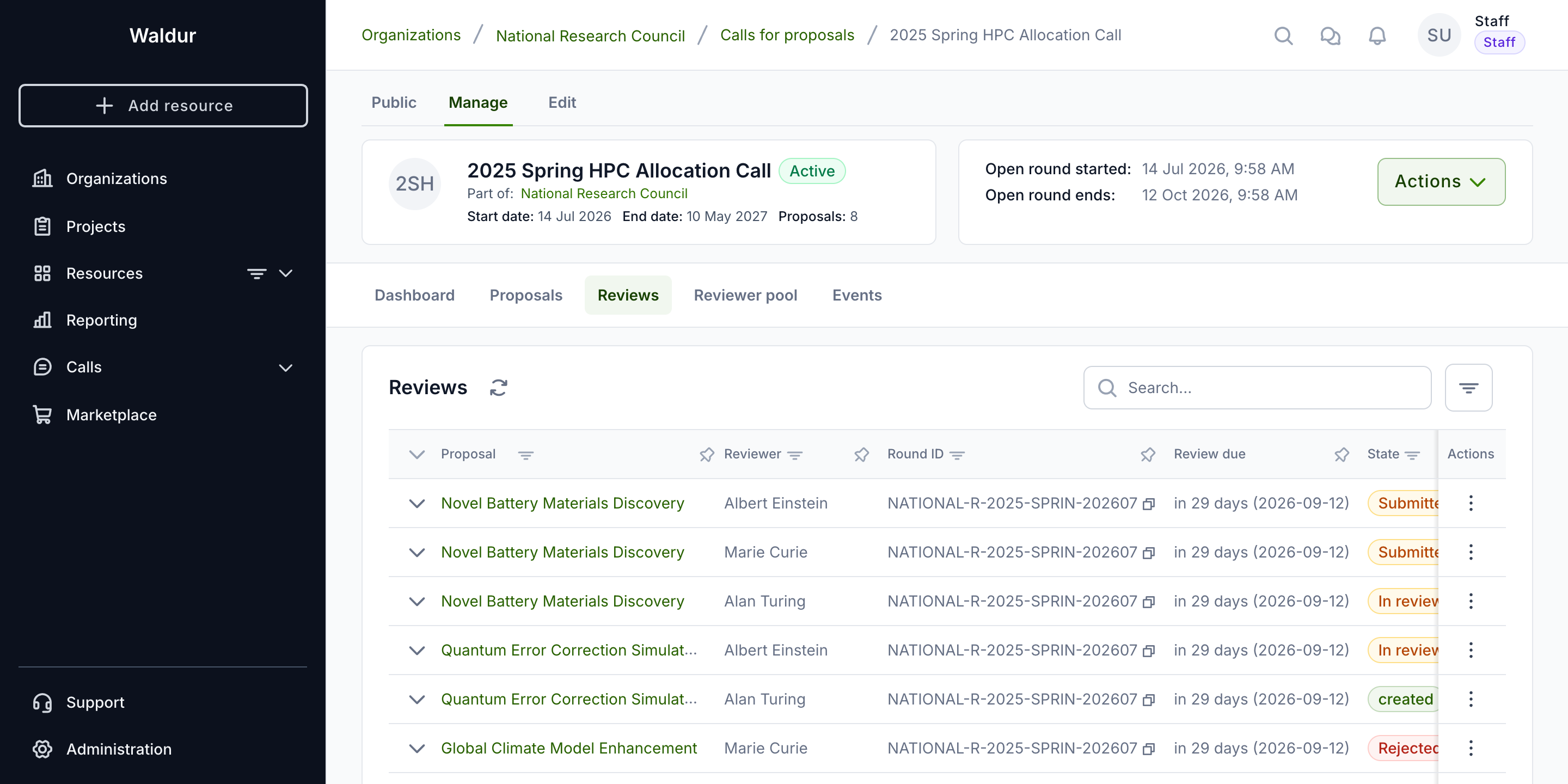
The call manager monitors all proposals and their review status:
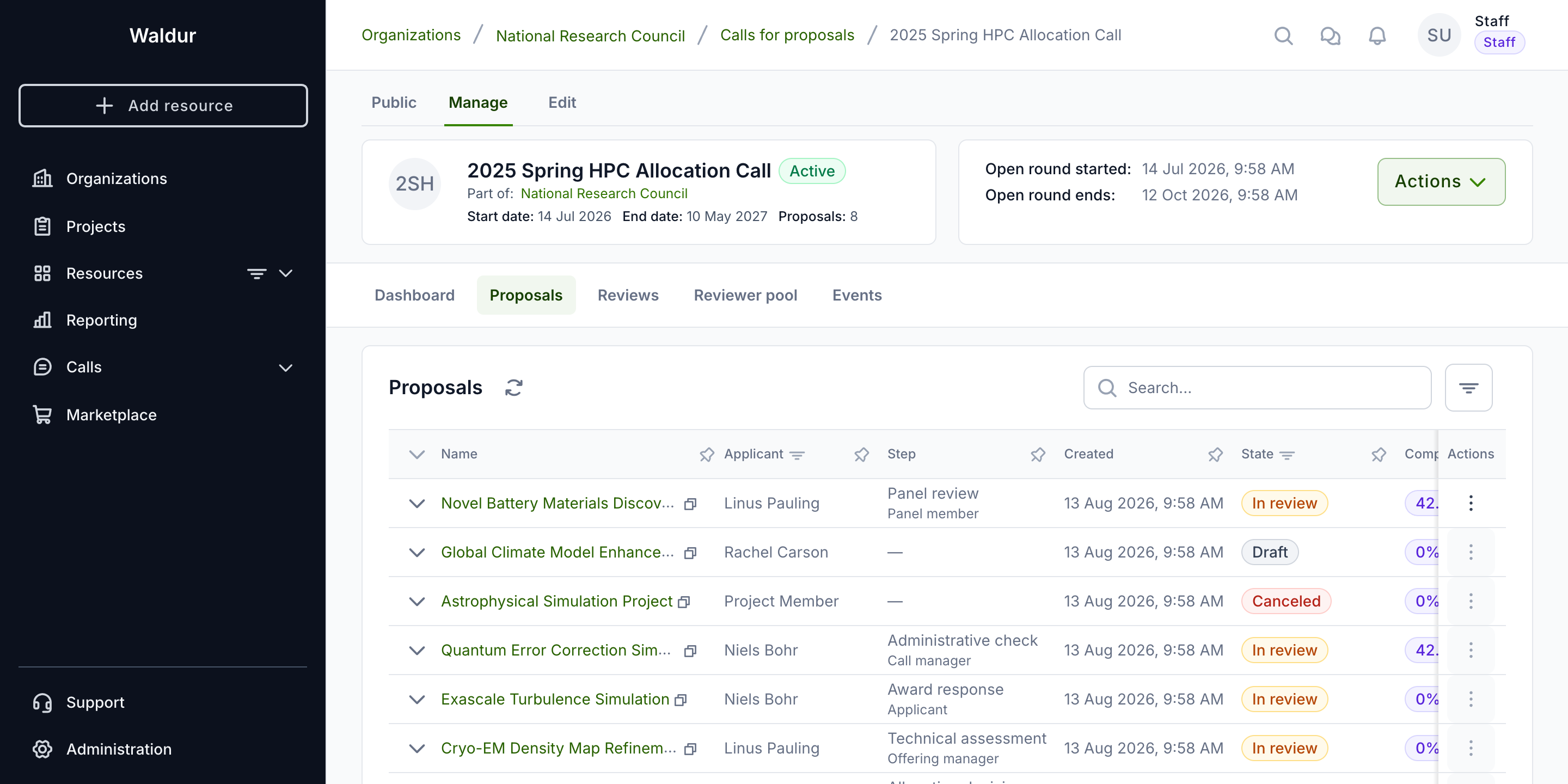
The reviews list shows every review with its reviewer, round and state:
The final decision process determines which proposals receive resource allocations:
- The responsible user completes the Allocation decision step after weighing the reviews. While the step is in progress, the call manager can adjust what is granted in the proposal's awarded resources.
- Proposal is accepted or rejected — at once, or, on a call that publishes results together for the whole round, when the round's results are published.
- If accepted:
- A new project is created under the proposing organization.
- The awarded resources are provisioned.
- Team members are added to the project.
Round lifecycle after the cut-off
Before its cut-off a round is Scheduled or Open, derived from its dates. Once the cut-off has passed, the round enters a stored lifecycle that the call manager drives from the round's ⋮ menu on the call's Rounds tab:
| Stage | Entered | What it means |
|---|---|---|
| Evaluating | automatically after the cut-off (an hourly job), when the round is closed early, or on the first lifecycle action | The round's proposals are being evaluated |
| Deciding | Start deciding | The evaluated batch has gone to the decision body. Optional — results can be published straight from Evaluating |
| Results published | Publish results | Every decision of the round has been announced |
| Closed | Complete round | Nothing more happens in the round |
The rounds list shows the stage next to the round's status, and, for call managers, a held count of decisions recorded but not yet announced. Expand a row to see when each stage started, who published the results, the rule for undecided proposals and the adoption record.
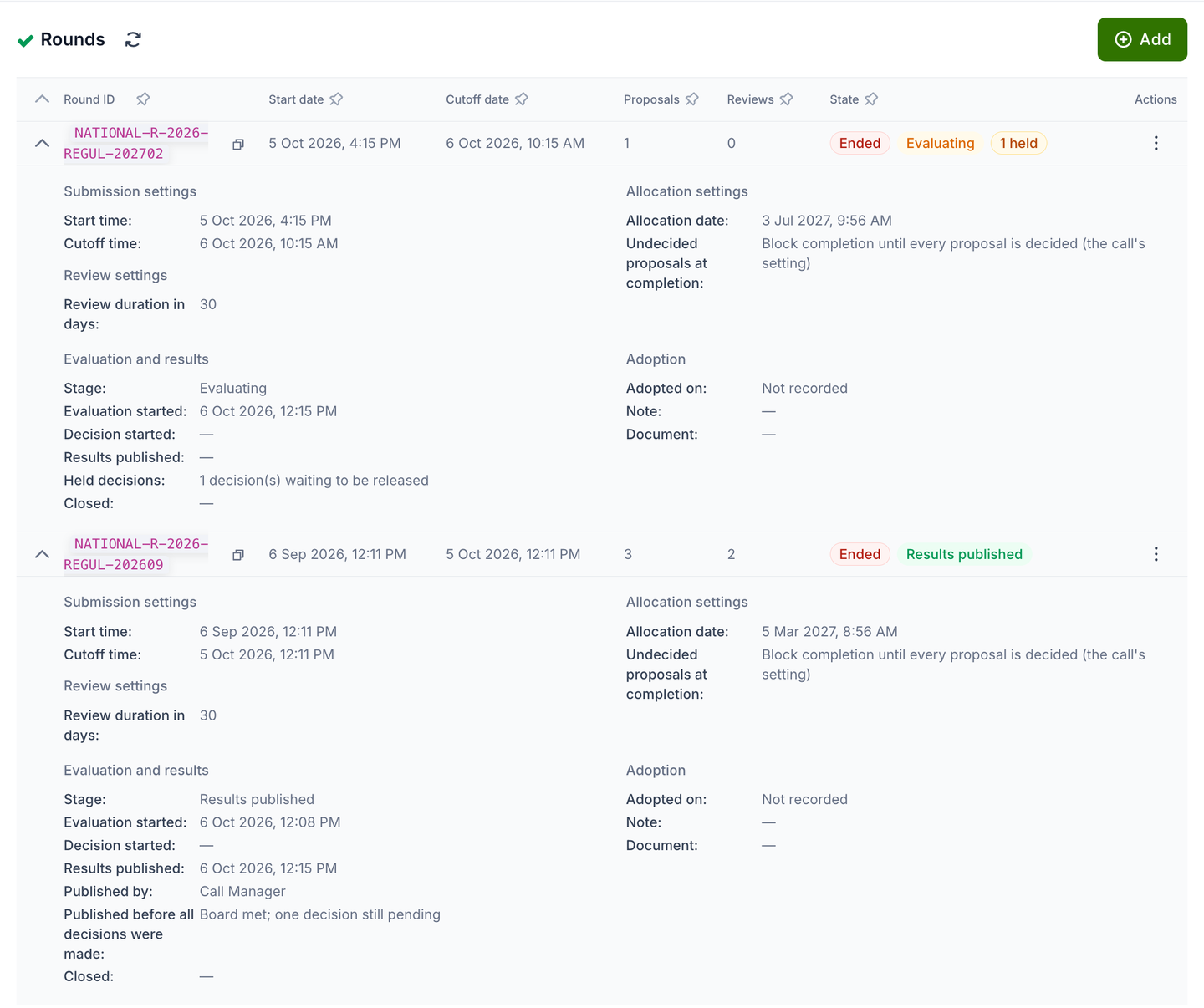
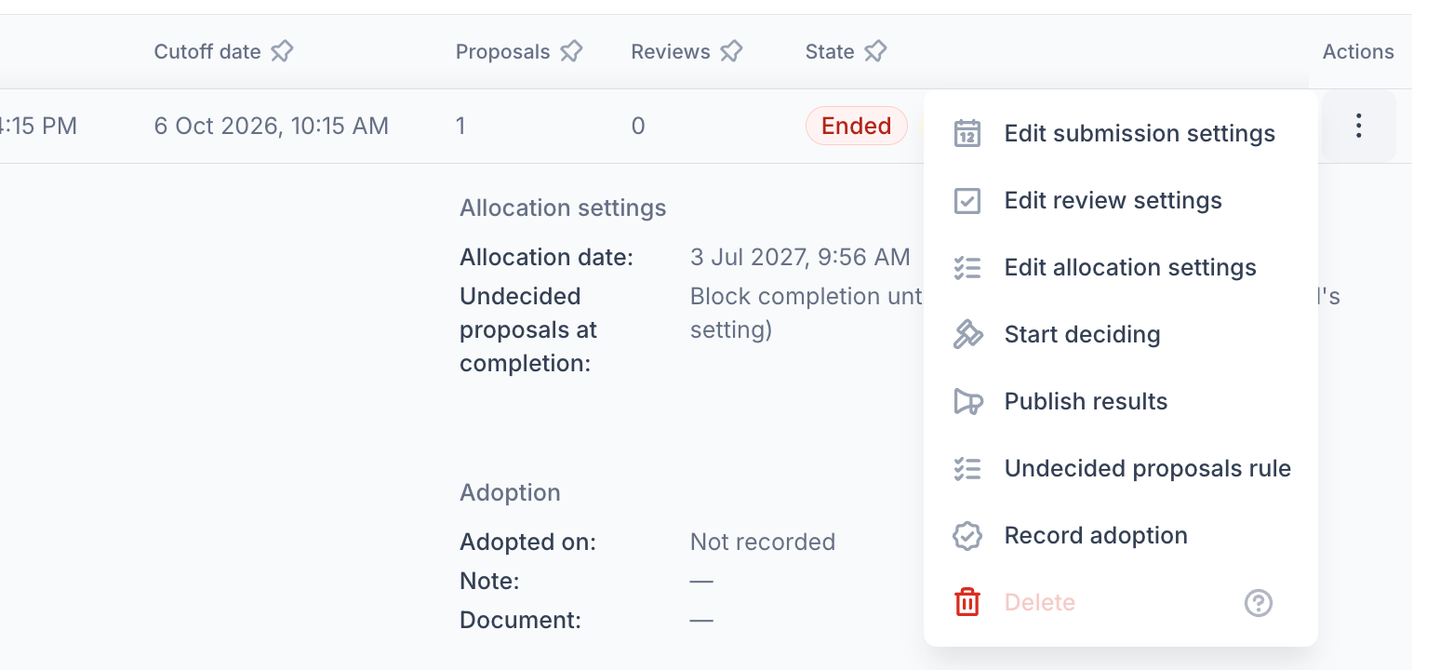
Each step is logged as an event of the call. The lifecycle actions require the same permission as closing a round, and are available only while the call is active.
Publishing a round's results
Applicants learn the decision under Configuration → General configuration decides when an applicant hears the outcome:
- As each decision is made — completing or rejecting the Allocation decision step announces the outcome at once, as before.
- Together for the whole round — the decision is recorded but held. The proposal stays In review for the applicant, the notification is not sent, and nothing is provisioned. The call team sees the tentative outcome (Awarded (tentative), Not awarded (tentative)) in the proposals list. When the round is ready, a call manager publishes its results and every applicant of the round is told at the same time.
Publish results announces every held decision of the round and carries it out as if it had just been made: an approved proposal continues to the award response step, or is accepted and provisioned; a declined one is rejected. Each applicant receives the same notification an immediate decision would have sent.
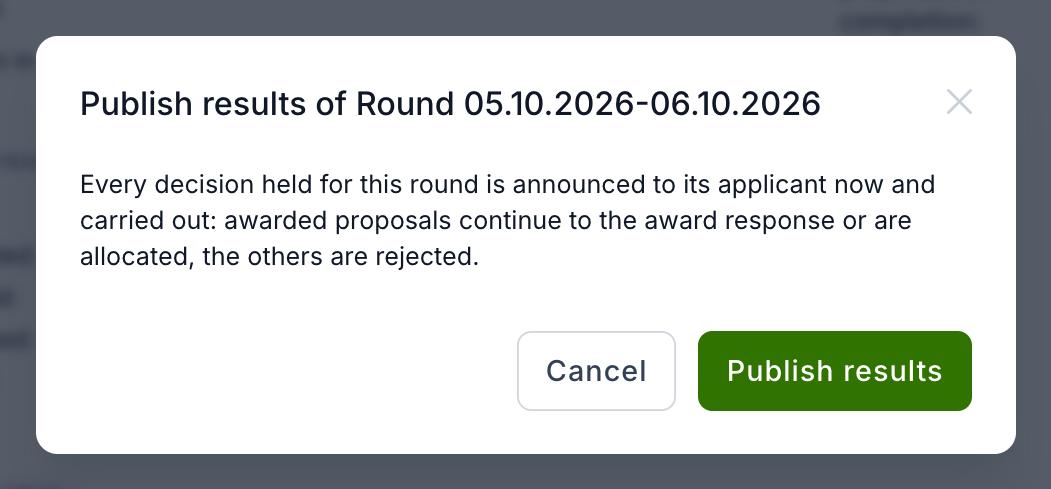
Publishing is refused while some proposals of the round are still being evaluated without a decision. The dialog says how many; to publish anyway, use Publish anyway and give a Reason for publishing early. The reason is kept on the round, and the undecided proposals carry on — their decisions are announced as they are made.
If a held decision cannot be carried out (for example, its allocation cannot be provisioned), it stays held and the dialog lists it; the rest are published. Publish results remains available on the round while anything is still held, and publishing again retries it.
On a call that announces each decision as it is made, Publish results holds nothing back: it only records the round's stage.
Until results are published, a call manager can take a held decision back with Reopen decision on the proposal — see Held decisions.
Who sees a held decision
Only staff, support, and users who can update the call (its call managers and the managing organisation's call organisers) see that a decision is held and what it is. Applicants, reviewers, panel members and offering managers see the allocation decision as still in progress until the results are published. An applicant who also manages the call is treated as an applicant for their own proposal.
Completing a round
Complete round closes a round whose results have been published. What happens to proposals that still have no decision follows Undecided proposals when a round is completed — set on the call and overridable per round with Undecided proposals rule:
- Block completion until every proposal is decided — completing is refused and the dialog says how many proposals have no decision yet.
- Reject them automatically — each undecided proposal is rejected at the workflow step it stands in, with the reason Not decided when the round was completed., and its applicant is notified at once. The round is then closed.
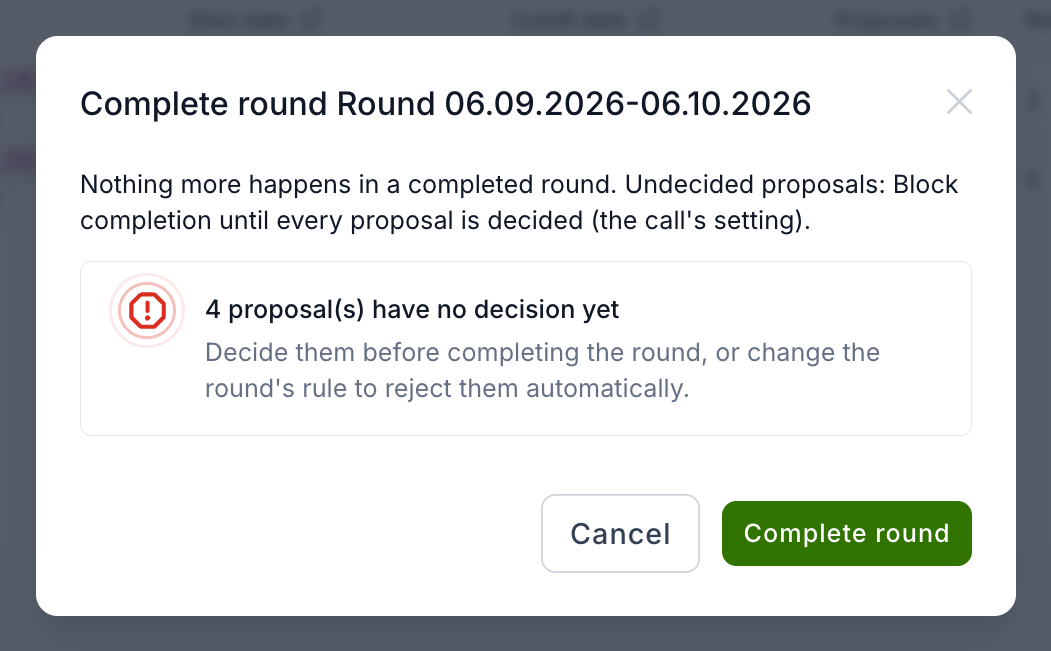
Completing is also refused while a decision of the round is still held because its release failed at publication; publish the results again first.
Recording adoption
Where the results must be adopted by another body (a board, for example), record it with Record adoption on the round: the adoption date, a note and optionally the adopting document. It can be recorded at any time after the cut-off. While the round still holds its decisions, the adoption note, the document and the reason for publishing early are shown only to those who may see held decisions.
Step 8: Monitoring and reporting
Performed by: Call manager and Call organiser
The call dashboard provides an overview of the entire call:
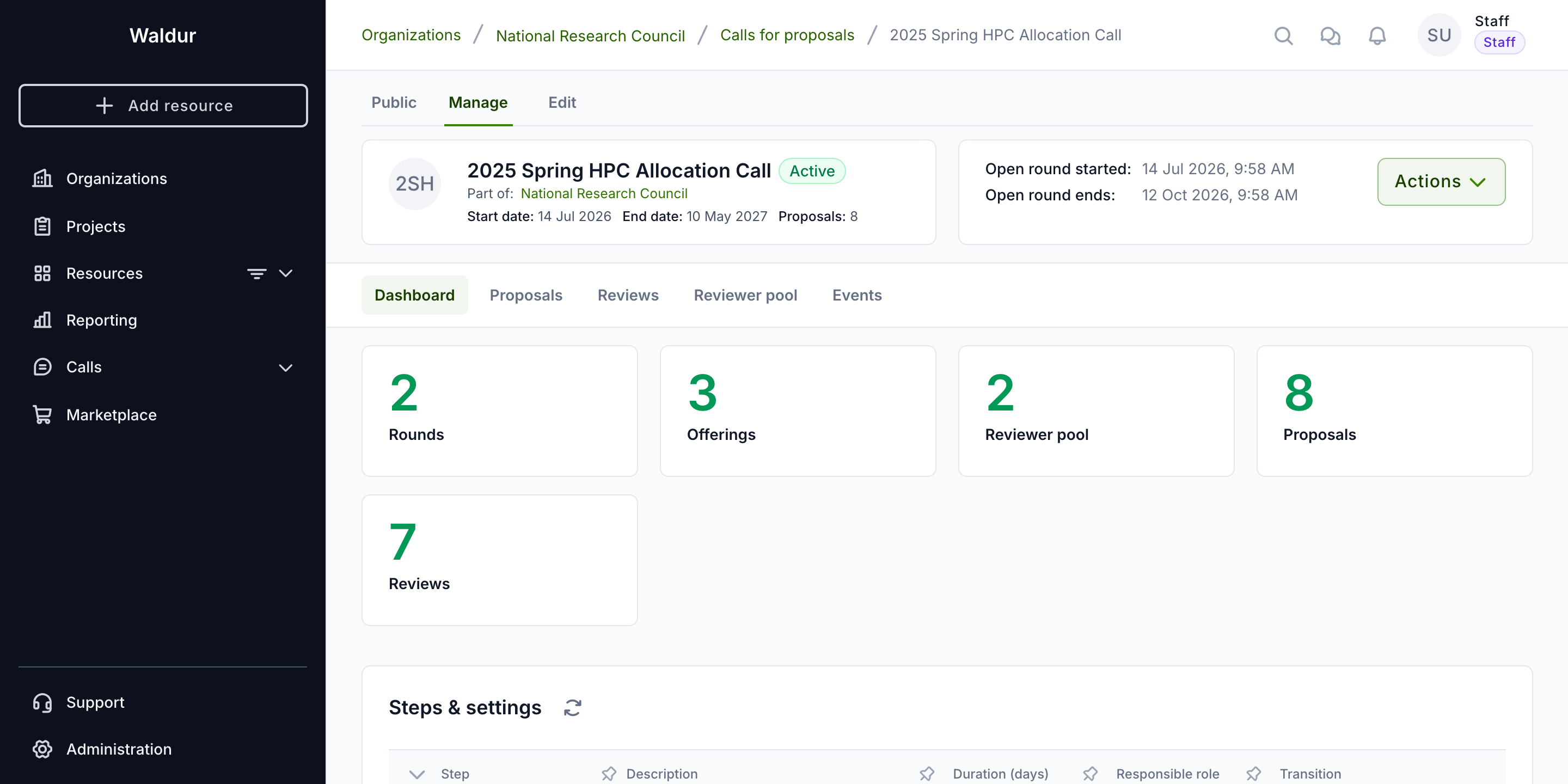
- Use the dashboard to monitor:
- Round statuses
- Proposal pipeline
- Review progress
- Reviewer pool capacity
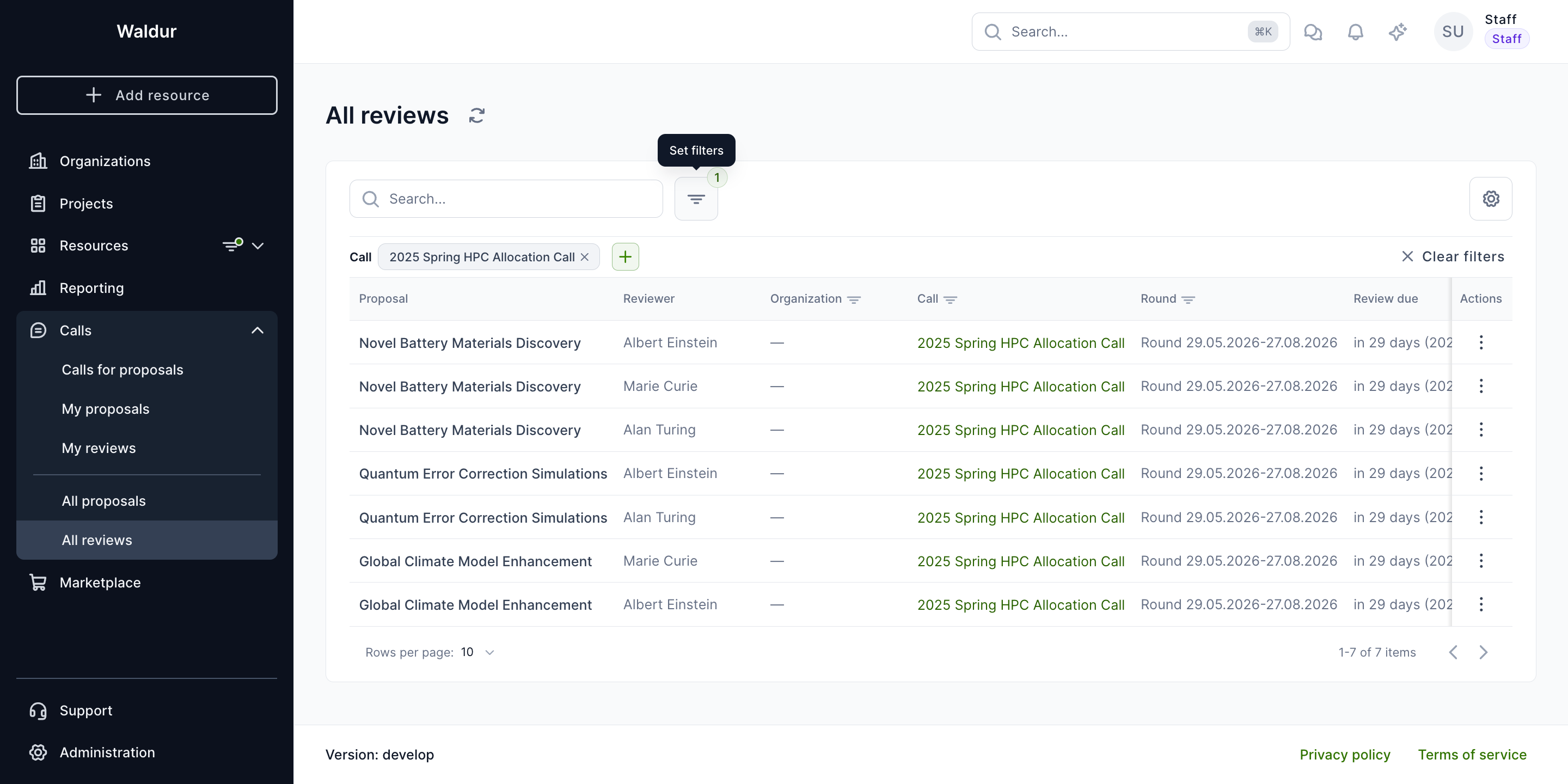
Admin reviews
Staff users can view all reviews across all calls from the admin reviews page:
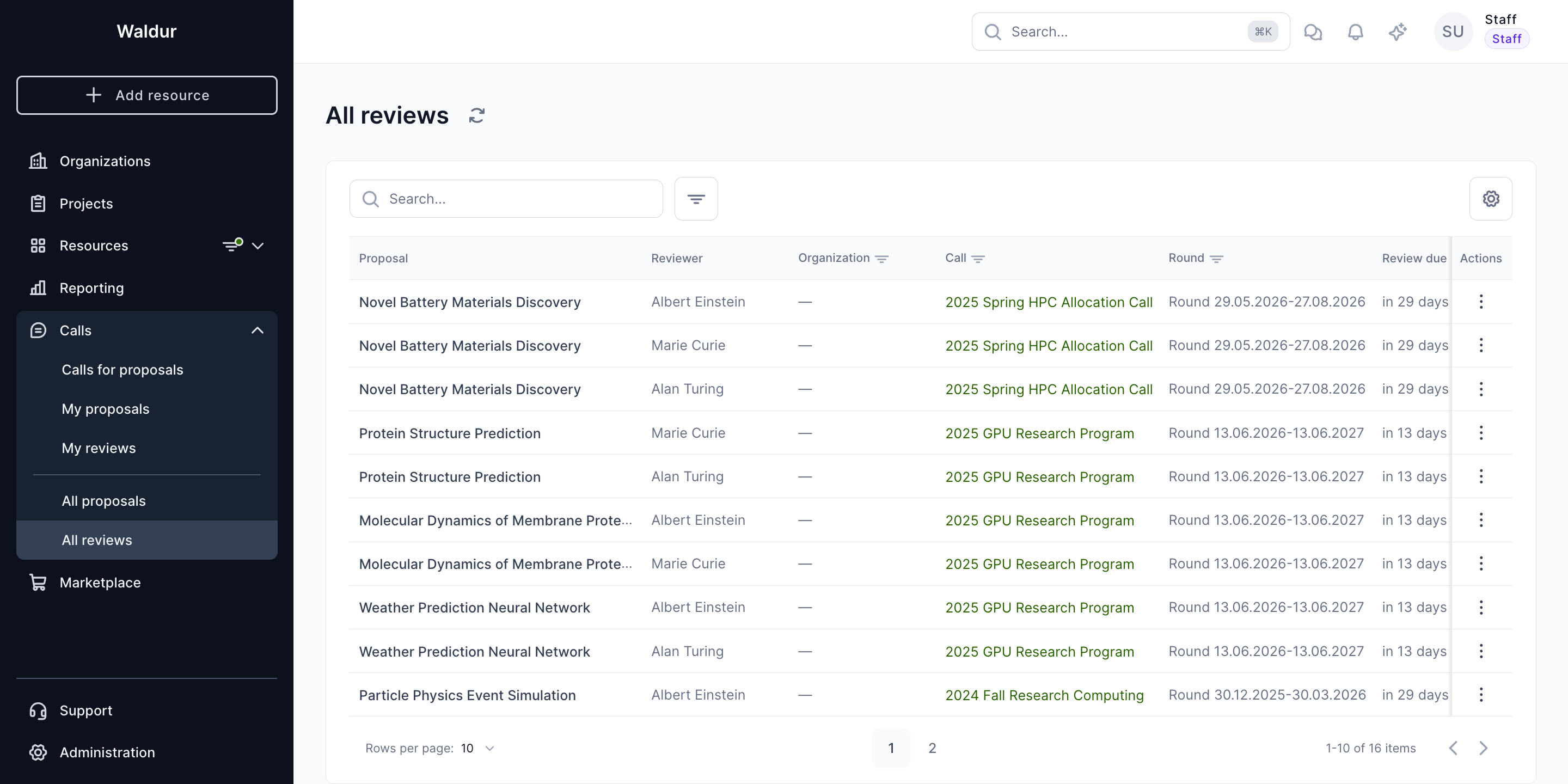
Reviews can be filtered by specific call:
Additional tips
- Always check round and call status before making edits.
- Assign enough reviewers early to avoid bottlenecks.
- Communicate with applicants when revisions are needed.
- Keep documentation clear and up to date.
Troubleshooting
Solutions for common issues encountered during the call management process:
| Issue | Possible Cause | Solution |
|---|---|---|
| Unable to create call | Insufficient permissions | Verify user has Call Organiser role |
| Round cannot be activated | Missing required configuration | Check that all mandatory fields are completed |
| Offering request pending | Service provider hasn't responded | Contact provider directly or through system notification |
| Reviewer cannot access proposal | Incorrect assignment | Verify reviewer assignment in call settings |
| Applicant cannot see active call | Call visibility settings | Check call publication status and visibility settings |
| Resource allocation failed | Insufficient provider capacity | Contact service provider to resolve capacity issue |
| Round cannot be deleted | The round has proposals, in any state | Rounds with proposals stay on record; only an empty round can be deleted |
| Applicants learn the decision cannot be changed | The call holds decisions that have not been published | Publish the results of the rounds that hold them first |
| Complete round is refused | Proposals of the round have no decision, or a held decision failed to publish | Decide them (or set the round's rule to reject them), or publish the results again |
FAQ
Q: What's the difference between a Call Organiser and a Call Manager? A: A Call Organiser is appointed by the Organization Owner to create calls and assign Call Managers. The Call Manager is responsible for the detailed configuration of calls assigned to them including setting up rounds, assigning reviewers, and managing the review process.
Q: Can a call have multiple rounds running simultaneously? A: No, Waldur supports multiple rounds within a single call, allowing for different resource types or applicant categories to be handled separately, but they cannot be active at the same time.
Q: What happens if insufficient reviewers complete their evaluations? A: Minimum reviewers on a workflow step is a completion gate: the step cannot be completed with a positive outcome until that many reviews have been submitted, though declining the proposal is always possible. If the step has a duration and its deadline passes first, the step is marked Overdue and the workflow moves on to the next step, or rejects the proposal if it was the last one (see Deadline handling). To avoid this, assign further reviewers in time, or leave the step's duration unset so it waits.
Q: Can applicants edit their proposals after submission? A: No. Once a proposal is submitted its requested resources and documents are fixed, and an applicant cannot change them any more: what was submitted is what gets evaluated. Call managers and staff can still adjust a proposal at any time. A draft left open at its round's cut-off is the exception only in that it survives into the next round (see Drafts at the cut-off); it is still a draft until the applicant submits it.
Q: Is it possible to transfer allocated resources between approved projects? A: Resource transfer between projects requires administrative approval. Contact your Call manager to request a resource transfer.
Q: How are applicants notified about proposal decisions? A: Waldur automatically sends email notifications to all team members listed in a proposal when a decision (approval or rejection) is announced — when it is made, or, on a call that publishes results together for the whole round, when the round's results are published.
Q: Can a Call manager override reviewer scores?
A: Decisions are always made by a person completing a workflow step; scores never decide on their own. A step can be declined regardless of scores, but approving is blocked while a Minimum reviewers or Minimum score threshold set on that step is not met. All reviewer feedback remains visible and documented.