Project membership management
Project team contains users with different roles. See Roles and permissions for the per-role permission matrix.
Adding project members
New user already has account in current Waldur instance
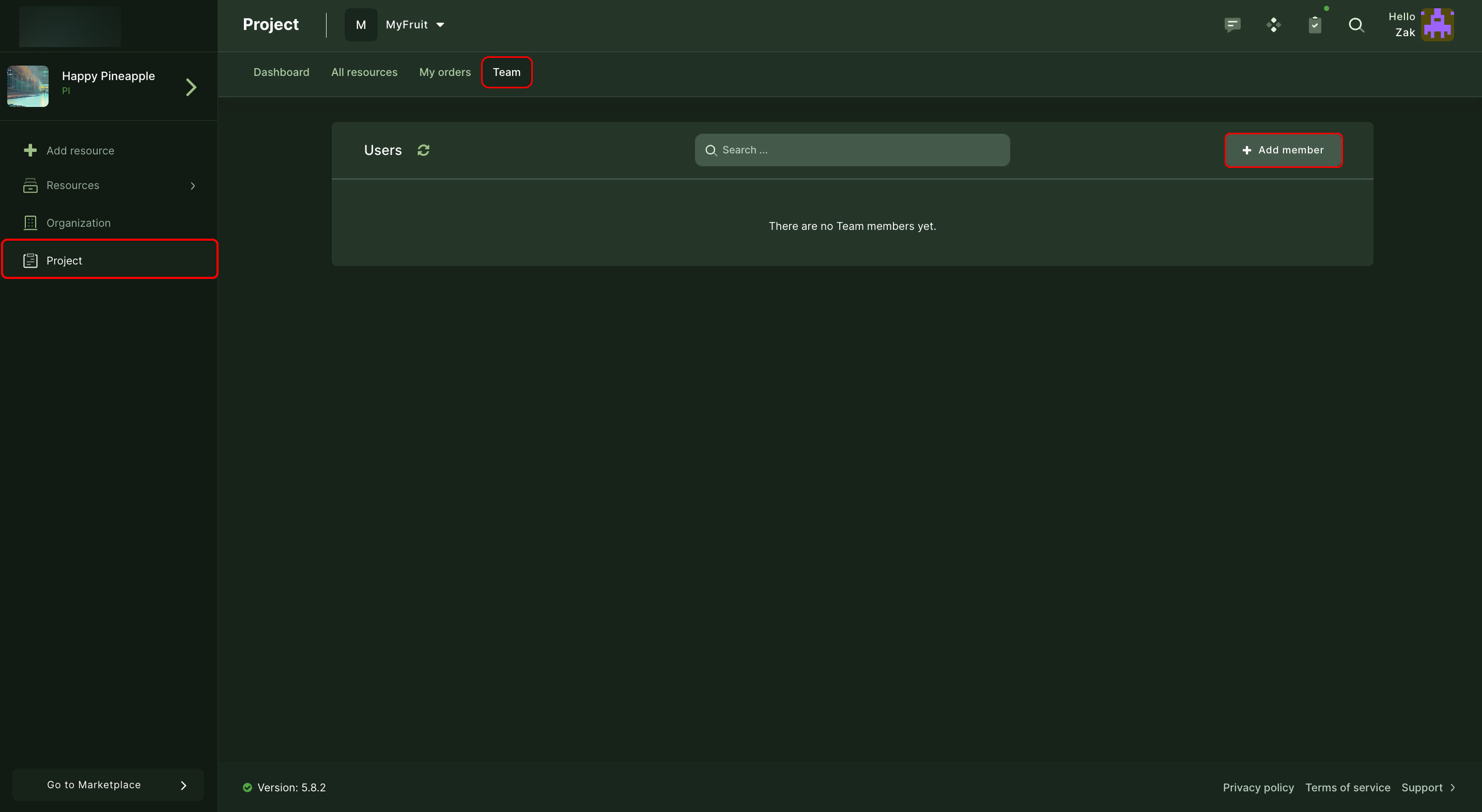
- Open your project in Waldur.
- Select "Team" from top menu and click on "Users".
-
By clicking "Add member" open "Add project member" window.
-
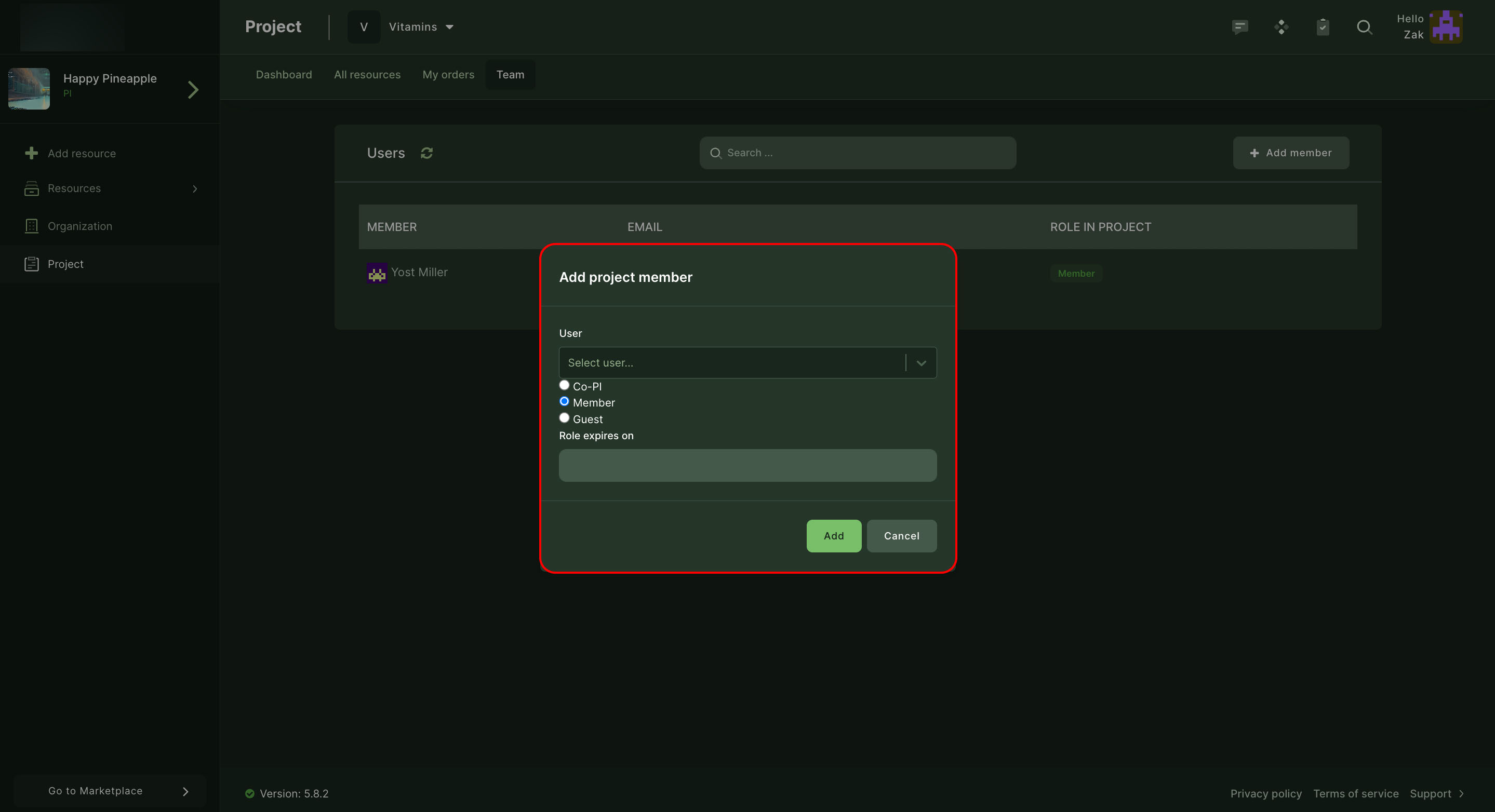
Select correct user, set the role and expiration date if necessary.
-
Finally, click on "Add".
- User now will get invitation email with the acceptance link.
New user don't have a account in current Waldur instance
- Open project in Waldur.
- Select "Team" from top menu and click on "Invitations".
- By clicking "Invite user" open "Invite by email" window.
- Insert user's email and set the role for the new user and continue.
- Fill in your custom message on the right side of the window and send the invitation.
- User now will get invitation email with the acceptance link.