Membership sync status
For offerings whose access control is applied by a site agent on the provider's backend (for example a Rancher cluster with Keycloak groups), a role granted in Waldur becomes effective only after the agent's next synchronization cycle succeeds on the backend. Membership sync status makes that propagation visible per member: team views show whether each role grant has actually landed, and providers can request an immediate re-sync.
Enabling
Performed by: Service provider (offering owner)
The feature is opt-in per offering via the Membership sync status plugin
option (enable_membership_sync_status) on the offering's Integration page.
It builds on resource sub-projects (enable_resource_projects).
When the option is off, team views render exactly as before and no sync information is collected.
Note
The reporting side requires a site agent version that supports membership sync reports. Older agents keep working — grants simply show no status indicator.
Reading the status indicators
Each role badge on the resource Team tab (and on the expanded per-sub-project rows) carries an indicator reported by the agent:
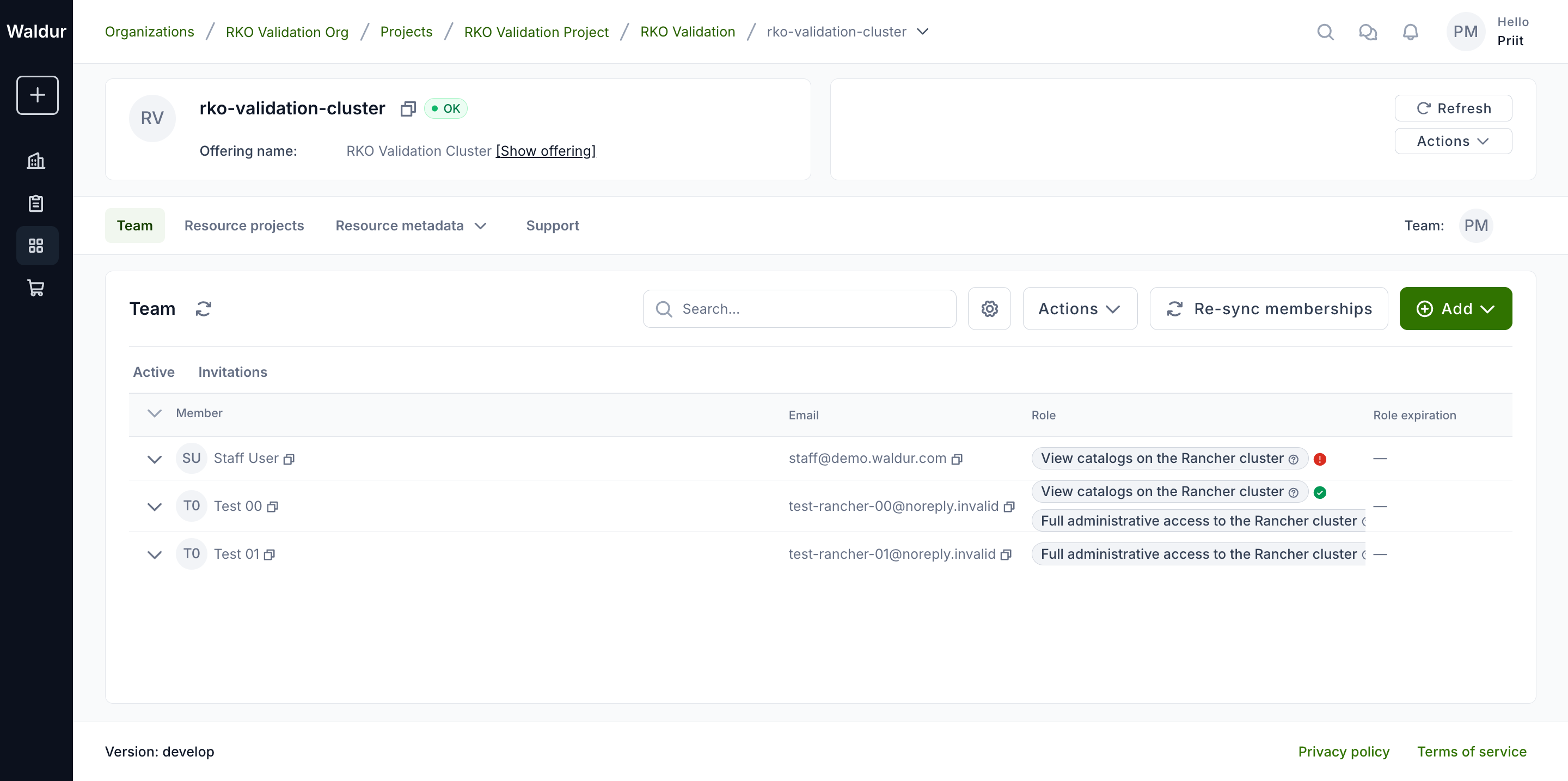
| Indicator | State | Meaning |
|---|---|---|
| Green check | Synced | Access is active on the provider side. |
| Clock | Pending | The backend has not applied this role yet — typically the agent has not completed a cycle since the grant. |
| Warning triangle | Missing in identity provider | The user is not known to the identity provider yet. Access activates automatically after their first login, when their account appears. |
| Cross | Error | Provider-side synchronization failed; the tooltip carries the reported message. |
| No indicator | Not reported | The agent has not reported on this grant (older agent, or the first report has not arrived yet). |
Hover an indicator for the detailed message and the time of the last agent report.
Inviting external users
Performed by: Service provider or staff
An offering role can be granted to someone who does not have a Waldur account yet: use Add → Invite on the resource Team tab, enter their email and pick the role. The role picker shows each offering role by its description, so the person choosing sees a readable label rather than a raw name.
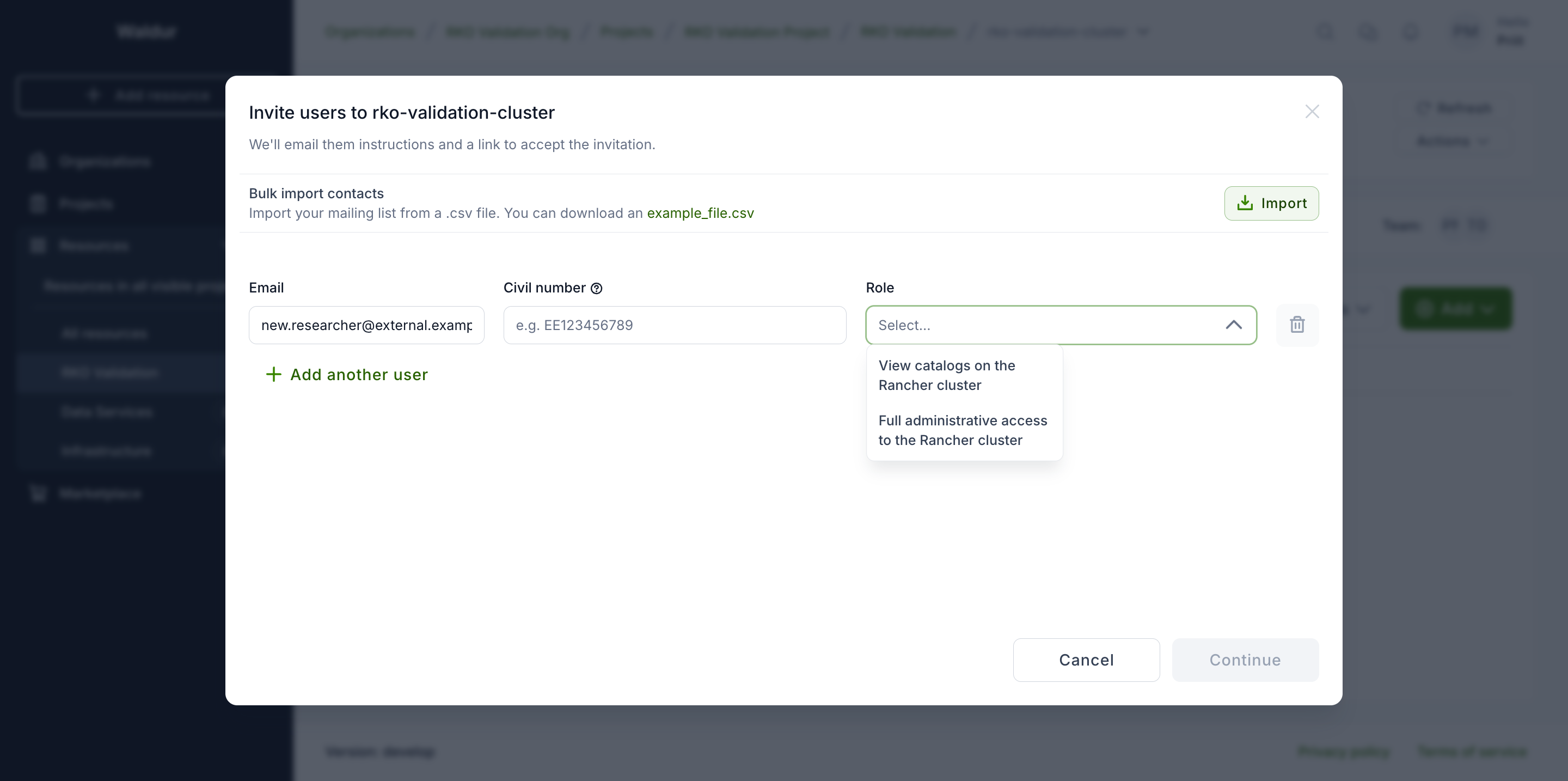
Waldur emails the person an acceptance link. Until they accept and sign in to the provider's identity provider for the first time, their grant shows Missing in identity provider (see the indicator table above); the agent flips it to Synced automatically once their account appears on the backend after that first login.
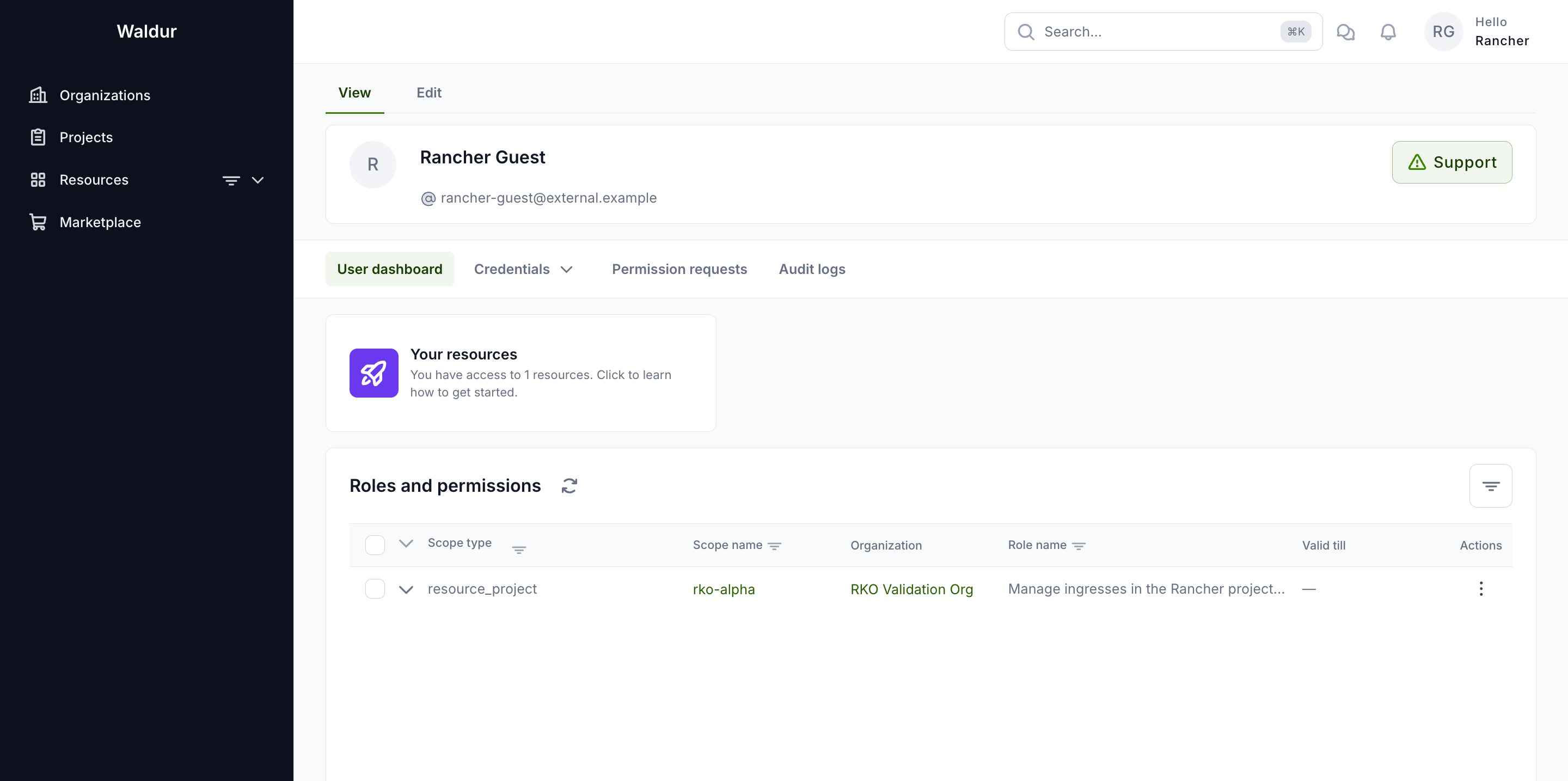
Once accepted, the invited user sees only what the grant allows: their assigned role is listed on their user dashboard with its scope and description, and the resource page shows a reduced set of tabs (no team management).
Requesting a re-sync
Performed by: Service provider or staff
The Re-sync memberships action on the resource Team tab asks the offering's agent to re-apply the resource's role grants on the backend.
- Requests are throttled to one per resource per 30 seconds.
- Delivery uses the offering's event subscriptions. Agents running in polling-only mode apply the change on their next cycle regardless — the request always succeeds, and the indicators refresh after the agent reports back.
Explaining roles to users
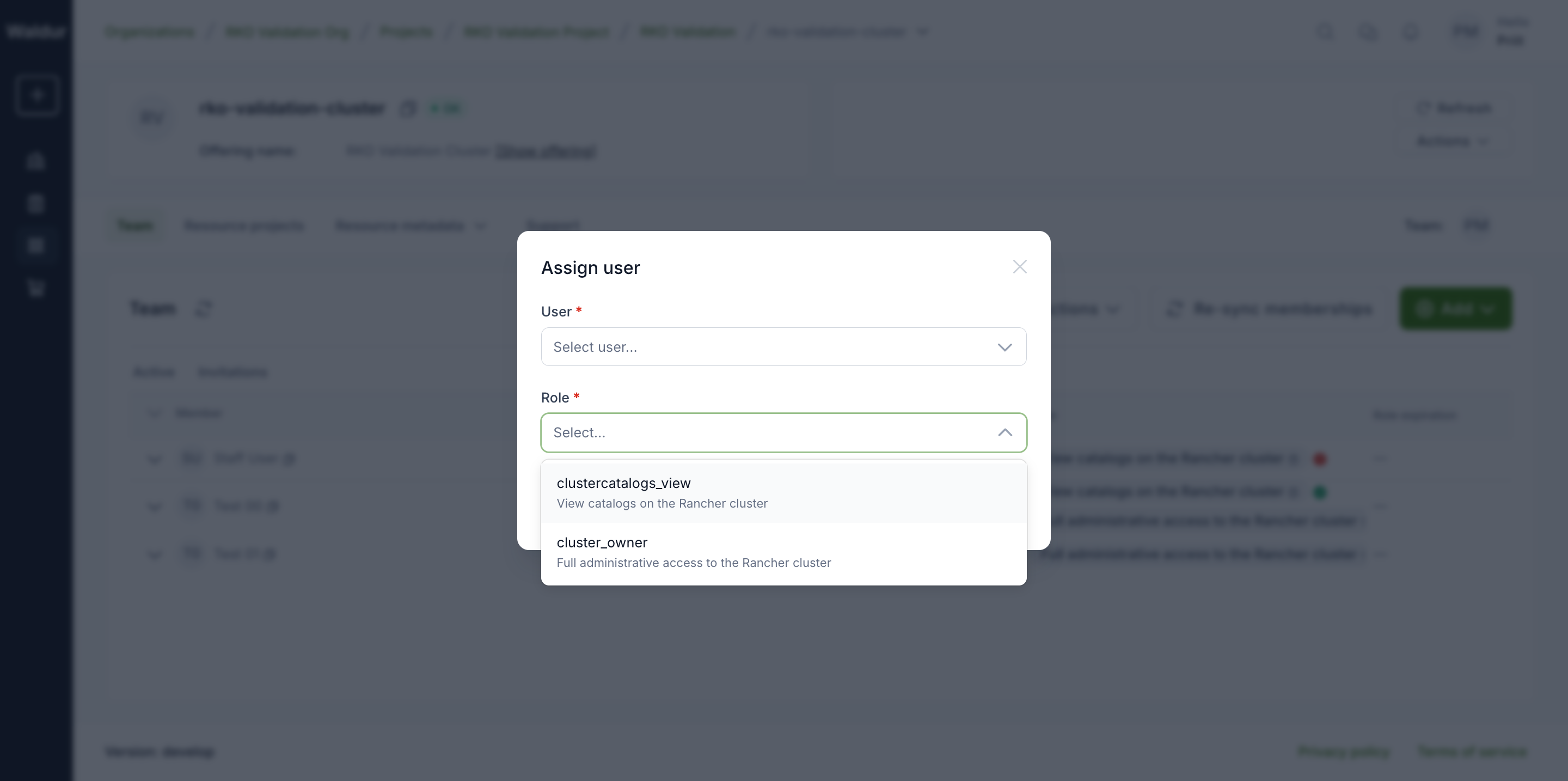
Offering roles are provider-defined labels whose effect lives on the
provider's backend, so their names alone (for example ingress_manage) say
little to the person assigning or receiving them. Fill in the description
of each role in the offering's Edit → Roles catalog: it is shown in
the assign-user dialog and used as the role's display name in team views and
on user dashboards.
Auditing sub-project changes
Creation, removal and recovery of resource sub-projects are recorded with the acting user, alongside role changes. Open Actions → History log on the resource Team tab to see the combined trail:
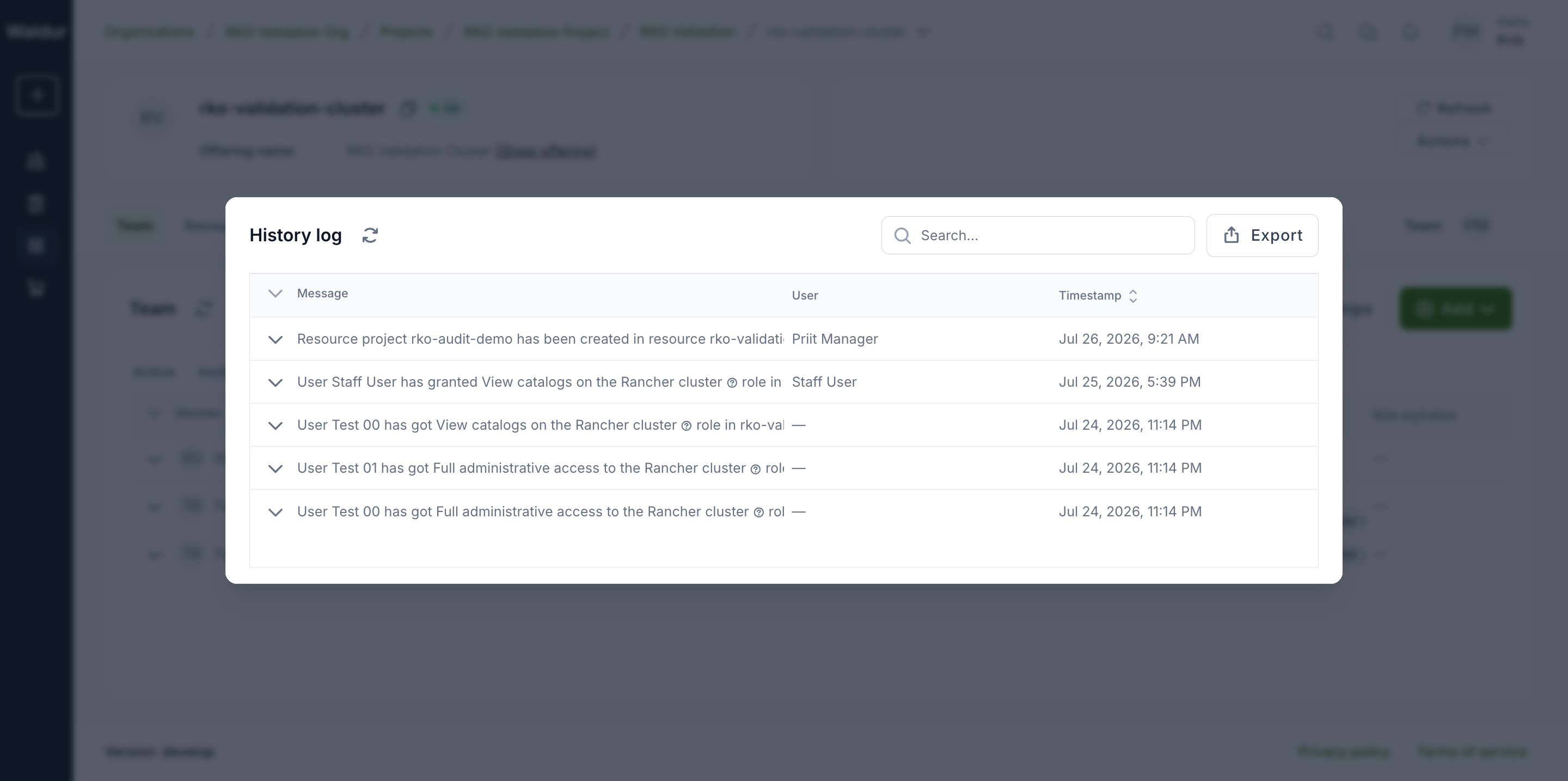
The sub-project rows themselves also record who created them
(created_by), and who removed them when soft-deleted.
Checking that the agent is alive
Sync indicators are only as fresh as the last agent report. The offering's Manage → Status page shows the connected agent's identity, version, registered services and the last run of each processor — if the last run stops advancing, the agent is down or misconfigured and the indicators go stale.