Shared POSIX identity, step by step
One directory, several SLURM offerings of one provider, and one entry per
person. This page is the ordered checklist for setting that up in Waldur; each
step links to the page that explains it. The agent and cluster side — the site
agent's ldap settings, sssd.conf, and how to verify with ldapsearch,
getent and id — lives with the agent, on the
LDAP username management plugin
page of the administrator guide.
Before you start
- Waldur with POSIX ID pools and the provider account pages enabled
(
marketplace.show_posix_id_poolsandmarketplace.show_provider_accounts). Both are off by default: if the provider workspace has no Accounts menu, ask the platform operator to enable them. - A service provider owning every offering that will share the directory.
- An OpenLDAP directory and a site agent host; both are set up on the agent side.
1. Set up the service provider
Everything that makes a person one identity — the numbers, the scope of the account and its name — is configured once, on the service provider.
Attach a POSIX ID pool
The pool is what gives a person one UID and one primary GID across every offering of the provider. Open the provider's Accounts → POSIX ID pools page and create one with UID and GID ranges that are free in the directory. The form names the allowed bounds and the ranges your other pools already use.
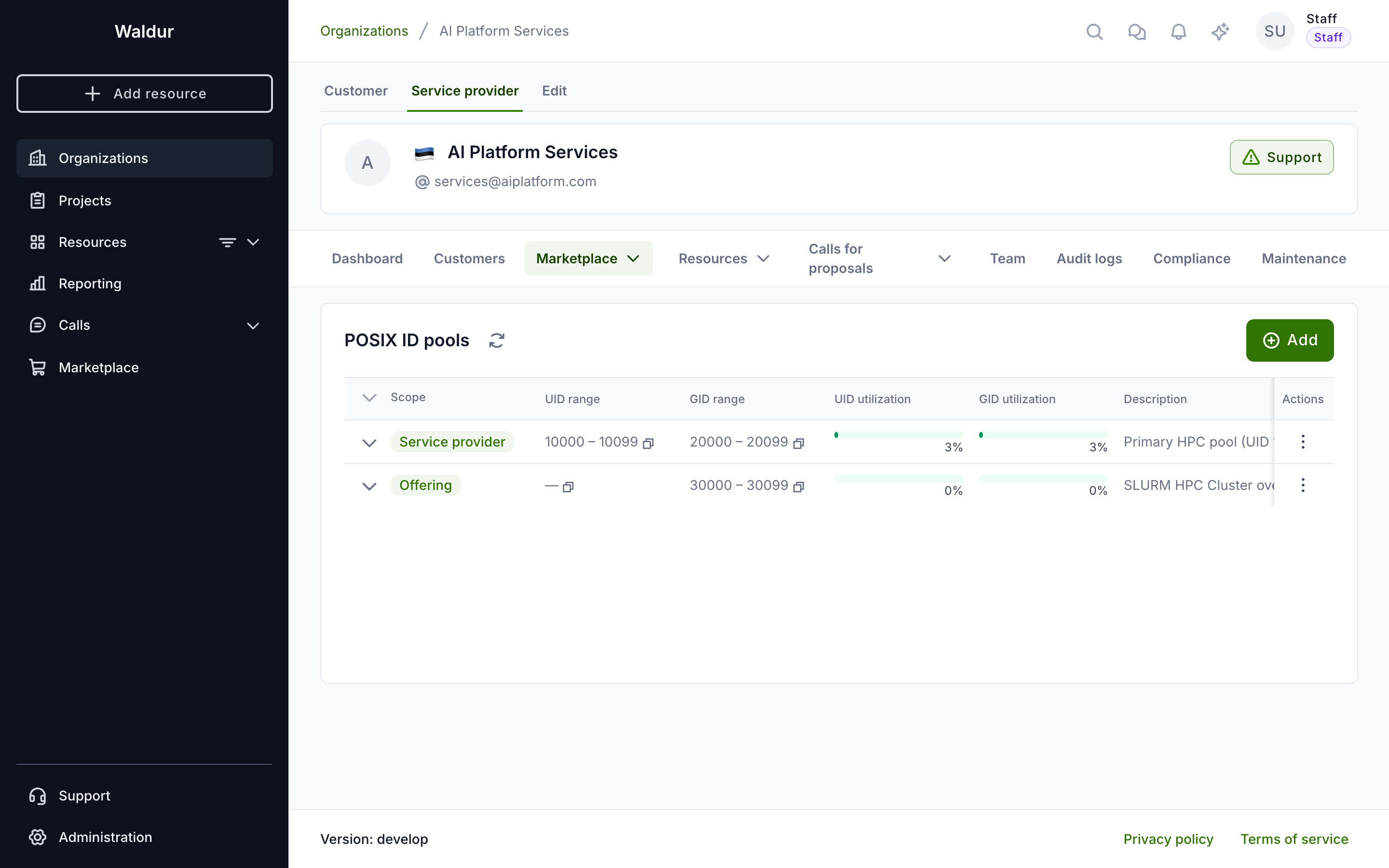
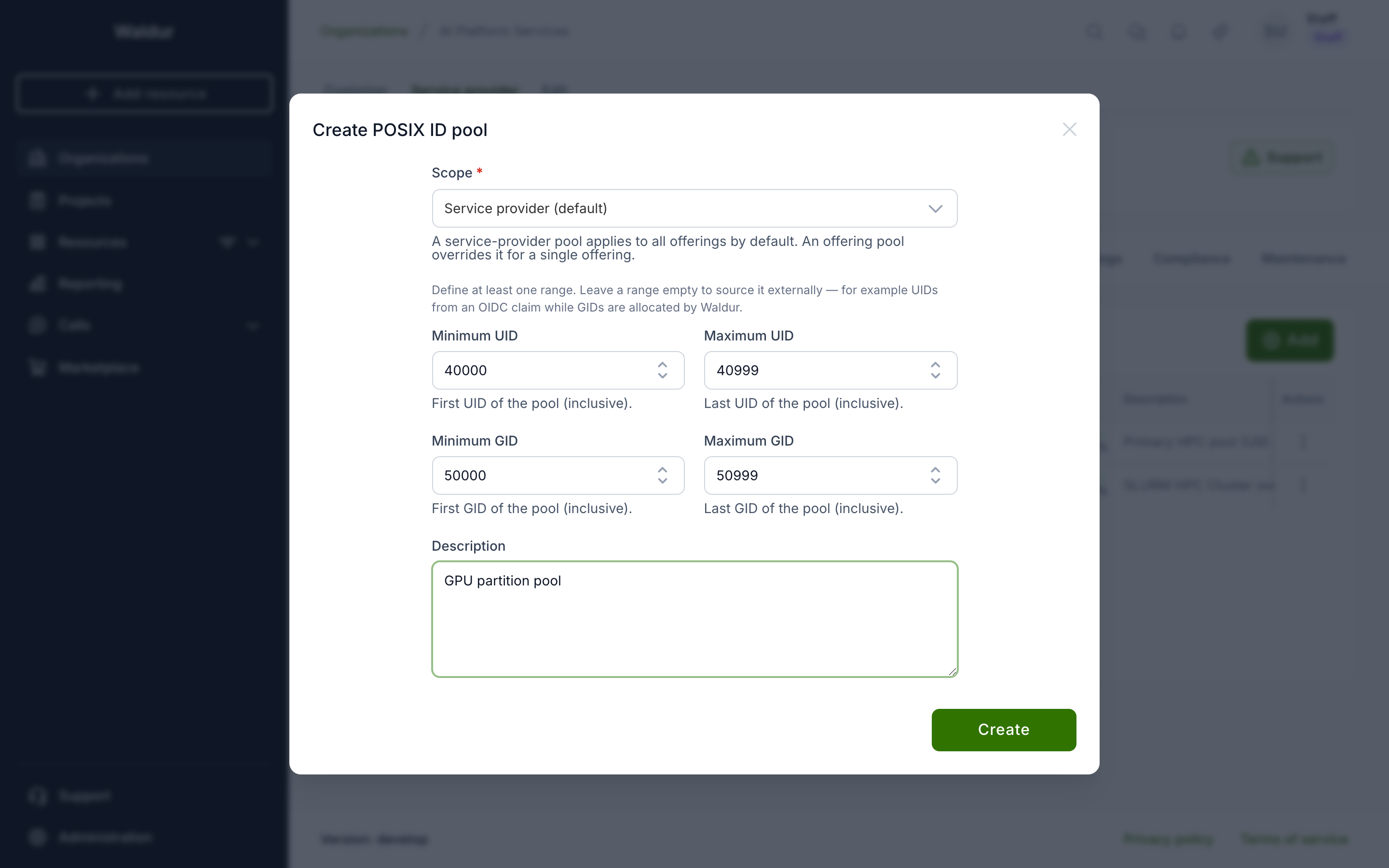
Details, including how a pool attached to an offering overrides the provider's and why that defeats sharing: Managing POSIX ID pools.
Set the account settings on the service provider
Open the service provider's Accounts → Account settings page. It holds the account settings every offering of the provider inherits; a field left empty shows the default offerings fall back to. Organization owners and staff can edit it, and Preview changes shows what a change would do to the existing accounts before it is saved.
| Field | Value | Why |
|---|---|---|
| Account scope | Per service provider | Waldur holds one account per person for the whole provider, and every offering user reads its username, UID, primary GID and home directory through it — so the directory entry has exactly one owner in Waldur |
| Username generation policy | Anonymized | Waldur names the account, and the name derives from the pool UID — the same on every offering |
| Anonymized username prefix | e.g. hpc_ |
Shown once the policy is Anonymized. Left empty, the default waldur_ applies |
| Home directory prefix | empty, or e.g. /home/ |
Empty lets each offering decide; the default is /home/ |
| Login shell | empty, or e.g. /bin/bash |
Empty lets each offering decide; the default is /bin/bash |
| Create project groups | optional | One POSIX group per project, with a GID from the pool — enable it last, after setting the pool's project group range and adopting the groups your directory already holds; see Project groups |
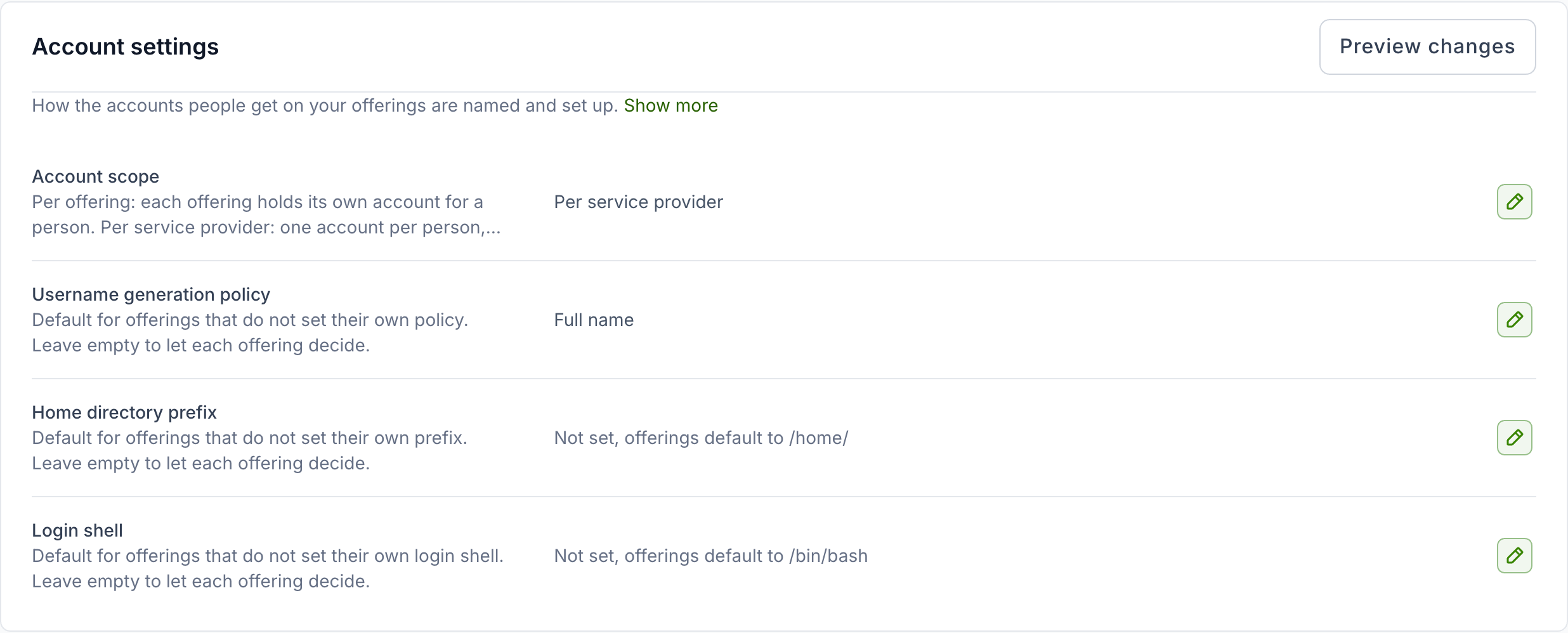
How the names are formed: Usernames derived from the pool. Why one account per person matters for a shared directory: One person, one entry.
Switching an existing provider
Changing Account scope to Per service provider on a provider that already has offering users links their existing accounts to one account per person. When every person has the same username on every offering, the switch is saved at once.
When some people have different usernames on different offerings, the switch cannot be saved yet: one of their usernames has to be kept. Waldur shows those people instead of saving, and applies the switch once each of them is resolved. For each person, choose the username to keep. Each candidate says how many offerings use it, whether it has active resources and whether a home directory is recorded for it — renaming a live account changes who owns its files, so prefer the name that is in use.
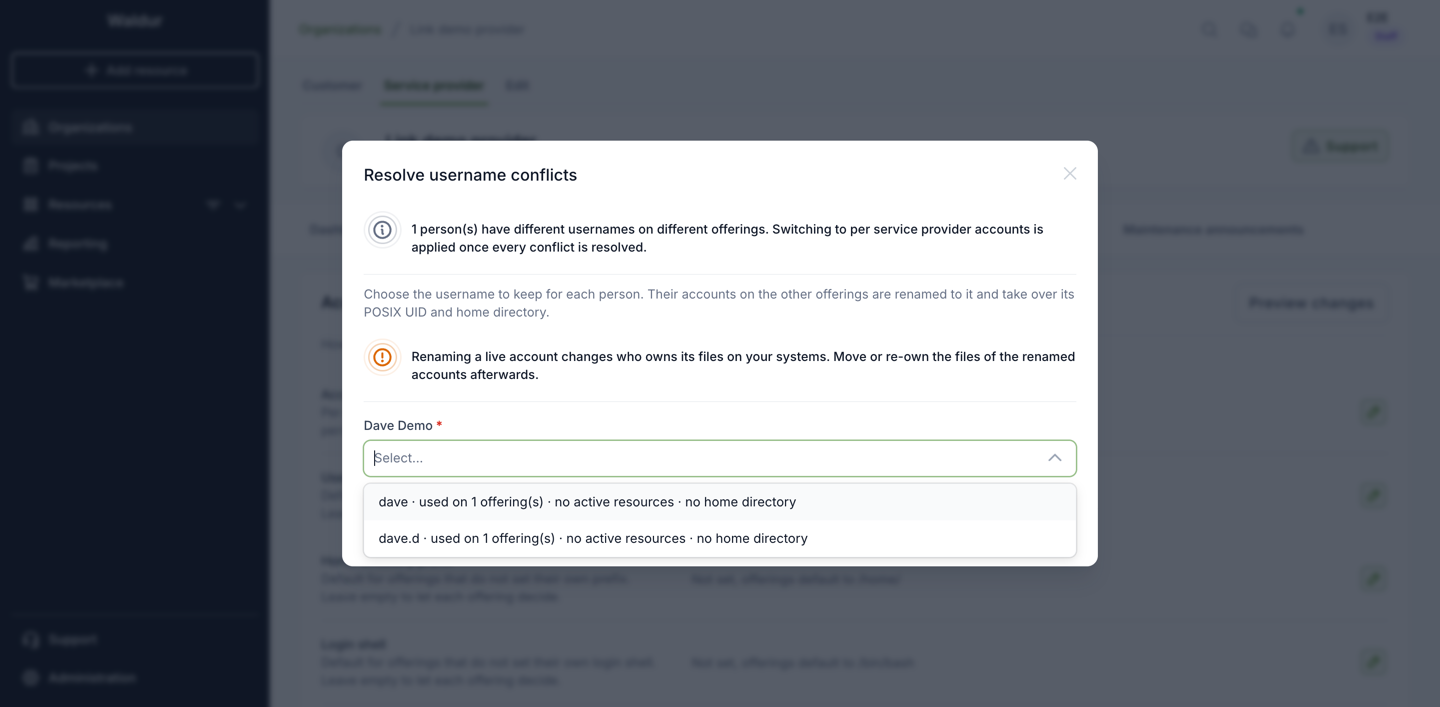
In Preview changes, Apply stays disabled while the preview reports conflicts for the switch; Resolve conflicts opens the same choice and applies the switch afterwards. The full list is also on Accounts → Username conflicts.
An offering that runs its own separate directory can still override the scope back to per offering.
2. Set up each offering's user management
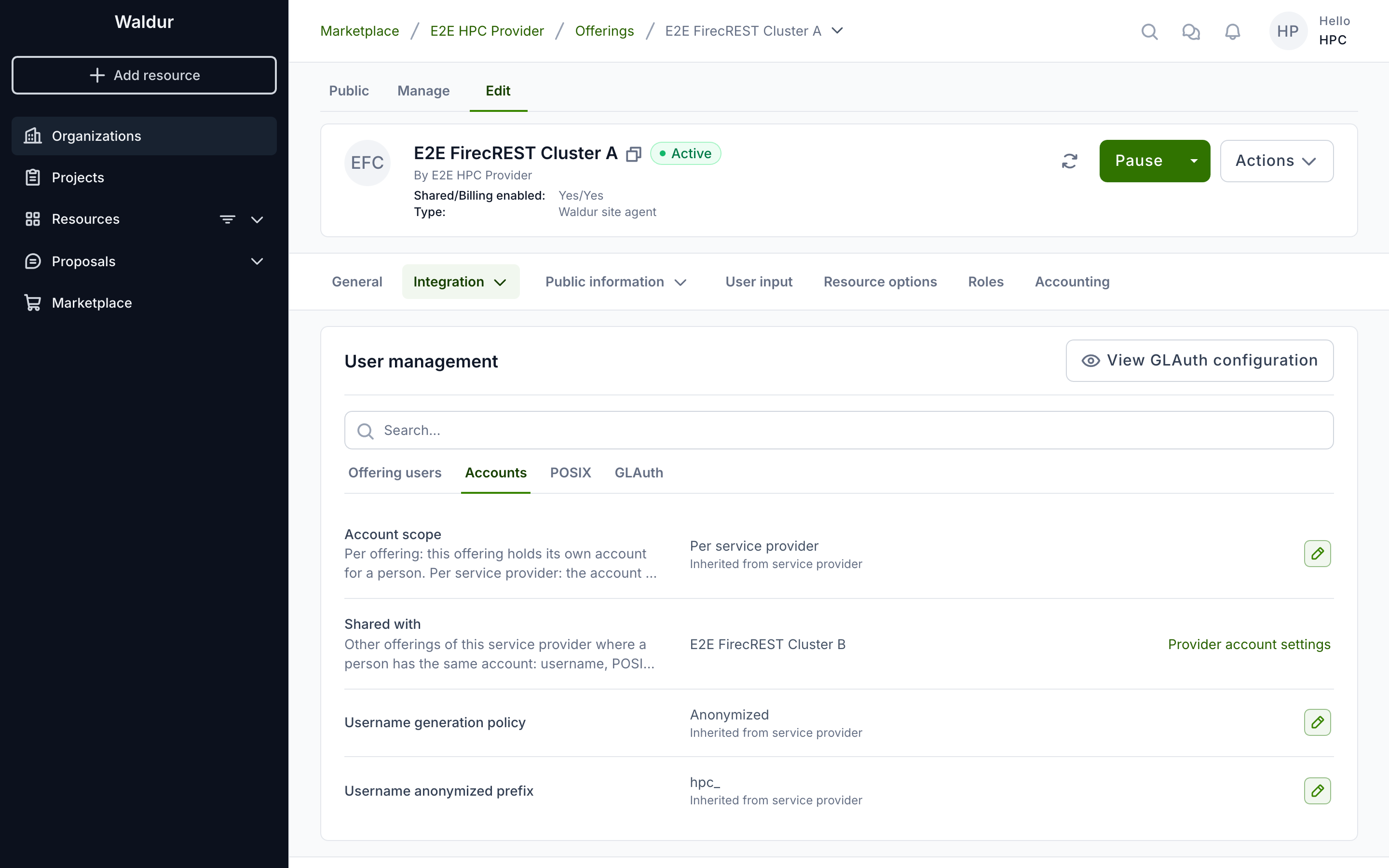
Open the offering, then Edit → Integration → User management. Its settings are grouped in tabs — Offering users, Accounts, POSIX and GLAuth — with a search box above them. Only the settings that are genuinely per offering are set here, with the same values on every offering that shares the directory:
| Setting | Value | Why |
|---|---|---|
| Enable automatic creation of offering users (Offering users) | on | Waldur creates the offering user when a person gains access. The naming and POSIX settings on this form can only be changed while this is on |
| Enable automatic deletion of offering users (Offering users) | on | Losing the last project role moves the offering user to Requested deletion, which is what makes the agent release the entry |
| Manage POSIX/LDAP account (POSIX) | on | Allocates the UID and GID and exposes them to the agent |
| UID source / Primary GID source (POSIX) | POSIX ID pool (the default) | The values come from the provider's pool rather than from identity attributes |
The account fields — Account scope, Username generation policy and Username anonymized prefix on the Accounts tab, Home directory prefix and Login shell on the POSIX tab — show the value in effect and where it comes from: Inherited from service provider, or Default when the provider leaves it empty too. The screenshot shows the Accounts tab with nothing set on the offering: the scope, policy and prefix all come from the provider's Account settings, and Shared with names the other offerings a person's account is shared with. Leave them that way. Set one only when a single offering really needs a different value: an offering's own value wins over the provider's, and on a shared directory a different scope, policy or prefix gives the same person a different account or name on that offering. A value set on the offering carries a link that removes it again, naming what the offering then inherits — for example Use provider setting (Anonymized). The POSIX tab also shows the POSIX ID pool the accounts draw from.
What the UID source / Primary GID source choices mean: Legacy identifiers outside a pool.
Warning
All sharing offerings must belong to the same service provider: the pool, the provider-wide account and the agent's "still active elsewhere?" check on departure all span that provider's offerings only.
3. Configure the site agent and the cluster nodes
Follow the
LDAP username management plugin
page: one shared ldap block with account_source: waldur, a project-group GID
range clear of the pool, SSSD with ldap_account_expire_policy = shadow. The
configuration keys and their meaning are also summarised in
Waldur-authoritative accounts in OpenLDAP.
4. Check the first accounts
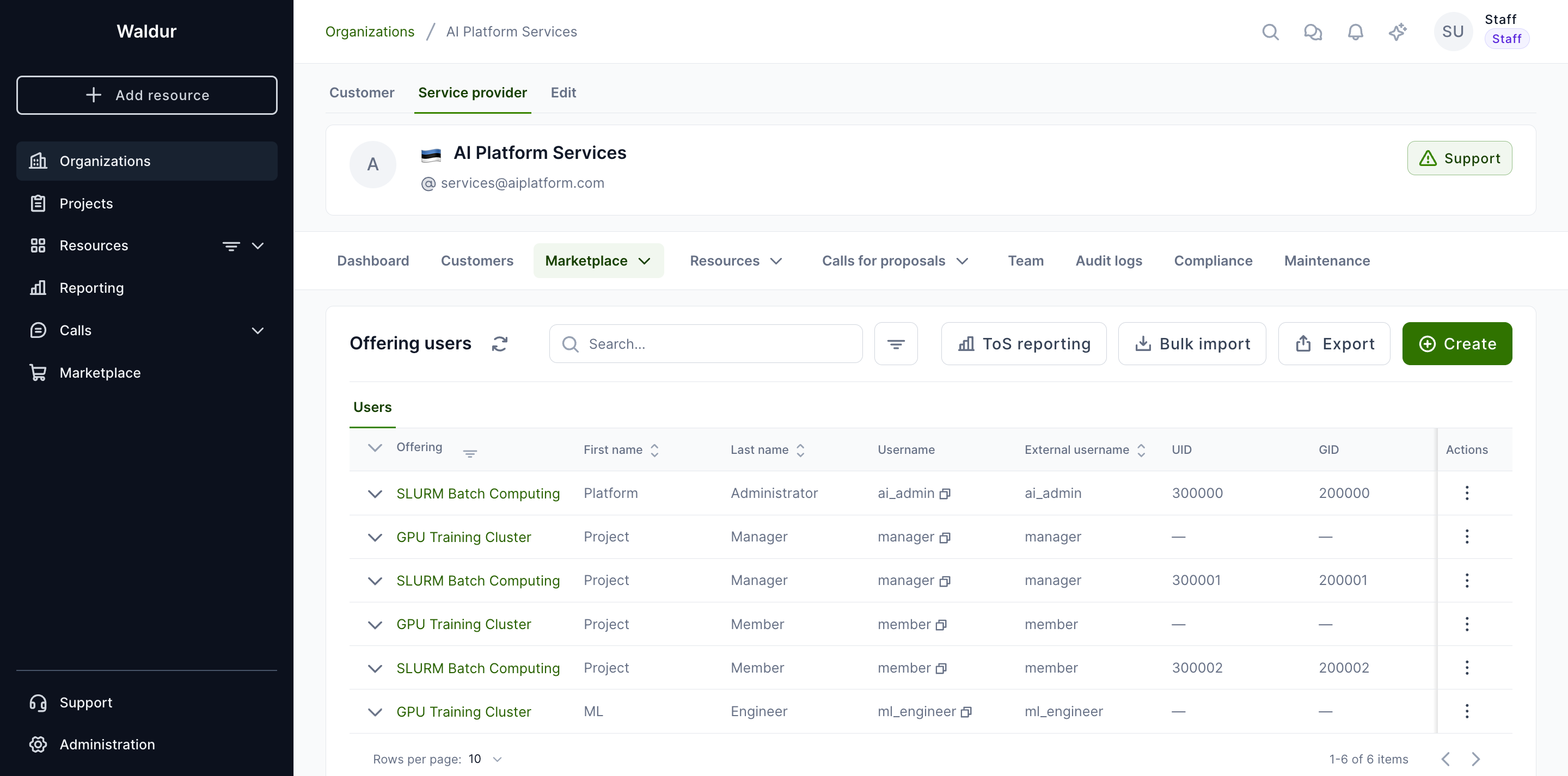
Once a person has access, the provider's Accounts → Users page shows each account's username, UID and GID — the values Waldur allocated and the agent writes into the directory. Its Offering users tab lists one row per offering; the Provider accounts tab lists the single account each person holds for the whole provider, and expanding a row names the offerings using it:
An offering user that reads through a provider account shows Provider account next to its username. The link opens that provider account; expanding the row, or opening Details from its actions, says the same:
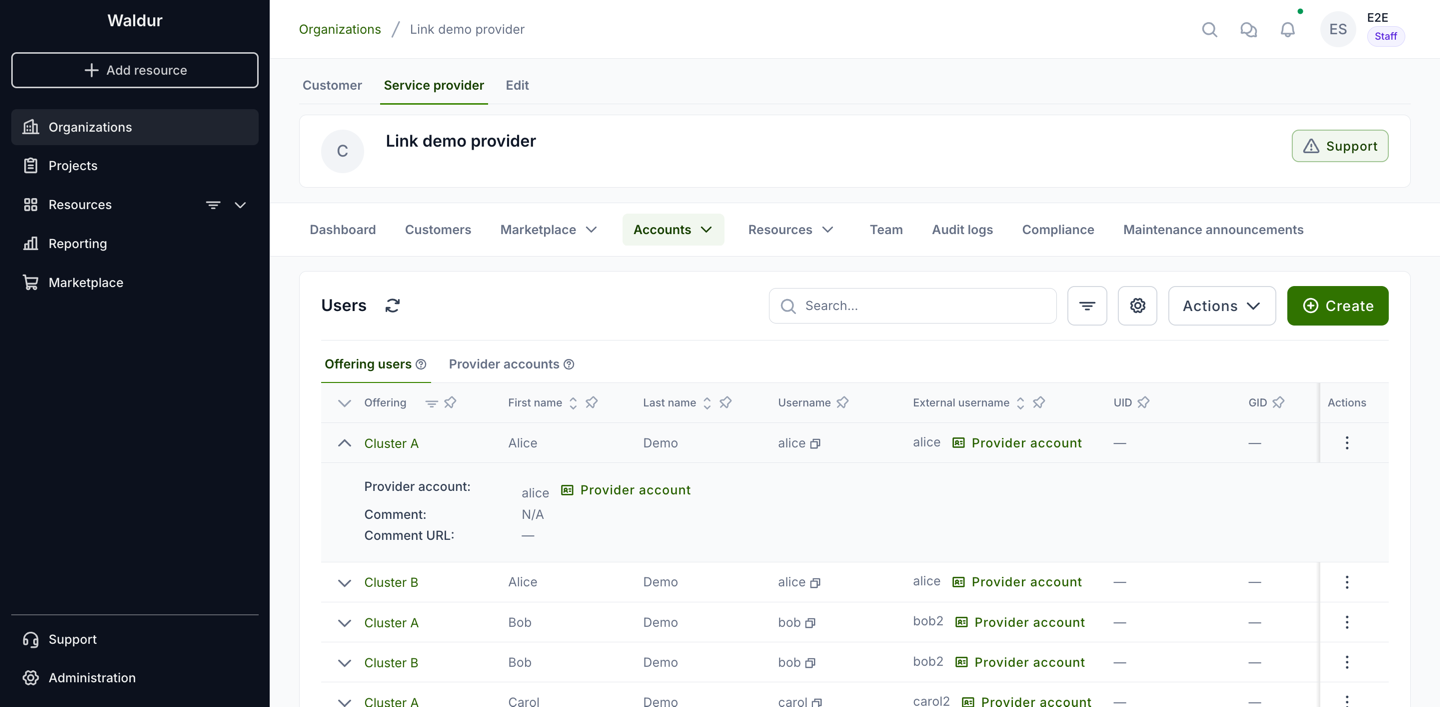
The username and POSIX attributes of such an account belong to the provider account, so its actions offer Provider account instead of editing the username or the POSIX attributes; change those on the provider account, and every offering using it follows. What stays per offering — the comment, the account state, restricting or deleting the account — is still edited on the row.
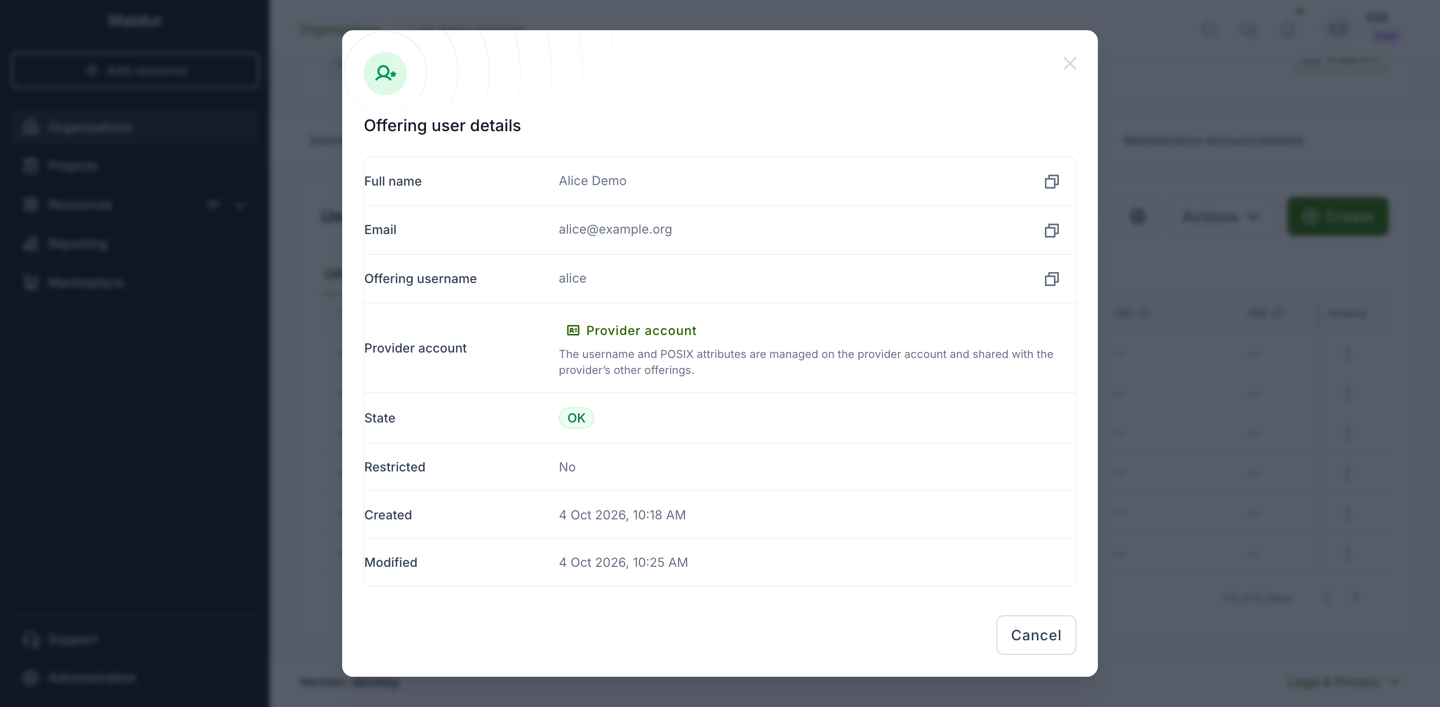
On the Provider accounts tab, expanding an account lists its offering accounts: Shared marks those that read through it, and Own account an offering that keeps an account of its own, for example one that overrides the scope back to per offering.
The same person must show the same username and UID on every sharing offering. Where that is not yet true, Accounts → Username conflicts lists the people affected and lets you choose the username each of them keeps.
Adding accounts by hand
On an offering that shares provider accounts, Create and Bulk import ask for no username: the account reads it from the person's provider account, which Waldur creates if the person has none yet. The pool's utilisation and the list of identities drawn from it are on
the pool page: Monitoring utilisation.
5. Know what a departure looks like
When a member loses their last project role on an offering:
- The offering user moves to Requested deletion in the offering users list.
- The agent removes the SLURM associations, checks whether the person still
holds a live account with the same username on a sibling offering, and — if
not — parks the directory entry (or deletes it, depending on
on_departure). - The offering user is marked Deleted. Once every offering user reading through the provider-wide account is deleted, that account is released too.
A member who is added back gets the same username, UID and entry re-enabled.
The full behaviour, including the disable/delete choice and why parking is
the default: When a user leaves.
Note
Without Enable automatic deletion of offering users nothing above happens: the offering user stays OK and the entry is kept. The agent only ever acts on Waldur's own deletion request.