Passkeys
A passkey lets you sign in with your device — a fingerprint, your face, your screen lock, or a security key — instead of typing a password. Nothing secret leaves your device, and a passkey cannot be phished: it only works on the site it was created for.
Prerequisites
- An administrator must have enabled passkeys for your deployment. If the Passkeys section is not in your profile, they have not.
- A device with an authenticator: Touch ID or Face ID on Apple devices, Windows Hello, an Android screen lock, or a USB security key.
Adding a passkey
-
Go to Profile > Credentials > Passkeys.
-
Click Add passkey.
-
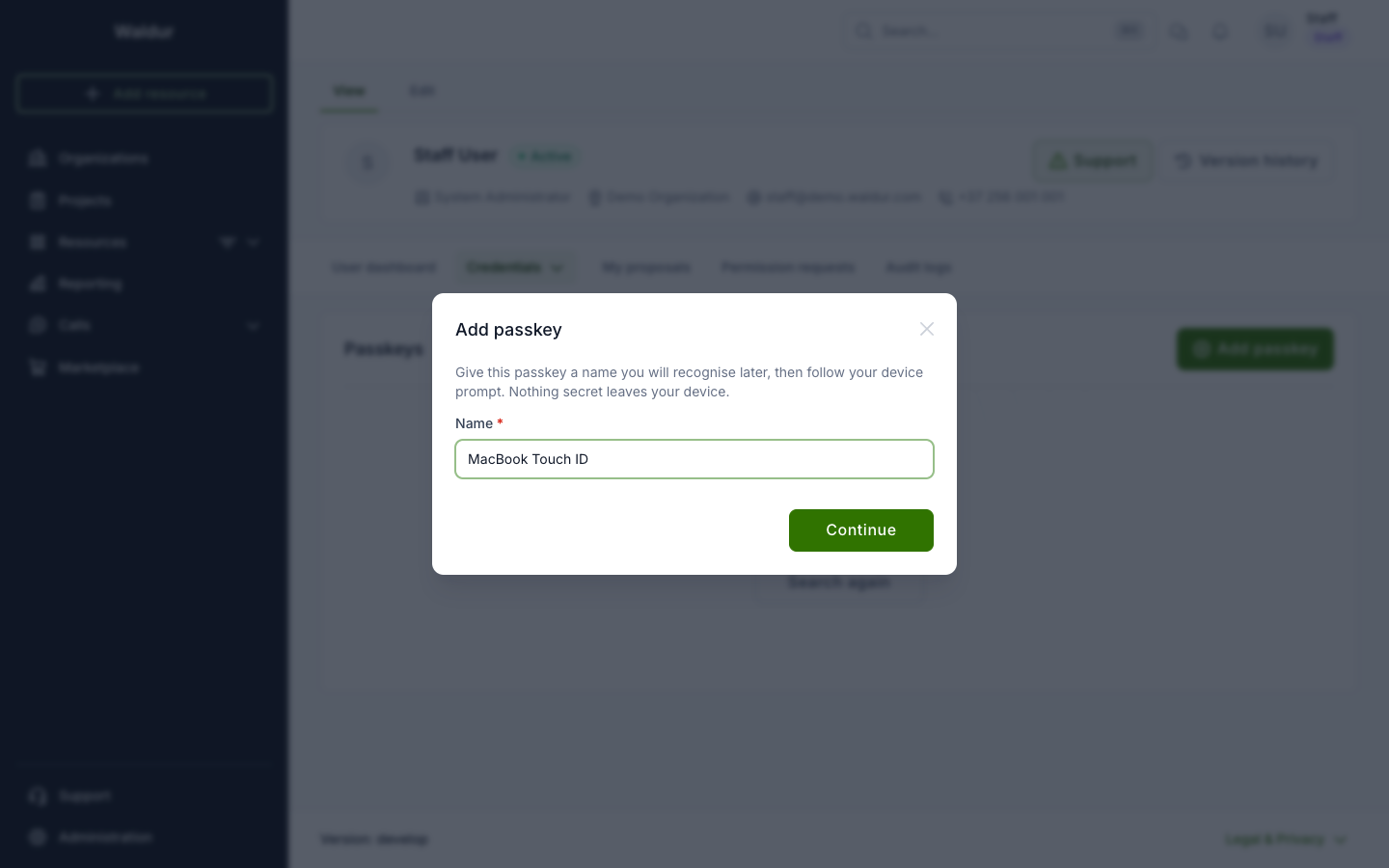
Give it a name you will recognise later — "MacBook Touch ID" is more useful than "passkey 1", especially once you have two.
-
Follow the prompt from your browser or operating system.
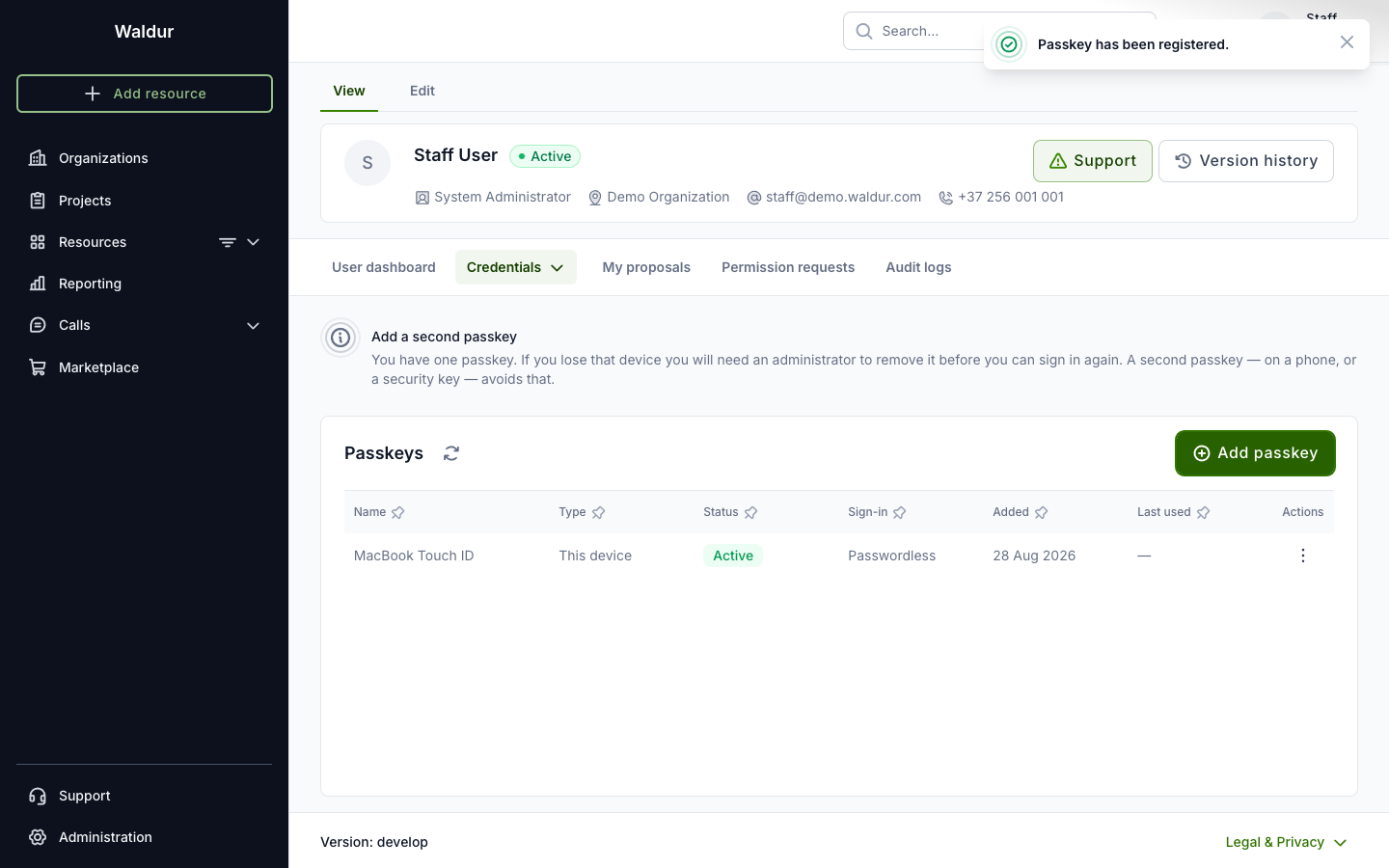
The new passkey appears in the list with the type of authenticator, whether it can be used for passwordless sign-in, when it was added and when it was last used.
Add a second one
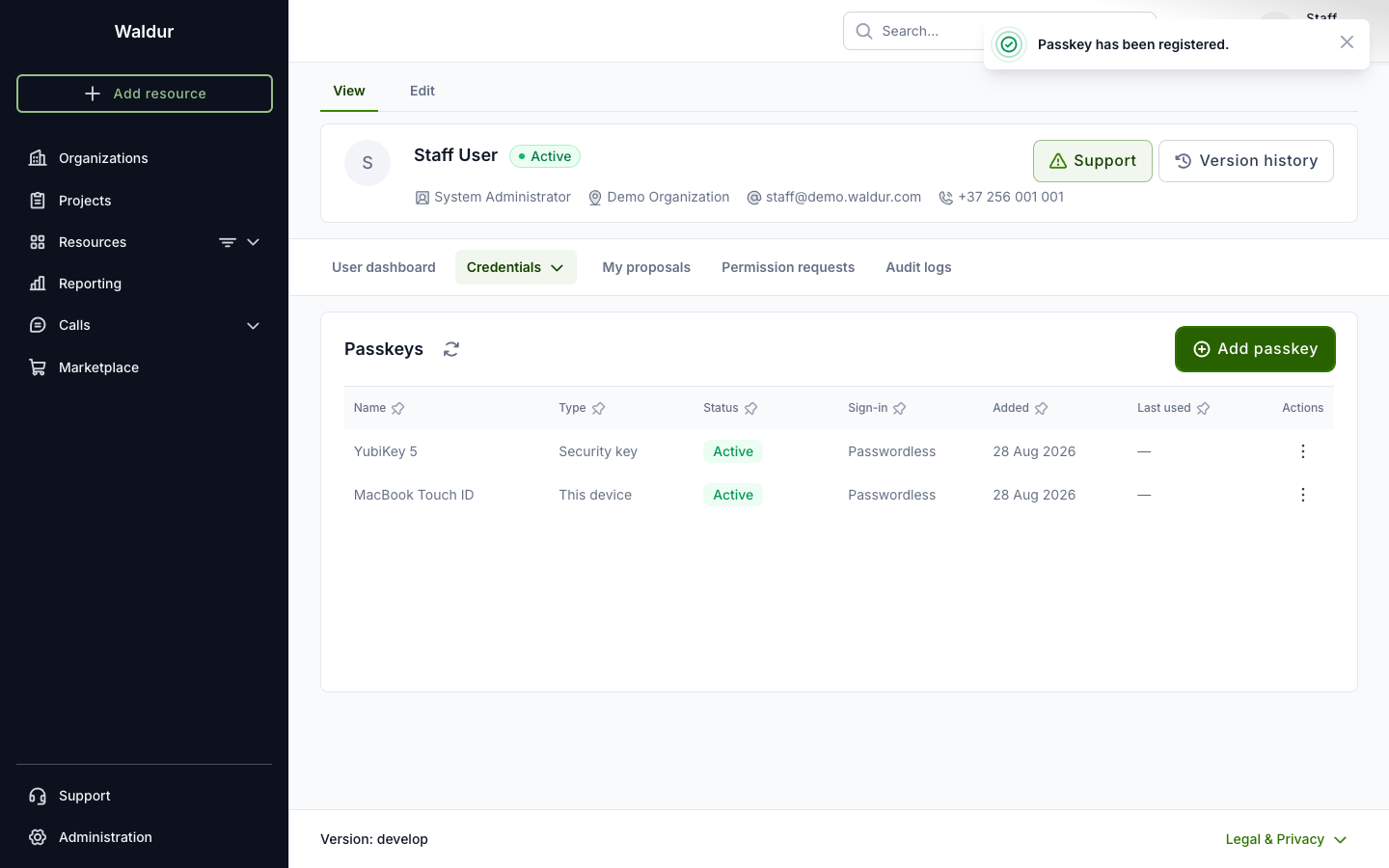
If you lose the only device holding your passkey, you will need an administrator to remove it before you can sign in again. A second passkey — on your phone, or a security key you keep somewhere else — avoids that. Waldur reminds you while you have only one — the reminder disappears once you add another.
Signing in
How you sign in depends on what your administrator enabled.
Passwordless
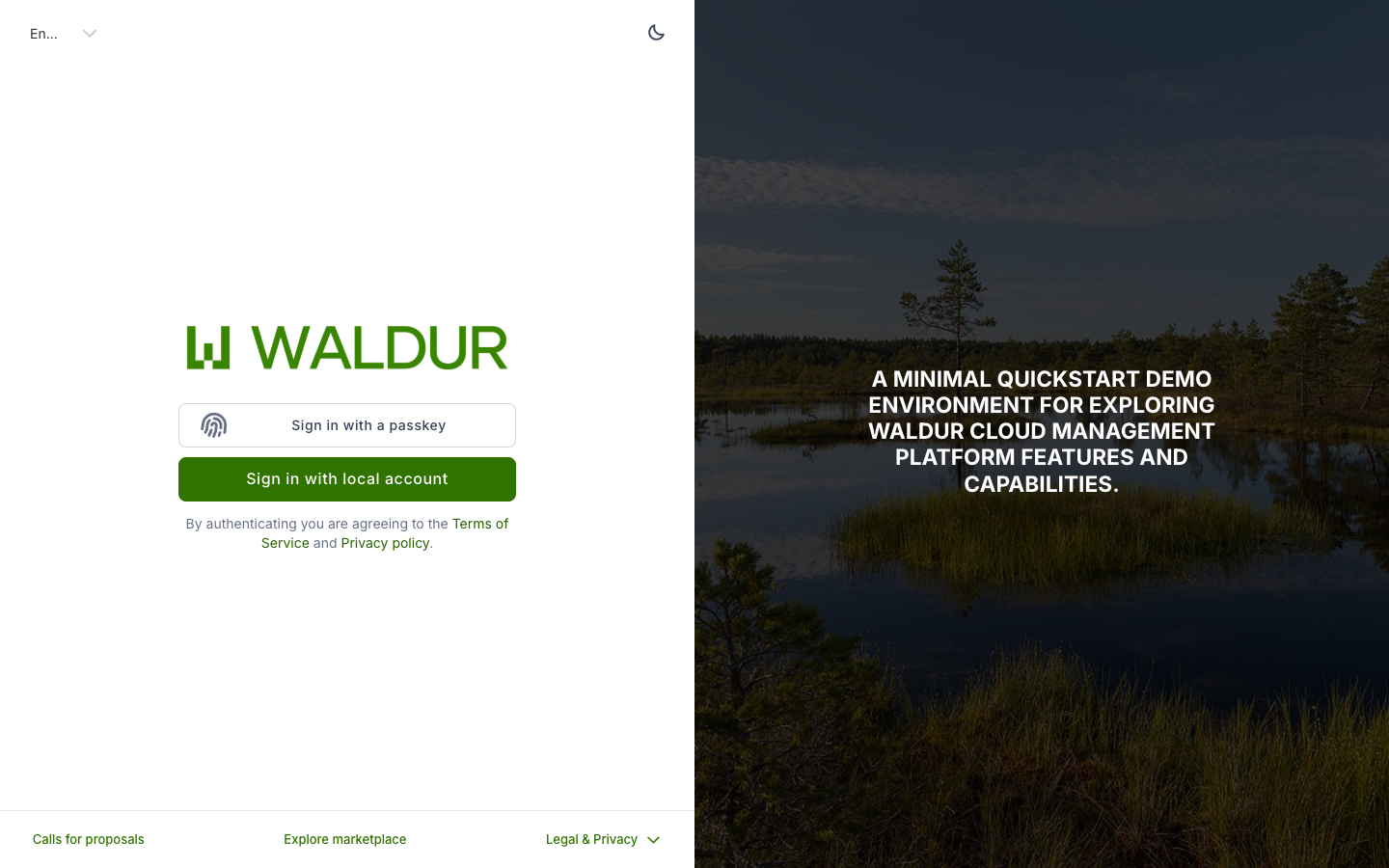
On the login page, choose Sign in with a passkey. There is no username and no password: your browser offers the passkeys it holds for this site, and you confirm with your device.
As a second step after your password
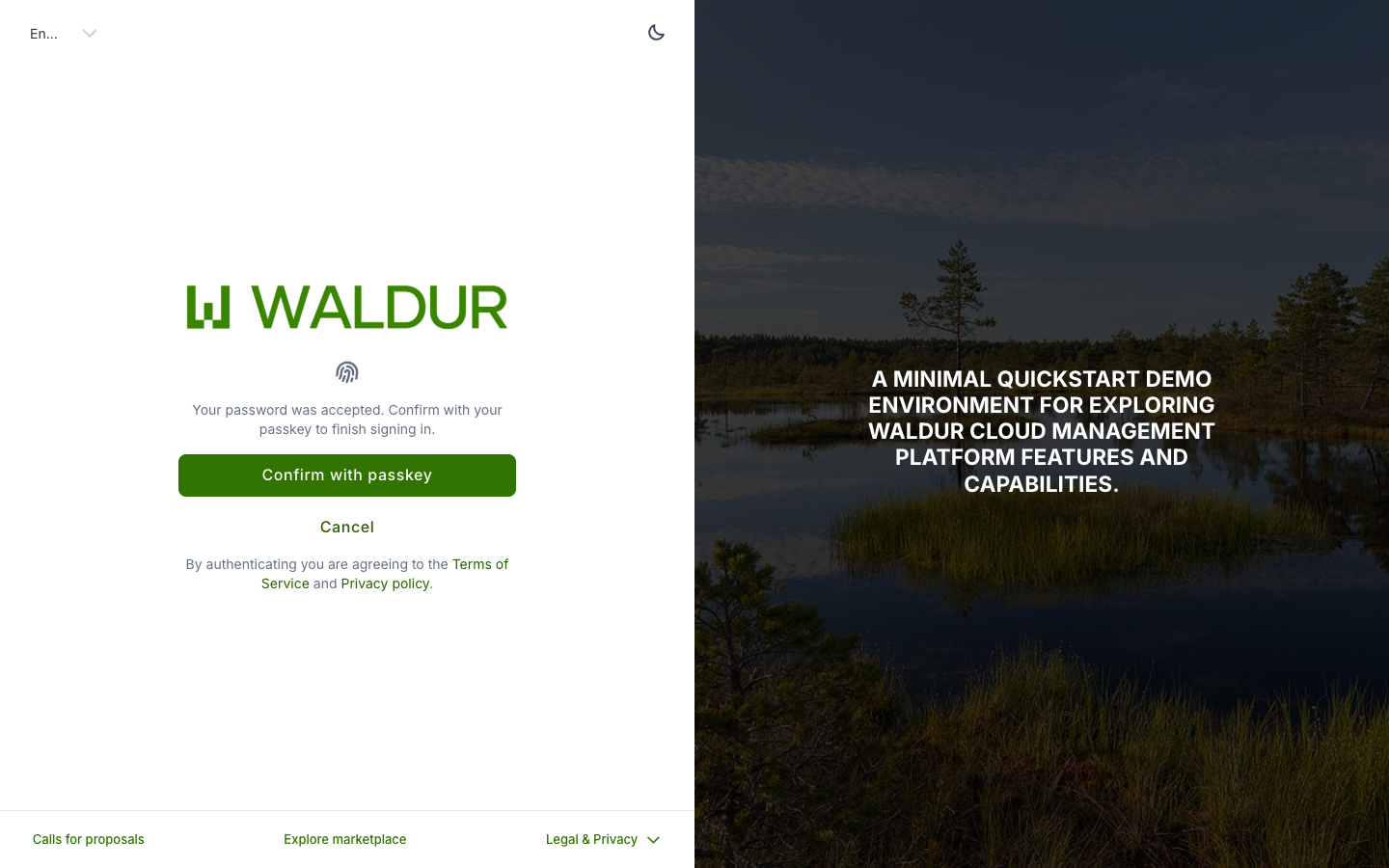
Enter your username and password as usual. Instead of signing you straight in, Waldur asks you to confirm with your passkey. Your password alone does not produce a working session.
Renaming and removing
From Profile > Credentials > Passkeys, the menu on each row lets you:
- Rename it — useful when "security key" stops being distinguishable from your other security key.
- Revoke it — the passkey stops working immediately and cannot be restored. The entry stays in the list, marked revoked, so the history is visible.
If you lose a device
Ask an administrator to revoke the passkey on that device. They must record a reason, and you can see it in your own audit log under Profile > Audit logs.
If you have another passkey, carry on using it. If it was your only one and your account requires a passkey, you will be asked to add a new one before you can continue.
Troubleshooting
The browser shows a QR code and asks about a phone, with no fingerprint option. That is the prompt for signing in with a passkey held on another device. It appears when this device has no passkey for Waldur yet. Sign in with your password first and add one from your profile.
The prompt appears and immediately closes. Usually the prompt was dismissed, or the browser refused it. Waldur will say which; try again, and if it keeps happening, check with your administrator that the site address matches the one passkeys are configured for.
A passkey is listed as "Unusable". It was created for a different site address than the one you are on now. It cannot be recovered — remove it and add a new one.
A passkey is listed as "Second factor only". Uncommon — it means your device reported that it created a credential it cannot look up on its own, so it cannot be used for passwordless sign-in. It still works as a second step after your password. Add another passkey, on a different device, if you want passwordless.