Service desk interactions
This guide will help you navigate and effectively use the support system to manage service requests, track tickets, and communicate with users.
Support dashboard
Open Support → Dashboard for an overview of the workload: how many tickets are still open, how many were closed this month, and the open ones listed below. Each counter links to the matching list.
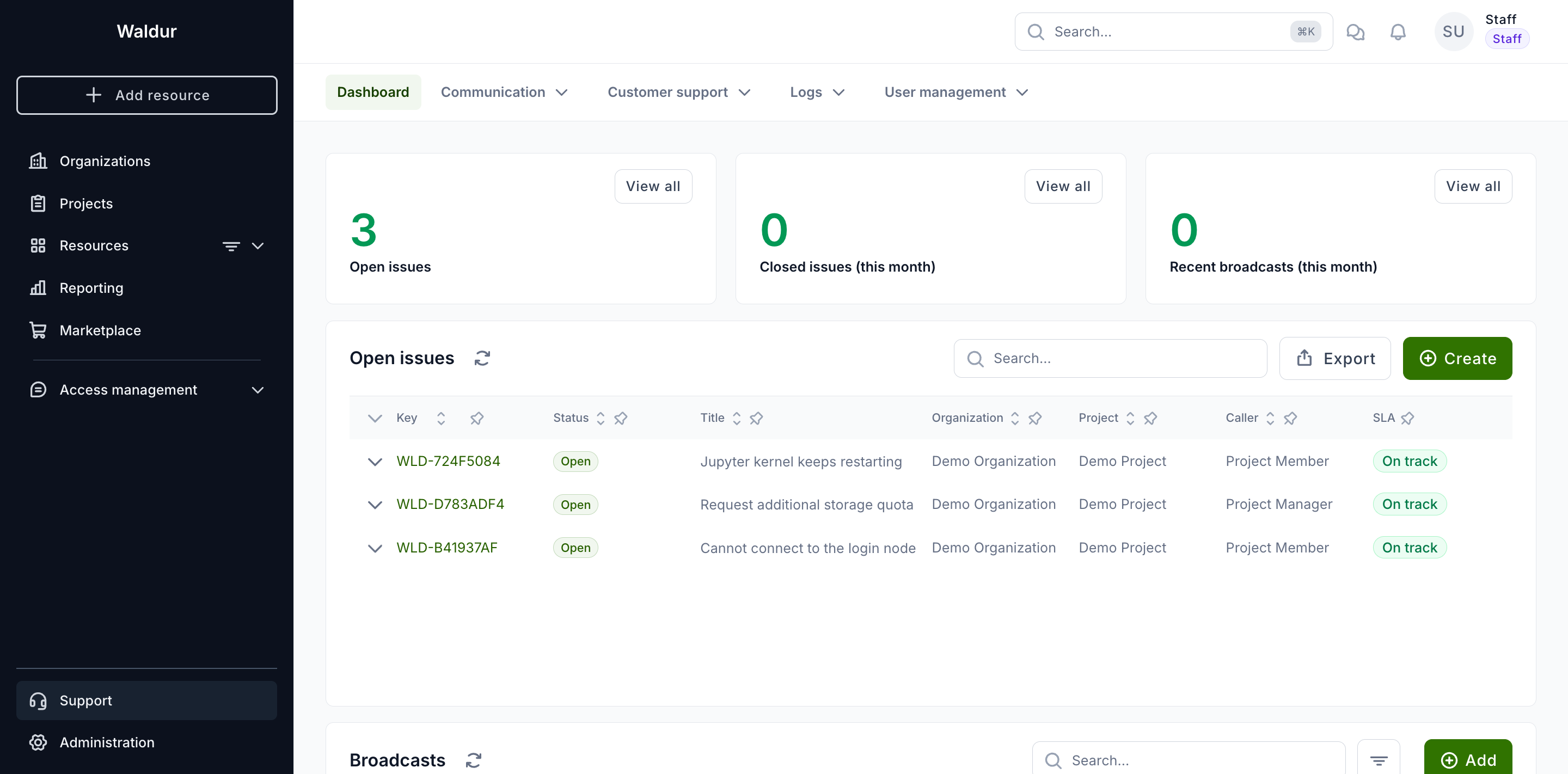
A ticket counts as open until it reaches a status mapped to an outcome — see which statuses close a ticket.
Accessing the service desk support tickets
Open Support → Communication → Support requests.
A page will open displaying all created tickets. You can view:
- The status of each ticket.
- The user name and organization that created the ticket.
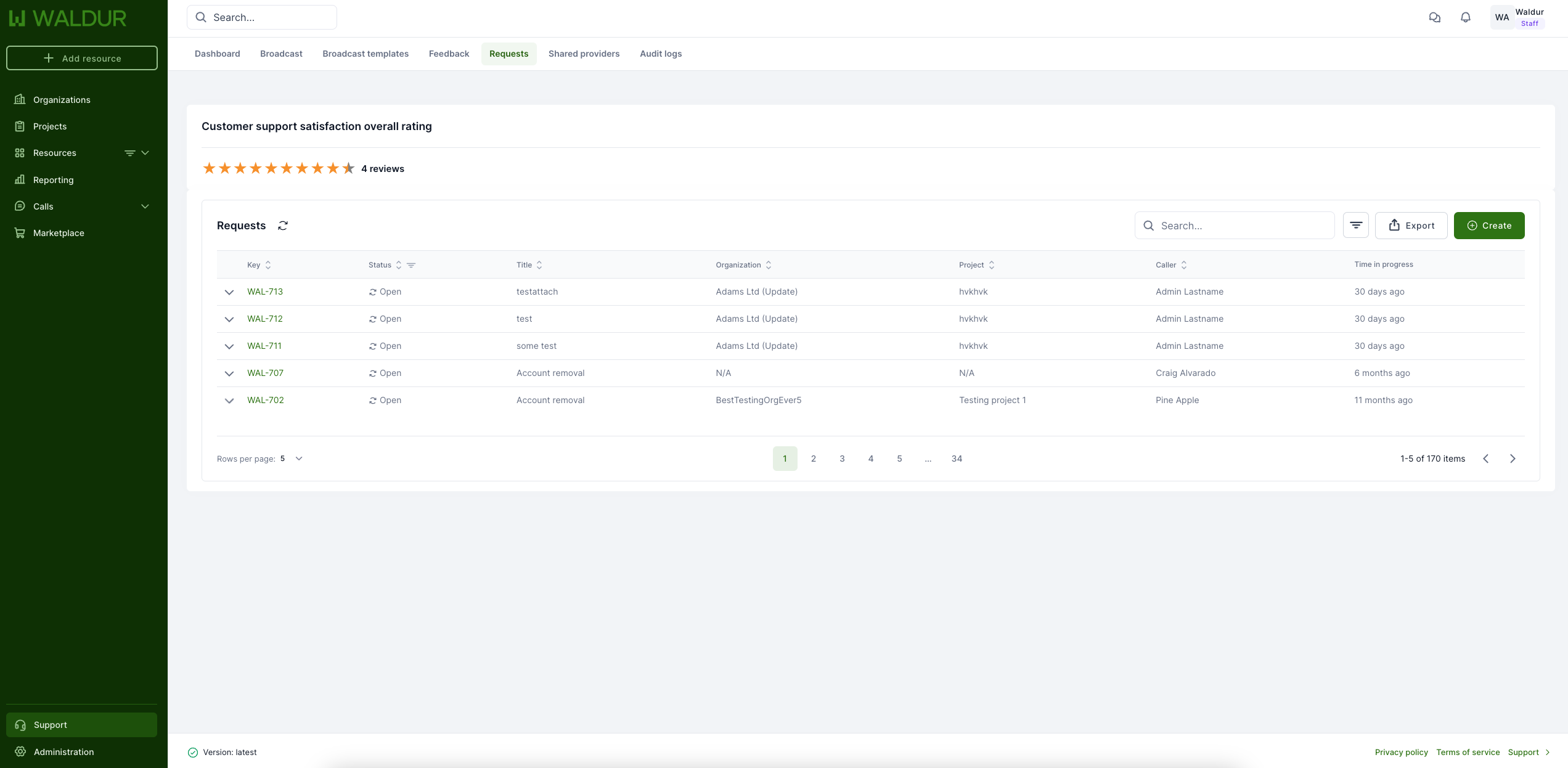
To open a specific ticket, click on its key-name. This will open a dedicated ticket page.
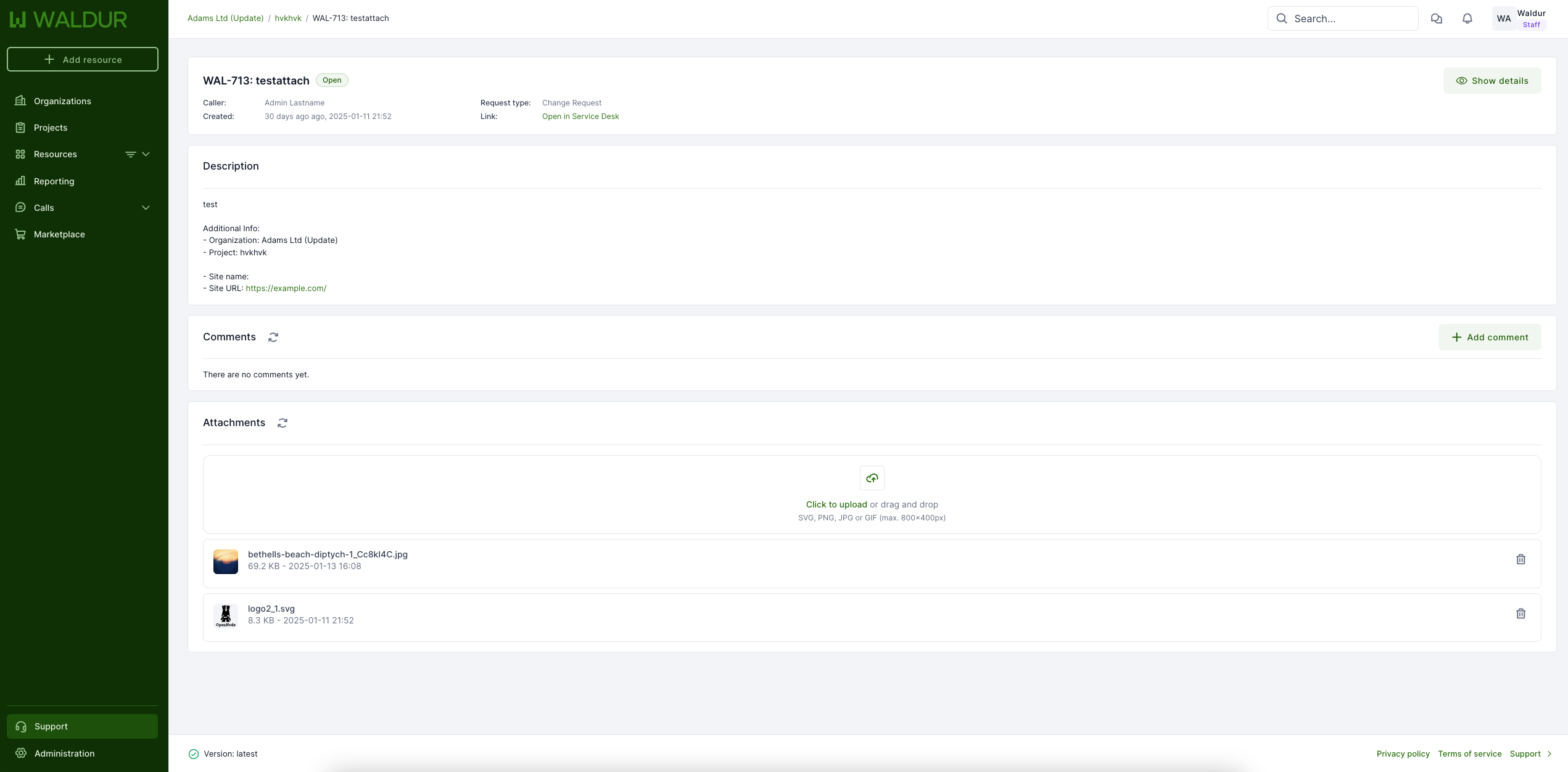
On this page, you can:
- Read the content of the ticket.
- Check attachments.
- Add comments/replies to communicate with users.
- Change the ticket's status, when Waldur runs the service desk itself.
Opening a request for a user
Staff can start a conversation with a user instead of waiting for one, for example to tell them about an expiring SSH key, an allocation or an access problem. The exchange stays in Waldur, so the rest of the desk can see it later.
Open Support → User management → Users and choose Open support request in the actions of the user's row, or on the user's details page. The action is shown to staff only, and is disabled for a deactivated user.
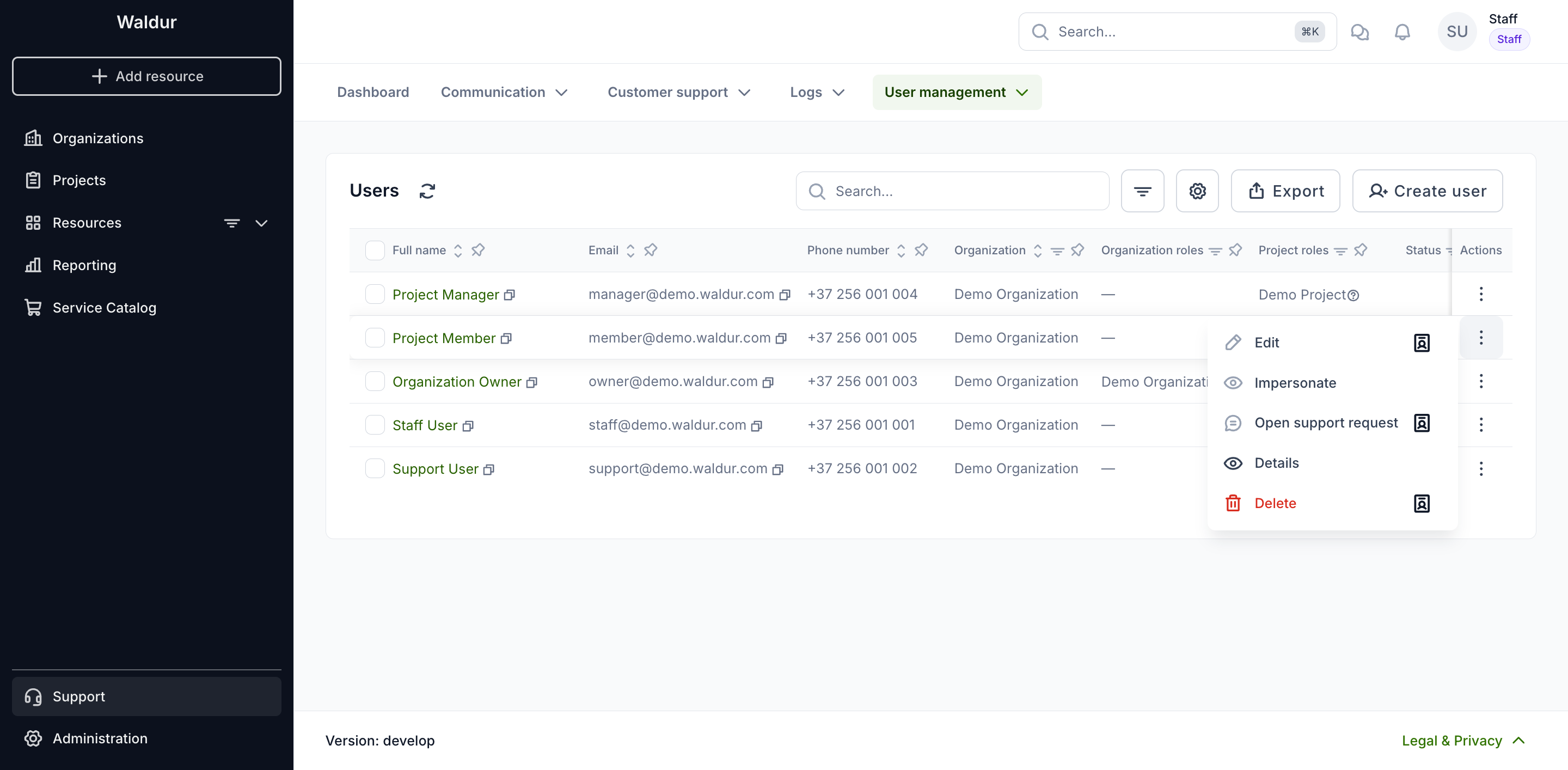
In the dialog, fill in:
- Recipient — prefilled with the user you opened it for. Only active users can be picked, and not yourself.
- Request type — shown when the deployment offers more than one.
- Subject — the request's title.
- Message — posted as the request's first public comment, under your name.
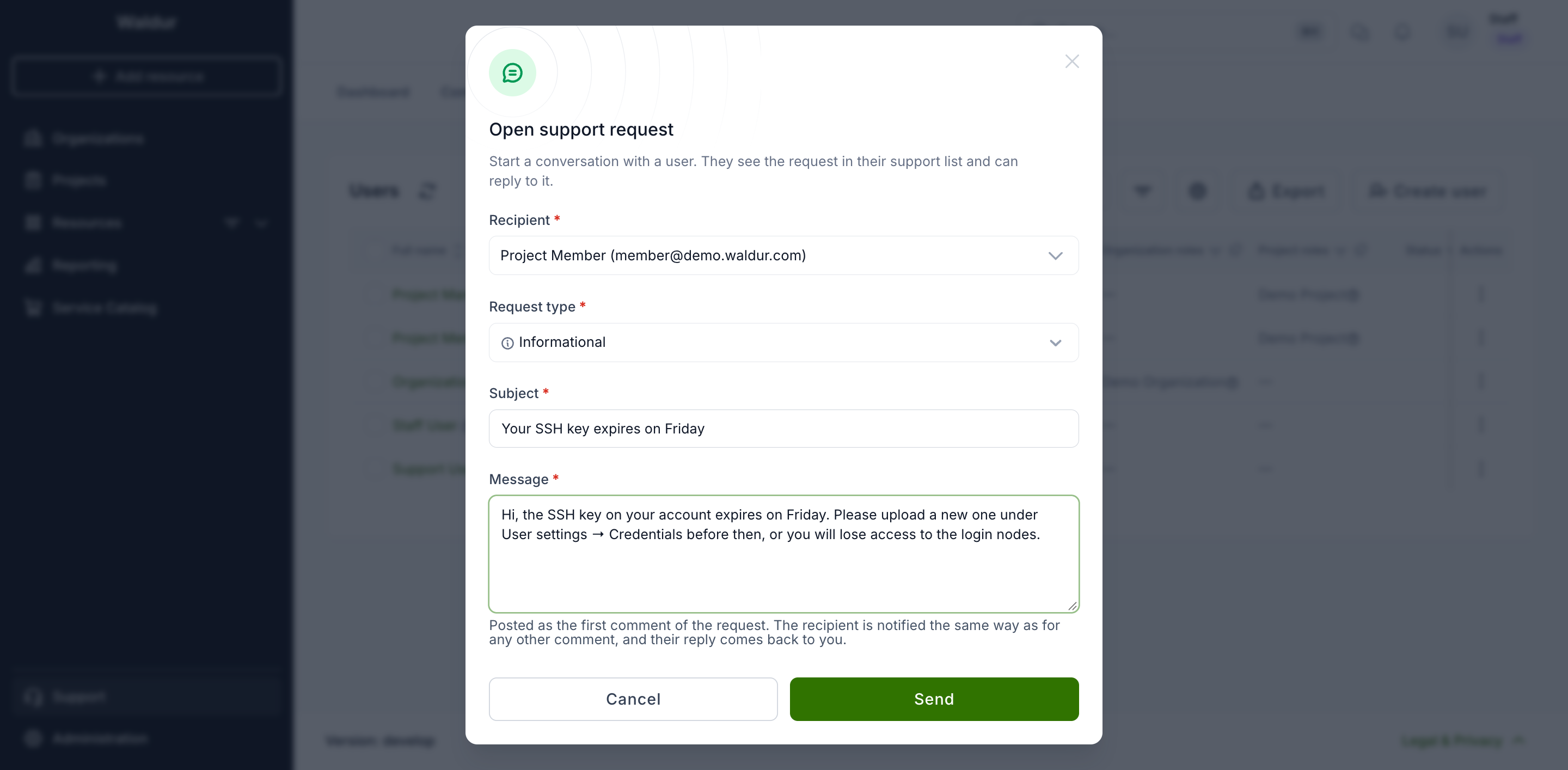
Select Send. The request opens, and the recipient finds it under Support on their own profile, where they can read it and reply with Add comment. The request is not tied to an organization or project, because the recipient could not see it otherwise.
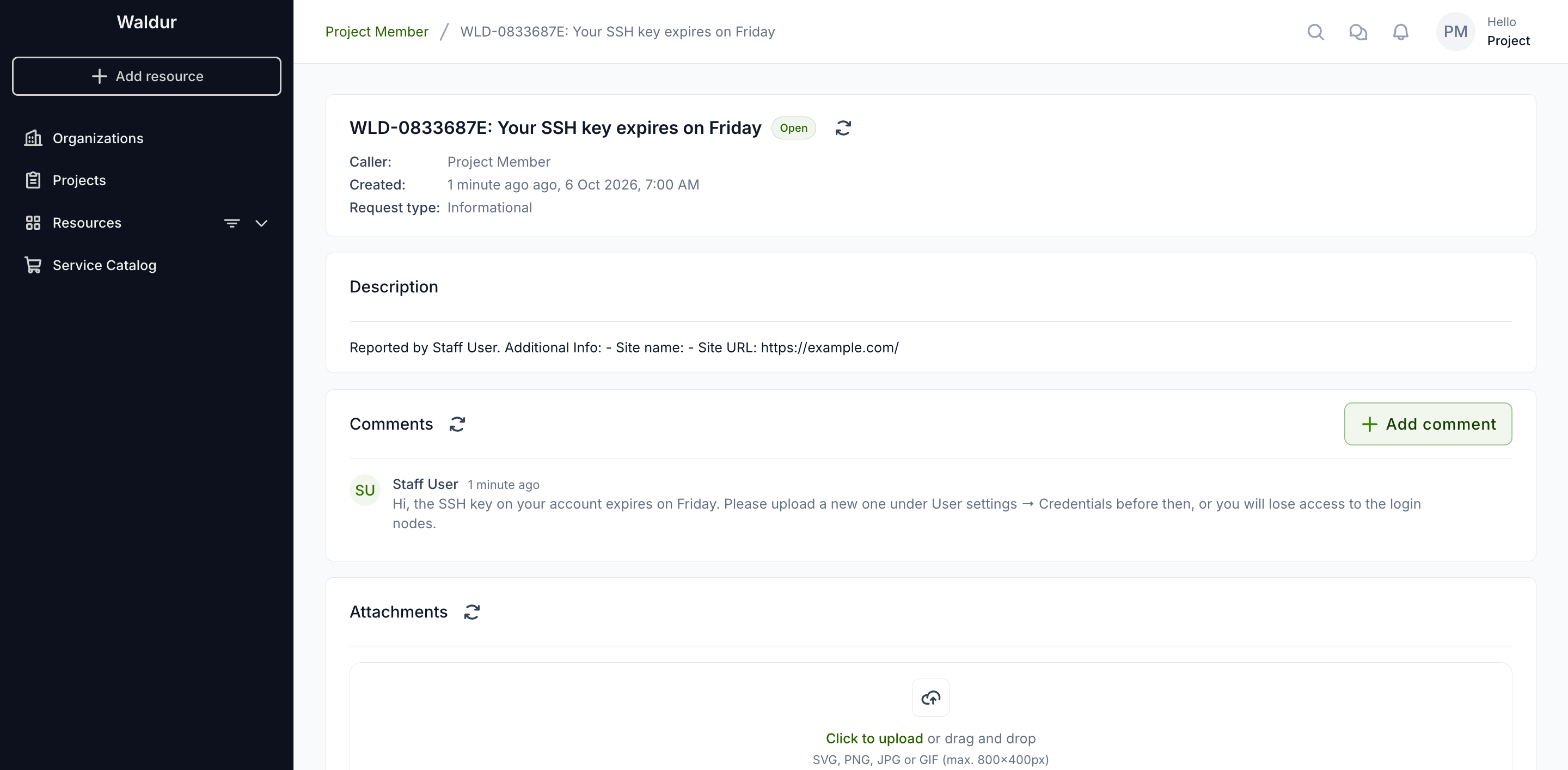
Two notifications carry the conversation, and both are off until an administrator enables them; see notifications:
support.notification_comment_addedemails the recipient your message and a link to reply, as for any other comment on their ticket. Without it the request only appears in their list.support.notification_comment_added_staffemails you when the recipient replies.
When Waldur runs the service desk itself:
- You become the request's assignee, so the recipient's reply is emailed to you rather than to the whole desk.
- Staff are not sent the usual new-request notification for it.
- It does not count as answered, and its SLA deadlines (first response and resolution) do not start, until the recipient has replied. A message the recipient never answers is therefore never an SLA breach.
With the Atlassian, Zammad or Smax backends the request and its message are also created in the external service desk, filed under the recipient.
Editing and deleting comments
Staff can edit or delete any comment on a ticket, including internal ones, with Change and Remove next to the comment. Editing changes only the text: an internal comment stays internal, and only staff can change whether a comment is public.
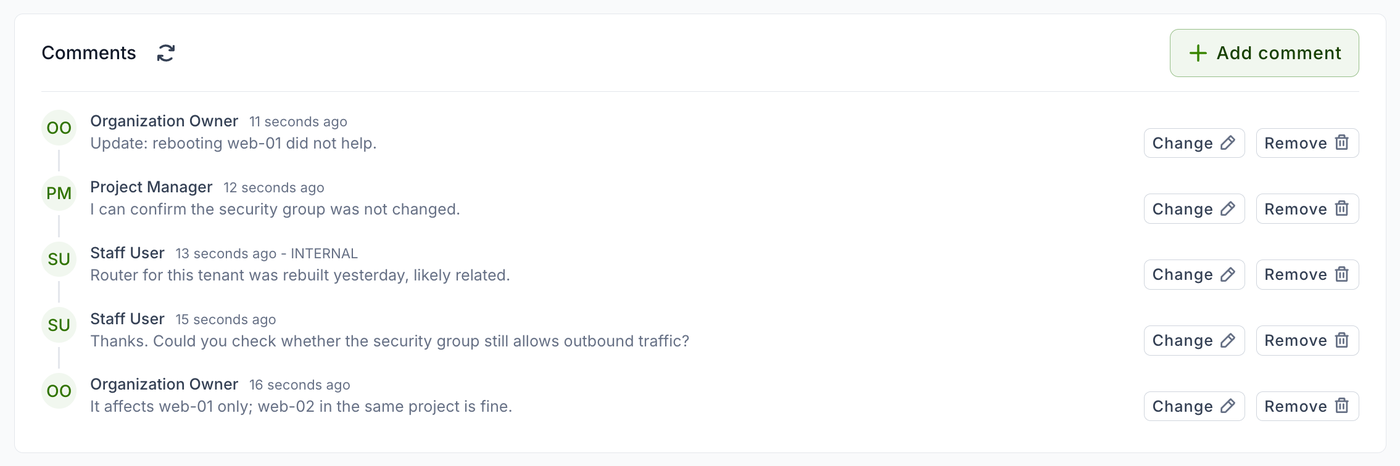
Users can edit and remove their own comments too, but only when Waldur runs the service desk itself, while the ticket is open, and as long as the ticket has not been routed to a provider helpdesk. They never see the buttons on other people's comments.
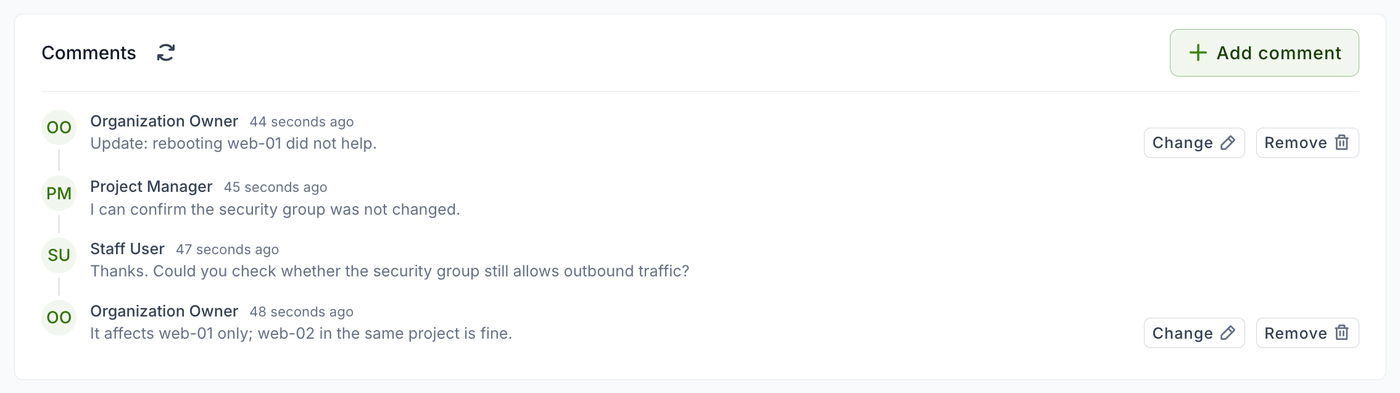
The buttons appear only where the action is possible. On a closed ticket, for example, they are gone for everyone.
Note
With the Atlassian, Zammad or Smax backends the comment has already reached the external service desk, so users cannot change it from Waldur. Changes made by staff to a ticket routed to a provider helpdesk stay in Waldur: the provider keeps its copy of the original comment.
When the person who raised a ticket edits one of their comments, the assignee — or every staff and support user while the ticket is unassigned — can be emailed the previous and the edited text. This notification, support.notification_comment_updated_staff, is off until an administrator enables it; see notifications.
Changing the status of a ticket
Select Change status and pick the new status.
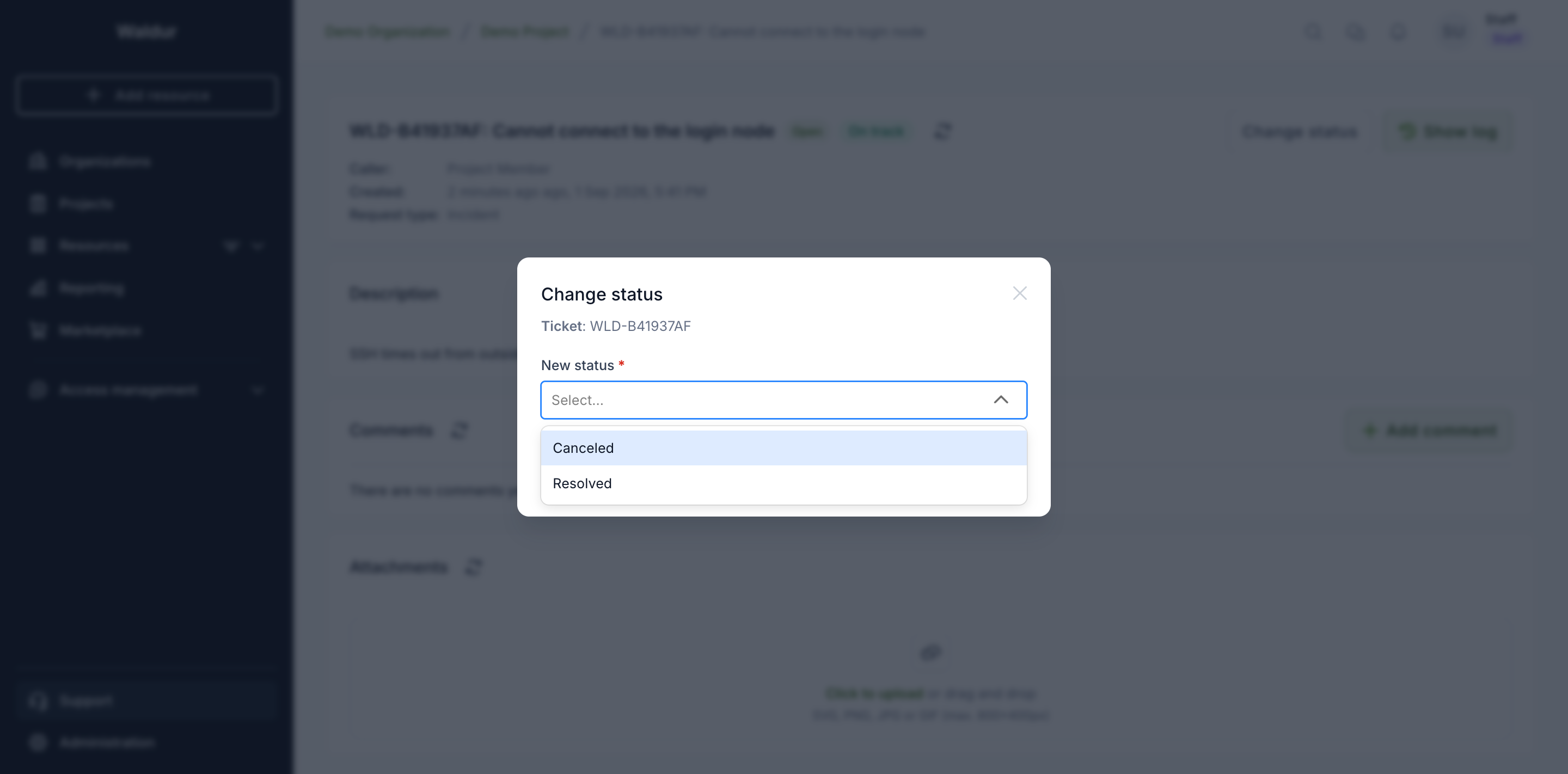
The list offers only the statuses this ticket may move to. If your deployment defines a workflow, that is what constrains the list; otherwise every configured status is available.
Once the ticket reaches a closing status it stops counting as open, and its SLA badge settles to SLA met.
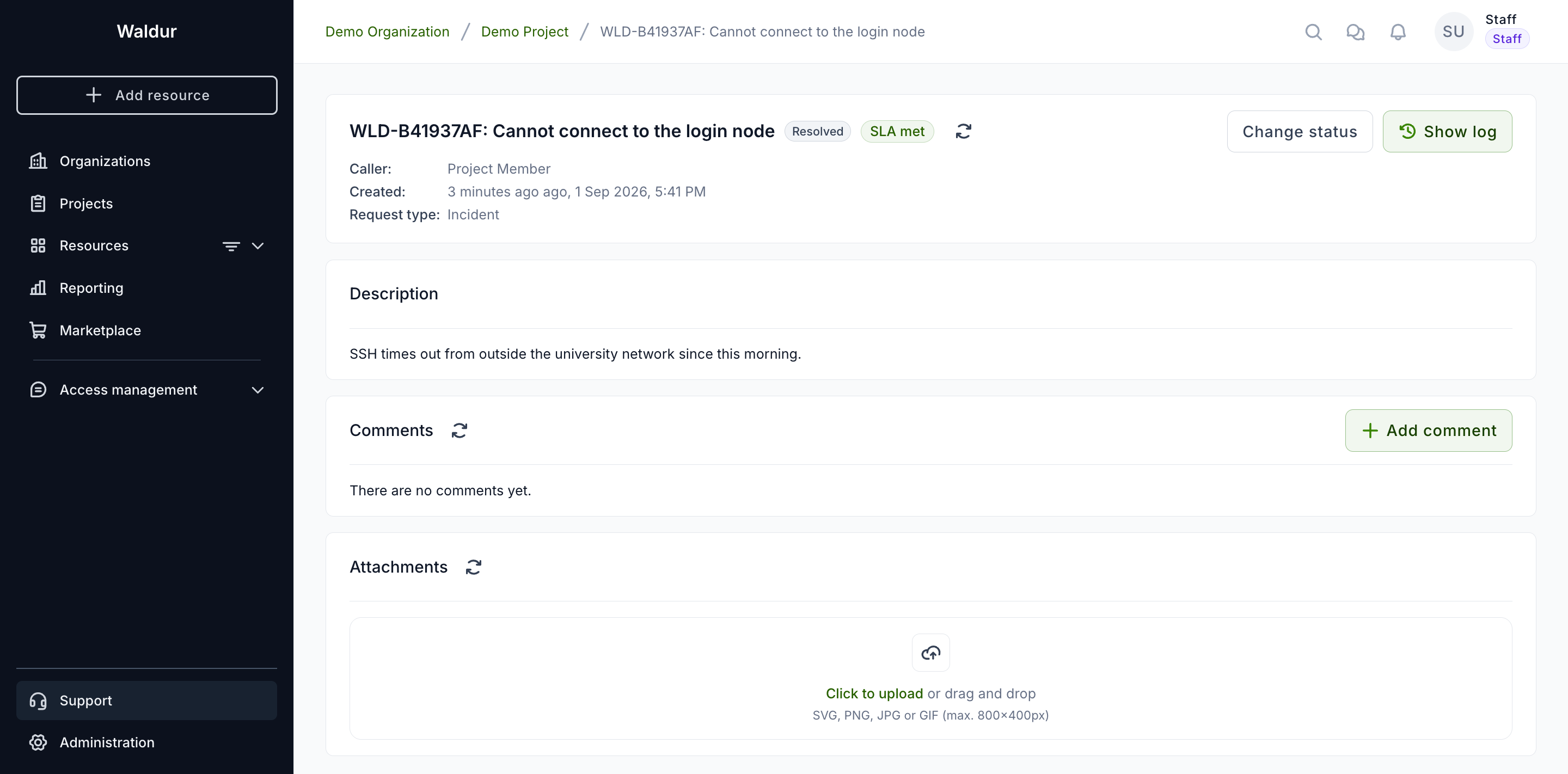
Reopening works the same way — pick Open from the same menu, and the ticket returns to the open list with its SLA tracking again.
Note
Change status appears only where Waldur owns the ticket's lifecycle. With the Atlassian, Zammad or Smax backends the external service desk is the source of truth, so change the status there and Waldur will pick it up. The same applies to a ticket routed to a provider helpdesk: its status belongs to that provider.