Example: a paid self-service call
Not every call evaluates science. An organisation may use a call to sell a service, such as project storage, to research groups that pay for what they request. The applicant names the project, requests an amount, attaches the purchase order from their finance office and submits. There is nothing for a panel to judge, so the call manager does not want to click through every proposal. The provider still sets up each service by hand, through a helpdesk ticket.
This page builds such a call from the settings Waldur already has. With it, a proposal is accepted when it is submitted. The project is named after the proposal and the resource is named by the provider's own pattern. The provider's team fulfils each order through a ticket that carries the purchase order.
| What happens | With this setup |
|---|---|
| The applicant submits proposal Clinical school with a purchase order | The proposal is accepted on submission and the applicant is told at once |
| The project is created | It is named Clinical school, the proposal's name, without the call's reference code or the round's start date |
| The storage is ordered | The resource is named store-clinical-school, from the offering's pattern |
| The provider fulfils it | The order opens a helpdesk ticket. Resolving the ticket creates the resource |
The names and amounts on this page are examples. Use your own.
What you need
- A service provider offering for the service. In this example it is a helpdesk offering, Project storage, whose orders become helpdesk tickets.
- A call-managing organisation that runs the call (see Organization setup).
- A call with one open round.
Setting up the offering
Performed by: Service provider (on the offering)
All settings below are on the offering's Edit page. The search box above each settings tab filters the settings by name, which is the quickest way to find one.
1. Make it a helpdesk offering
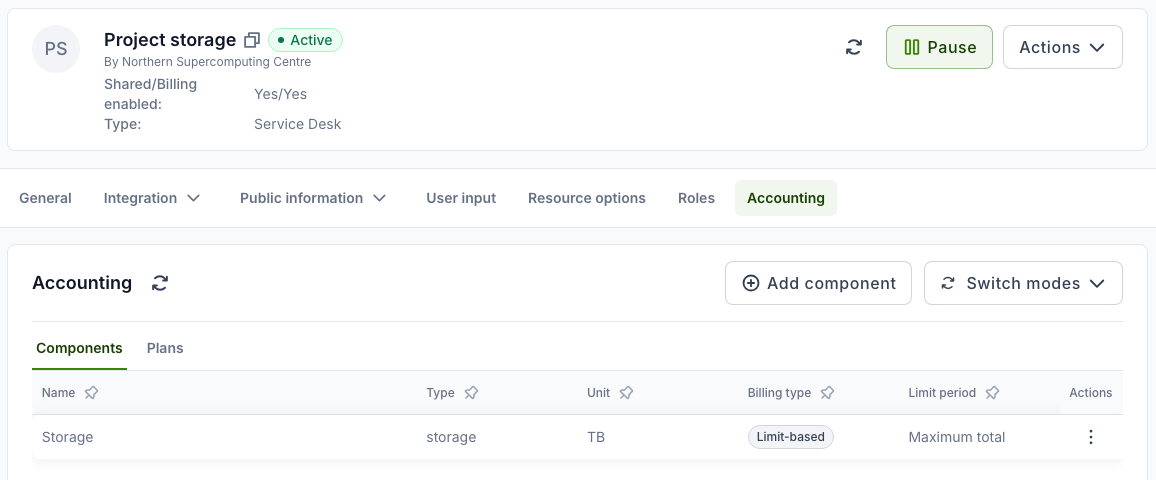
Create the offering with the type Service Desk (see Adding an offering). The type is shown at the top of the offering's page. Each order on it opens a ticket for the provider's team, and the ticket's resolution decides the order. Another type works too, as long as the provider reviews its orders (see Which offerings qualify).
2. Let the applicant size the request
Under Accounting → Components, give the offering a Limit-based component for what the applicant buys. Here that is Storage, measured in TB, and priced per TB in the offering's plan on the Plans tab. The applicant enters the amount in the resource request, and the amount travels to the order and the ticket. Do not use a fixed component for it (see Things to decide).
3. Require the purchase order
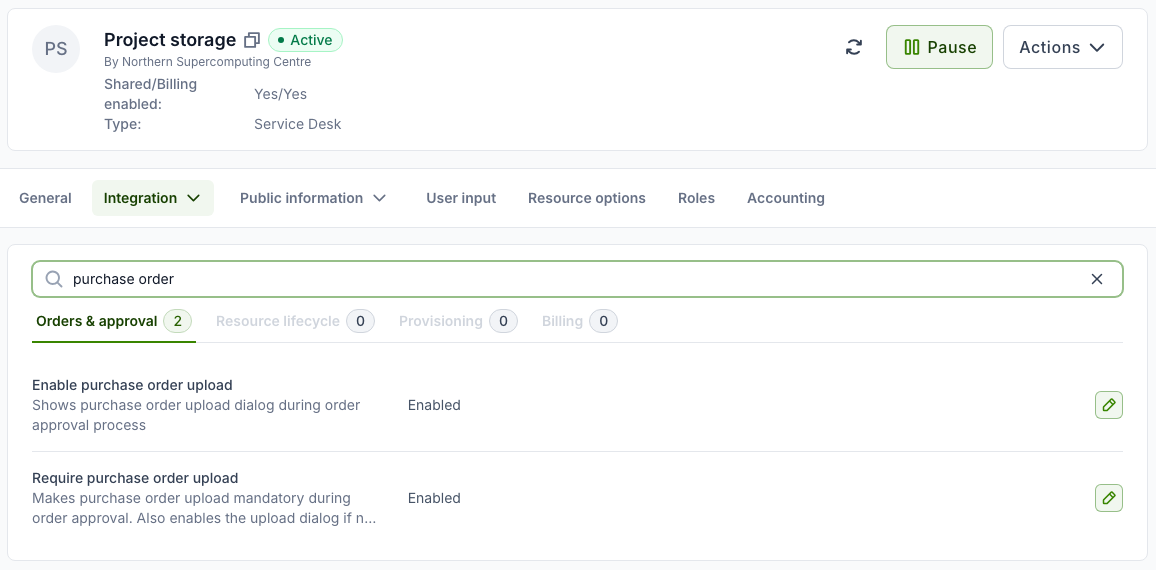
Under Integration → Operations → Orders & approval, set Require purchase order upload to Enabled. This also enables Enable purchase order upload (see Purchase orders in calls). Do this before adding the offering to the call, because the call copies the setting when the offering is added.
4. Name the resources
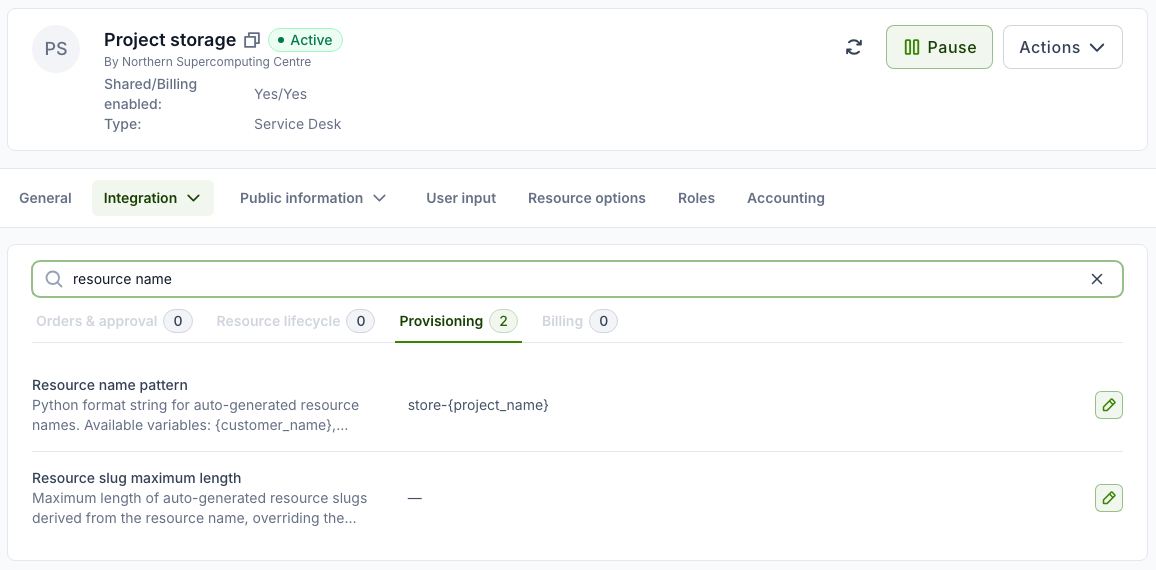
Under Integration → Operations → Provisioning, set Resource name pattern to
store-{project_name}. A resource created for project Clinical school is then named
store-clinical-school. The pattern's result is lower-cased, and any character other than
a letter, digit, dot or hyphen becomes a hyphen. Other variables include {project_slug},
{customer_slug}, {offering_slug} and {plan_name}. A second resource of the same
offering in the same project gets -2, unless the pattern places {counter} itself.
The pattern belongs to the offering, so it names that offering's resources whether they are ordered in the marketplace or through a call.
Setting up the call
Performed by: Call manager
Name the project after the proposal
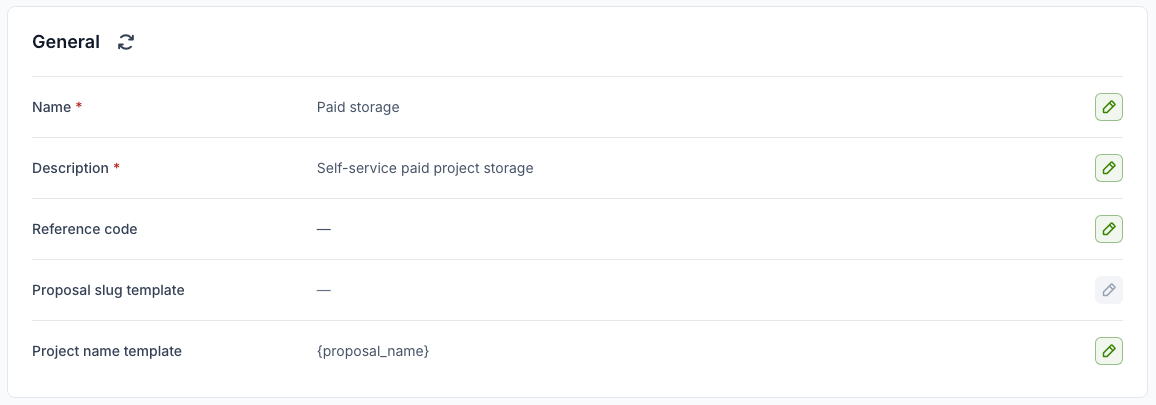
Under Call → General, set Project name template to {proposal_name}.
Without a template, a project is named
<call reference code> - <round start date> - <proposal name>. That dates the project for
its whole life by the round it was submitted in. The template can use these placeholders:
{proposal_name}, {proposal_slug}, {call_prefix} (the reference code, or the call's
slug), {call_slug}, {call_name}, {round_start}, {round_slug}, {org_slug} and
{year}. Any other text in the template stays as written, so Storage {year}: {proposal_name}
is valid too.
When the applicant creates the proposal, the Create proposal dialog shows the resulting Project name under the name field. A change to the template affects only proposals accepted after it. Projects that exist keep their names.
Start the evaluation at submission and announce it at once
Under Call → General configuration:
- Evaluation tab: Evaluation starts — On submission.
- Decisions and rounds tab: Applicants learn the decision — As each decision is made.
Add the offering
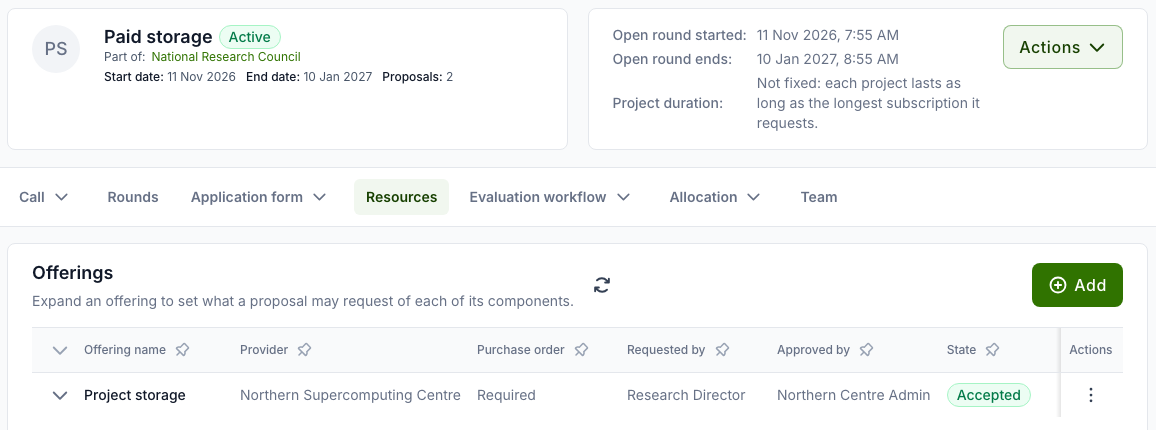
On the Resources tab, add Project storage. The service provider must accept it (see Resources, role mapping and team). The call takes the offering's purchase order requirement as it is at this moment: the Purchase order column reads Required.
Keep only the allocation decision
Under Evaluation workflow → Steps & settings:
- Disable the Administrative check, along with any other step before the allocation decision. A new call has the administrative check enabled.
- Make sure there is no Award response step. If the call has one, disable or delete it, otherwise each award waits for the applicant to accept it.
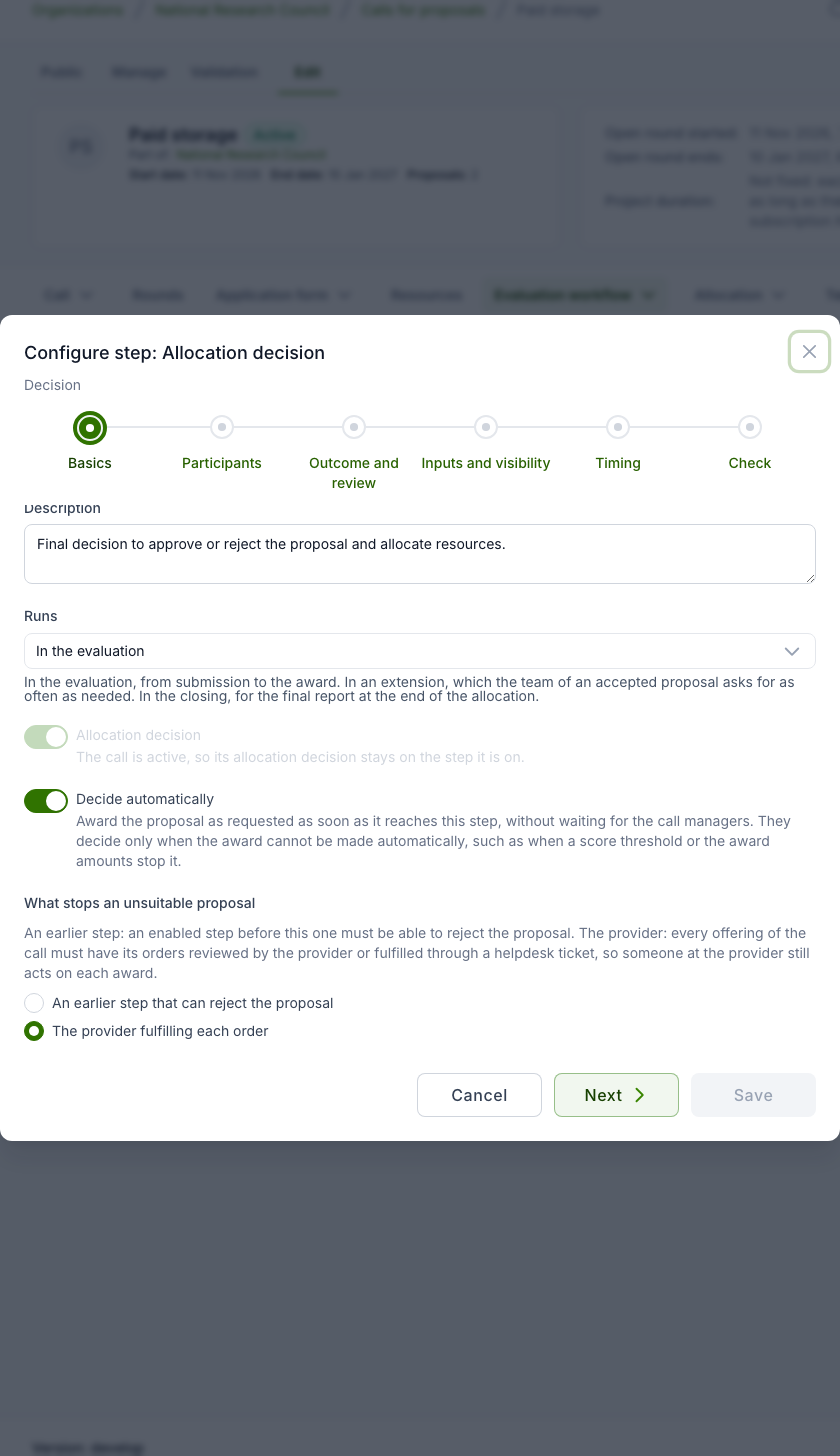
- Open the Allocation decision row's Configure action and, on the Basics page:
- tick Decide automatically;
- under What stops an unsuitable proposal, choose The provider fulfilling each order.
- On the Timing page of the same dialog, leave Allocation timing at On decision, so the order is placed when the proposal is accepted rather than on the round's allocation date.
Check and activate
Add a round that is open now (see Rounds). The call's Validation → Check tab should then list no errors (see Checking and activating a call). Then Activate the call.
Why the provider is the guard
An automatic decision normally needs an enabled step before it that can reject the proposal, such as a technical assessment. Otherwise every submission would be awarded with nobody having looked at it. With An earlier step that can reject the proposal chosen, the call above cannot be activated, and the workflow check reports Unguarded automatic decision:
1 2 | |
A paid service has no such step to offer, but it still has someone checking each award: the provider's team that fulfils the order. They check the purchase order and the amounts before they set anything up. The provider fulfilling each order lets that check stand in for the rejecting step. The call allows it only while every accepted offering of the call puts a person at the provider between the award and the resource.
Which offerings qualify
| Offering | Qualifies | Why |
|---|---|---|
| Helpdesk offering (Service Desk) | Yes | Each order opens a ticket, and resolving the ticket decides the order |
| Basic or site agent offering | Yes | The provider approves each order |
| Script offering | Only with Auto-approve script orders off | Otherwise its orders run without the provider |
| Remote offering | No | Orders placed by the call are approved for the provider automatically |
| Any other type | No | Its orders are fulfilled with nobody at the provider acting on them |
The call checks this in its workflow check and on activation, when a step of an active call is saved, and again for each proposal when it reaches the decision. Accepting an offering that does not qualify gives the workflow check the error Orders fulfilled unattended, which names the offering. If a proposal reaches the decision while such an offering is on the call, it is not awarded automatically. The decision falls back to the call managers, and the reason is shown on the proposal.
What happens on submission
- The applicant creates the proposal Clinical school. The Create proposal dialog shows Project name: Clinical school.
- They add a resource request on Project storage, attach the purchase order in the request's Additional configuration step, and submit. Submission is refused while the purchase order is missing.
- The allocation decision starts and approves the proposal at once, so the proposal is Accepted as soon as it is submitted. The decision is recorded as made by the system, and the applicant is notified of it.
- The project Clinical school is created in the call-managing organisation, and the proposal's team is added to it with the roles set under Role mapping.
- An order for store-clinical-school is placed. The purchase order travels with the order, so its consumer approval is completed automatically. The order goes to the provider, and a helpdesk ticket is opened for it. The ticket names the resource, the project, the requested amounts and the proposal, and has the purchase order document attached.
- The provider's team sets up the storage and resolves the ticket. The resource is then created.
The proposal's Allocation outcome section shows the applicant the project and the state of each awarded resource (see After acceptance).
Things to decide
- Components the applicant can size. Price the requested amounts with limit components, which the applicant sets in the resource request. An amount requested on a fixed component is accepted at submission, but the order then fails with does not accept the limits, after the proposal has already been accepted.
- The purchase order document, not only a reference. The call accepts either a reference or a document to submit. An offering that requires the upload needs the document on the order, so an order that carries only a reference waits for the applicant to upload the file. Ask applicants to attach the PDF. See The provider's requirement always applies.
- When the provider declines. A ticket resolved without fulfilling the order cancels the order, and no resource is created. The award is not undone: the proposal stays accepted and its project stays in the call-managing organisation. Agree with the provider who tells the applicant and who removes the project.
- Proposals with the same name. With
{proposal_name}alone, two proposals called the same create two projects called the same. To tell them apart, add a placeholder, such as{proposal_name} ({year}). - The project's slug follows its name. Anything derived from the slug, such as an account name on a provider's system, changes with the template too.
- How many proposals one applicant may hold. Nobody screens submissions, so consider capping them with Active proposals per applicant (see Limiting proposals per applicant).
- How long the project runs. Set a fixed duration if every purchase must expire (see How long a granted project runs).
Configuring it through the API
| Setting | API field | Value |
|---|---|---|
| Project name template | call project_name_template |
{proposal_name} |
| Evaluation starts | call evaluation_start |
on_submission |
| Applicants learn the decision | call publish_results |
immediately |
| Disable the administrative check | workflow step is_enabled |
false |
| Decide automatically | workflow step decides_automatically |
true |
| What stops an unsuitable proposal | workflow step automatic_decision_guard |
provider_fulfilment (the default is earlier_step) |
| Allocation timing | workflow step allocation_time |
on_decision |
| Require purchase order upload | offering plugin_options.require_purchase_order_upload |
true |
| Resource name pattern | offering plugin_options.resource_name_pattern |
store-{project_name} |