Reviewer workflow
This guide follows a reviewer end to end: accepting an invitation to a call's reviewer pool, declaring conflicts of interest, finding assigned proposals, evaluating a proposal, and submitting a scored review — including the required conflict-of-interest (COI) confirmation that some calls enforce before a review can be submitted.
For the reviewer profile, pool and matching mechanics see the Reviewer guide; for the call manager's side of the same workflow see the Call manager workflow.
Note
Screenshots in this guide use the 2025 Spring HPC Allocation Call demo call, whose Expert review step has both blind review and COI confirmation enabled. Your calls will show different names, proposals and reviewers, and the COI confirmation appears only when the call manager has enabled it for the review step.
Before you start
To review proposals you need:
- A published reviewer profile — see Getting started as a reviewer.
- An accepted invitation to the call's reviewer pool.
- At least one proposal assigned to you by the call manager.
Accepting a reviewer invitation
When a call manager adds you to a reviewer pool you receive an email with a personal acceptance link, and the invitation also appears on the Invitations tab of your My reviews page.
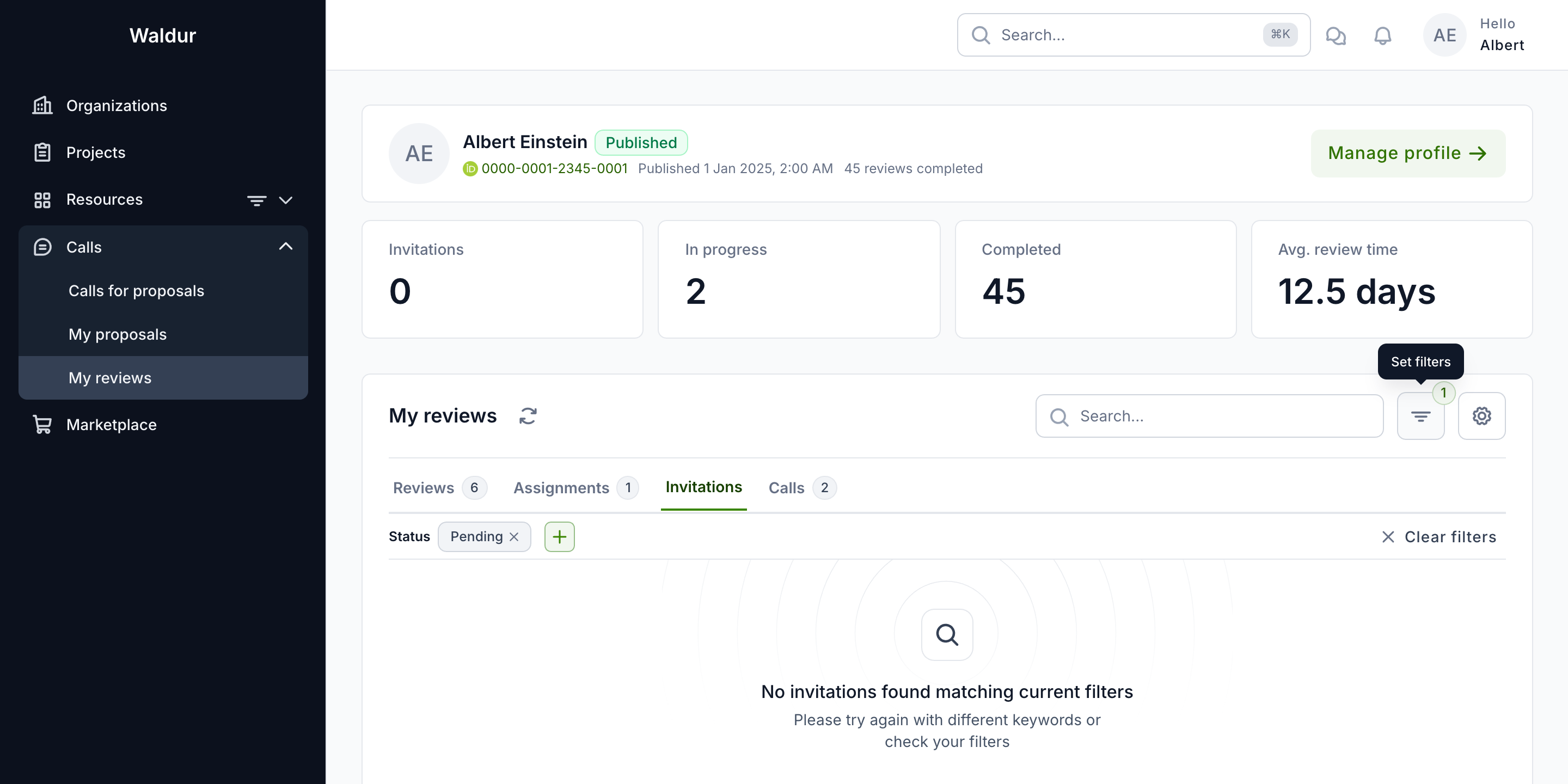
Each invitation shows the call, the date you were invited, and its status. Opening the invitation link shows the call, who invited you and when the invitation expires, along with the call's COI policy so you understand the rules before joining, and a note that you will be able to disclose conflicts later, when specific proposals are assigned to you. Choose Accept invitation to join the pool; the status then flips to Accepted and the call manager can begin assigning you proposals.
Tip
You must be signed in to open the invitation link, and Accept invitation stays disabled until you have a published reviewer profile. If you do not, the page prompts you to create or publish one, and you can publish it without leaving the page.
Invitation statuses: Invitation pending | Accepted | Declined | Invitation expired.
Declaring a conflict of interest
Conflicts of interest are handled in two complementary ways:
- Automatically — the call manager's COI tooling cross-references your profile (affiliations and publications) against each proposal's team. Keeping your profile up to date makes this detection accurate.
- By you — if you know of a conflict with a proposal, decline that assignment and notify the call manager so it can be recorded. You can raise a conflict directly with the call manager at any time.
Detected conflicts are triaged by the call manager, who may dismiss, waive with a management plan, or recuse you from the proposal. The conflict types, severities and handling rules are described in COI management.
Finding your assigned proposals
Open My reviews from the sidebar. The page opens on the Reviews tab, which lists every review assigned to you with its proposal, call, due date and state, alongside your profile stats (Invitations / In progress / Completed / Avg. review time).
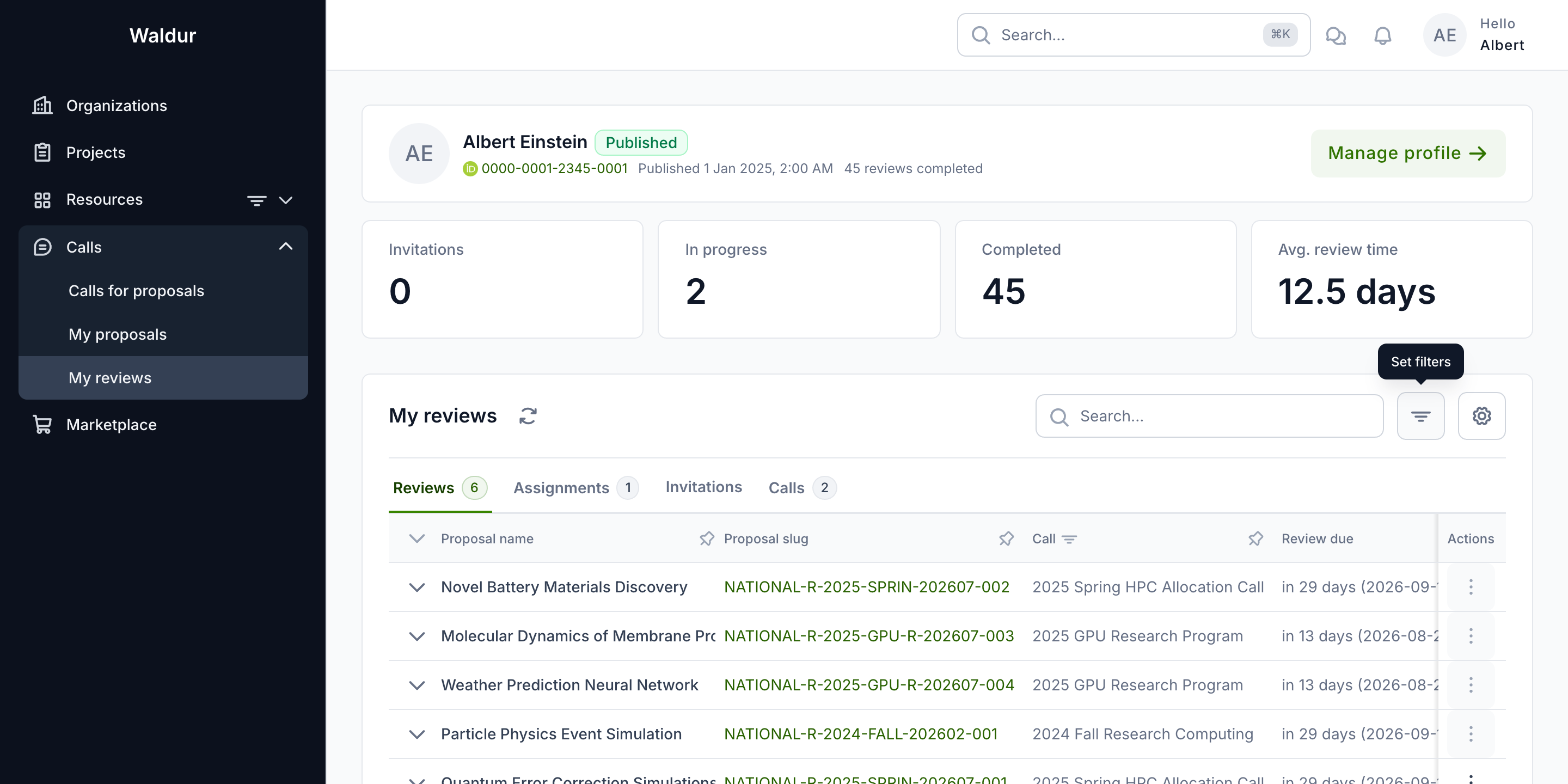
The four tabs organise your workload:
| Tab | Content |
|---|---|
| Reviews | Reviews assigned to you, with state (In review, Submitted, Rejected) and deadline |
| Assignments | Pending assignment batches to accept or decline |
| Invitations | Pool invitations awaiting your response |
| Calls | Calls you are pooled for, with review deadlines |
Click a review in the In review state to open the proposal and start evaluating.
Evaluating a proposal
A review opens on the Reviewer view. The header shows the proposal name, its current state, and its position in the call's workflow (for example Step 1 of 4: Administrative check). The Progress panel on the right lets you jump between sections and holds the Submit review and Send back actions.
On a call that requires COI confirmation, a banner sits above the proposal — This call requires a conflict of interest declaration — warning you that you will have to confirm you have no conflict before the review can be submitted, and advising you to decline now rather than read further if you do have one.
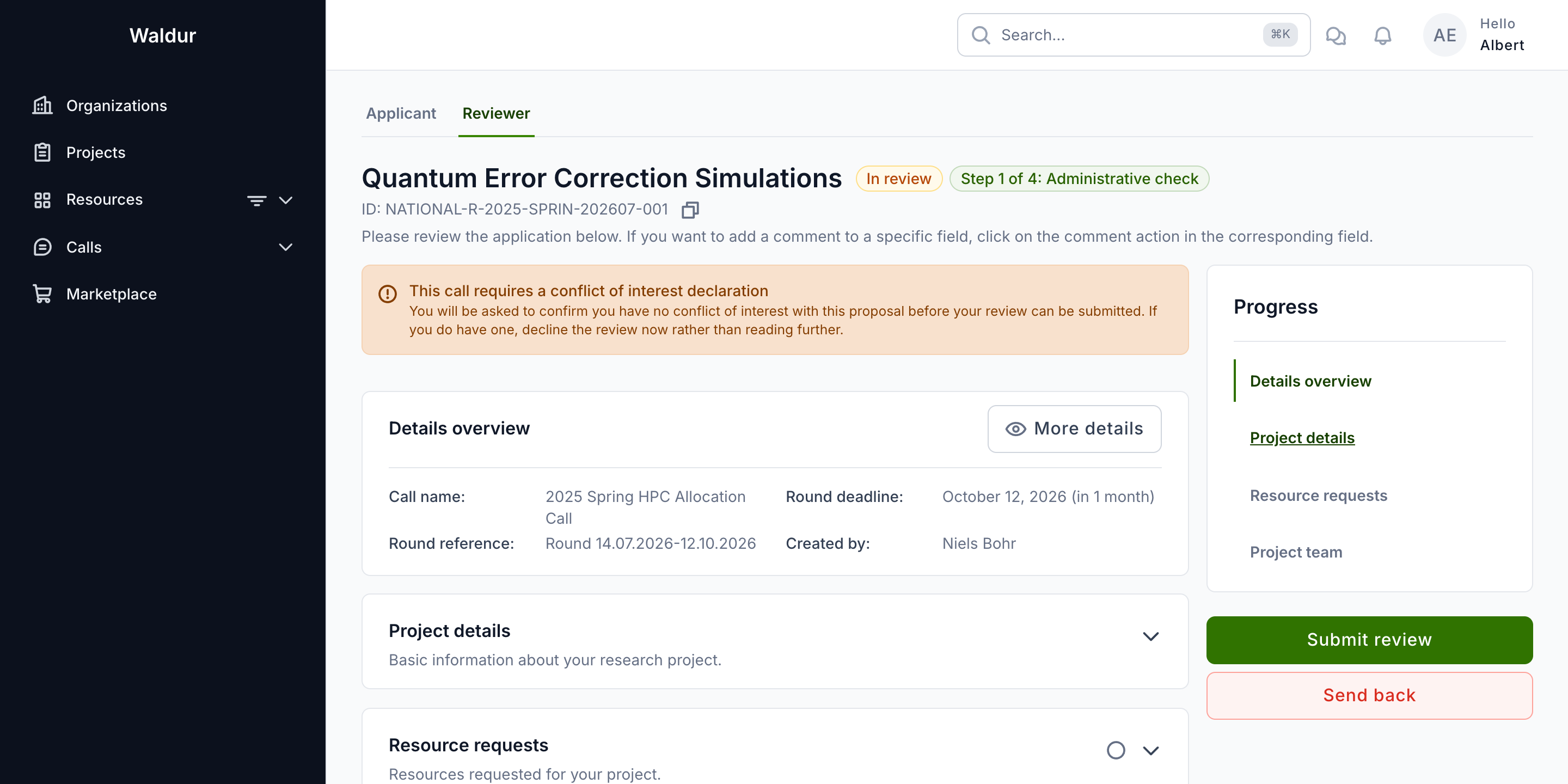
The sections you see mirror the call's configuration, so you evaluate exactly the information the call manager expects reviewers to weigh:
- Details overview — call, round, deadline and applicant.
- Project details — name, summary, description, science domain and duration.
- Resource requests — the offerings and quantities requested.
- Project team — members and their roles.
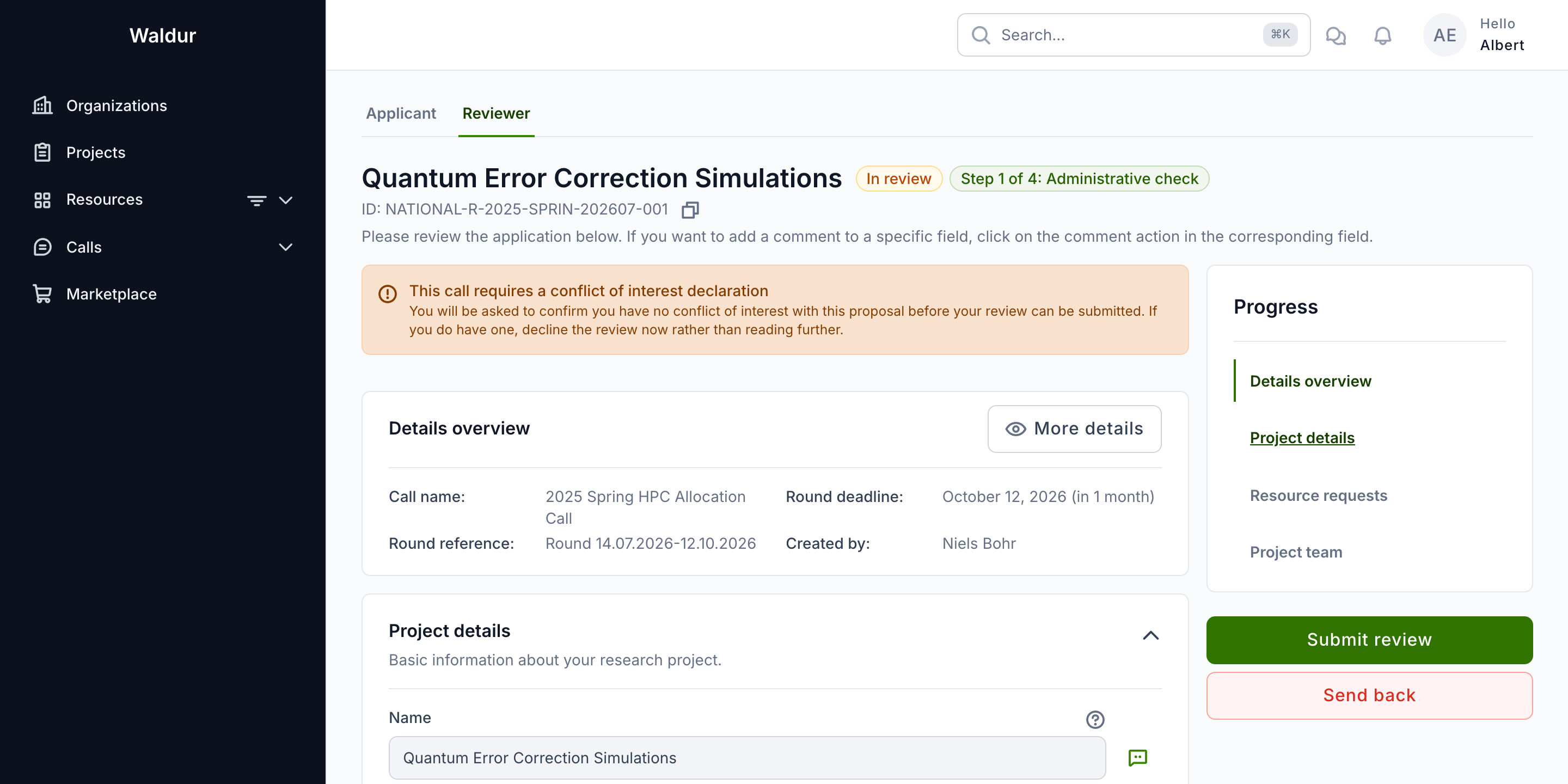
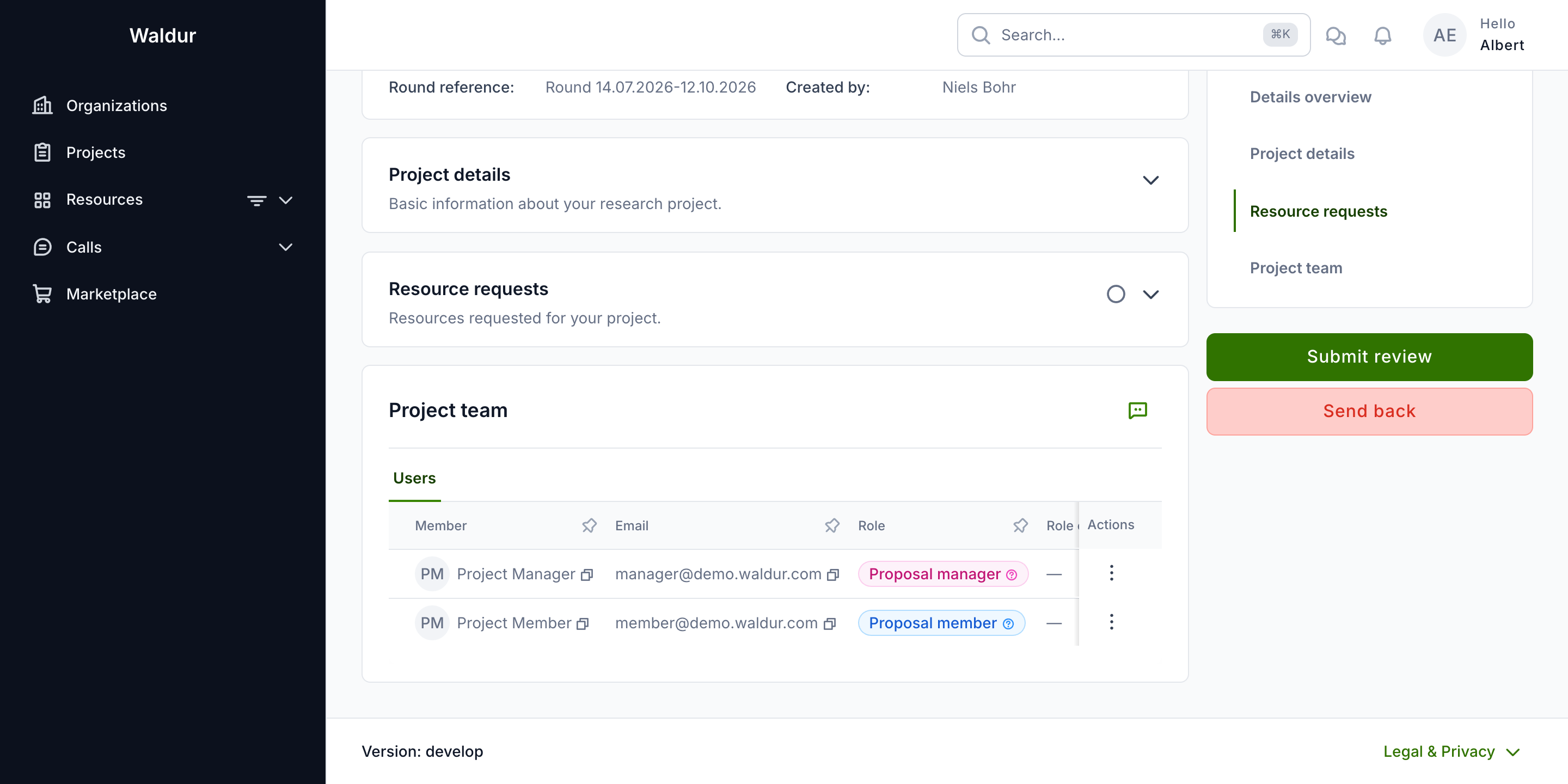
To leave feedback on a specific field, click the Add comment action next to it. Field-level comments are collected alongside your overall score when you submit.
Scoring and commenting
Click Submit review in the Progress panel to open the review dialog. It collects your overall assessment:
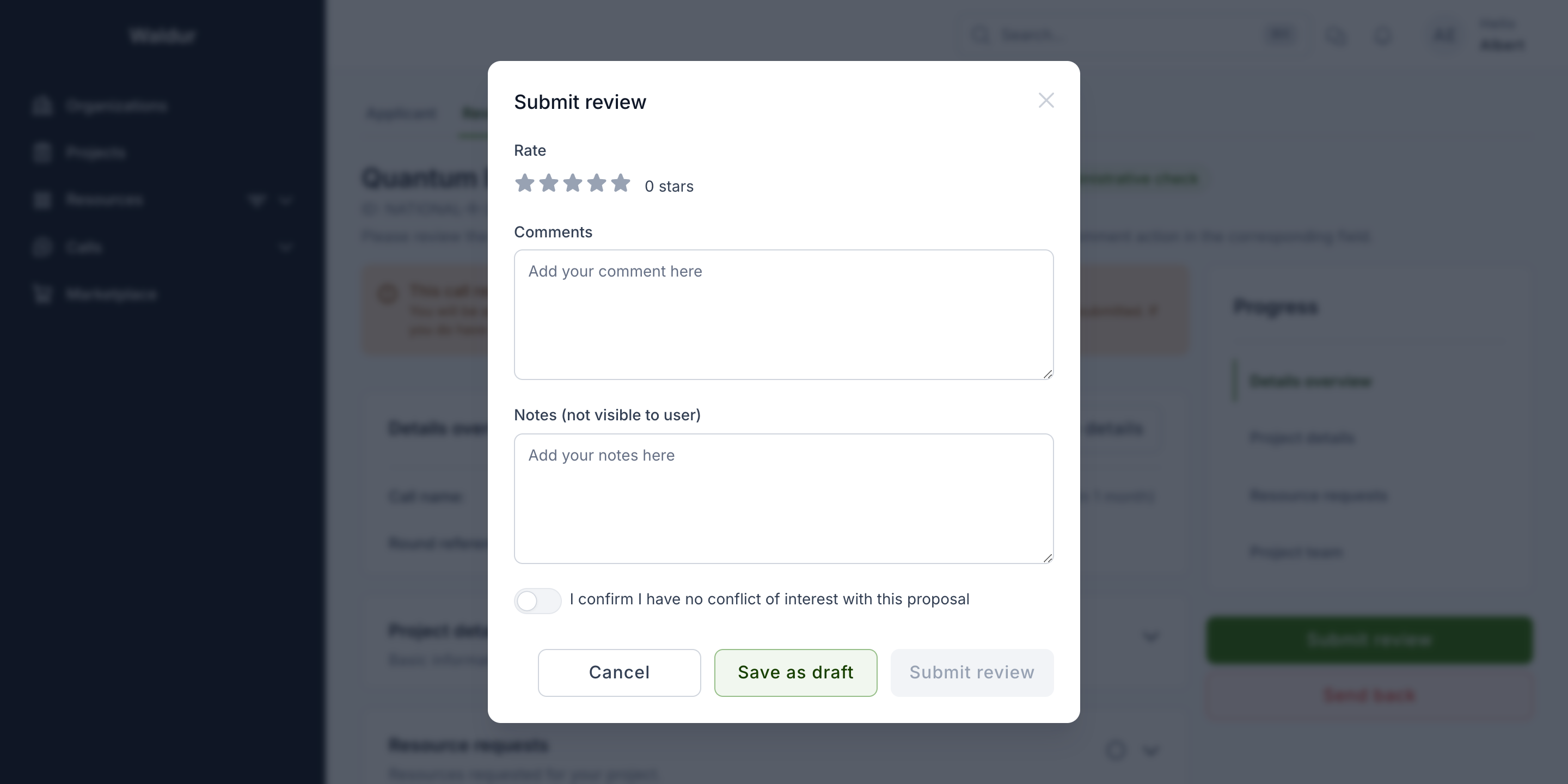
- Rate — an overall score, set with the star control.
- Comments — public feedback, shared with the applicant after the decision.
- Notes (not visible to user) — private feedback for the call managers and panel only.
- I confirm I have no conflict of interest with this proposal — the COI confirmation toggle (only shown on calls that require it, see below).
Confirming no conflict of interest before submitting
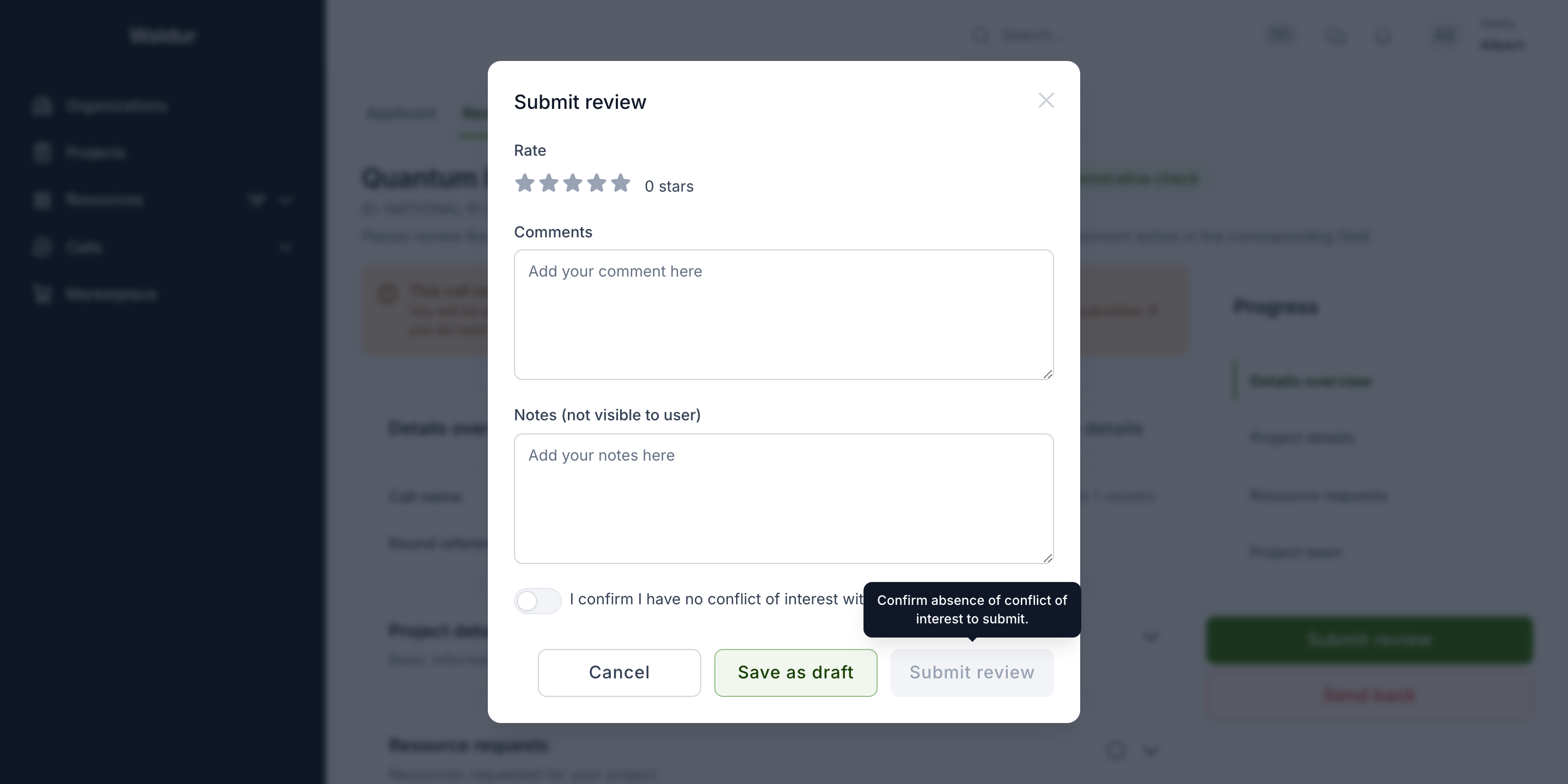
When the call's review step is configured with Conflict of interest confirmation enabled, you must attest that you have no conflict with the proposal before you can submit. Until the toggle is on, Submit review stays disabled and explains why — Confirm absence of conflict of interest to submit:
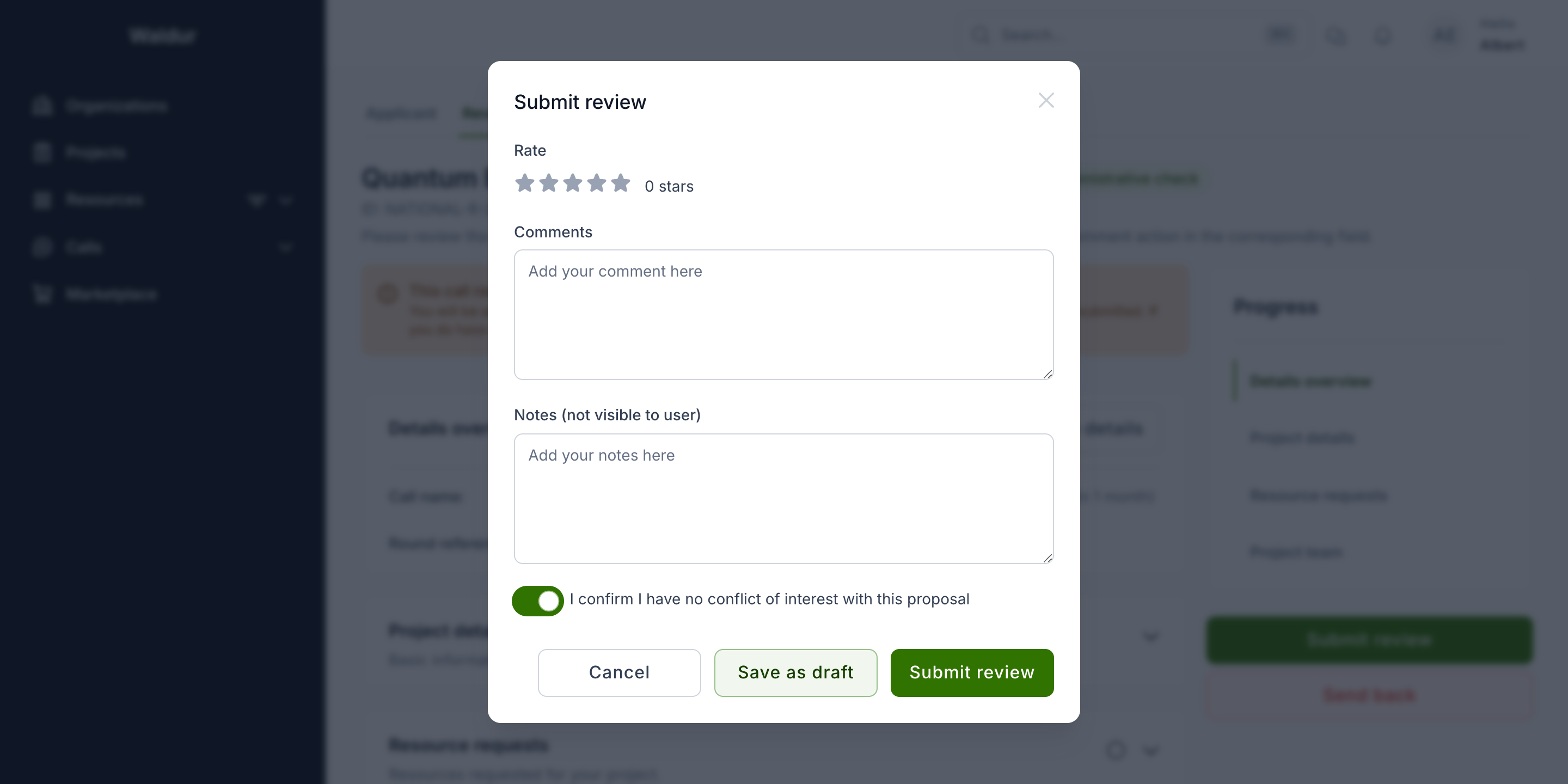
Switch I confirm I have no conflict of interest with this proposal on and the Submit review button becomes active:
Note
The COI confirmation appears only when the call manager has turned on Conflict of interest confirmation for the review step (see Configuring a workflow step). On calls without it, the dialog has no COI toggle. If you do have a conflict, do not confirm — decline the assignment and notify the call manager instead.
Warning
Once submitted, a review cannot be edited. Make sure your score, comments and field-level notes are complete before submitting.
Saving a draft vs submitting
The review dialog offers two ways to save:
- Save as draft — stores your score and comments without finalising. The review stays in the In review state so you can return and refine it. Draft saving is always available, even before you confirm the absence of a conflict.
- Submit review — finalises the review and moves it to the Submitted state. On COI-enabled steps this requires the confirmation toggle to be on.
Use Send back on the proposal (rather than the dialog) to return a proposal to the applicant or the call manager when it cannot be evaluated as submitted.
Panel review
Some calls add a Panel review step after expert review. Panel members consolidate the individual expert reviews into a collective recommendation. The panel step is owned by the panel member role and is completed from the call's proposal workflow rather than the personal My reviews page; a panel member does not receive individual expert-review assignments. See The evaluation workflow for how the panel step fits into the overall sequence.
Related guides
- Reviewer guide — profile, pool invitations and the review dashboard
- Reviewer management — pools, matching and assignment batches (manager side)
- COI management — conflict types, severities and handling
- Call manager workflow — configuring the review step and driving proposals