Reviewer guide
This guide covers the reviewer experience in Waldur: managing your reviewer profile, accepting invitations, completing reviews, and tracking your workload.
Getting started as a reviewer
To participate in proposal reviews, you need a published reviewer profile.
Creating your profile
- Navigate to the Reviews page from the sidebar
- Click Create profile in the profile banner
The profile editor is organised into four tabs:
| Tab | Content |
|---|---|
| Profile info | Biography, ORCID ID, alternative names, availability status |
| Affiliations | Current and past institutional affiliations with type (employment, education, visiting, honorary, consulting), organisation, department, and date range |
| Expertise | Self-declared expertise categories with a proficiency level for each (expert, familiar, basic) |
| Publications | Academic publications with title, authors, venue (journal, conference, preprint, book, thesis, report), and year |
Each list (affiliations, expertise, publications) uses a per-row Add dropdown for quick item creation, an inline edit button per row, and a Bulk remove action for clearing several rows at once.
Tip
Keep your expertise and affiliations up to date. This data is used for automated reviewer-proposal matching and conflict of interest detection.
Publishing your profile
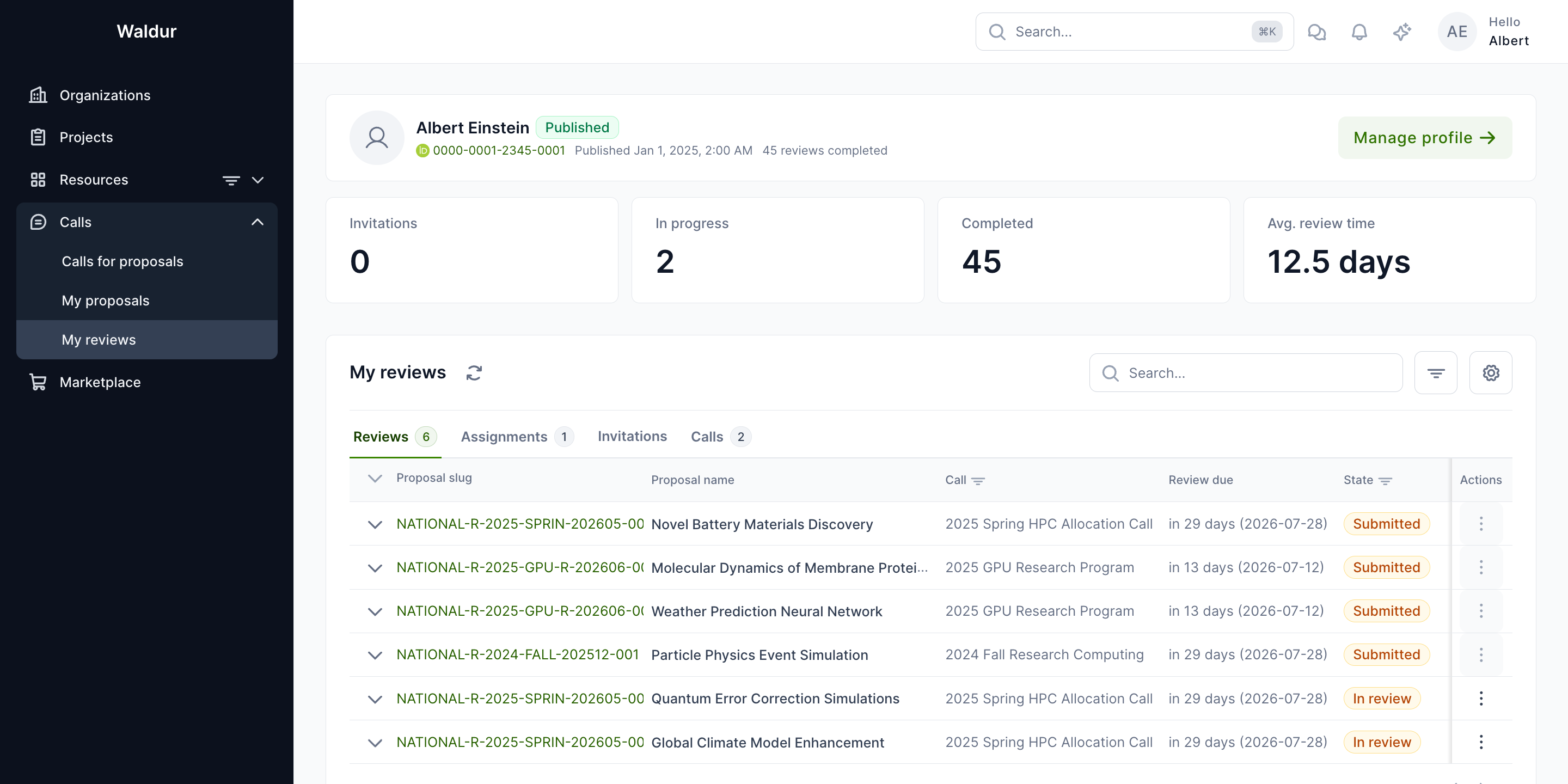
Set the profile to Published when ready to receive review invitations. The status is shown as a badge next to your name on the Reviews page. Unpublished profiles are not visible to call managers and you will not receive new invitations until the profile is published.
Accepting a pool invitation
When a call manager invites you to a reviewer pool you receive an email with a personal acceptance link. The link does not require an existing Waldur account. The acceptance page shows the call, the inviting manager, the call's conflict-of-interest policy, and an Accept / Decline pair; the buttons show a loading state while your response is recorded.
If you accept, the page checks that you have a published reviewer profile. If you do not, you are prompted to create or publish one before the acceptance can complete. Once you have accepted with a published profile, the invitation flips to Accepted and the call manager can assign you proposals.
Note
Conflict-of-interest disclosure is handled at the assignment stage and through the call's COI policy, not on the pool-invitation page. The acceptance page only displays the COI policy for the call so you understand the rules before joining the pool.
Review dashboard
The reviews page provides four tabs for managing your review workload: Reviews, Assignments, Invitations, and Calls.
Reviews
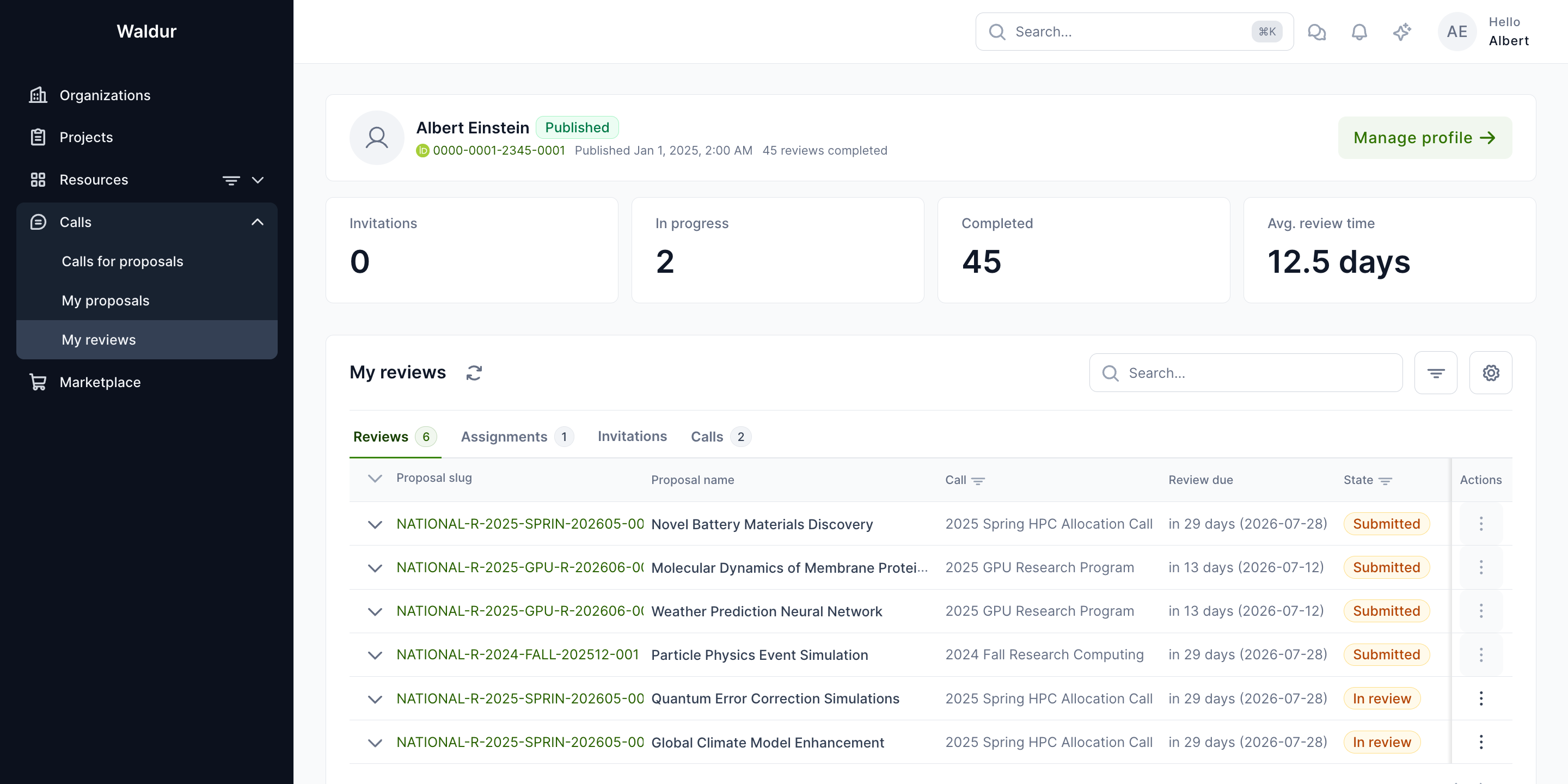
The first tab (labelled Reviews) shows all reviews assigned to you with their status (in review, submitted, rejected) and deadlines, alongside your reviewer profile stats (Invitations / In progress / Completed / Avg. review time).
Assignments
Shows pending assignment batches — proposals you've been asked to accept or decline for review.
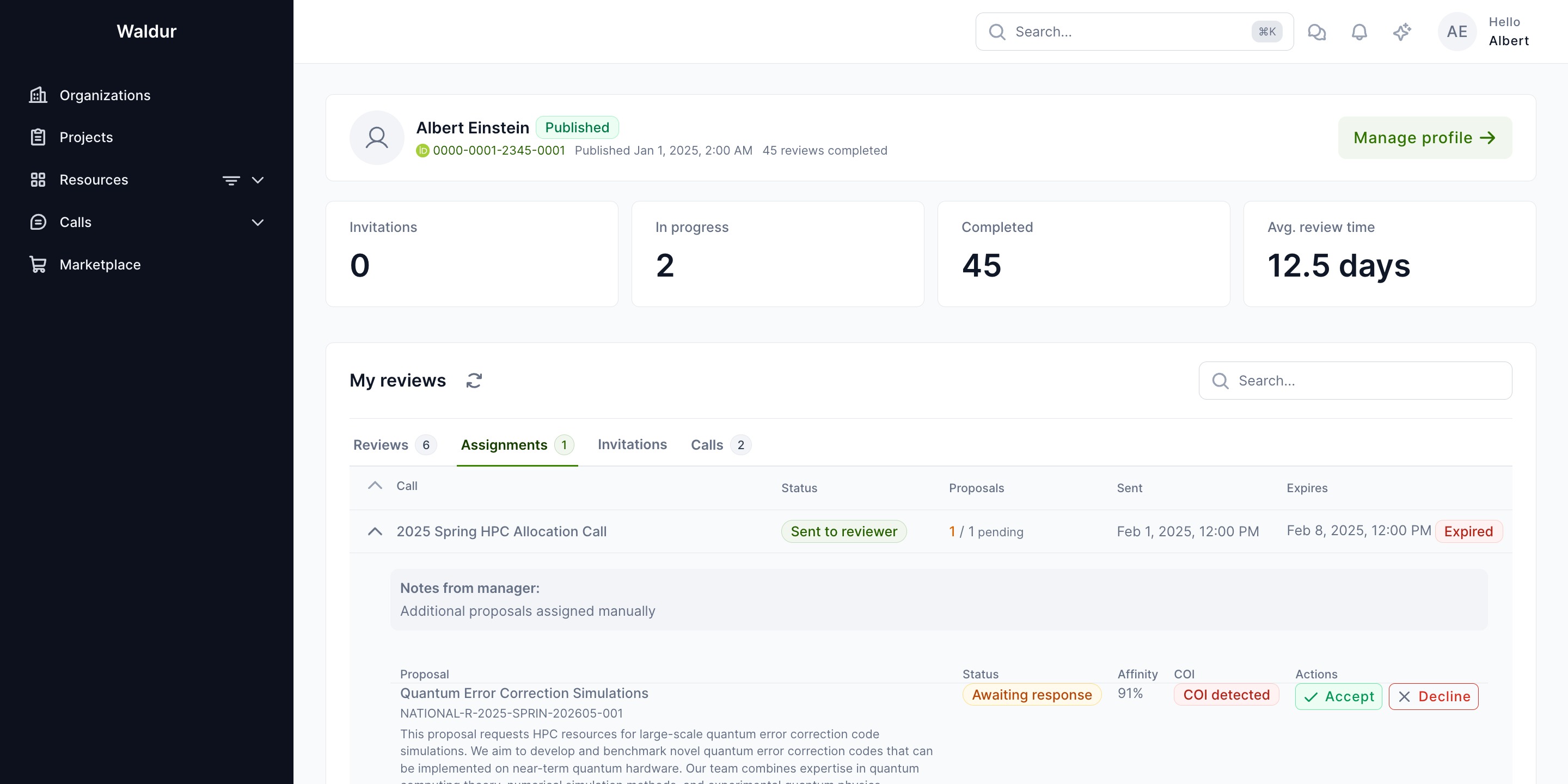
When a call manager sends you a batch, you receive an email listing its proposals, any note from the call manager and the date by which to respond, with a link to this tab. If you have not answered every proposal as the deadline approaches, you get one reminder email (by default 2 days before it). After the deadline the unanswered proposals expire and can no longer be accepted, unless the call manager extends the deadline. Whether these emails are sent depends on the notifications the deployment has enabled.
Before you accept, a batch shows each proposal's title, and its summary if the call discloses summaries to reviewers. A proposal blocked by a conflict of interest is shown by title only and cannot be accepted until the call manager resolves the conflict.
For each assignment, you can:
- Accept — creates a review in "in review" state; you can begin evaluation
- Decline — records your reason; the proposal may be reassigned to another reviewer
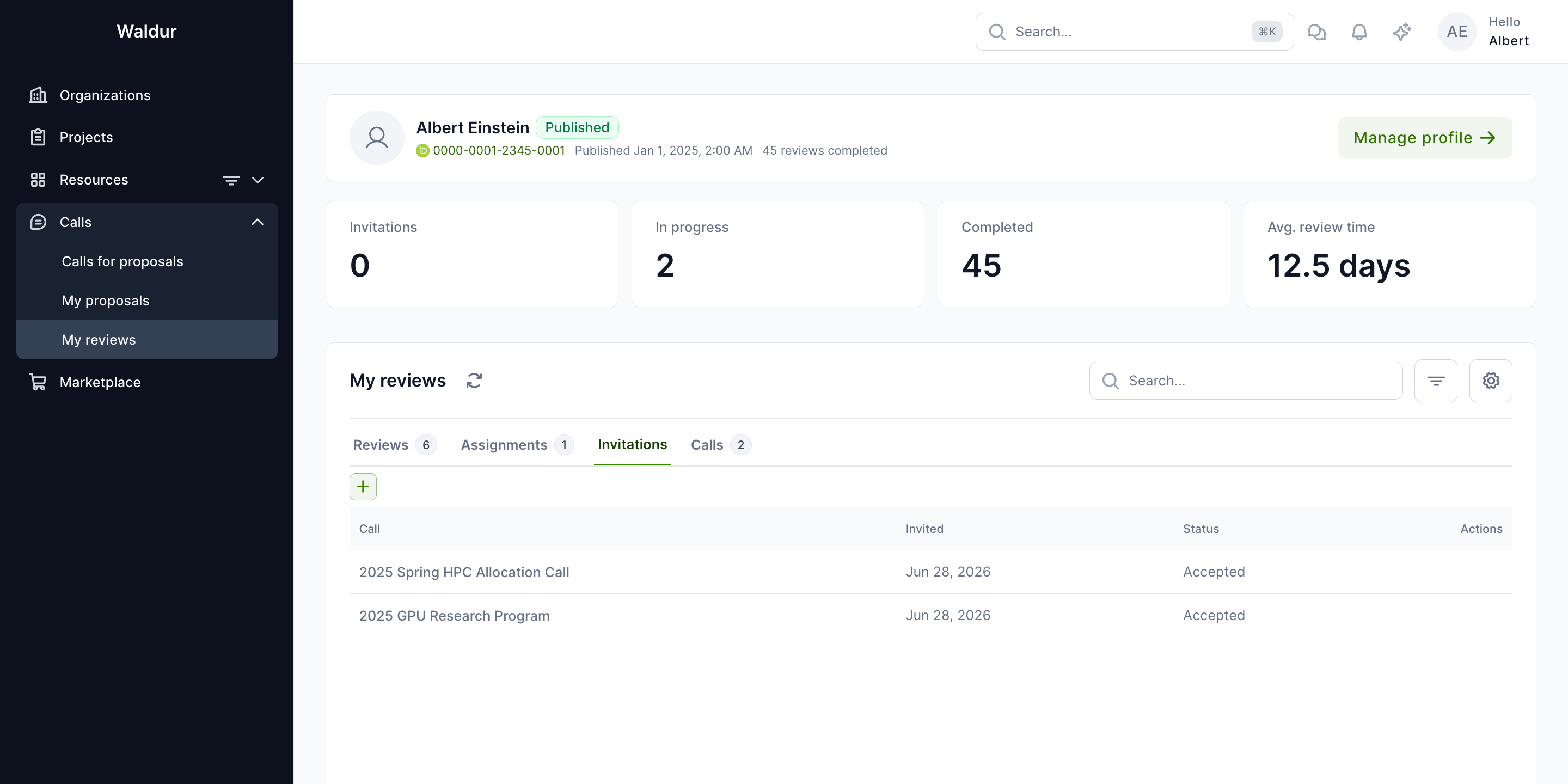
Invitations
Shows pool invitations from call managers. You must accept an invitation before you can be assigned proposals.
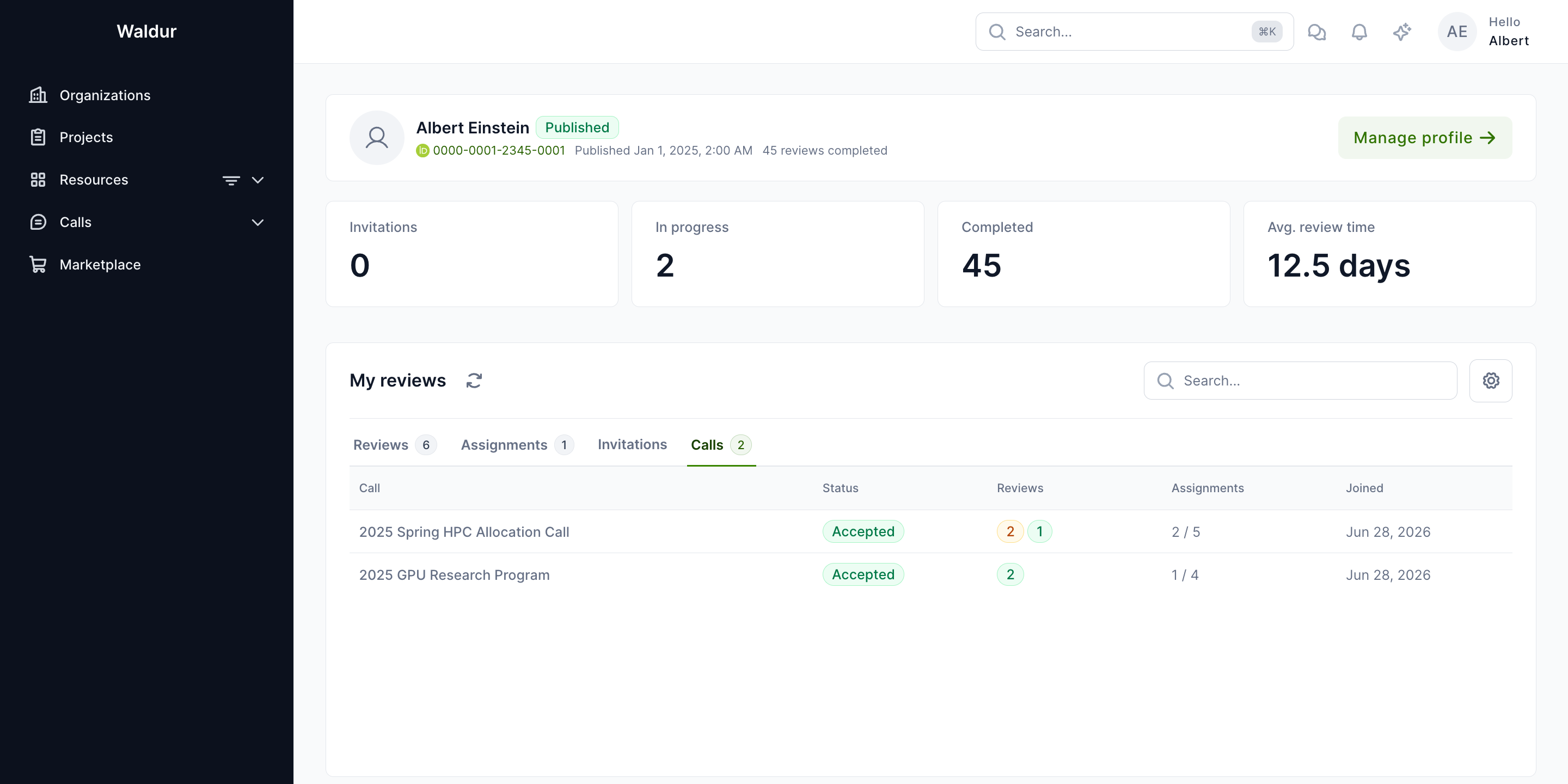
Calls
Shows calls you are pooled for, with their current status and review deadlines.
Completing a review
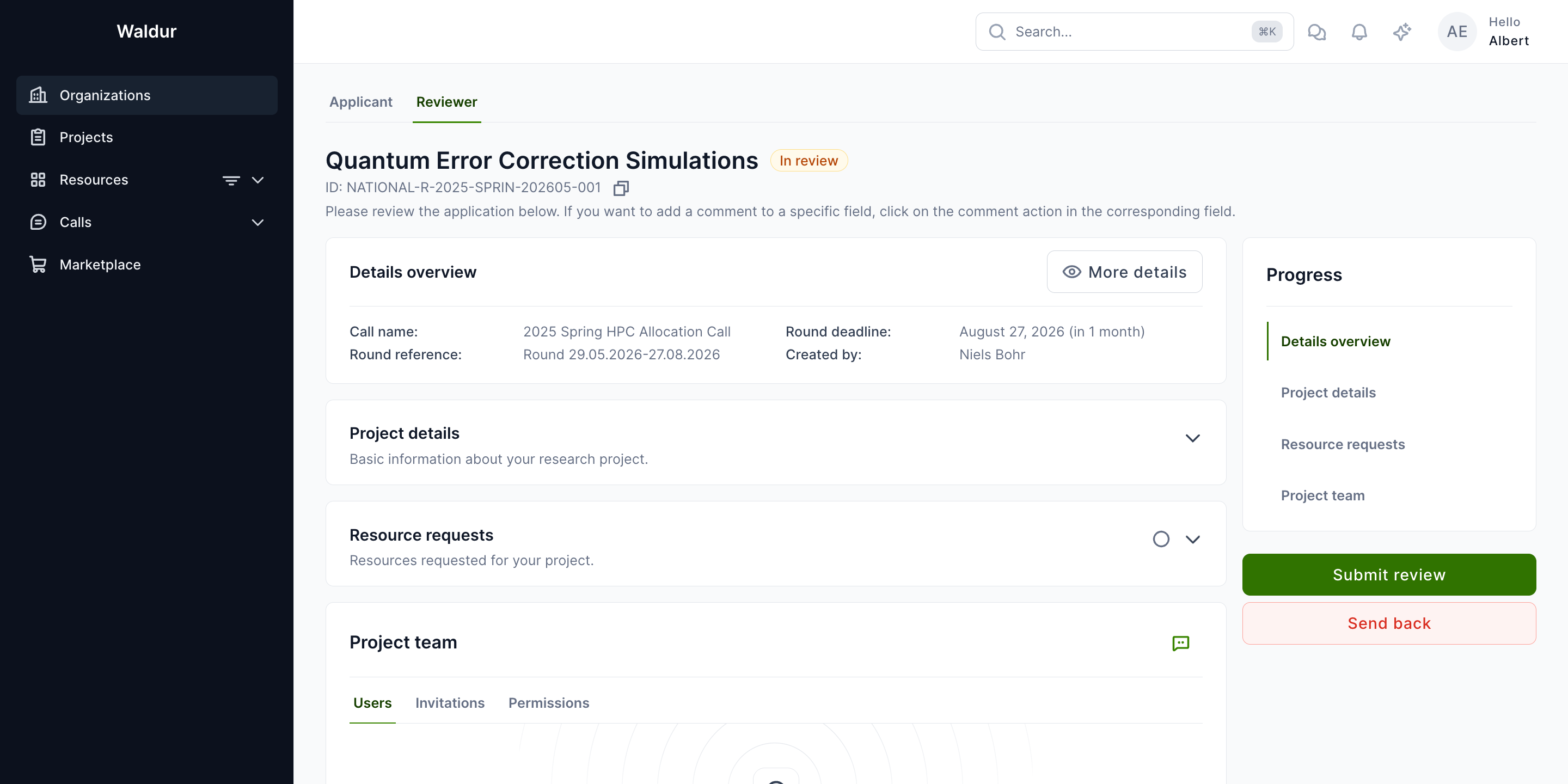
When you accept an assignment and open a review:
- Read the proposal summary, team composition, and resource requests
- Score each section using the rating fields
- Provide public feedback (visible to the applicant after decision) and private comments (visible to call managers only)
- Click Submit to finalise the review
Warning
Once submitted, a review cannot be edited. Make sure all scores and comments are complete before submitting.
Review fields
Each review includes:
- Summary score — overall numeric rating
- Summary public comment — feedback shared with the applicant
- Summary private comment — internal feedback for call managers
- Field-specific comments — feedback on the project title, summary, description, duration, supporting documentation, resource requests, and team
Proposal context during review
When reviewing a proposal, you can see the full proposal detail including team composition, resource requests, and any supporting documentation.
Accepting an assignment is enough to open the proposal and its team — you do not need a reviewer role on the call. You see the applicant details the call's applicant data visibility settings expose to reviewers. Access lasts while your review is in review or submitted; if the review is cancelled or expires, the proposal is no longer available to you.
Note
You do not see the proposal's Awarded resources — what the allocation decision grants is for the call managers and the providers. On a call that announces results together for the whole round, you also see the allocation decision as still in progress until the round's results are published, like the applicant does.
Conflict of interest
Before starting a review, you may be asked to confirm that you have no conflict of interest with the proposal. This is required when the call has CoI confirmation enabled for the review step.
If you have a conflict, you should decline the assignment and notify the call manager so the conflict can be recorded.
How conflicts are handled
When you accept a pool invitation, the acceptance page shows the call's COI policy so you understand the rules before joining. Conflicts of interest are then primarily detected automatically by the call manager's COI tooling — by cross-referencing your affiliations and publications against each proposal's team — and triaged by the call manager (see Reviewer management). You can also raise a conflict directly with the call manager at any time.
Each detected or declared conflict is stored with a severity and visually styled in the call manager's COI review interface:
| Severity | Meaning | Required action |
|---|---|---|
| Real conflict — must recuse | Confirmed conflict | Reviewer is recused from the proposal |
| Apparent conflict — requires management | Circumstantial conflict | Call manager waives with a written management plan, or recuses |
| Potential conflict — disclosure only | Possible conflict flagged for awareness | Acknowledge; review may proceed |
Keeping your reviewer profile (affiliations and publications) up to date helps the automated detector surface potential conflicts accurately.
Reviewer pool management
Call managers build and manage a curated pool of reviewers for each call.
Pool overview
The reviewer pool shows all invited reviewers with their acceptance status, expertise areas, and profile completeness.
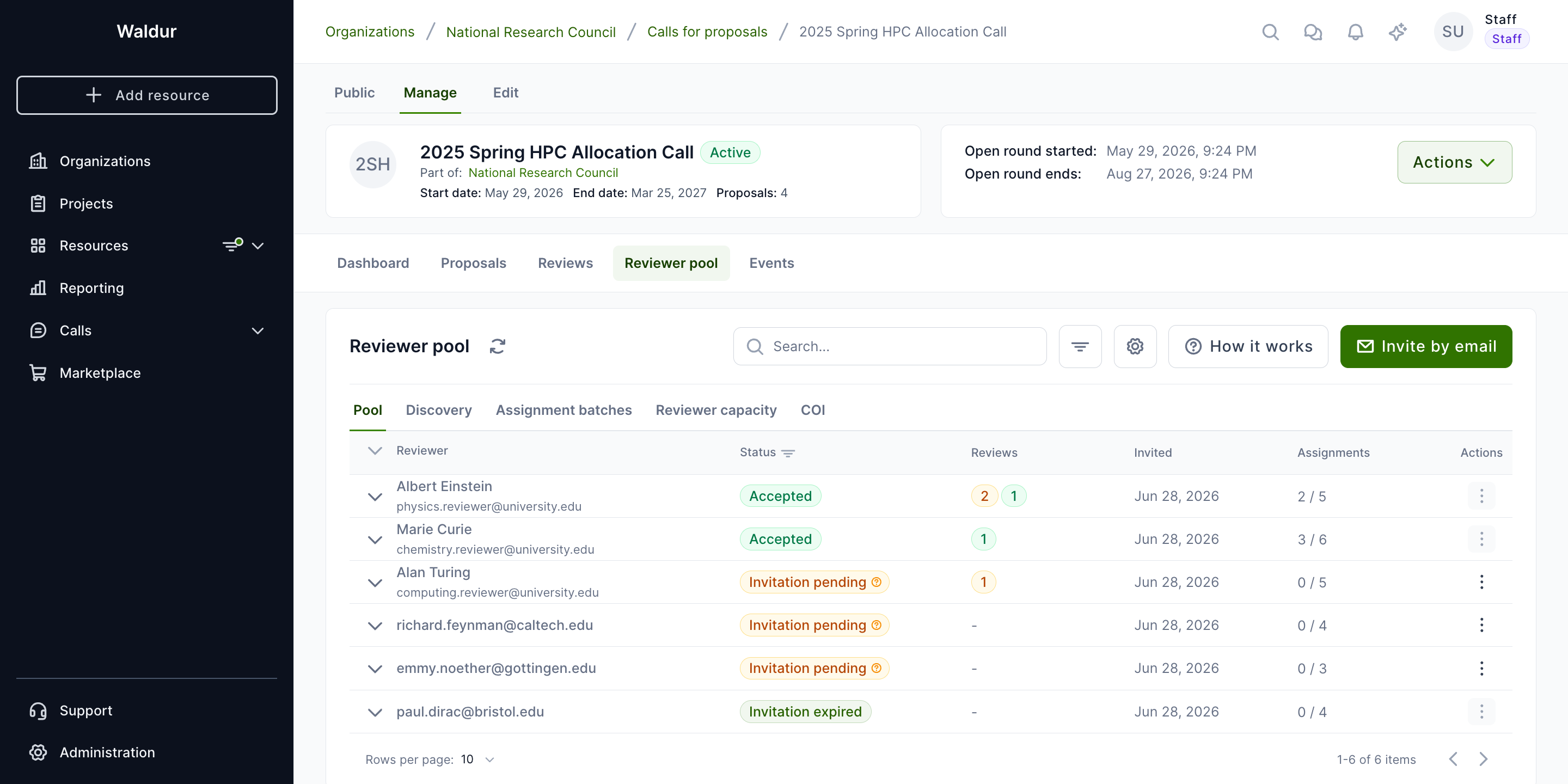
Pool statuses include:
- Accepted — reviewer has accepted the invitation and is ready for assignments
- Invitation pending — invitation sent, awaiting response (a reviewer may still need to create or publish a profile before they can accept)
- Declined — reviewer declined the invitation
- Invitation expired — the invitation lapsed without a response
Matching suggestions
The system generates reviewer-proposal matching suggestions based on expertise overlap, publication similarity, and keyword analysis.
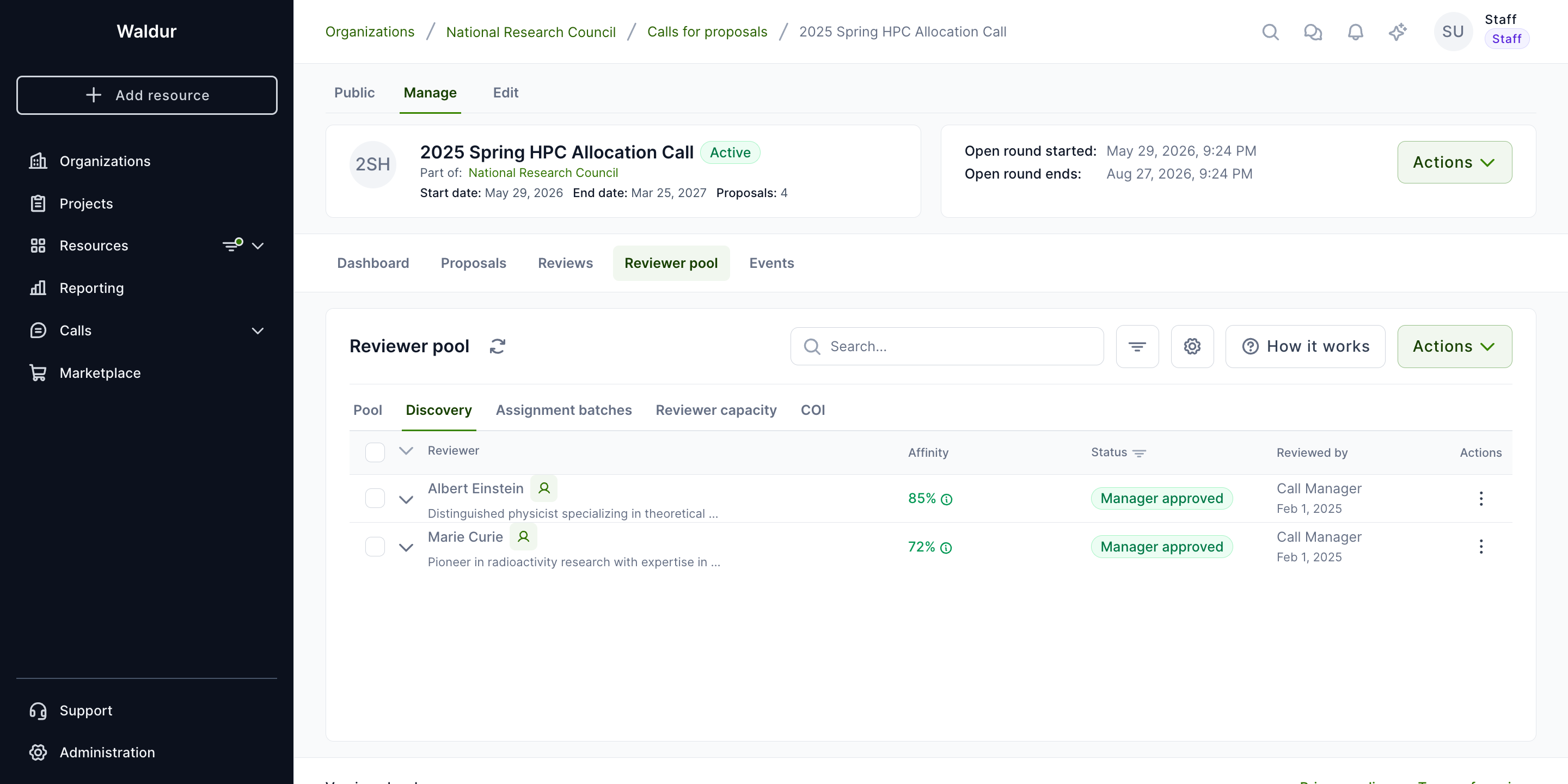
Assignment workflow
After matching, call managers create formal assignment batches to assign proposals to reviewers.
Assignment batches
Each batch groups proposals assigned to a single reviewer. Once the batch is sent, the reviewer sees it on their Assignments tab, is emailed about it, and can accept or decline each proposal individually.
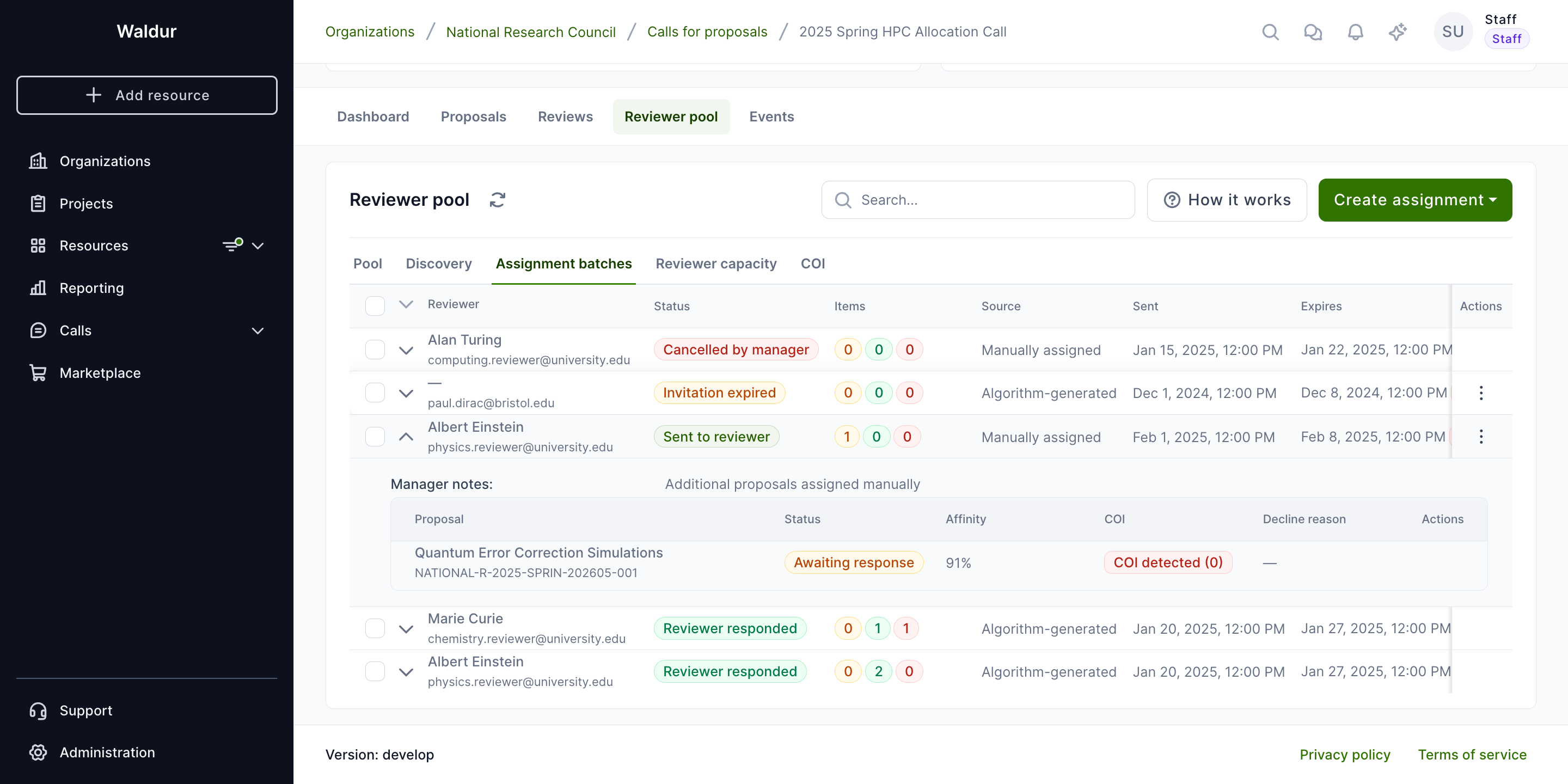
Batch lifecycle:
- Draft — manager prepares the batch
- Sent — invitation emailed to reviewer
- Responded — reviewer accepted or declined all items
- Expired — batch expired without full response
- Cancelled — manager cancelled the batch
Tip
Configure auto-reassignment in the call settings to automatically find the next-best reviewer when a reviewer declines an assignment.
Conflict of interest management
Waldur includes automated COI detection to ensure fair peer review.
COI settings
Call managers configure COI detection parameters per call, including detection sensitivity, publication matching parameters, and severity thresholds.
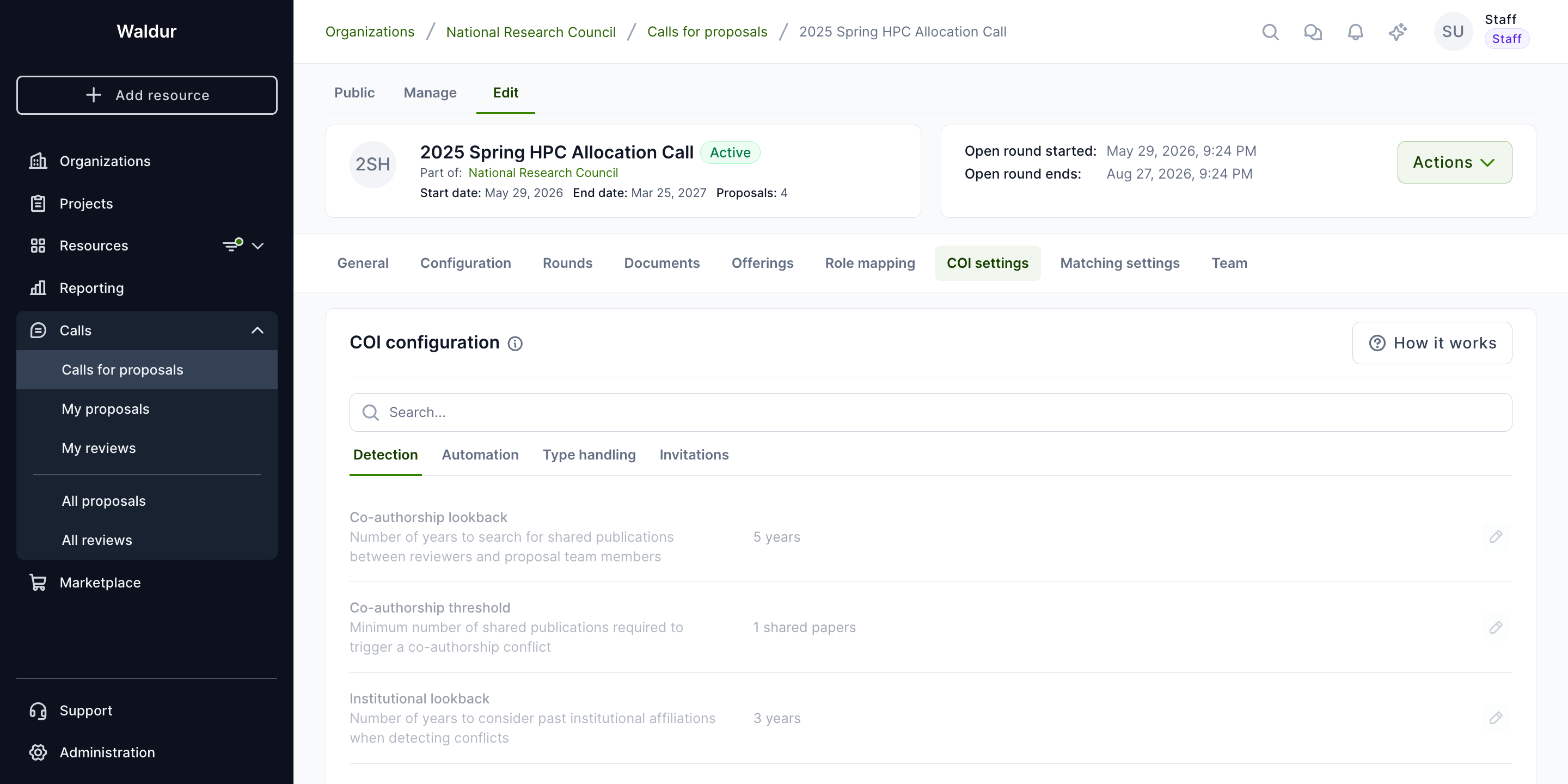
Reviewing detected conflicts
After running COI detection, the conflicts tab shows all detected conflicts with their type, severity, and affected reviewer-proposal pairs.
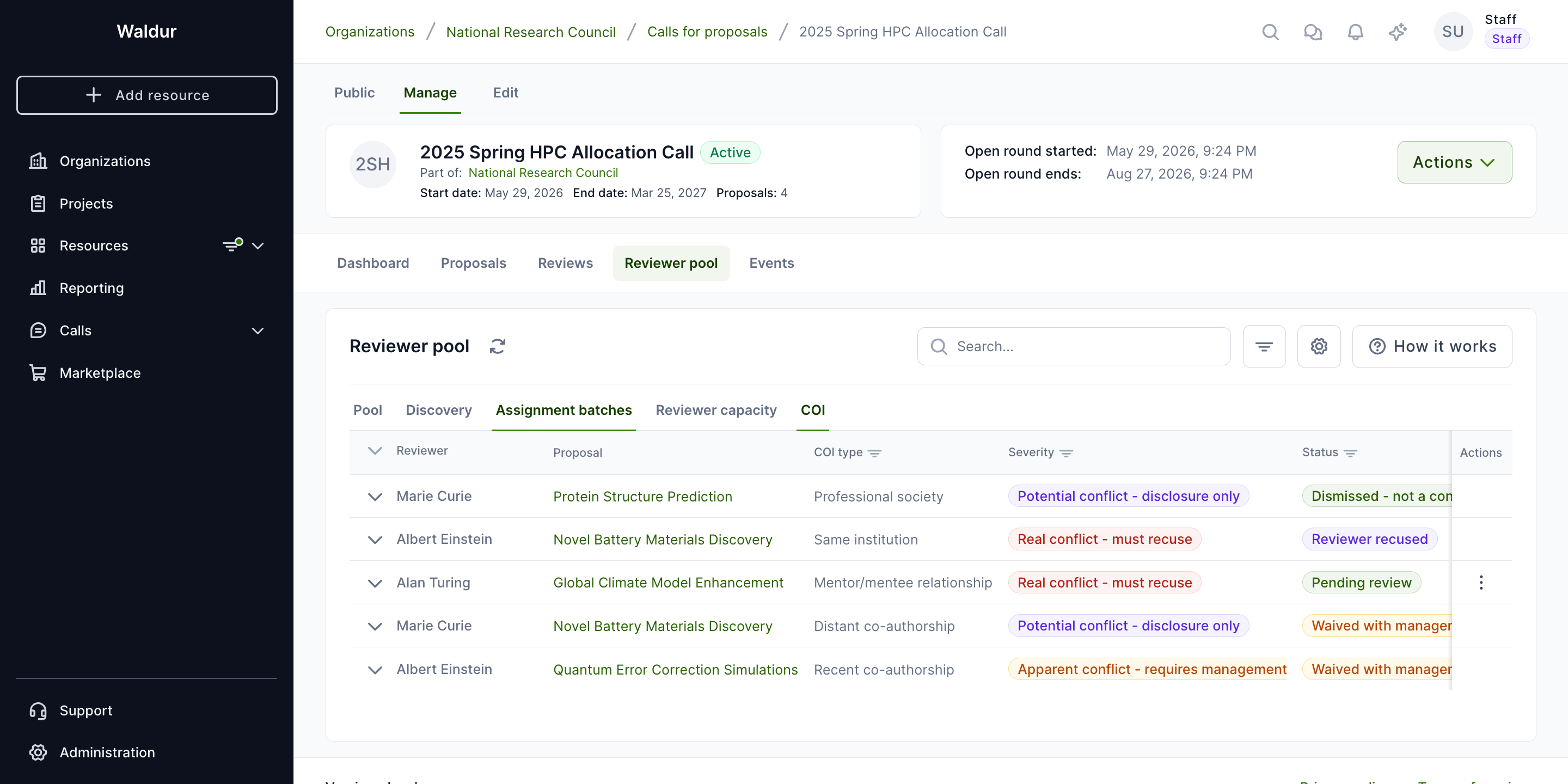
For each detected conflict, managers can:
- Dismiss — false positive, no action needed
- Waive — acknowledge but allow the assignment (requires justification)
- Recuse — remove the reviewer from the proposal
COI types
Conflicts are grouped into broad families, each covering several more specific conflict types:
| Family | Examples |
|---|---|
| Institutional | Same institution, same department, former institution, consortium membership |
| Co-authorship | Recent or older co-authored publications |
| Financial | Direct financial interest related to the proposal |
| Relational | Family, supervisor, mentor/mentee, or editorial relationship |
| Collaboration & role | Active or grant collaboration, named on the proposal, conference organiser, competitor |
Call managers map each specific conflict type to a handling rule — recusal, management plan, or disclosure only — in the call's Type handling COI settings.
Reviewer-proposal matching
Configuring matching
Call managers configure the matching algorithm parameters including affinity method, weights, and constraints.
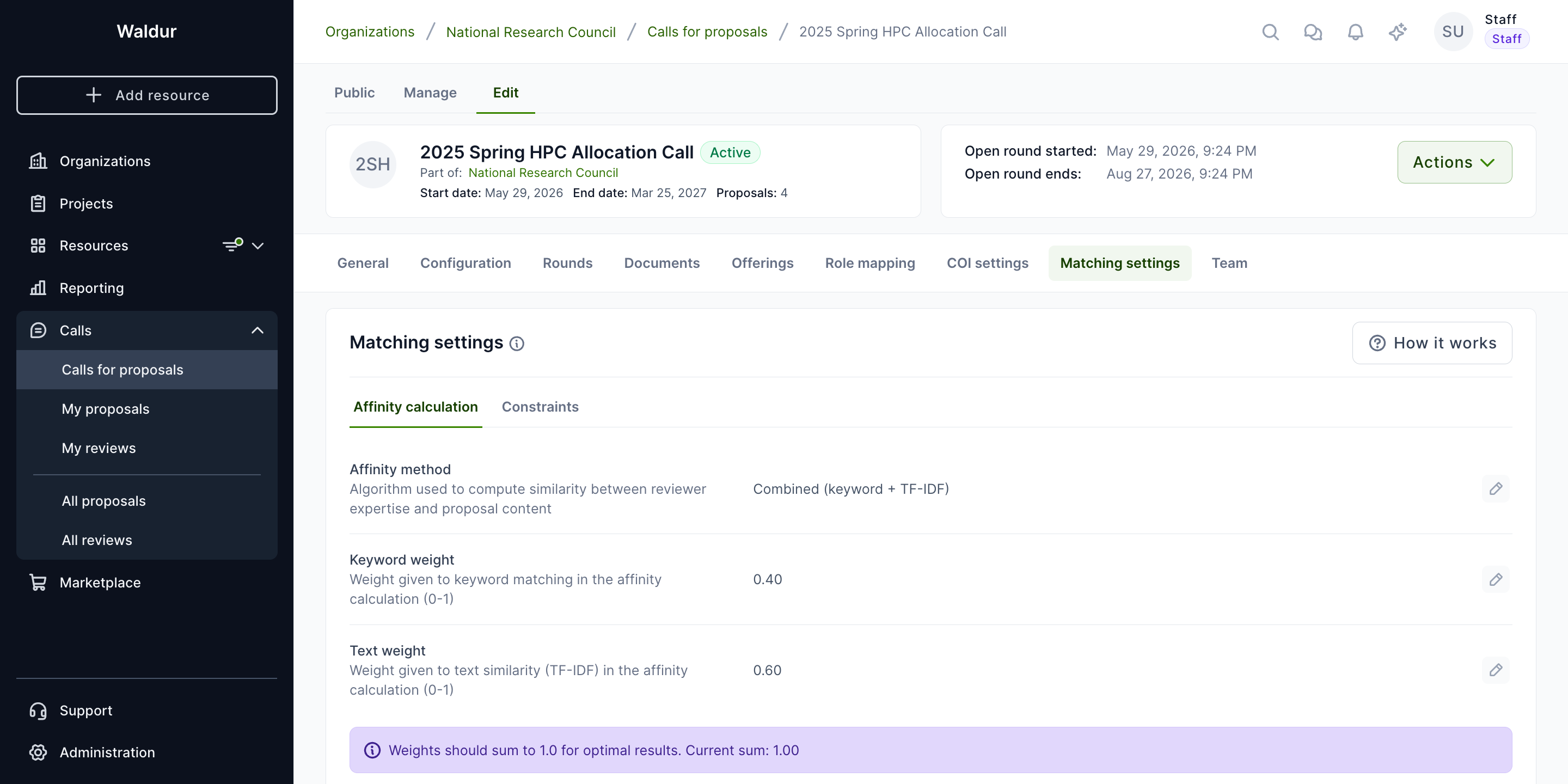
Available matching methods:
| Method | Description |
|---|---|
| Keyword | Matches reviewer expertise keywords against proposal text |
| TF-IDF | Text similarity using Term Frequency-Inverse Document Frequency |
| Combined | Weighted combination of keyword and TF-IDF scores (default) |
Admin reviews overview
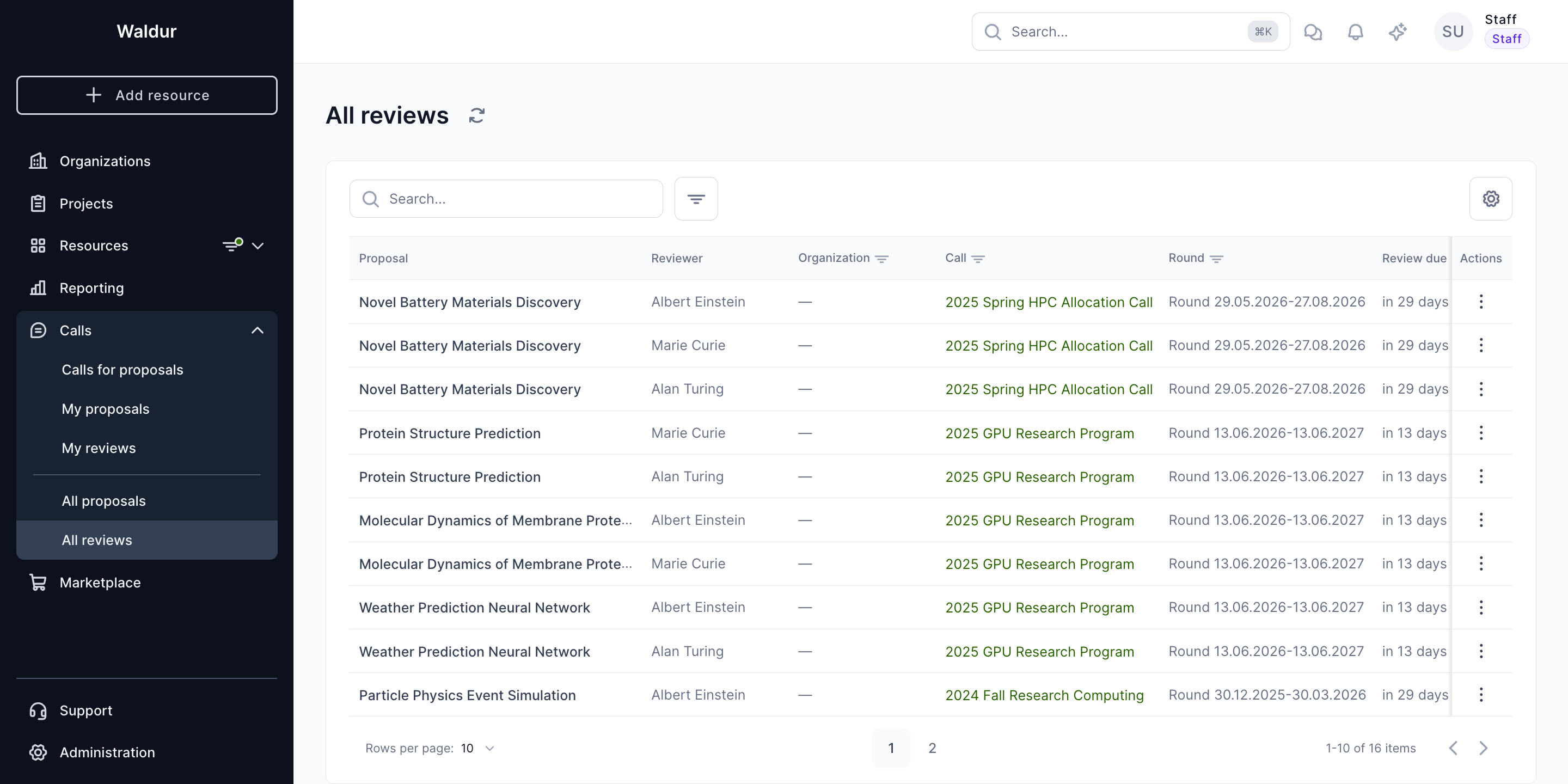
Staff users can view all reviews across all calls from the admin reviews page.
All reviews
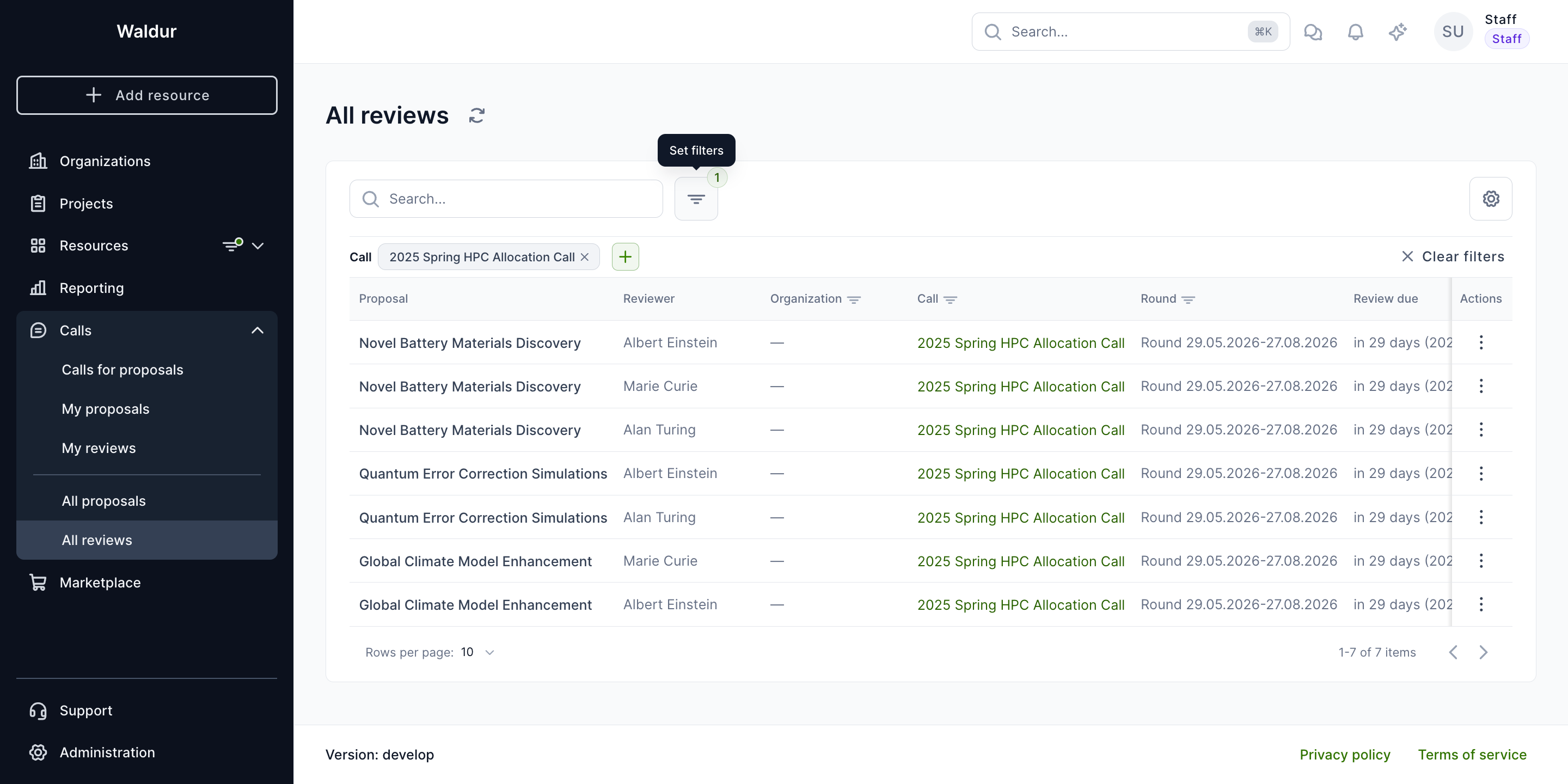
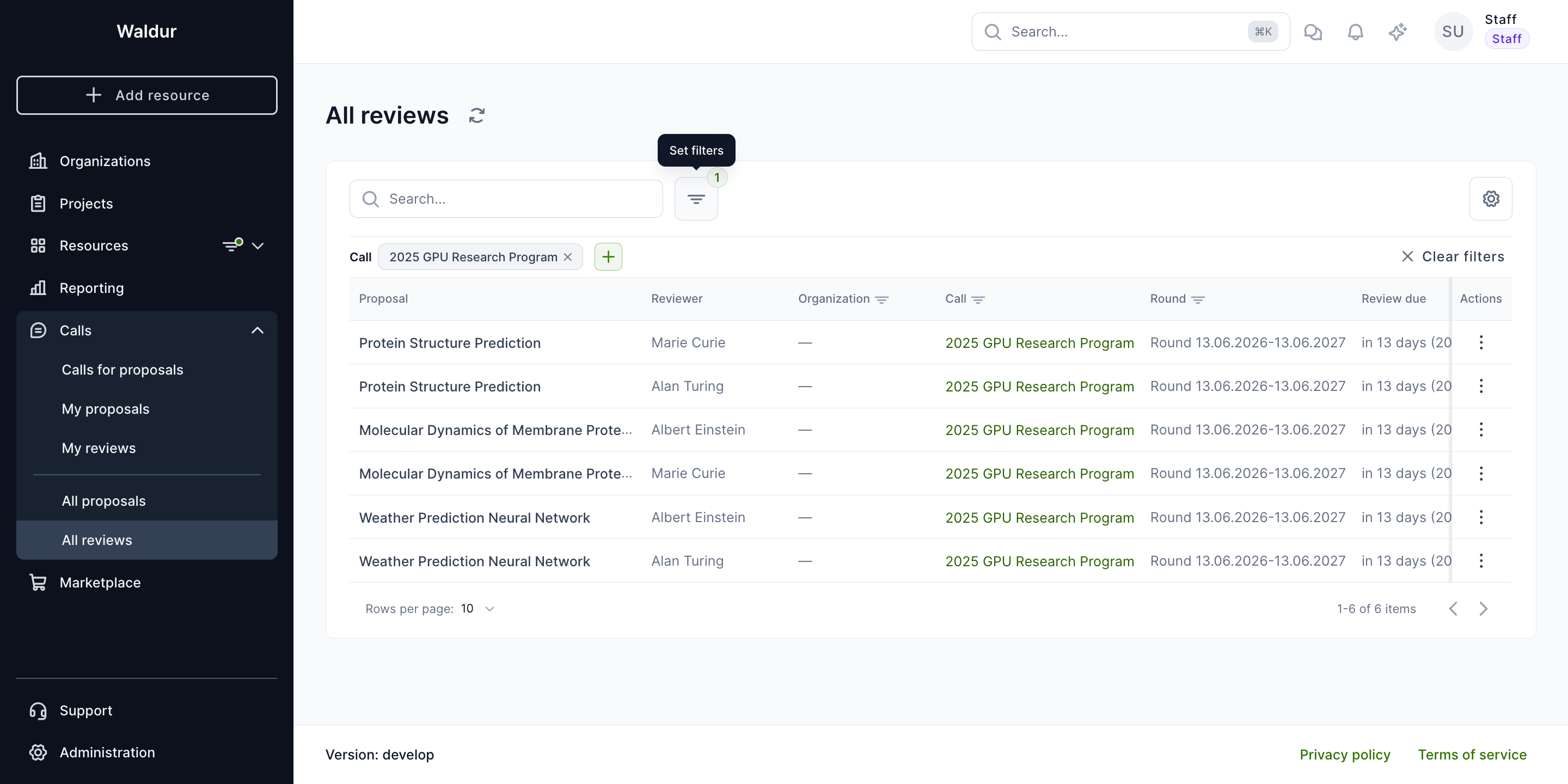
Filtering by call
Reviews can be filtered by specific call to focus on a particular review round.
All proposals
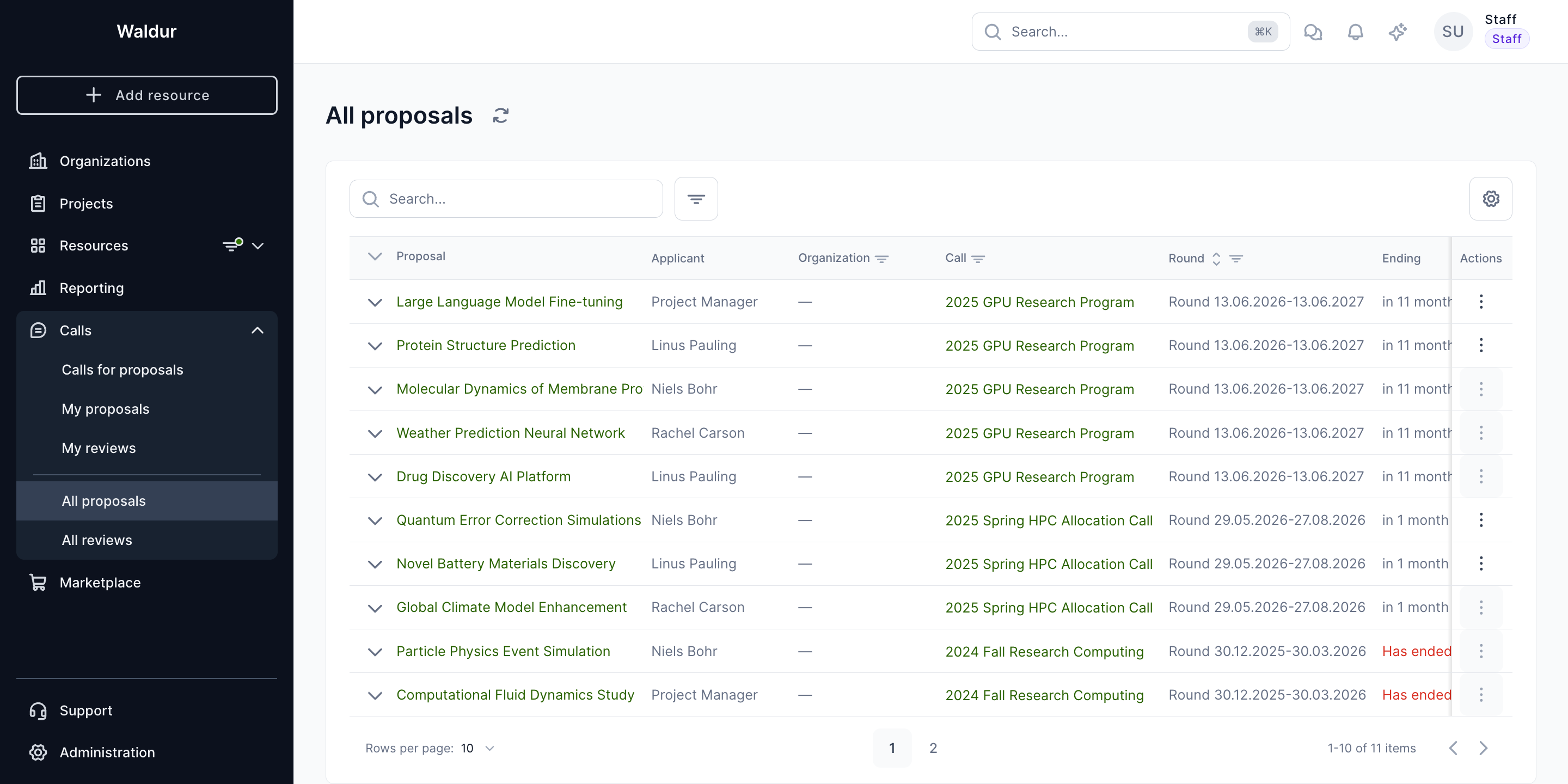
The admin proposals view lists every proposal with its call, round, and state, helping staff track which proposals are progressing through review.