Organization membership management
Organization team contains users with different roles. See Roles and permissions for the per-role permission matrix.
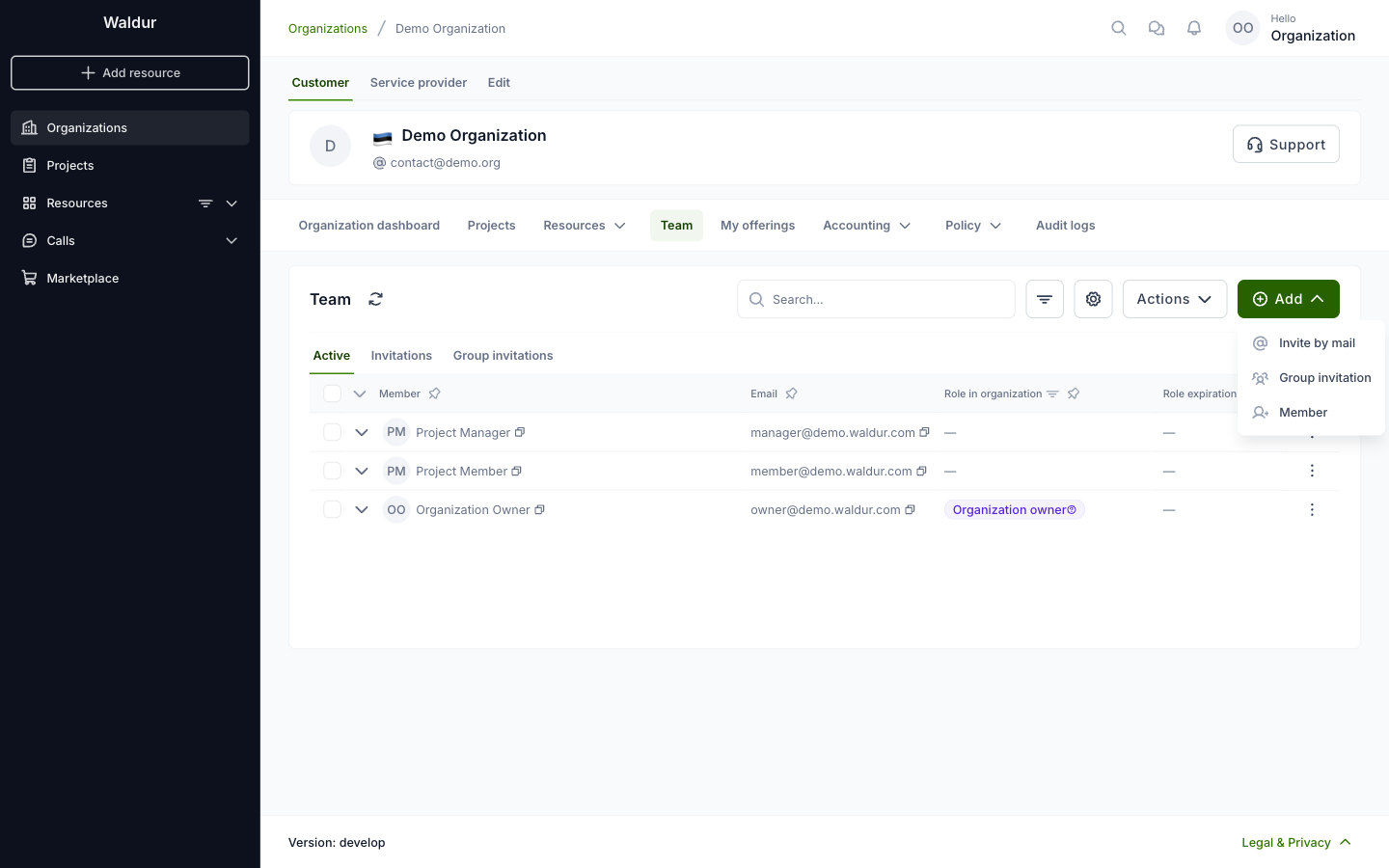
The team is on the organization's Team tab. Active lists the members, Invitations the email invitations that are not accepted yet, and Group invitations the shareable invitation links. Add offers three ways to add people:
- Invite by mail sends an invitation to one or more email addresses.
- Group invitation creates a link that you can share with many people. Users who open it request the role, and the request is approved by an organization owner, or automatically if the link is set up that way.
- Member gives a role to a user who already has an account, see Team management for staff.
Adding organization members
- Open the organization and select the Team tab.
- Click Add and select Invite by mail.
-
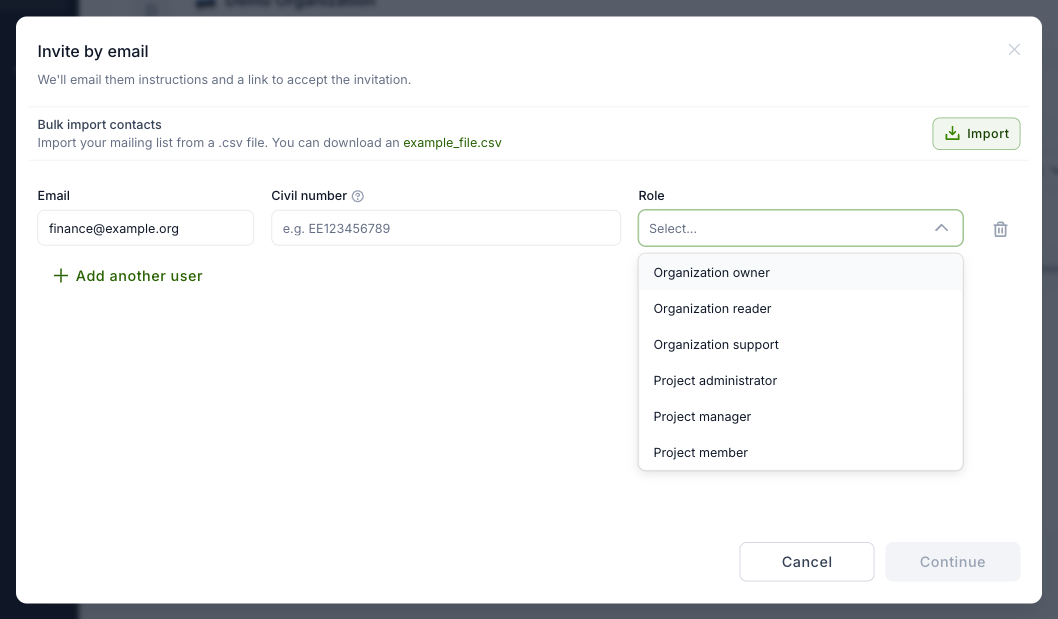
Enter the email address and select the role. Organization roles (Organization owner, Organization reader, Organization support) apply to the whole organization. For a project role, also select the project. Click Add another user to invite more people at once, or Import a list of addresses from a CSV file.
-
Click Continue. Optionally, write a Custom message; it is added to the invitation email.
- Click Send invitation. The user gets an email with a link to accept the invitation.
The invitation is listed on the Invitations tab until the user accepts it. Use the row's actions menu to Resend or Cancel it.