Project groups
A project group is the one POSIX group a project gets at your service provider. It has a name and a GID that stay the same for the life of the project, and its members are the accounts that the project's members hold on your offerings. Clusters grant access through it, and files on shared storage are owned by it.
Waldur keeps the groups; a directory writer such as the site agent's LDAP plugin or GLAuth puts them into the directory your hosts read.
Note
Project groups appear under Accounts → Project groups in your provider
workspace, next to POSIX ID pools. Both are shown only when the platform
operator has enabled the marketplace.show_posix_id_pools feature flag.
How a project group works
- One group per project and service provider. Every offering of the provider that the project uses shares the same group. A project that uses two providers has one group at each, with GIDs that each provider numbers on its own.
- The name is the project's short name. The group is named after the
project's short name (slug) when it is created: lowercased, with characters
other than letters, digits,
-and_replaced by-, at most 32 characters. If the name is taken,-2,-3, … is added. A short name that is empty or does not start with a letter givespfollowed by the first eight characters of the project's UUID. Names are unique per provider, ignoring case. - The name never changes. Renaming the project or changing its short name later does not rename the group, so directory entries and scripts that refer to it keep working.
- The GID is never reused. The GID comes from the provider's POSIX ID pool and is never handed to another project, not even after the group's GID was changed or its project deleted. Files may still carry it.
When a group is created
A project gets its group when its first resource at your service provider is approved: the first resource on any of your offerings whose create order has left the approval steps. A resource that is still waiting for approval by the consumer, by you, by the project or for its start date does not create a group, and a rejected or cancelled order never takes a GID. Moving a resource into a project, or an offering to your provider, creates the groups that are then needed.
Only offerings that create accounts for their users count: Basic, Script and site agent offerings, unless the offering turns POSIX accounts off.
The site agent writes a new group to the directory within seconds when it runs with event processing (STOMP) enabled, and otherwise on its next periodic reconcile. See Project groups in the directory.
Further resources, on the same or another of your offerings, reuse the group. When the project's last resource at your provider is terminated, or the project is deleted, the group stays, marked Not in use, and keeps its GID. A new resource later picks up the same group and GID.
Rolling out project groups
Your directory may already hold groups for some projects, with GIDs that files on your storage carry. To keep those GIDs, enable project groups in this order:
- Set the project group GID range on the service provider's POSIX ID pool (see project group GIDs).
- Adopt the groups your directory already holds under Accounts → Project groups, one by one with Adopt existing group or many at once with Import groups.
- Enable "Create project groups" on Accounts → Account settings. Every project with a resource on your offerings then gets a group, with the next free GID from the range.
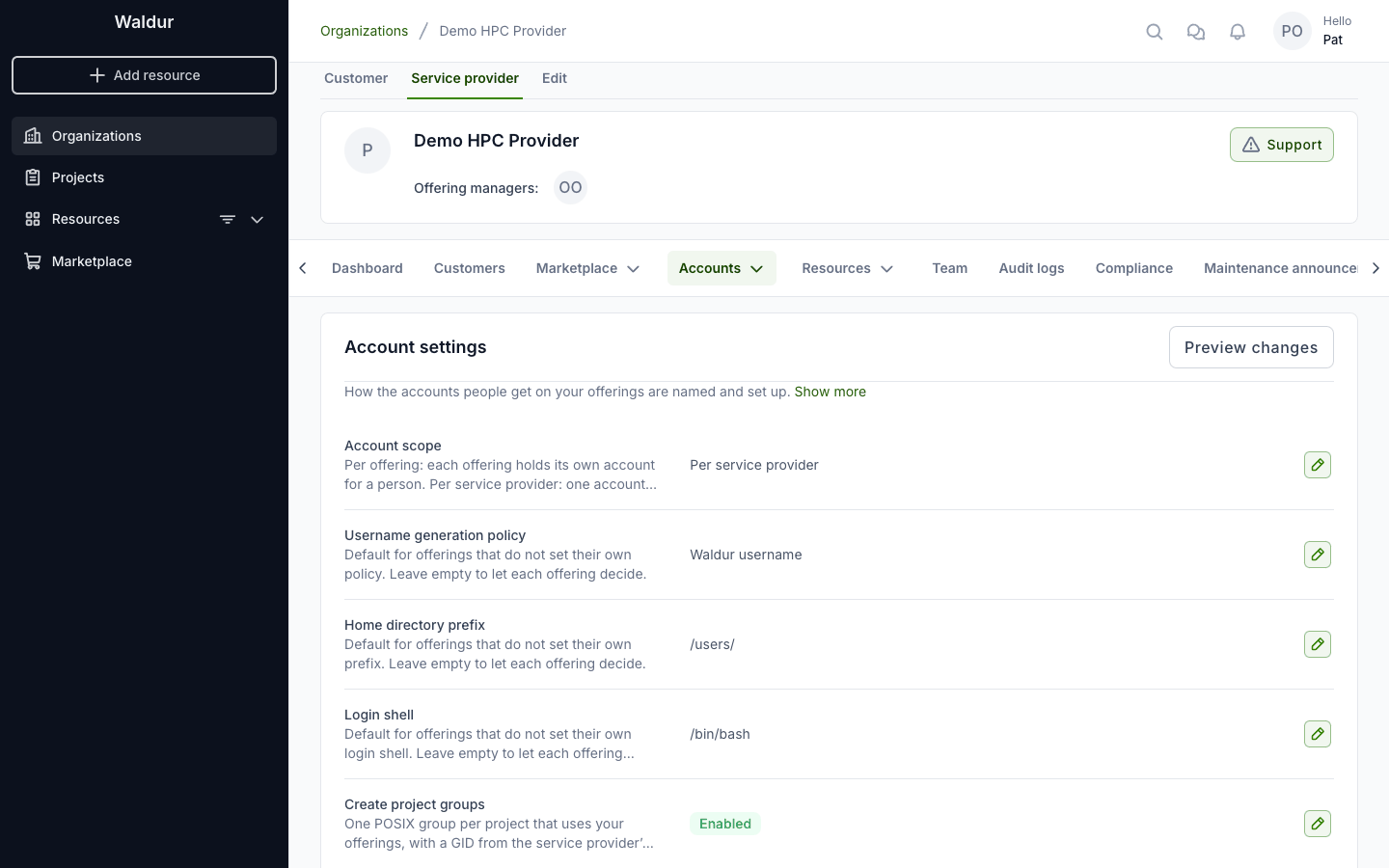
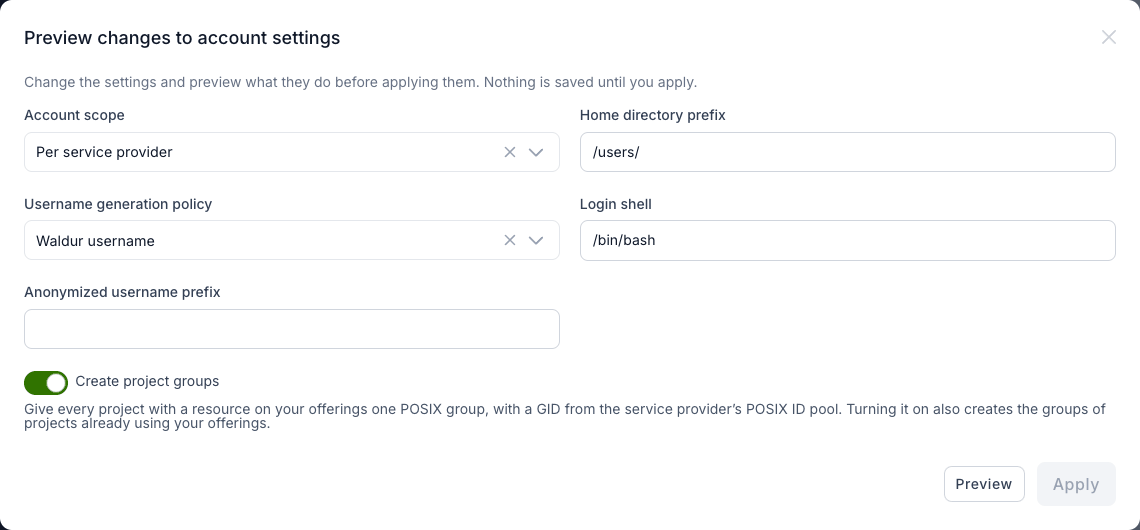
The setting is changed in the account settings preview: click the edit button on the Create project groups row, turn the switch on, then Preview and Apply. The preview warns when the provider's pool has no project group range, because the groups would then share the GID range with users' primary groups.
Tip
Turning the setting on also creates the groups of projects that already use your offerings. Groups that could not get a GID yet, because no range had one free, get it as soon as a range can supply one: when the pool is created, when a range is added or widened, or when the setting is turned on.
Turning the setting off stops new groups from being created. Existing groups stay listed and keep their GIDs.
The Project groups page
Open your provider workspace and go to Accounts → Project groups.
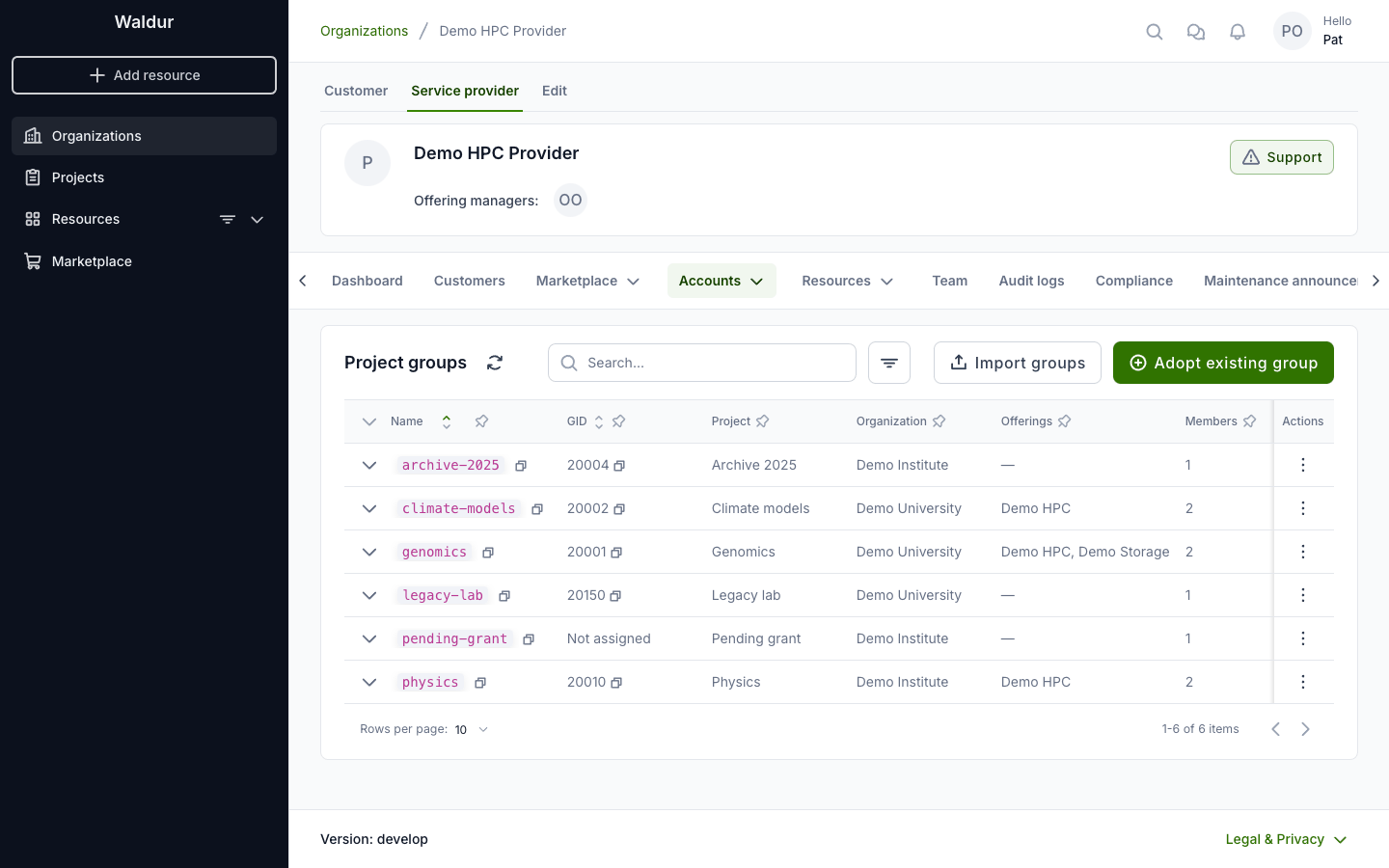
| Column | Meaning |
|---|---|
| Name | The group name in the directory |
| GID | The group's GID, or Not assigned while no range could supply one |
| Project | The project the group belongs to; Deleted project once the project has been removed |
| Organization | The project's organization |
| Offerings | Your offerings on which the project currently has a resource |
| Members | The number of members; expand the row to see their usernames |
| Status | In use while the project has a resource on one of your offerings, Not in use otherwise |
| Created | When the group was created |
Search matches the group name, the project name or short name, the organization name, and the exact GID. The filter offers Usage (in use or not in use) and Offering (groups of projects that use that offering).
Expand a row to see the group's members: the usernames of the accounts that the project's members hold at your provider.
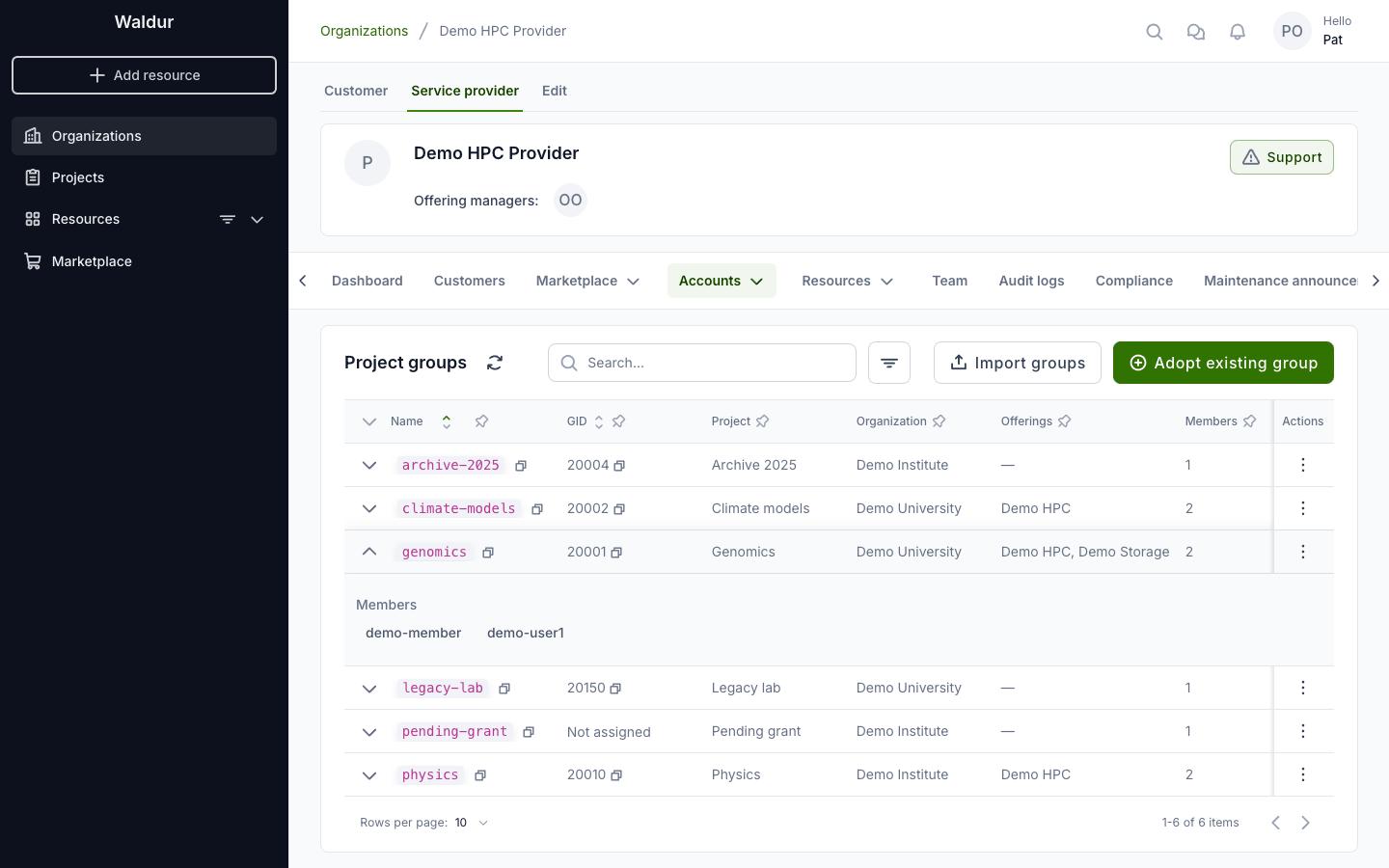
A user is a member while their account is active, they hold a project role that has not expired, and their account at your provider is live (requested, being created, pending, active, or failed on creation) and has a username. A username is left out when every account carrying it at your provider is restricted. Robot and service accounts are not members.
Project groups in the API
GET /api/marketplace-service-provider-project-groups/ lists the same groups for an
offering's provider. Besides the group name, GID, project and offerings, each entry carries the
project's organization as customer_uuid, customer_name and customer_slug — the last being
the organization's slug, which integrations use to match a group against an organization
without resolving the UUID. A group whose project has been deleted returns all three as null.
Adopting an existing group
Adopt a group your directory already holds so that the project keeps its GID and Waldur never hands that GID to anything else. The project does not need a resource yet.
- Click Adopt existing group.
- Select the Project. The list shows projects that have a resource or an order on your offerings; a project that already has a group shows it and cannot be selected — use Change GID for it instead.
- Enter the GID the group has in the directory.
- Optionally enter the Group name it has in the directory. Leave it empty to use the project's short name.
- Click Adopt.
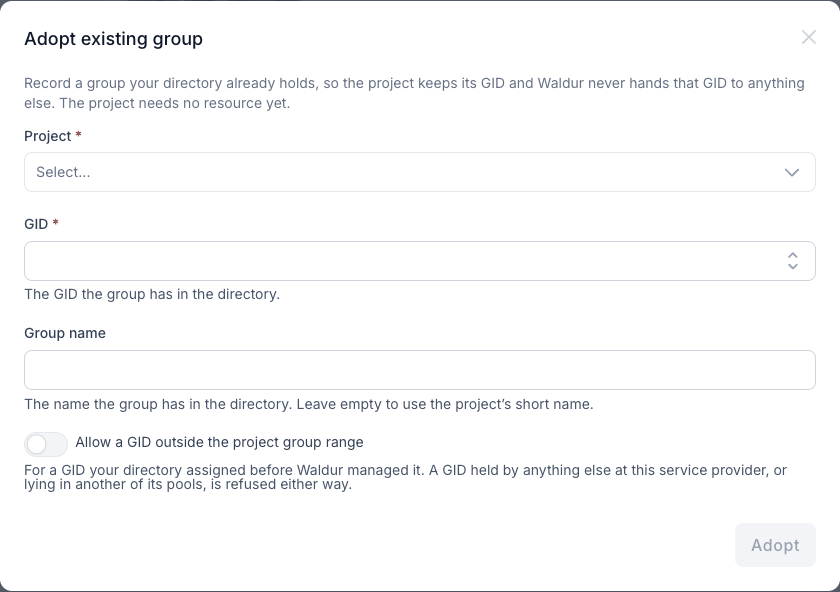
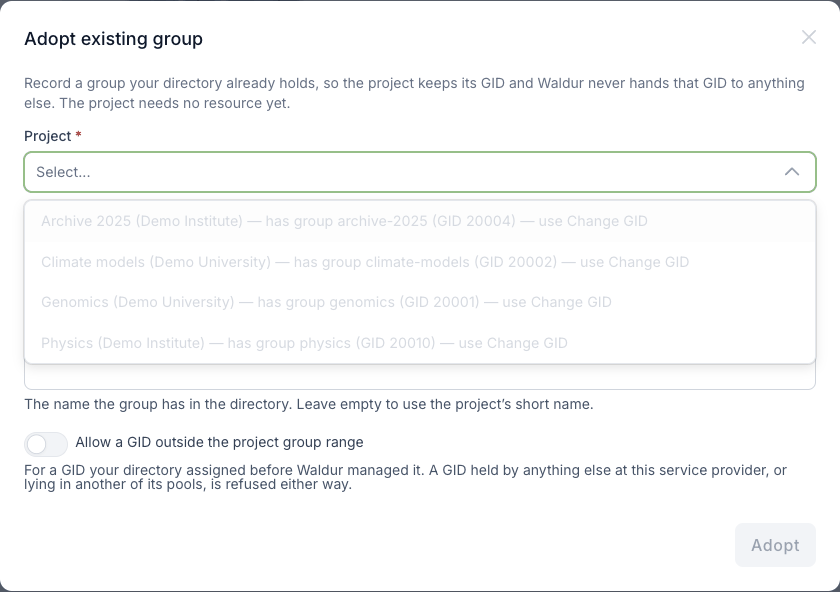
The GID must lie inside the project group range of the provider's pool. Turn on
Allow a GID outside the project group range for a GID that your directory
assigned before Waldur managed it. Either way, Waldur refuses a GID that is
already held at your provider — by an account, another group, or another
consumer of the pools — or that lies inside the GID range of another of your
pools. A name must start with a letter or _, contain only lowercase letters,
digits, - and _, be at most 32 characters long, and not be used by another
group of your provider in any case.
Who may adopt
Organization owners of the service provider and staff. An owner may adopt only for projects that have a resource or an order, in any state, on one of the provider's offerings. Staff may adopt for any project, which covers recording a group before the project's first order.
Importing many groups
To adopt many groups at once, click Import groups and enter one group per line: the project's UUID or short name, the GID and, optionally, the group name, separated by commas.
1 2 3 | |
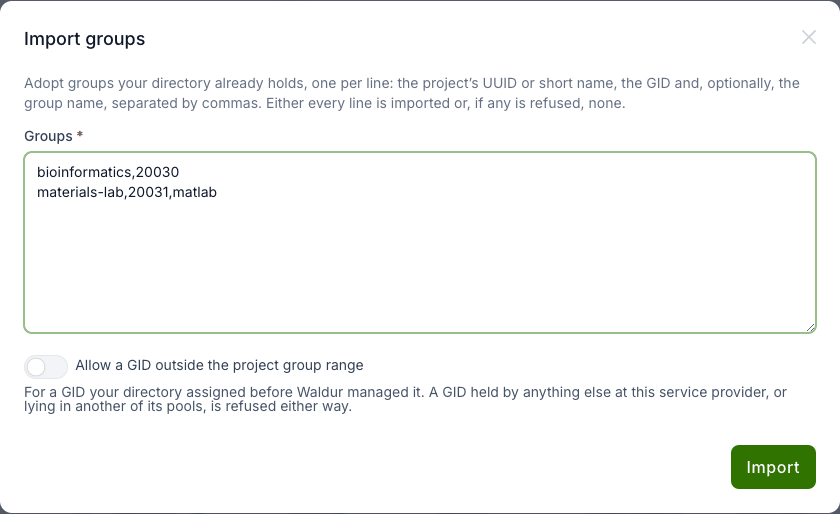
A short name works when exactly one eligible project has it. The import is all or nothing: if any line is refused, nothing is imported and the dialog lists the lines that were refused and why. The same rules as for a single adopt apply to every line, including who may import and Allow a GID outside the project group range.
Changing a GID
Use Change GID in a row's actions menu to give a group another GID, for example when its GID clashes with one that something outside Waldur already uses. For a group without a GID the action is called Set GID.
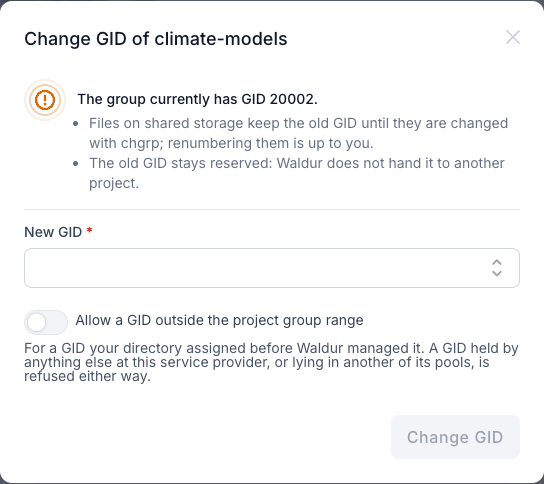
Warning
Changing a GID does not touch your files. Files on shared storage keep the
old GID until they are changed with chgrp; renumbering them is up to you.
The old GID stays reserved: Waldur does not hand it to another project.
The new GID follows the same rules as an adopted one. Every change is recorded in the audit log with the old and the new GID. Only organization owners of the service provider and staff can change a GID.
Who sees what
| Who | What they can do |
|---|---|
| Staff | See and manage all project groups |
| Support users | See all project groups |
| Organization owners of the service provider | See the provider's groups, adopt, import, change GIDs, and enable project groups |
| Service managers of the service provider | See the provider's groups |
| Offering managers of any of the provider's offerings | See the provider's groups — this is how the site agent reads them |
| Project members and organization owners of the project | See the project's groups at every provider on the project page (see your POSIX identity) |
When an account is renamed
A username can change after a group already lists it, for example when the username generation policy changes or a user's identity provider name changes. Project group members always carry the current username.
A directory writer has to recognise that the new name belongs to an existing
entry. The site agent's LDAP plugin does this with a key it keeps in the
directory: with waldur_username_attribute set (employeeNumber is the
recommended attribute), it stores each person's Waldur username on their entry.
When Waldur reports a new Linux username, the agent renames the entry carrying
that key in place, provided its UID still matches, and replaces the old username
in the groups. Without the setting the agent never renames an entry. See
renames in the directory for the details.
With the plugin's membership: add_only setting the old username stays in the
group next to the new one, because that mode never removes members.