Reviewer management
This guide covers the complete reviewer lifecycle in Waldur's call management system: building reviewer pools, managing reviewer profiles, configuring reviewer-proposal matching, and handling conflicts of interest.
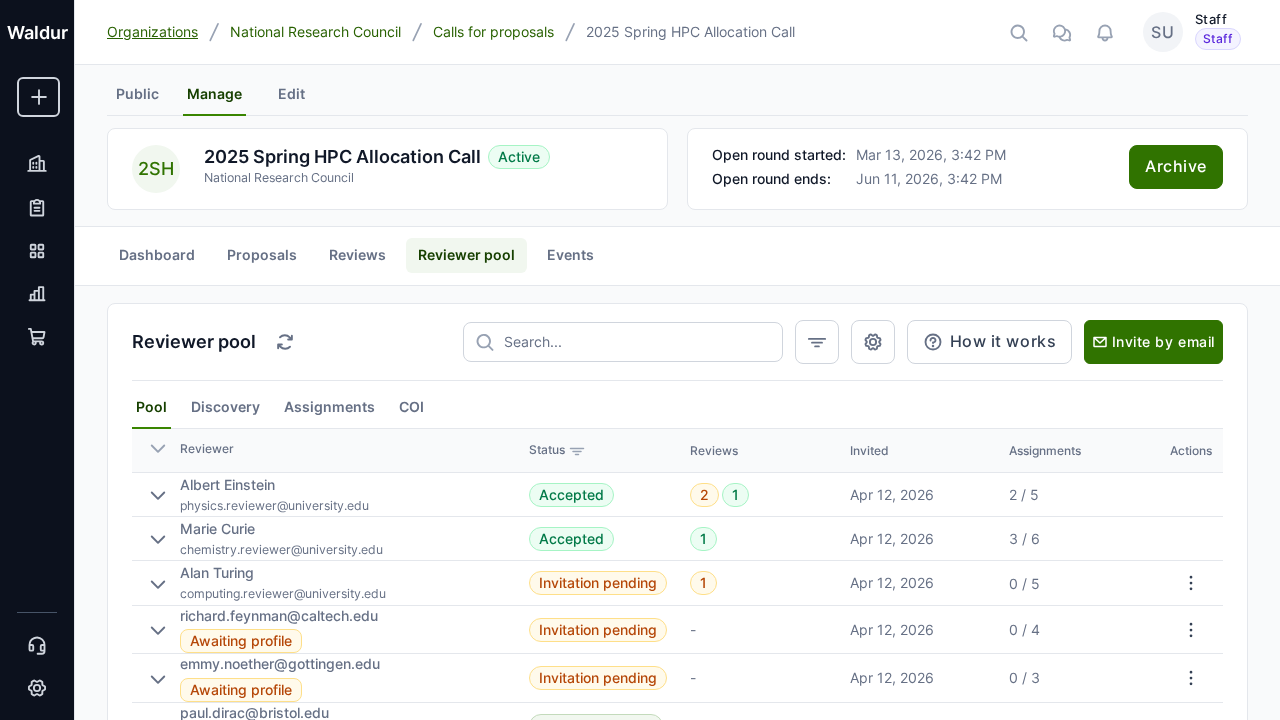
Reviewer profiles
Reviewers in Waldur maintain detailed profiles that enable intelligent matching with proposals.
Profile components
Each reviewer profile includes:
- Personal information: Name, ORCID ID, biography, alternative names
- Affiliations: Current and past institutional affiliations with type (employment, education, visiting, honorary, consulting), organization identifier, and date range
- Expertise: Self-declared expertise categories with proficiency levels (expert, familiar, basic)
- Publications: Academic publications with title, authors, venue, venue type (journal, conference, preprint, book, thesis, report), and year
- Availability: Whether the reviewer is available for new review assignments
Tip
Reviewers should keep their profiles up-to-date, especially expertise areas and affiliations. This data is used for automated reviewer-proposal matching and conflict of interest detection.
Managing your reviewer profile
- Open the Reviews page from the sidebar and create or open your reviewer profile from the profile panel
- Fill in your biography, ORCID ID, and availability status
- Add affiliations with your current and past institutions
- Add expertise categories with your proficiency level for each
- Add relevant publications for matching purposes
- Set your profile to Published when ready to receive review assignments
The profile editor is organised into four tabs — Profile info, Affiliations, Expertise, and Publications — and you can connect and sync your ORCID record to import affiliations and publications automatically.
Reviewer pool management
Call managers build a curated pool of reviewers for each call.
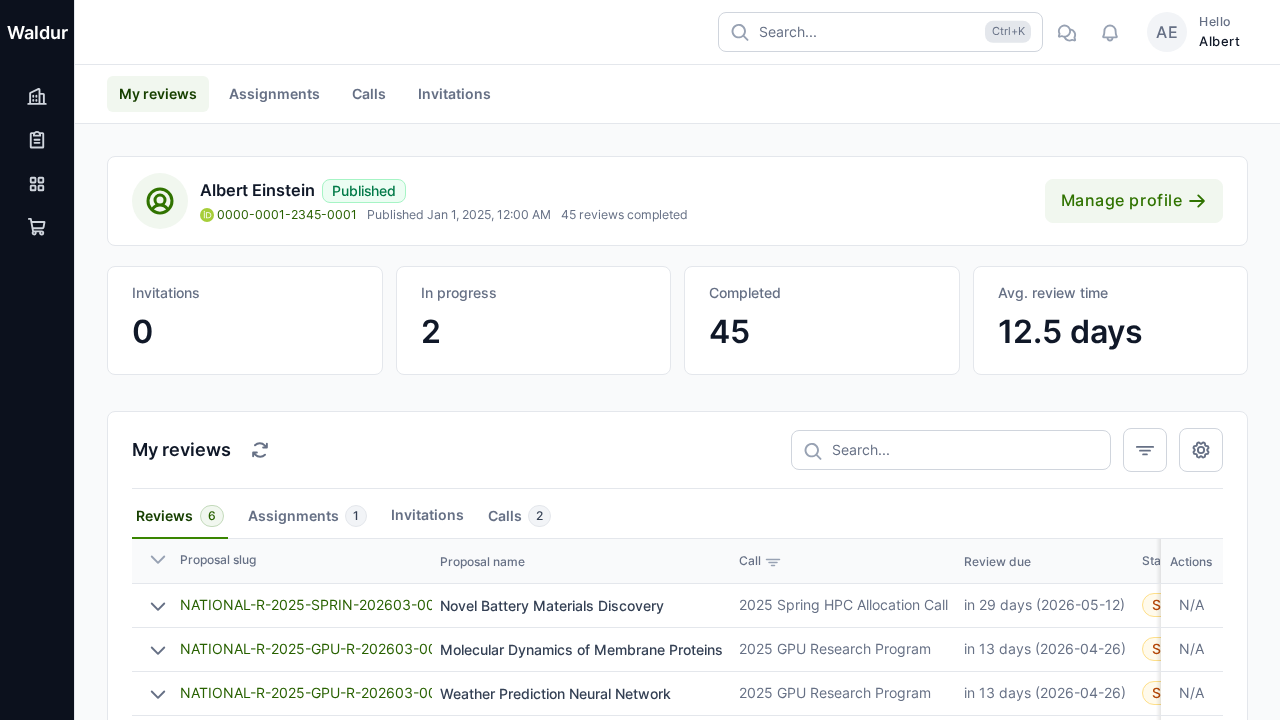
Building a reviewer pool
Performed by: Call manager
- Navigate to the call settings
- Select the Reviewer Pool section
- Add reviewers using one of these methods:
- By profile: Search and select from published reviewer profiles
- By email: Invite reviewers via email who may not yet have accounts
Invitation workflow
When a reviewer is added to a pool:
- An email invitation is sent with a personal invitation link
- The reviewer opens the link and signs in — the invitation page requires it — then accepts or declines
- To accept, the reviewer must have a published profile (they are prompted to create or publish one if they do not); an invitation addressed to a specific reviewer can only be accepted by that reviewer's account
- The call's COI policy is shown on the acceptance page
Invitation statuses: Pending | Accepted | Declined | Expired
Invitation expiry and resending
A pool invitation can be answered for the call's assignment expiration period
(7 days by default) — the same response window the call gives reviewers for
assignment batches. After that it can no longer be accepted or declined. An
hourly job marks such invitations Expired and emails the call manager who
sent the invitation (or the call's managers, if the sender has no email), when
the proposal.reviewer_pool_invitation_expired notification is enabled.
A pending or expired invitation can be sent again. In the Reviewer pool,
open the invitation's row 3-dot menu, choose Resend invitation and confirm
with Resend. The action is offered to call managers, and only on Pending
and Expired rows. Resending returns the invitation to Pending with a new
expiry date and emails the invitee a new link; the link from the earlier email
stops working. A declined invitation cannot be resent. (API: the
resend-invitation action of the call reviewer pool.)
Note
Invitation tokens are generated using secure random bytes and do not require the reviewer to have an existing Waldur account to respond.
Conflict of interest (COI) detection
Waldur includes an automated COI detection system to ensure fair and unbiased peer review.
COI types detected
Waldur recognises around twenty specific conflict types, grouped into broad families:
| Family | Specific types (examples) |
|---|---|
| Institutional | Same institution, same department, former institution, consortium membership |
| Financial | Direct financial interest related to the proposal |
| Relational | Family, supervisor, mentor/mentee, or editorial relationship |
| Co-authorship | Recent or older co-authored publications |
| Collaboration & role | Active or grant collaboration, named on the proposal, conference organiser, competitor, professional-society membership |
Each specific type is mapped to a severity and a handling rule in the call's Type handling COI settings (see below).
Severity levels
- Real: Confirmed conflict that must be addressed
- Apparent: Circumstantial conflict that may need review
- Potential: Possible conflict flagged for awareness
Detection methods
- Automated: System cross-references reviewer affiliations and publications against proposal team data
- Self-disclosed: Conflicts declared by the reviewer
- Reported: Third parties report potential conflicts
- Manager-identified: Call managers manually flag conflicts
Configuring COI detection
Performed by: Call manager
- Open the call's Edit view
- Select COI settings
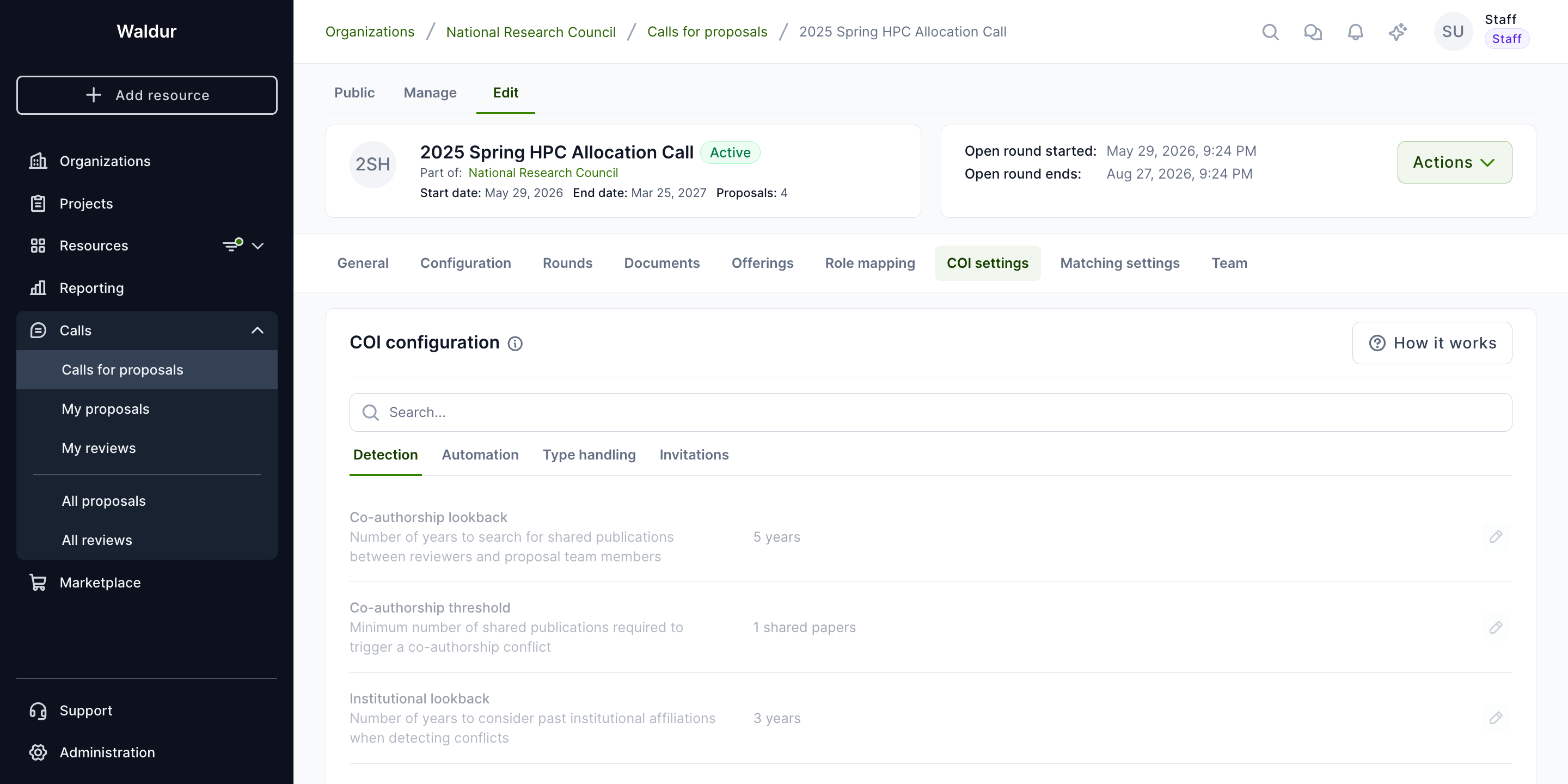
The COI configuration is organised into four tabs:
| Tab | Purpose |
|---|---|
| Detection | Lookback periods (co-authorship, institutional), shared-publication thresholds, "same department" / "same institution" toggles |
| Automation | Auto-detect toggles per source (co-authorship search, institutional matching, declared conflicts) — determines what runs without manual triggering |
| Type handling | For each conflict type, choose whether it triggers recusal, requires a management plan, or is disclosure only — used by the detector when assigning severities |
| Invitations | How much of each proposal a reviewer sees in an assignment batch before accepting it — in the assignment invitation email and on their Assignments tab: Titles only (the default), Titles and summaries, or Full proposal details, which currently shows the same as titles and summaries. A proposal blocked by a conflict of interest is always shown by title only. After accepting, the reviewer reads the full proposal through their review. |
A summary dialog (from the section header) lists every setting at a glance, and inline tooltips explain each COI concept.
Note
Once a call is activated, most COI configuration fields are locked to keep detection results reproducible. To change a locked setting, deactivate the call (and re-run detection afterwards).
Running COI detection
- Click Run COI Detection in the call management dashboard
- The system runs a batch detection job (processed in the background)
- Review detected conflicts in the COI tab of the Reviewer pool
- For each conflict, choose to Dismiss, Waive (with justification), or Recuse the reviewer
COI review interface
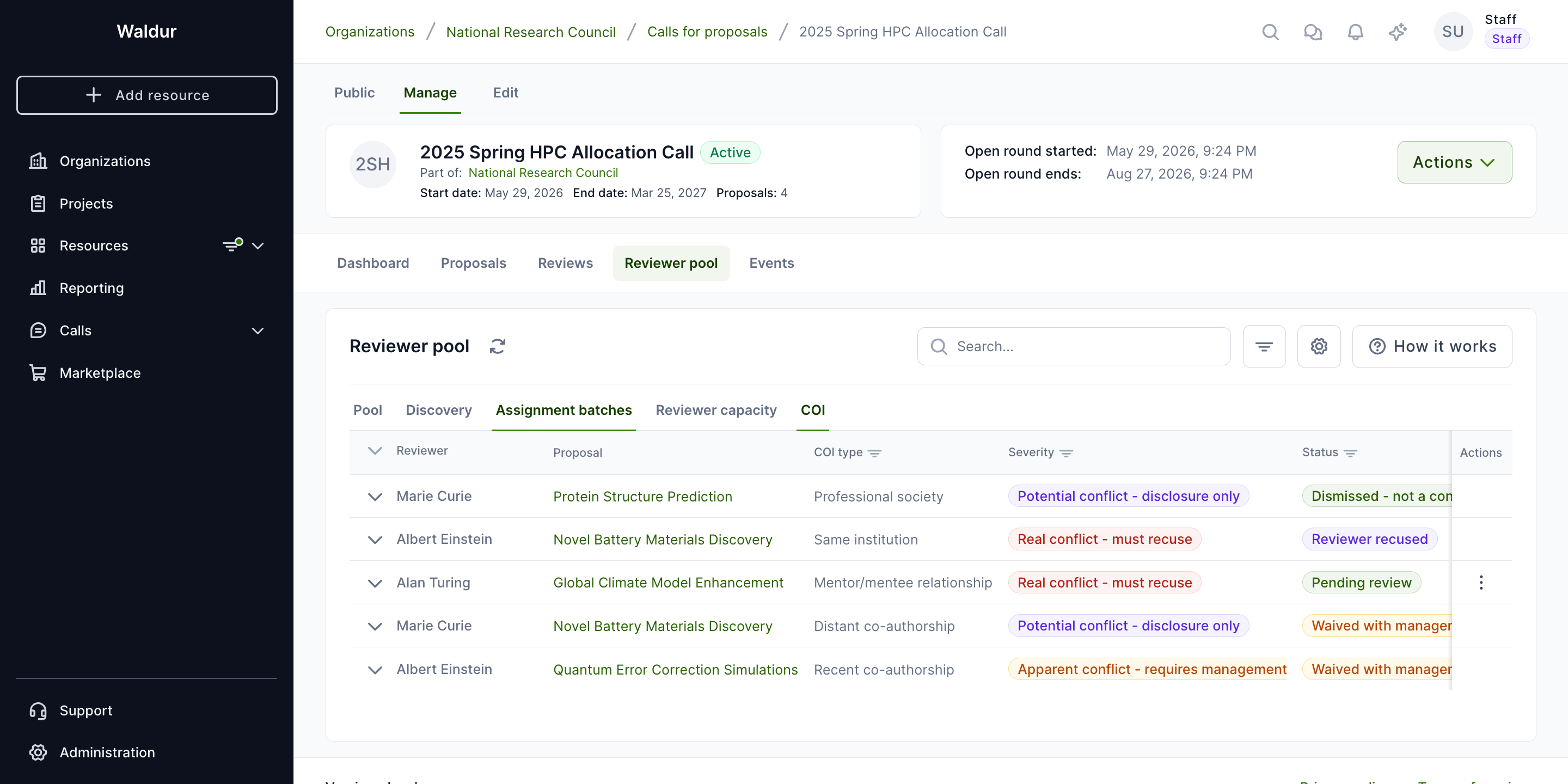
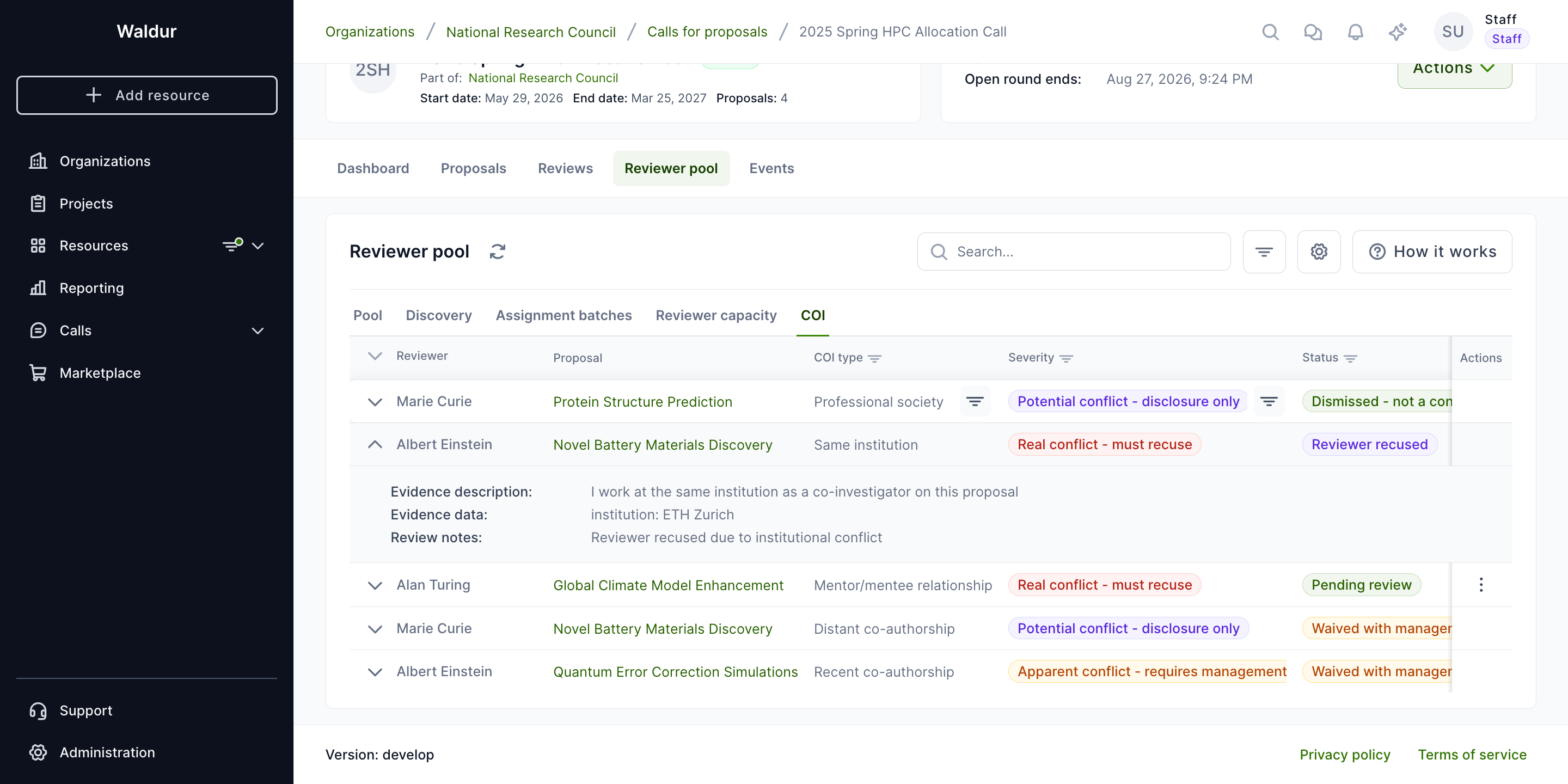
The COI tab is the operational view used to triage all detected and declared conflicts on the call.
- Status filters — narrow the list to Pending, Dismissed, Waived, or Recused.
- Severity styling — each row is styled by severity (Real conflict / Apparent conflict / Potential conflict) so high-severity rows stand out at a glance.
- Expandable rows — expand a row to see the evidence behind a detected conflict: shared publications with venues and years, shared affiliations with overlapping date ranges, and self-disclosed text.
- Waive dialog — choosing Waive opens a dialog that requires a written justification (the management plan) before the conflict can be cleared. The justification, the manager, and the timestamp are recorded on the conflict and stay visible to staff users.
- Recuse — removes the reviewer from the proposal and, if any review or assignment item already exists, marks it as cancelled.
COI gating on assignments
When a conflict exists between a reviewer and a proposal, the corresponding assignment item is blocked until the conflict is resolved (dismissed, waived, or the reviewer recused). Staff users can force-unblock a blocked assignment when a strong operational reason exists; the override is flagged on the assignment.
Warning
All staff overrides are recorded with the overriding user, reason, and timestamp, and remain visible to staff.
Reviewer-proposal matching
Waldur uses algorithmic matching to suggest optimal reviewer-proposal assignments.
Matching methods
| Method | Description |
|---|---|
| Keyword | Matches reviewer expertise keywords against proposal text |
| TF-IDF | Text similarity using Term Frequency-Inverse Document Frequency |
| Combined (default) | Weighted combination of keyword and TF-IDF scores |
Configuring matching
Performed by: Call manager
- Navigate to call settings
- Select the Matching Configuration section
- Configure:
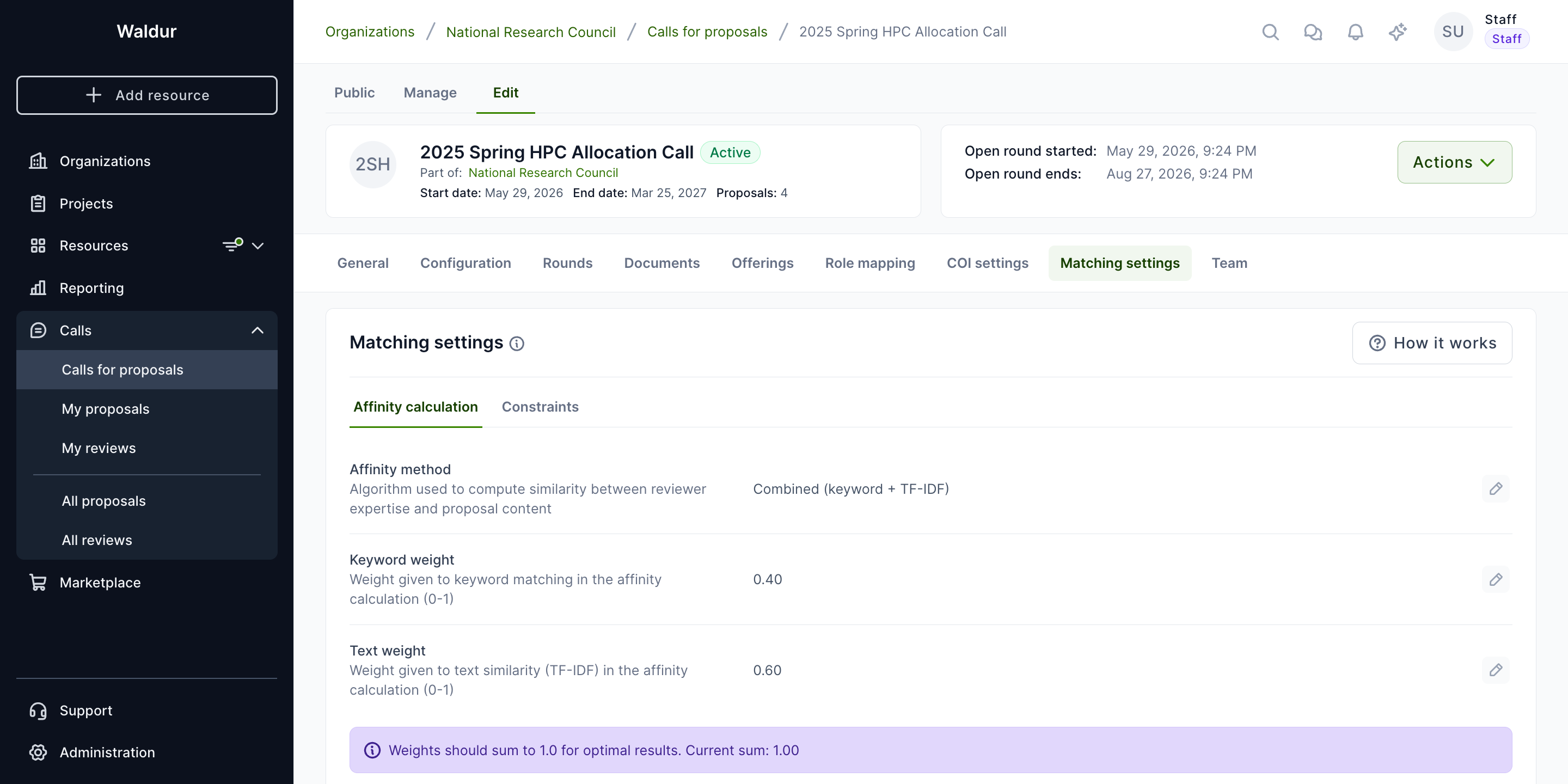
- Affinity method: Keyword, TF-IDF, or Combined
- Weights: Keyword weight and text weight (the interface flags when they do not sum to 1.0, which is recommended for best results)
- Assignment algorithm: how batches balance load — MinMax (balanced load), FairFlow, or Hungarian
- Constraints: Min/max reviewers per proposal, max proposals per reviewer
- Threshold: Minimum affinity score for suggestions
- Reviewer bids: Whether to incorporate reviewer preferences, and their weight
Generating suggestions
- In the Reviewer pool > Discovery tab, click Generate matches
- In the Generate reviewer matches dialog, choose what to match reviewers against:
- Call description — match against the call's own description
- All proposals — match each reviewer against every proposal
- Selected proposals — match against a chosen subset
- Custom keywords — supply your own keywords and pick a search mode (Expertise keywords only or Full text search)
- Optionally open Advanced options to set a Minimum match score (%) cut-off
- The system computes affinity scores and the results appear in the Discovery table
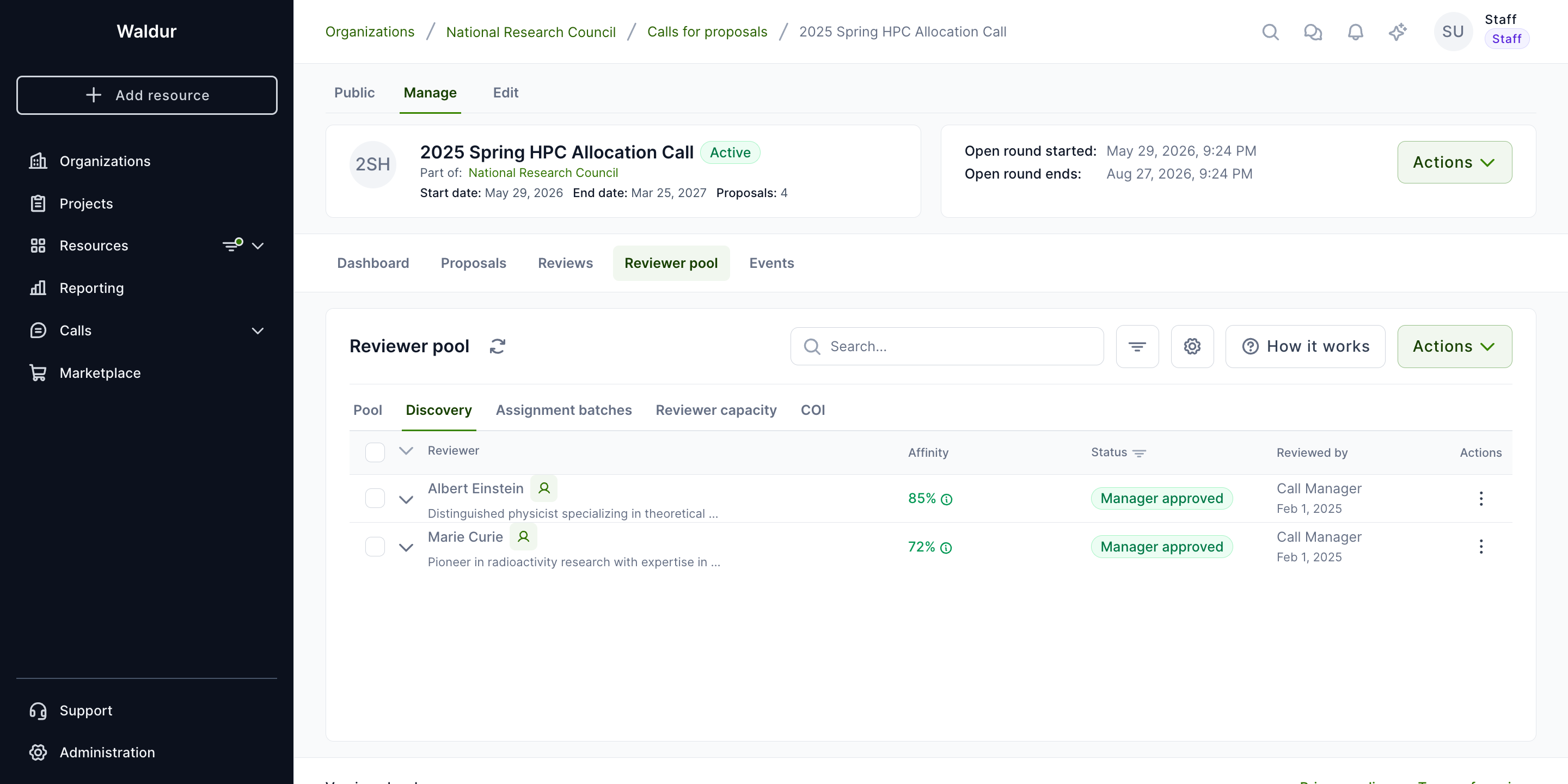
The Discovery table has Reviewer / Affinity / Status / Reviewed by / Actions columns. Each suggestion row shows:
- Affinity score as a percentage. Hovering the score reveals the Score breakdown tooltip — the Keyword match, Text similarity, and Combined components.
- Status — Awaiting manager review (newly generated), Manager approved, Manager rejected, or Invitation sent.
- Reviewed by — the manager who last actioned the suggestion.
- Expand row to see the full reviewer profile summary (biography, expertise, recent publications) without leaving the page.
For each suggestion you can Confirm (queue for invitation) or Reject, or use Invite by email to send a direct invitation to a candidate who is not yet in the pool. Bulk Confirm all, Reject all, and Delete all actions act on the whole table.
Reviewer bidding
The matching configuration can incorporate reviewer bids — preference signals (Eager to review, Willing to review, Not willing to review, Has conflict of interest) weighted by a configurable bid weight. Bidding is part of the matching backend; there is no reviewer-facing bidding screen in the current interface, so bids are managed as configuration rather than collected from reviewers directly.
Assignment workflow (Stage 2)
After matching, call managers create assignment batches to formally assign proposals to reviewers.
Reviewer pool navigation
The Reviewer pool panel groups the call manager's reviewer-related views under a single tab strip:
- Pool — the curated list of invited reviewers and their status.
- Discovery — algorithm-suggested reviewers based on expertise and affinity.
- Assignment batches — the per-reviewer assignment batches you've created, with status, item counts, sent/expiry dates, and per-row actions.
- Reviewer capacity — how many active assignments each pool member has, with their configured maximum.
- COI — flagged conflicts of interest awaiting manager review.
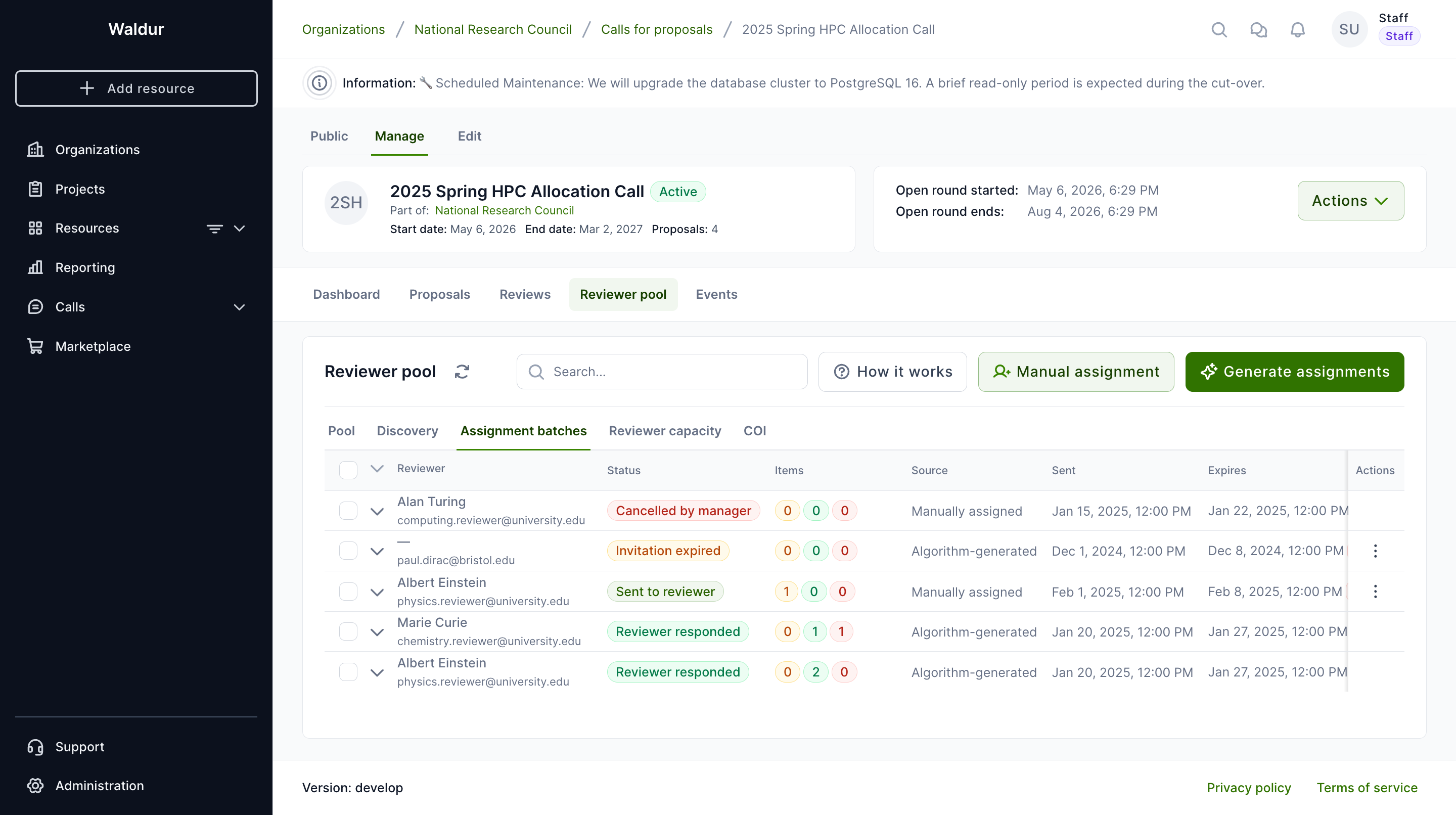
The header buttons on Assignment batches are:
- How it works — open an explainer of the assignment flow.
- Manual assignment — create a draft batch for a single reviewer with hand-picked proposals.
- Generate assignments — let the matching algorithm build batches from the current reviewer pool and unassigned proposals.
Creating a manual assignment batch
Performed by: Call manager
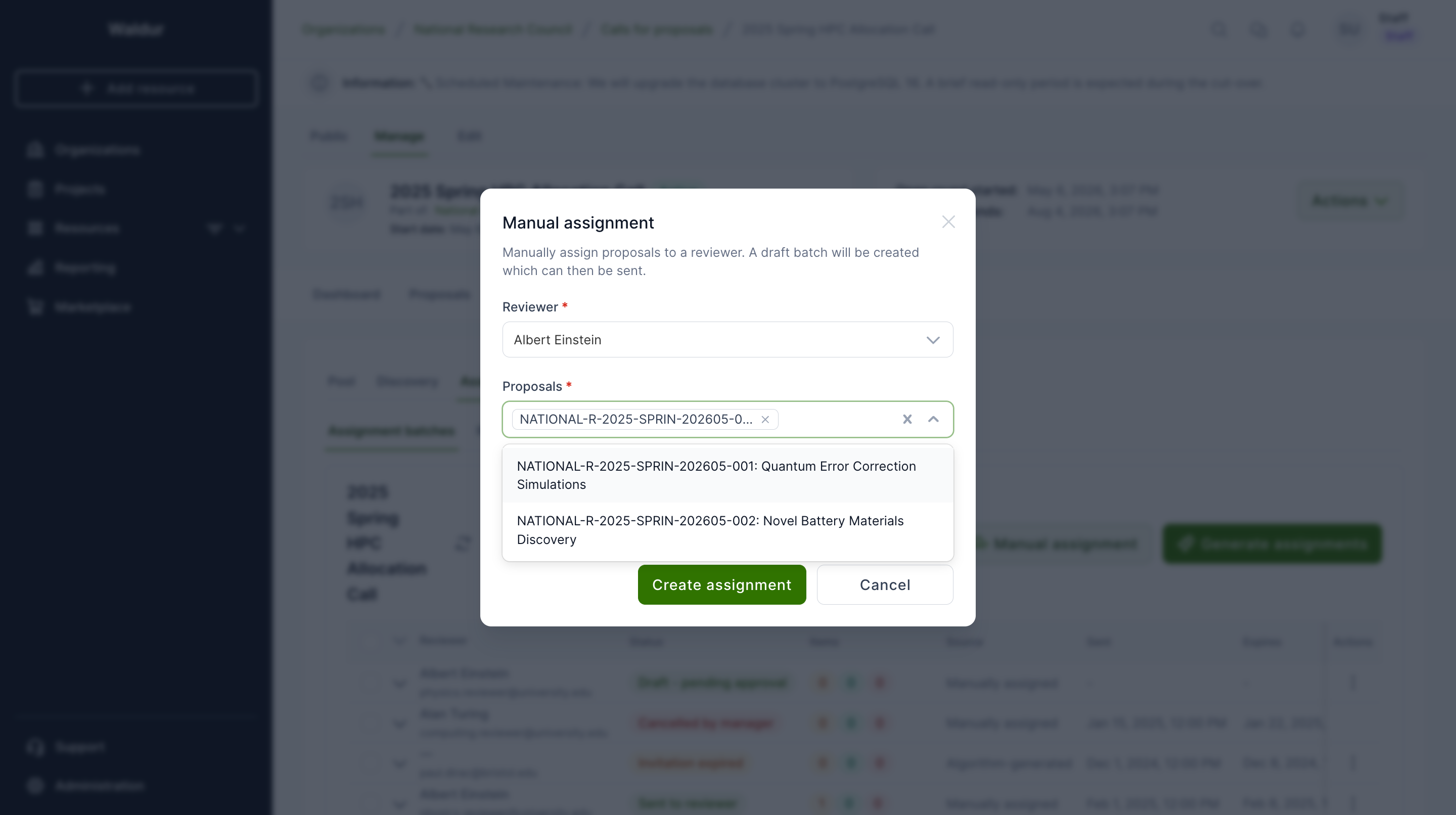
- Click Manual assignment on the Assignment batches tab.
- Pick a reviewer from the pool. The dropdown shows each reviewer's email and current load (e.g.
2/5 assigned). An assignment that would take the reviewer above their maximum is refused (see Managing reviewer capacity); the dialog then offers Assign anyway. - Pick one or more proposals. The selector keeps a single chip visible with a
+N moreindicator so the dialog stays compact when many proposals are added. - Optionally add manager notes — internal context visible to other managers but not to the reviewer.
- Click Create assignment. A draft batch is created. The reviewer is not notified yet.
Sending draft batches
Drafts give you a final review checkpoint before reviewers see the assignment.
- Tick the checkbox next to one or more Draft batches. The toolbar shows
(N) Selectedand a Send drafts (N) button. - Click Send drafts (N) to dispatch the selected batches. The batch status moves from Draft to Sent, the batch appears on the reviewer's Assignments tab, and the reviewer is emailed the list of proposals, any manager notes, the response deadline and a link to that tab — provided the
proposal.reviewer_assignment_invitationnotification is enabled. Until a batch is sent the reviewer does not see it at all. - Non-draft batches in the selection are ignored automatically.
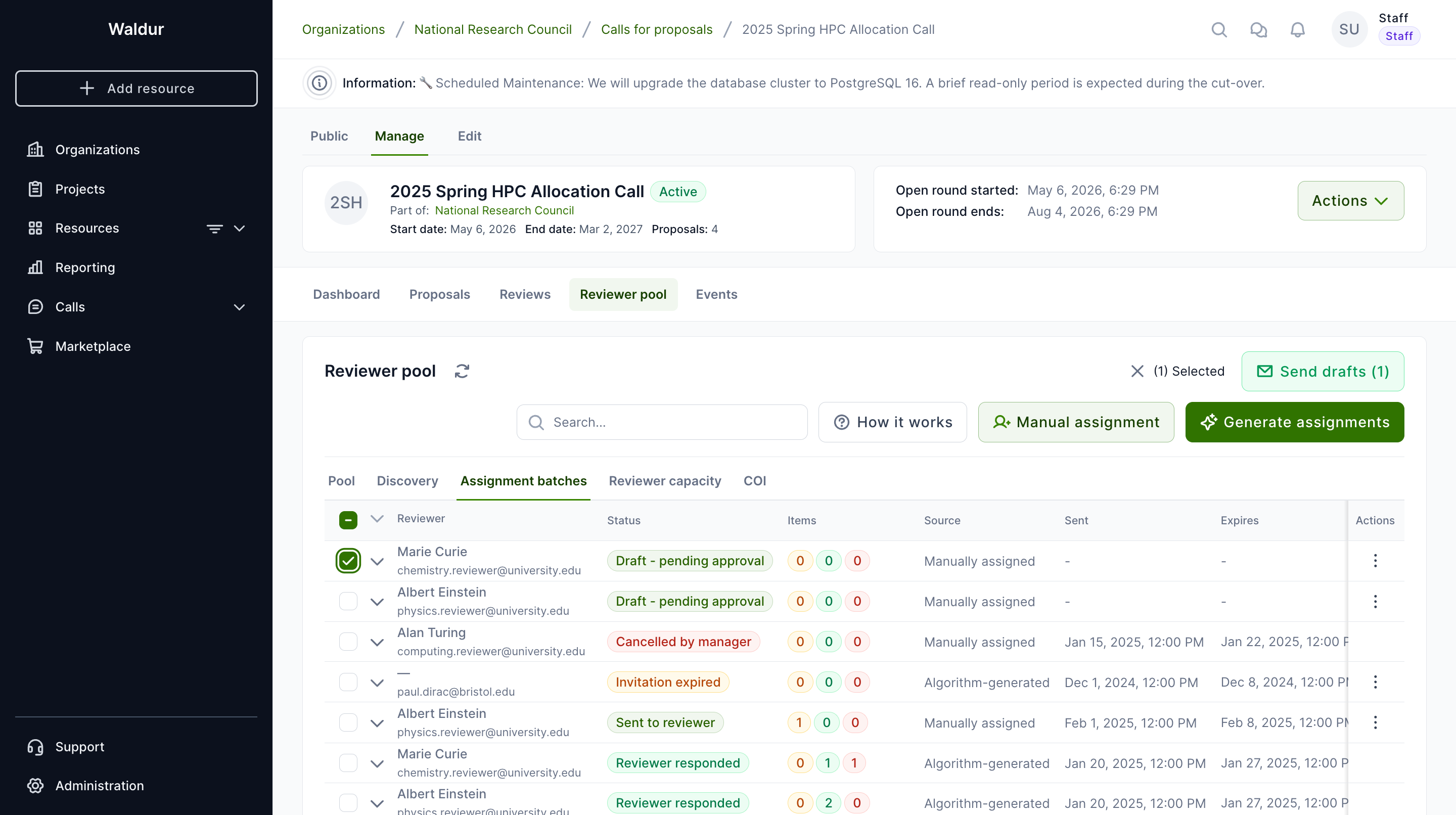
You can also send a single batch from the per-row 3-dot menu (Send).
Reviewing a batch
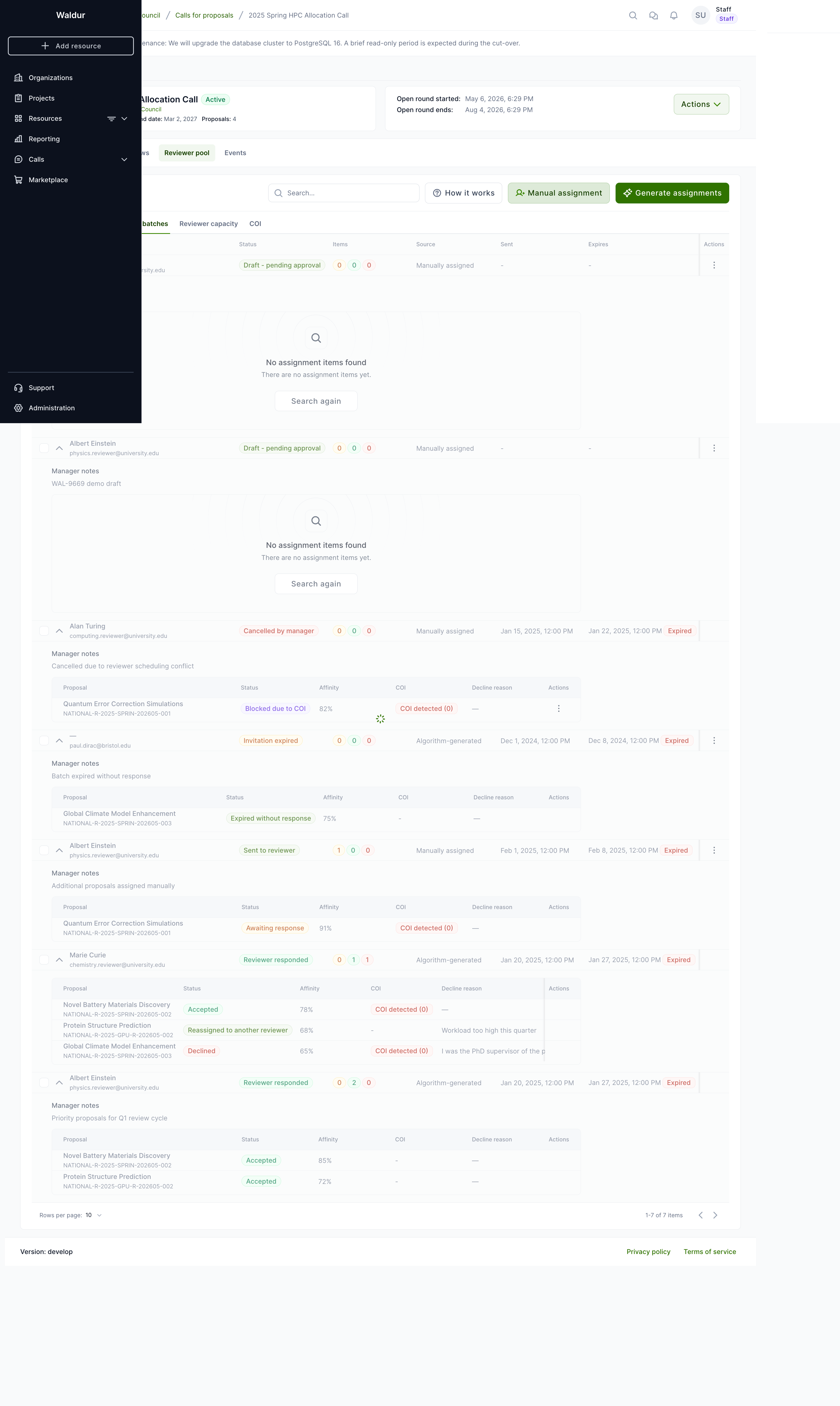
Expanding a batch row shows its items — proposals, status, affinity, COI flags, decline reasons — and any manager notes captured at creation time.
Batch lifecycle
1 | |
- Draft: Manager is preparing the batch
- Sent: Invitation sent to reviewer
- Responded: Reviewer has accepted or declined all items
- Expired: Batch expired without full response (the call's assignment expiration days, 7 by default); its unanswered items expire with it
- Cancelled: Withdrawn by the call manager; the reviewer no longer sees it
Before a sent batch expires, the reviewer is sent one reminder, by default 2 days
before the deadline. When a batch expires, the call managers are emailed so they
can extend the deadline or reassign the proposals. Both emails depend on the
proposal.assignment_expiry_reminder and proposal.assignment_batch_expired
notifications being enabled.
Extend deadline in the row menu of a sent or expired batch sets a new deadline in the future. An expired batch goes back to Sent and its expired items to pending, and the reviewer gets a new reminder before the new deadline. Reviews the reviewer already accepted from the batch are not due before the batch's deadline, so extending it gives them more time as well.
Assignment item responses
For each proposal in a batch, the reviewer can:
- Accept: Creates a Review in IN_REVIEW state — reviewer can begin evaluation
- Decline: Records decline reason; may trigger auto-reassignment if configured
Auto-reassignment
If configured in the Assignment Configuration:
- When a reviewer declines, the system automatically finds the next-best reviewer
- Maximum auto-reassignment attempts are configurable (default: 3)
- Reminder emails sent before assignment expiry (configurable days before, 2 by default)
Managing reviewer capacity
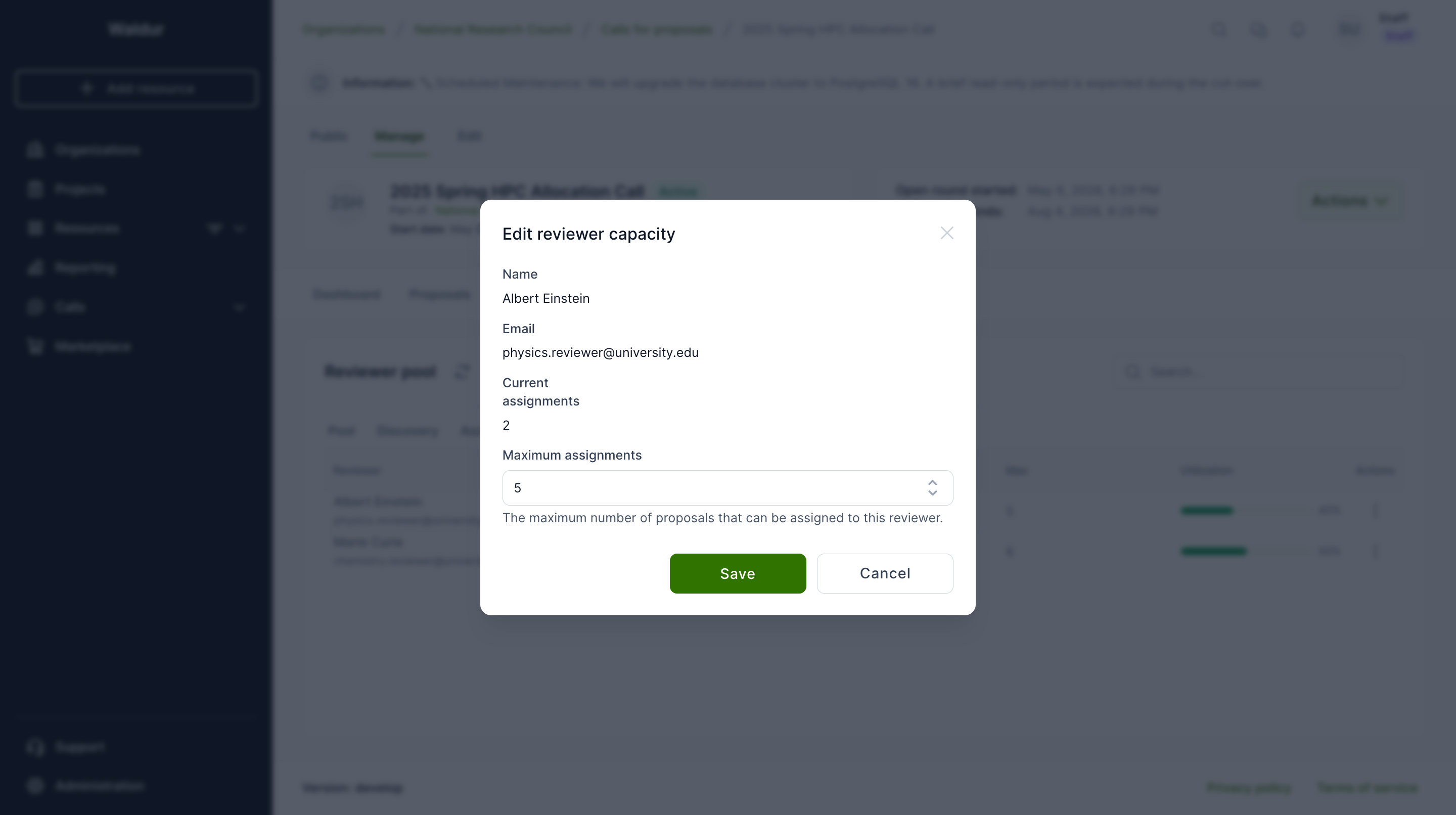
The Reviewer capacity tab lists every pool member and their current load. Use it to adjust the Maximum assignments per reviewer when workload, sabbaticals, or expertise concentration change during a call.
The maximum is enforced. A reviewer's current load is counted live from their open assignments in the call:
- proposals in their draft or sent batches that are still pending;
- accepted assignments whose review is not yet submitted or rejected;
- reviews in progress that were created directly rather than from an assignment.
Declined, expired, reassigned and COI-blocked items do not count, nor do items of cancelled or expired batches.
- Generate assignments skips reviewers who have reached their maximum, also counting the assignments it creates in the same run.
- A manual assignment, or a review created directly, that would take the
reviewer above the maximum is refused with a message giving the reviewer's
open assignments and limit. In the Manual assignment dialog the refusal
appears as a Reviewer workload limit exceeded warning, and the submit
button becomes Assign anyway; clicking it creates the assignment above
the limit. Changing the reviewer or the proposals clears the warning, so a
different choice is checked again. The override is recorded as a
reviewer_workload_limit_overriddenevent on the call. (API:override_workload_limitoncreate-manual-assignment; a review created directly is overridden the same way, through the API only.)
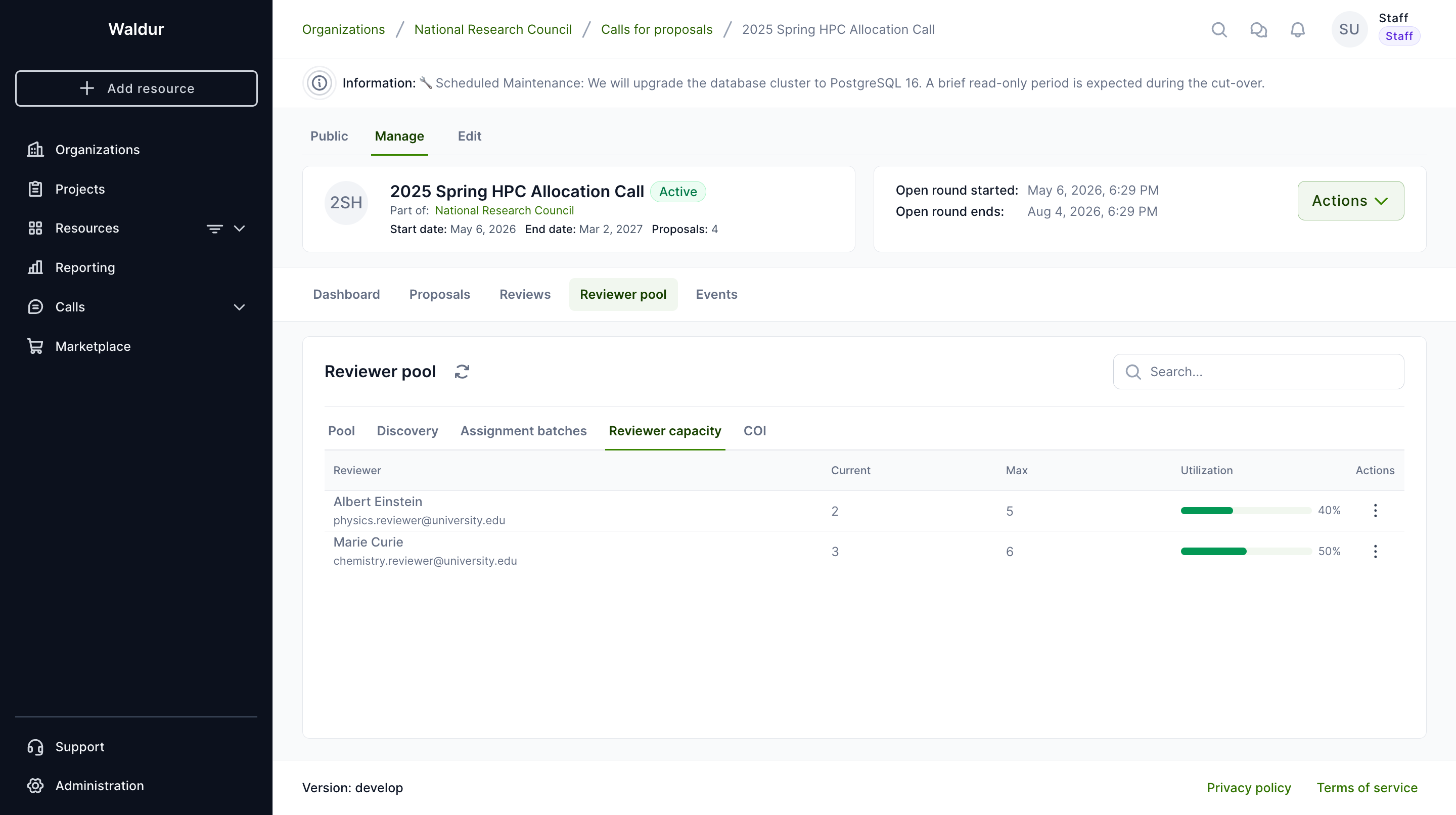
- Switch to the Reviewer capacity tab in the Reviewer pool panel.
- Open the row 3-dot menu and choose Edit capacity.
- Update Maximum assignments and save.
Tip
Lowering the maximum below a reviewer's current count won't unassign existing work — it just refuses new assignments until the load drops back below the maximum.