Usage reports
Usage of a resources
To see overall usage information of resources, open Reporting → Resources → Usage.
It is possible to filter the results by organization, project and offering, and to export them. The Resources tab carries a number of sibling views alongside Usage — among them Usage by user, Usage trends, Quotas and Usage monitoring, which flags missing or anomalous usage reports.
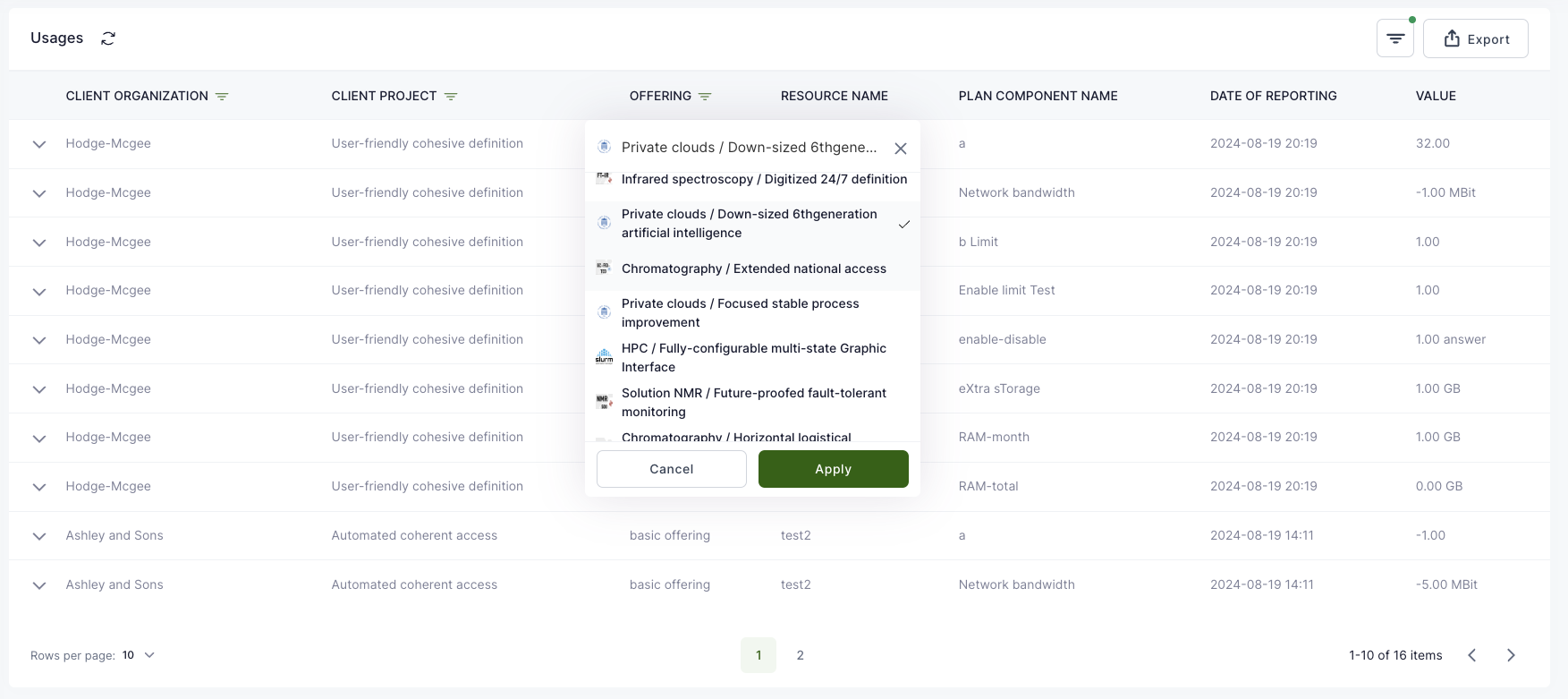
To view the usage information within a project:
Private clouds
To view the usage information within a project:
-
Open your project in Waldur.
-
Select the private cloud resource that usage report you would like to see.
-
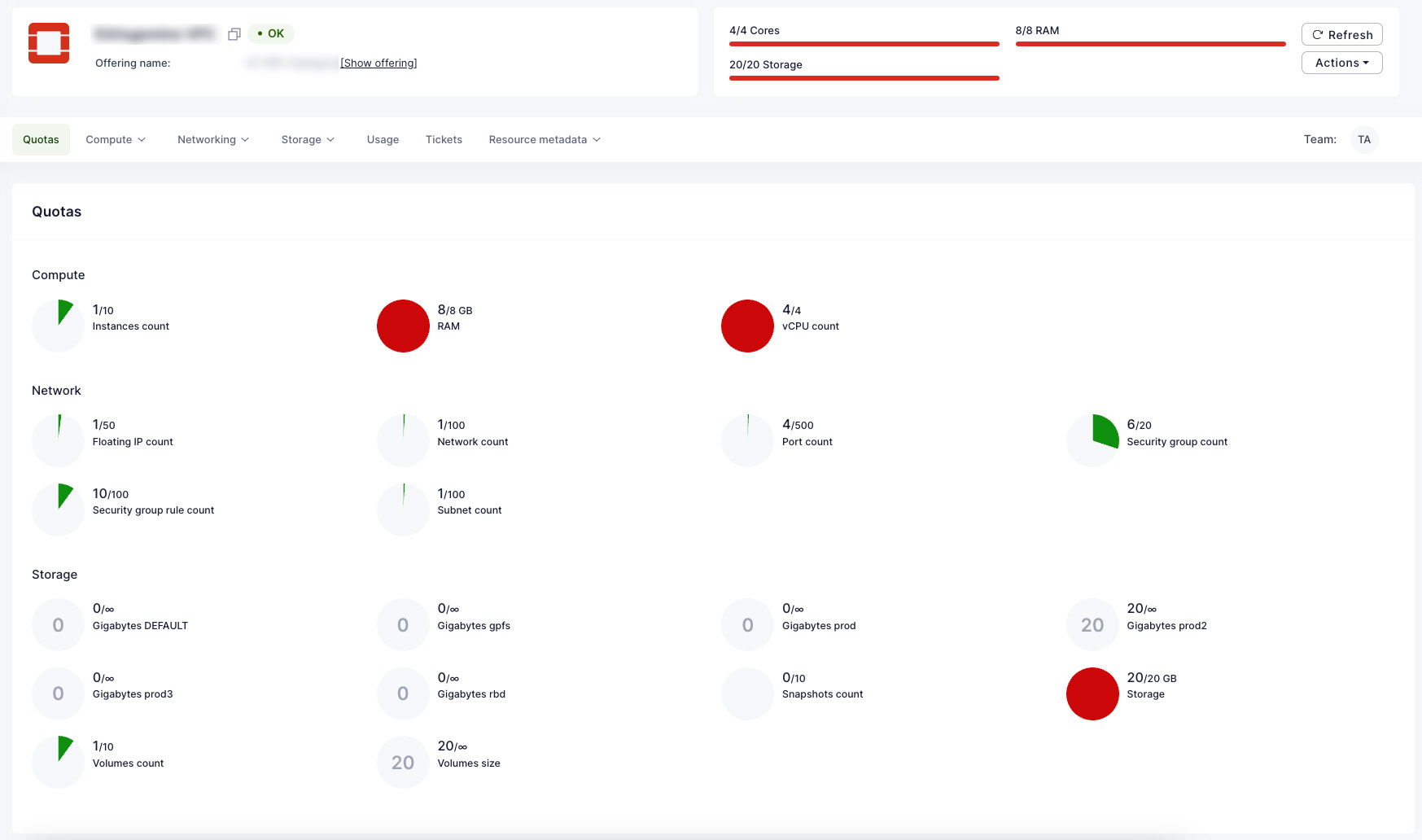
Now private cloud resource dashboard provides the overview of limits and used quotas.
HPC
-
Open your project in Waldur.
-
Select the allocation (resource) that usage report you would like to see.
-
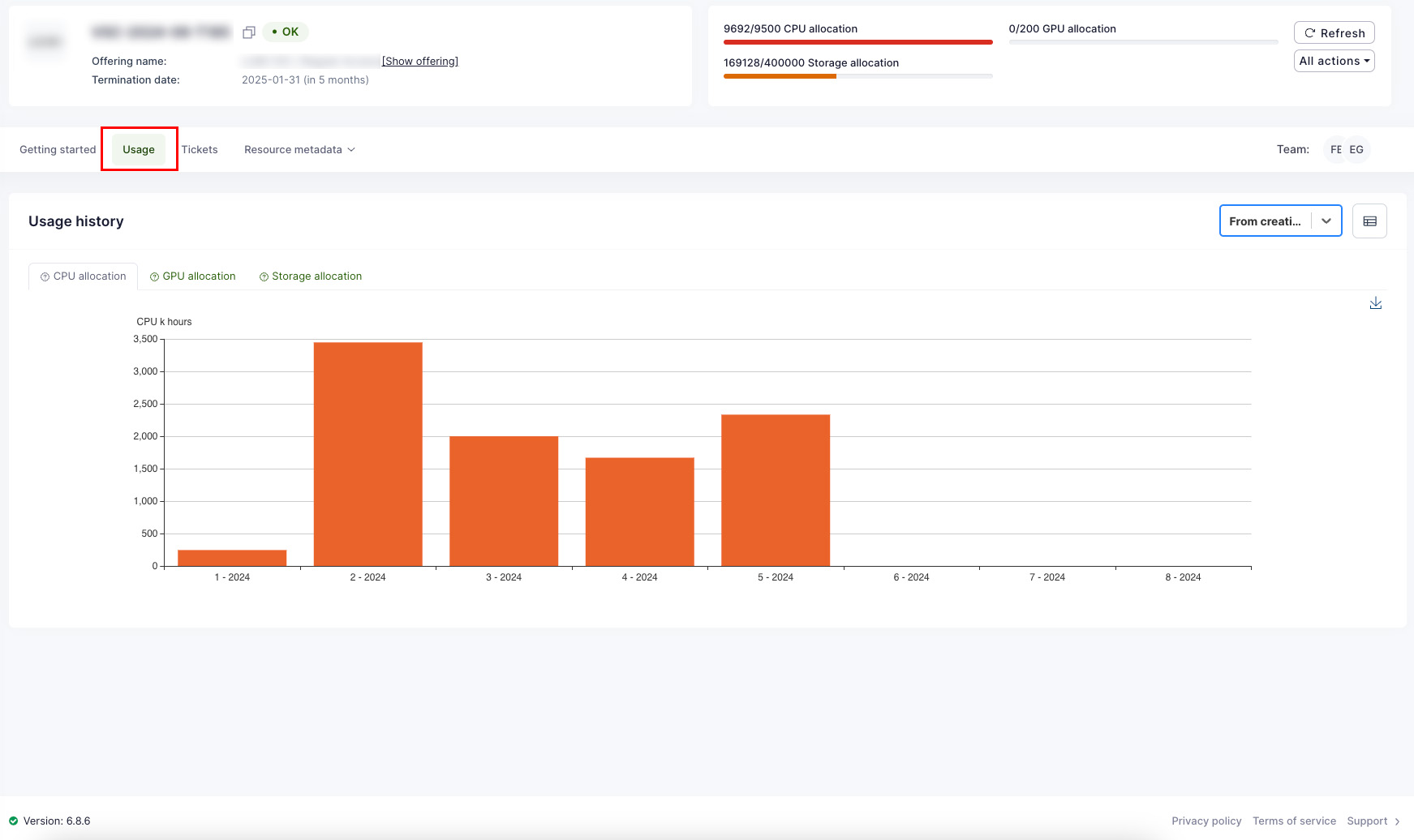
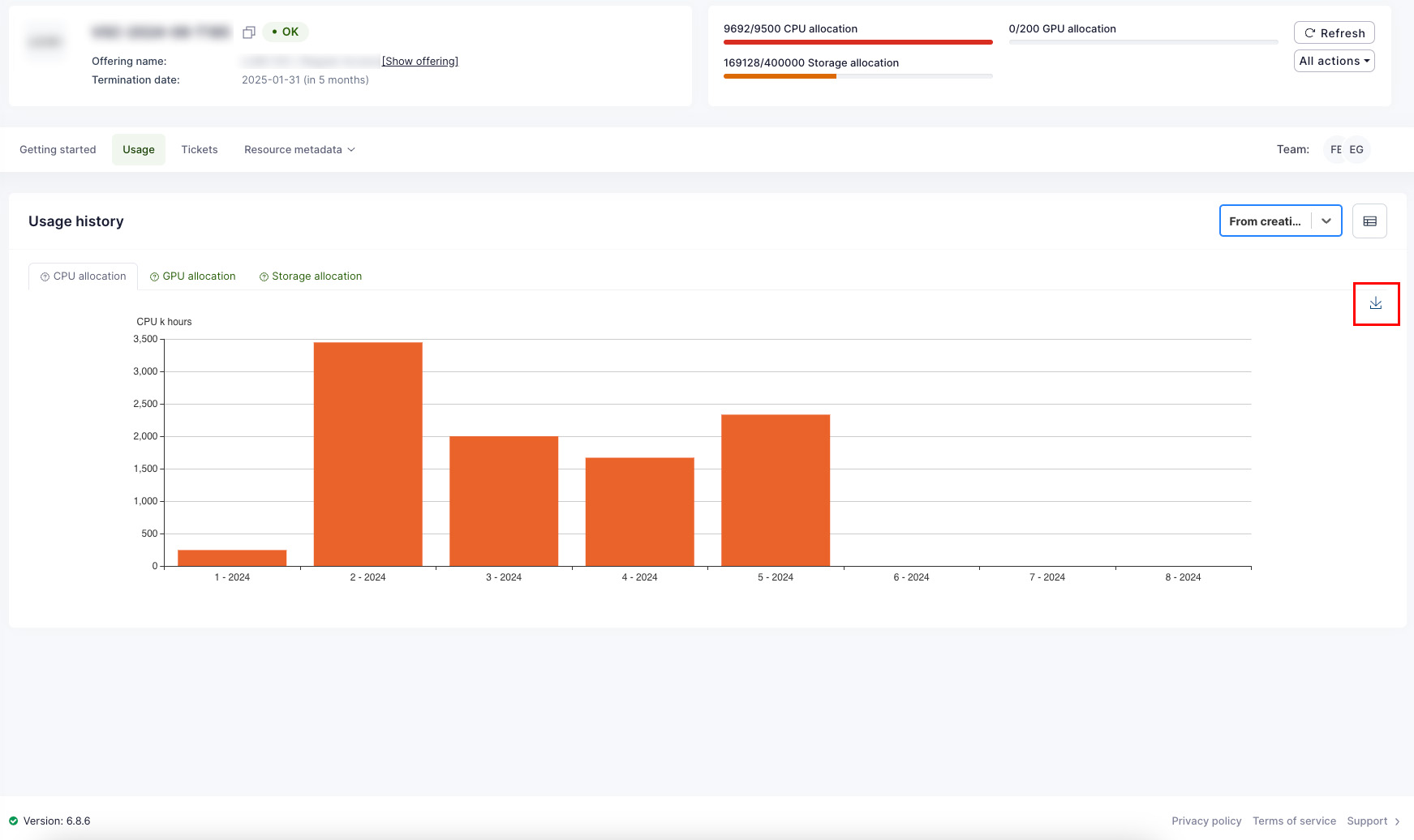
On this window, Select "Usage" to see the usage of a resource. Use tabs "CPU Allocation", "GPU Allocation", and "Storage Allocation" to see the details.
-
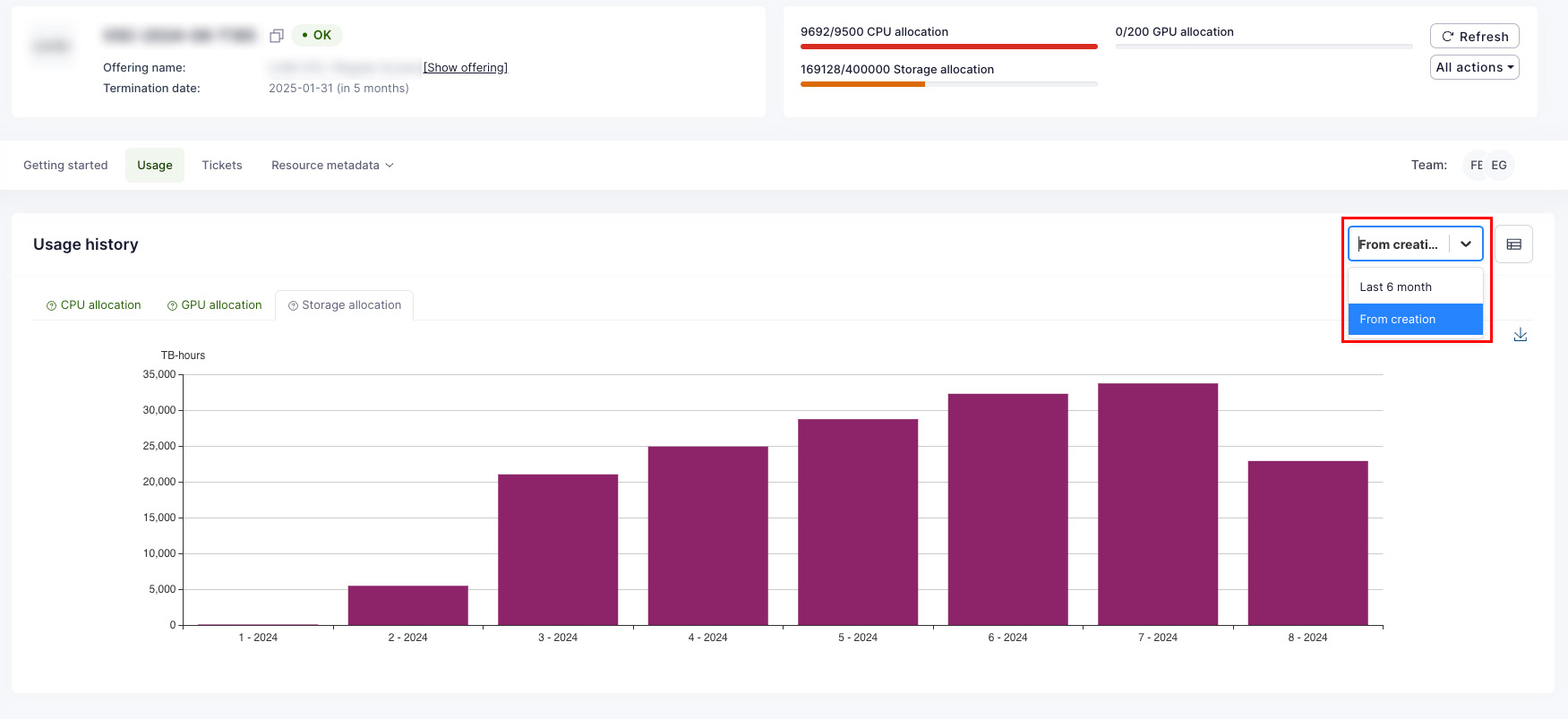
By default, the view shows last 6 months information. To see the usage from the creation of a resource, please use period selector on the right side.
-
Instead of graph view, it is possible to switch to table view as well. To do that, please use switching button on the right next to the period selector.
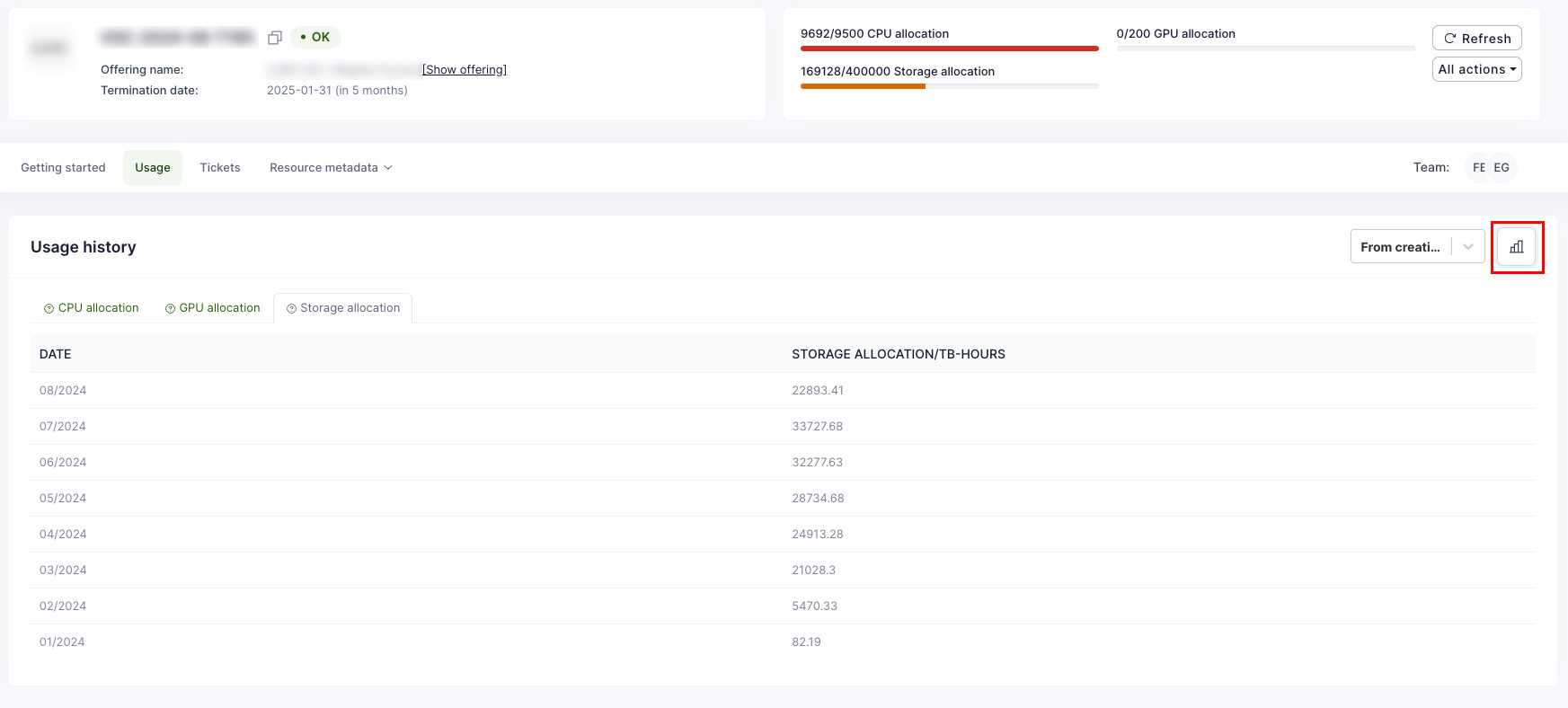
-
It is possible to download the graph views as PNG images. To do that, please use the arrow icon on the right side of the graph.
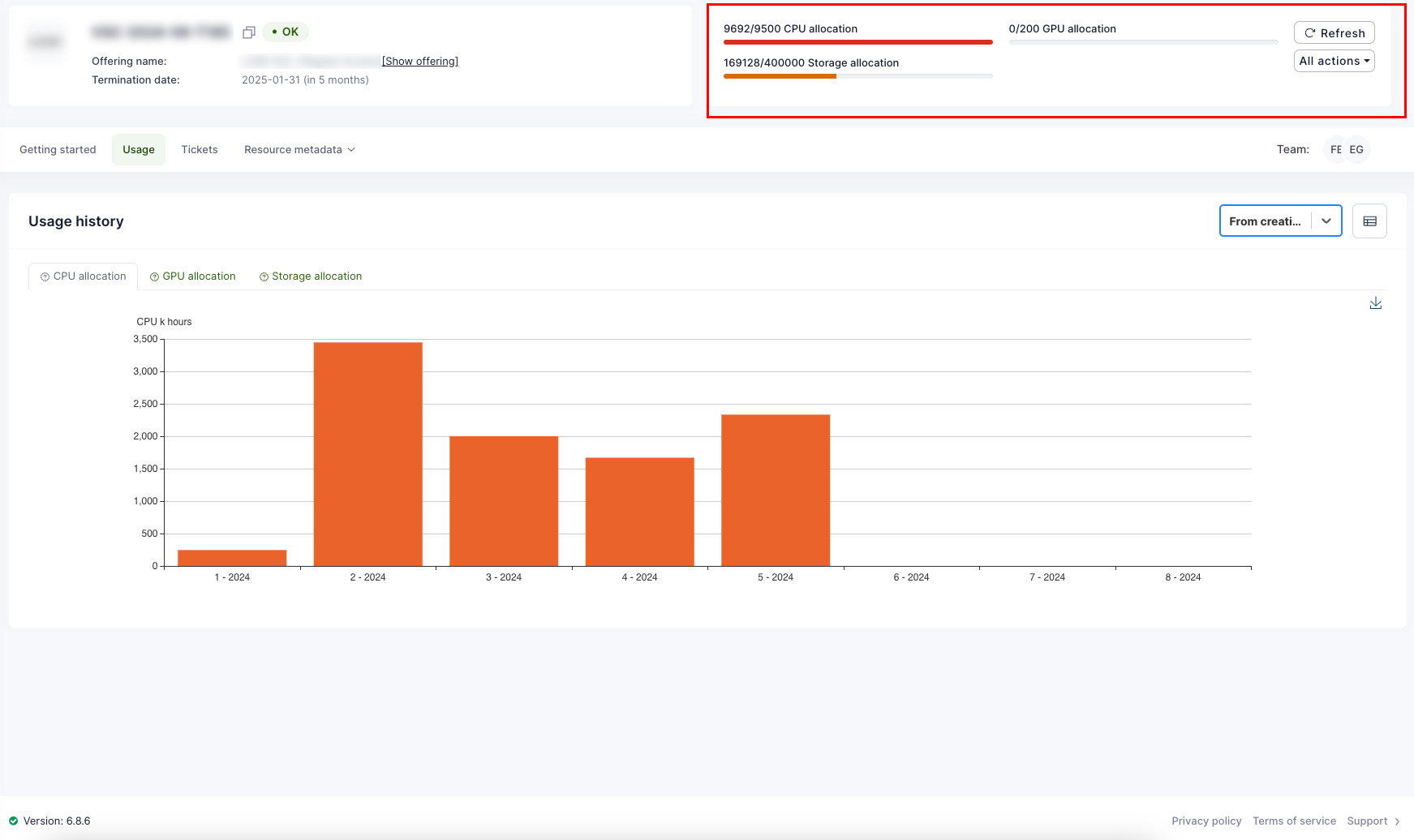
To check the current resource allocation limit:
- On the same window, the plan details for Allocation components (CPU, GPU, and storage) can be found on the top-right side.
Including terminated resources
Usage charts normally count only resources that still exist, so terminating one removes its usage from the totals and from a project's own history. An administrator can enable the Include terminated resources feature flag, which adds a switch of the same name to the organization dashboard. Turning it on:
- counts the usage that terminated resources reported in the current month, and
- keeps a removed project's usage visible on the organization dashboard.
Terminated usage is reported separately: the API returns it as usage_terminated and
limit_usage_terminated alongside usage and limit_usage, and a component's limit
never includes it. While the feature flag is off, the usage endpoints ignore the
include_terminated parameter.