Application form
Performed by: Call manager
The call's Application form tab holds what the call asks of applicants:
- Project details fields — what this call asks applicants for (see below)
- Applicant eligibility — who may submit a proposal at all (see below)
- Applicant data visibility — which applicant data is exposed during evaluation
- Resource templates — what applicants can request, and how many templates (see below)
A call can also ask applicants to answer a compliance checklist, chosen under Call → General configuration → Compliance (see Checklists and forms). What the applicant sees of all this is described in the Applicant guide.
Project details fields
Under Application form → Project details fields, choose what the Project details step asks the applicant for. Each field is one of:
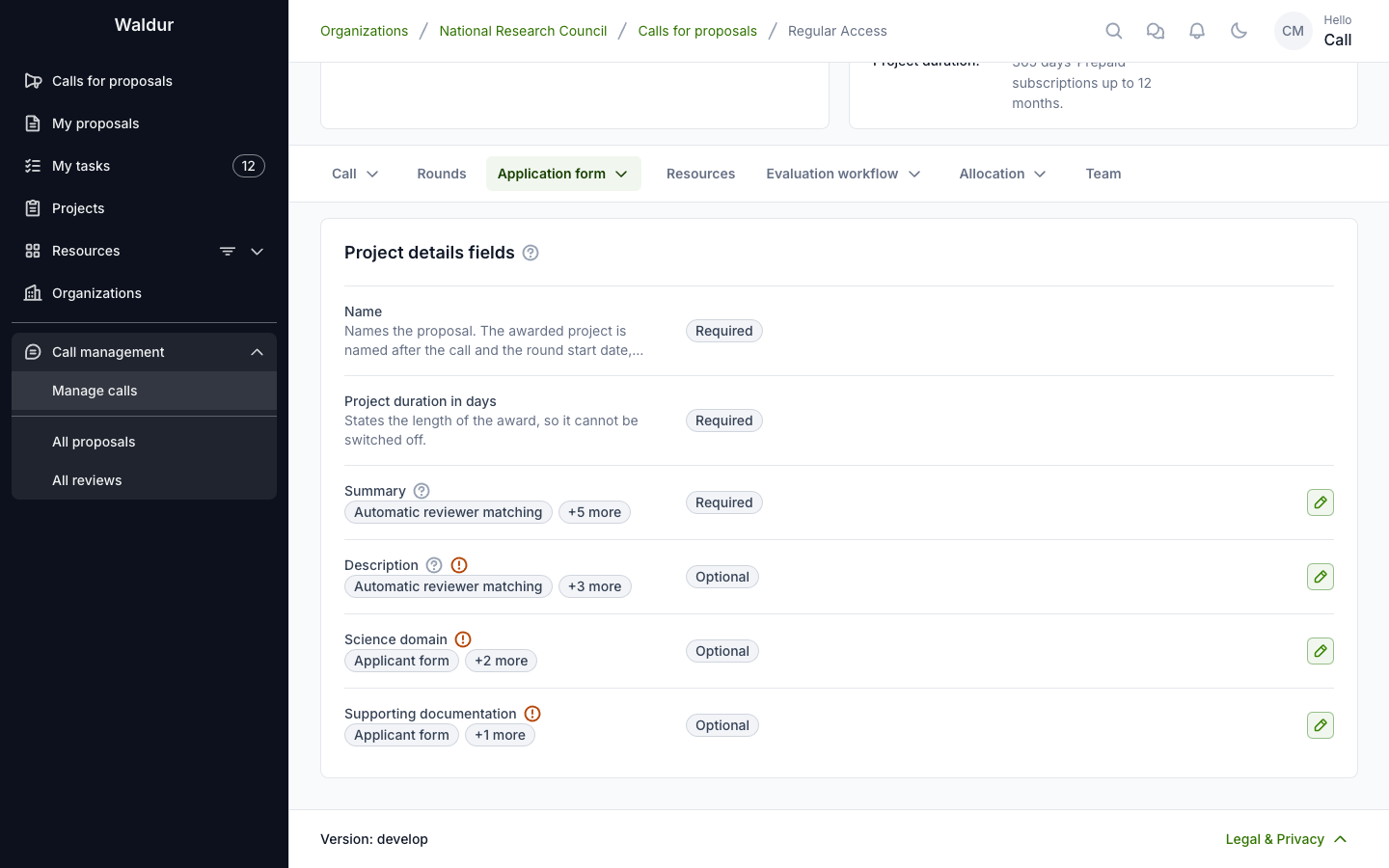
| State | On the form | On submission |
|---|---|---|
| Required | shown, marked with a red asterisk | blocked while empty |
| Optional | shown | may be left empty |
| Not asked | not shown at all | — |
Name is always required and is not configurable: it identifies the
proposal and forms the last part of the awarded project's name — a granted
project is named <call reference or slug> - <round start date> - <proposal name>.
Project duration in days is likewise a fixed Required row, because it states the length
of the award. The applicant picks it only when the call offers Durations the applicant chooses
from; otherwise it is derived from the subscription lengths requested and the call's fixed
duration, and shown read-only (see How long a granted project runs).
The configurable fields are Summary,
Description, Science domain and Supporting documentation.
Each row lists what the field feeds, so the cost of switching one off is visible before you do. Fields marked with a warning have a functional consumer — the summary and description are the text that automatic reviewer matching scores against reviewer profiles, so a call that does not collect them gets less accurate reviewer suggestions.
A field cannot be made required once the call has proposals. Drafts that were complete under the published form would silently stop being submittable, and nothing notifies the applicants who wrote them. Relaxing a field — making it optional, or not asking for it at all — stays possible at any time. To run a stricter round, duplicate the call: the copy starts in draft with no proposals, and its field configuration is carried over ready to tighten.
New calls start from the deployment defaults, which an administrator sets under
Proposal settings in the Constance configuration
(DEFAULT_PROPOSAL_REQUIRED_FIELDS, DEFAULT_PROPOSAL_HIDDEN_FIELDS). Those
defaults are applied when the call is created; changing them later never alters
a call that already exists.
Applicant eligibility
Under Application form → Applicant eligibility, restrict who may submit a proposal to this call. Each row holds a list of values; a row left empty is not checked, and a call with every row empty is open to anyone who can sign in.
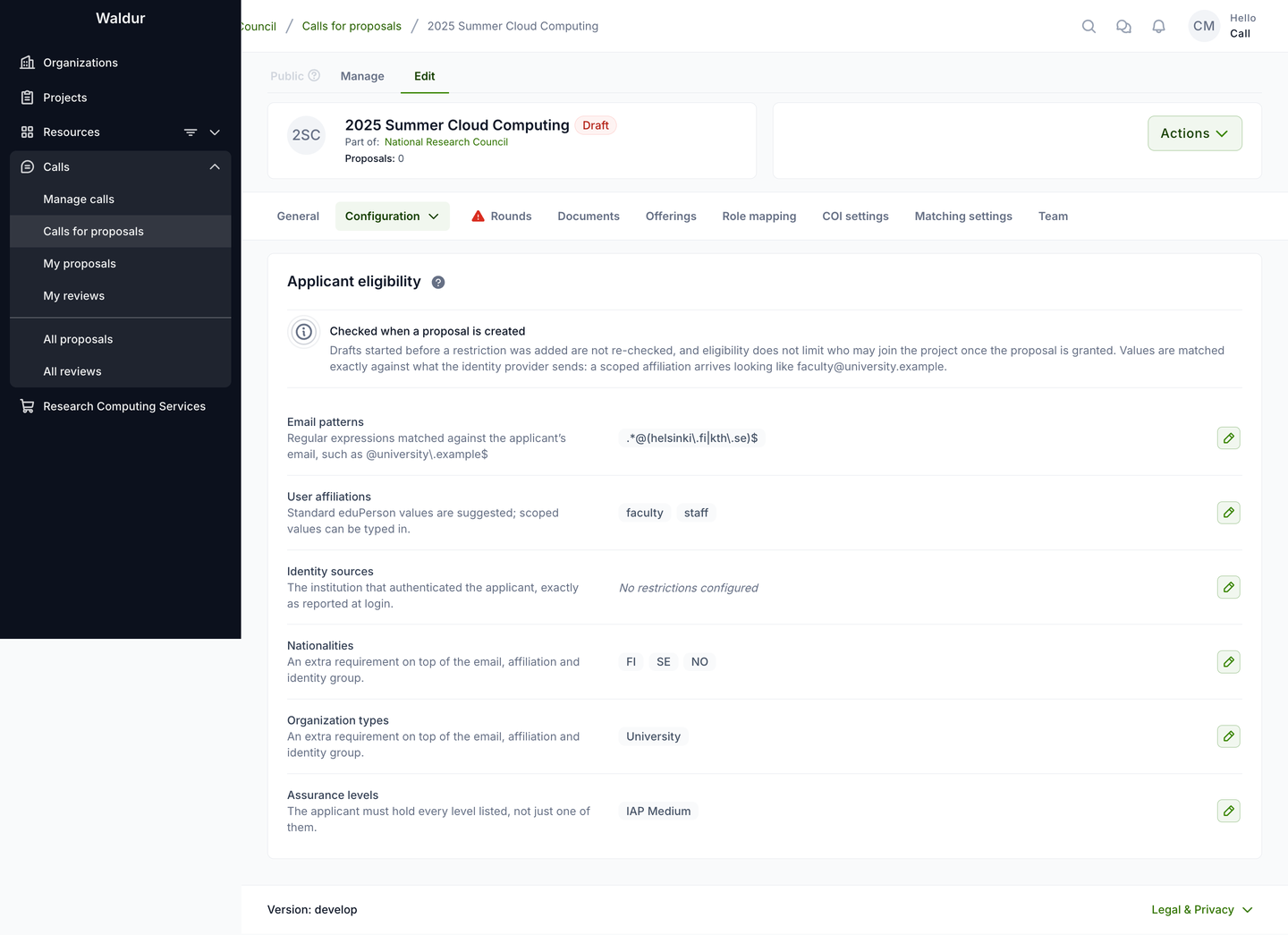
| Restriction | Matched against | Values |
|---|---|---|
| Email patterns | the applicant's email address | regular expressions, for example .*@(example\.edu\|example\.org)$ |
| User affiliations | the affiliations the identity provider asserts | standard eduPerson values are offered as suggestions; any other value can be typed in |
| Identity sources | the institution that authenticated the applicant, exactly as reported at login | free text — no suggestions, because the value comes from the applicant's home institution rather than from the providers this installation is configured with |
| Nationalities | the applicant's nationality or nationalities | picked from the country list, stored as ISO country codes |
| Organization types | the applicant's organization type | standard SCHAC values are offered as suggestions |
| Assurance levels | the assurance levels the identity provider asserts | standard REFEDS values are offered as suggestions |
Values are lists rather than one comma-separated box on purpose: a regular expression may itself contain a comma, and splitting on it would turn one working pattern into two that match nobody.
How the rows combine
This is the part worth reading twice, because the intuitive reading is the wrong one. The rows are not six independent requirements:
- Email patterns, user affiliations and identity sources form one group. An applicant who matches any one value in any one of those three rows passes the group. Listing both an affiliation and an email pattern therefore widens the call — it admits anyone matching either — rather than narrowing it to applicants who match both.
- Nationalities, organization types and assurance levels are each an extra requirement on top of that group. A configured row here must also be satisfied, so these do narrow the call.
- Assurance levels are stricter still: the applicant must hold every level listed, not just one of them.
The call in the screenshot above therefore admits an applicant who is either
faculty or staff, or has an example.edu or example.org address — and who,
in addition, holds a Finnish, Swedish or Norwegian nationality, comes from an
organization of type University, and carries the IAP Medium assurance level.
Warning
Combinations that match nobody are accepted without complaint. Restricting a call to an assurance level the identity providers in use never assert, or to an organization type nobody's home organization reports, produces a call that every applicant is turned away from. If applicants report being refused, check these rows first.
Entering values
Click the pencil on a row to edit it. Rows that have a standard vocabulary offer it as a list of suggestions — but the list is not closed, and typing a value that is not in it is deliberately allowed:
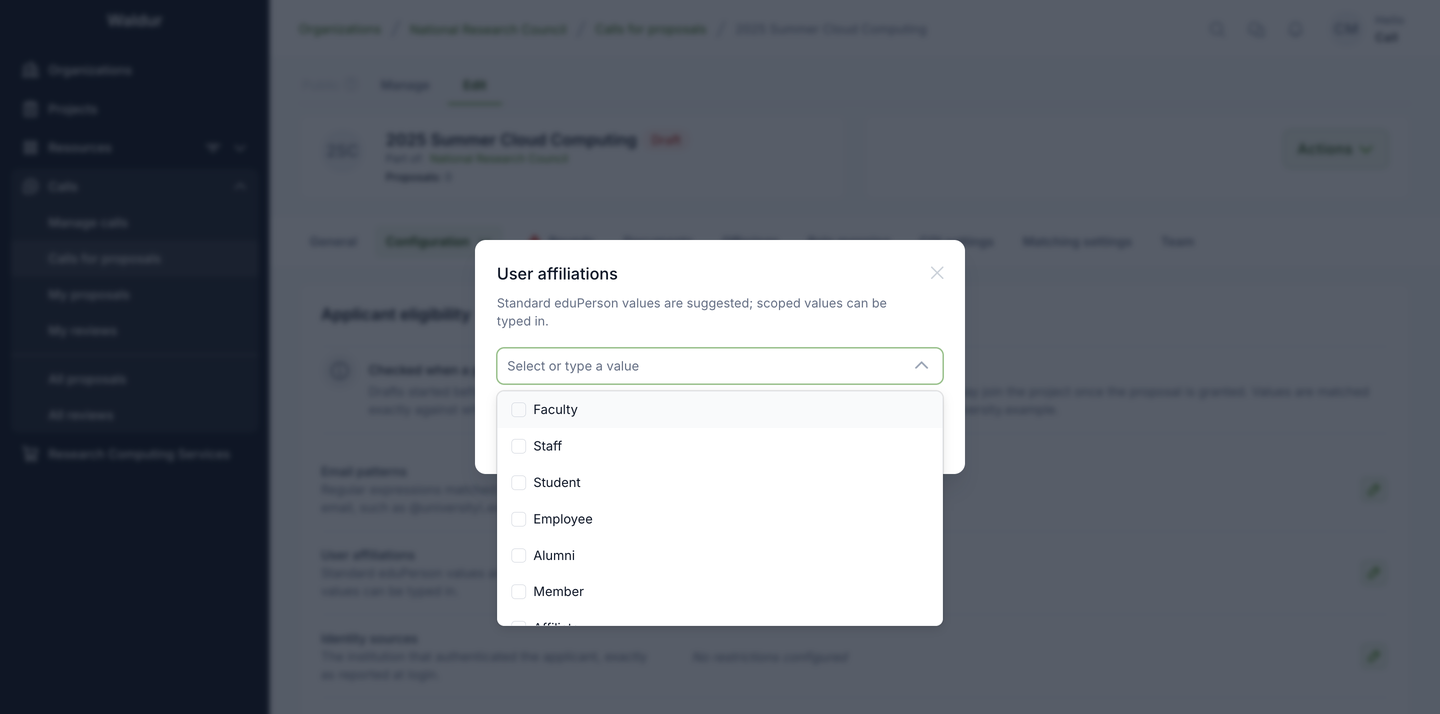
That matters most for affiliations. Identity providers routinely send scoped
values — faculty@university.example rather than plain faculty — and the
value is matched exactly, character for character, against what the provider
sends. If applicants who should qualify are refused, compare the stored value
with what actually arrives at login rather than assuming the plain form.
Note
Only attributes this installation collects get a row. A deployment that does
not collect nationality, for instance, does not show the Nationalities
row at all — an administrator controls this with
ENABLED_USER_PROFILE_ATTRIBUTES in the Constance configuration. A row that
already holds values stays visible even if its attribute is later switched
off, carrying a warning: the restriction keeps being enforced, so leaving it
in place behind a hidden row would turn every applicant away.
When eligibility is checked
Eligibility is checked when a proposal is created. Two consequences follow:
- A draft started before a restriction was added is not re-checked when it is submitted. Tightening a call that already has drafts does not retract them.
- Eligibility does not limit who may join the project once the proposal is granted. It gates who may apply, nothing further.
Applicants are not shown the restrictions themselves. An applicant who does not qualify sees Apply to call disabled with You are not eligible to apply to this call., and is refused when the proposal is created, with a message naming the restriction that failed. Where applicants reach a call through an offering's Apply for access, the round list there warns that the call restricts who may apply. On deployments that run their calls outside Waldur, Apply leads to the call's external URL and no eligibility check is made in advance. Spell the rules out in the call description or the external URL, so nobody writes a proposal they cannot submit.
The same applies when the call-managing organization limits proposals per applicant; that limit is checked on creation and again on submission.
Resource templates
Under Application form → Resource templates, define what applicants can request. A template names one of the call's offerings with a plan, its amounts (usage limits) and any preset attributes. Its attributes and subscription length are checked against the offering when you save it.
Once a call has a template, templates are the only way to request resources in it. Applicants cannot request an offering directly or change a template's amounts or attributes, and can request each template at most once. A proposal with a request that is not from a template, for example because its template was deleted, cannot be submitted until that request is replaced.
The Template selection card above the templates sets how many an applicant may choose:
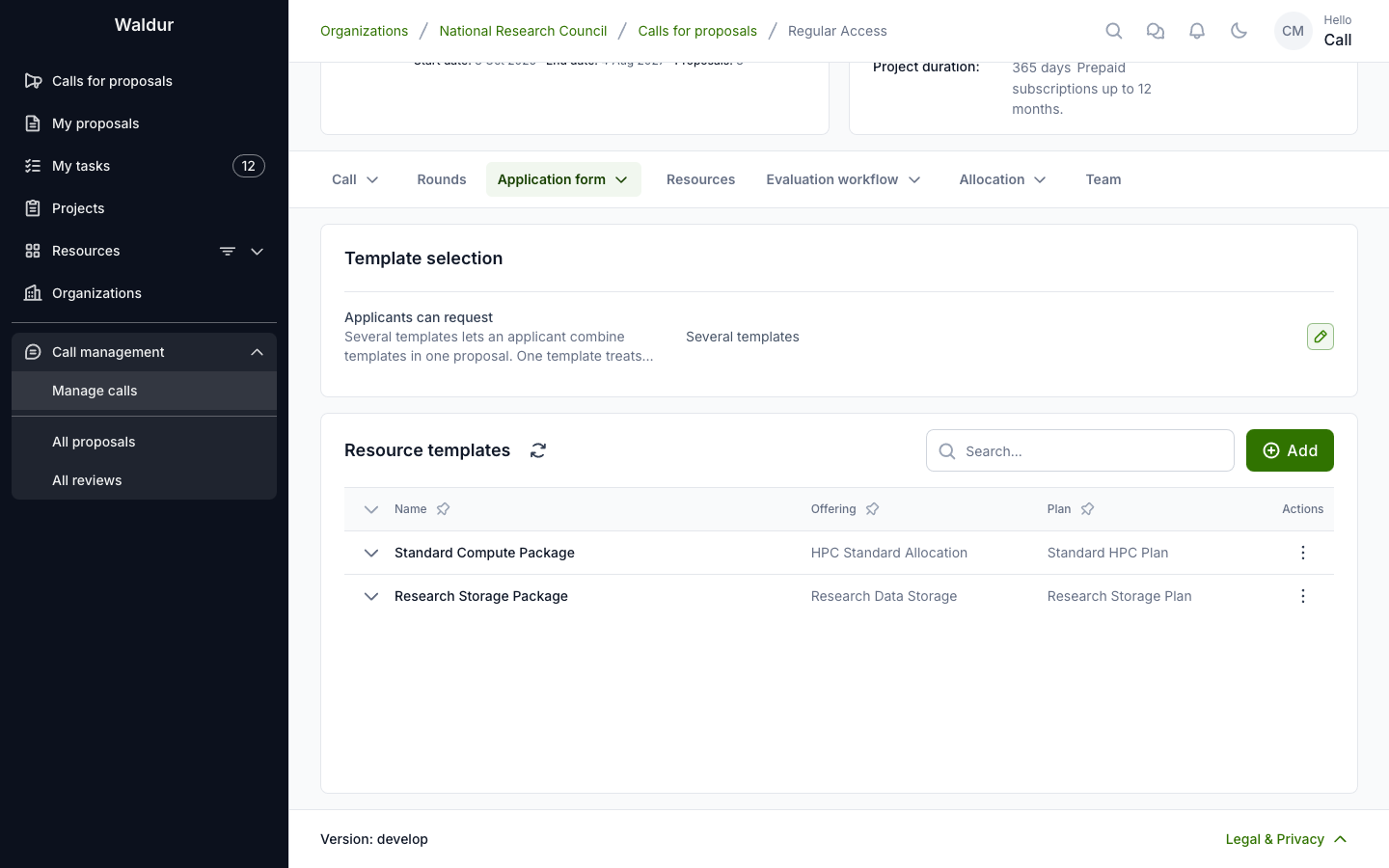
| Applicants can request | On the applicant's form | Rule |
|---|---|---|
| Several templates (default) | a checkbox per template | any combination |
| One template | a radio button per template | exactly one, required to submit |
Use One template when the templates are alternatives, such as access tiers. It cannot be set while a draft proposal holds several requests.
Editing a template updates the requests made from it on draft proposals; submitted proposals keep their amounts.