Resource spending limits
A usage-based component is billed on what the resource used. Where the provider allows it, you can also cap that use with spending limits: at most one limit per period on each component, for a day, a week, a month, a quarter, a year, or for all time. Limits are never billed. The invoice is still the usage times the price.
Every limit compares a different span of the same usage. With limits of 20 a day, 100 a week and 300 a month:
1 2 3 4 5 6 7 | |
Periods and reset times
Periods are calendar periods in UTC, not rolling windows. A weekly limit counts Monday to today, even across the start of a month.
| Limit | Its usage starts from zero |
|---|---|
| Daily limit | every day at 00:00 UTC |
| Weekly limit | on Monday at 00:00 UTC |
| Monthly limit | on the 1st of the month |
| Quarterly limit | on 1 January, April, July and October |
| Yearly limit | on 1 January |
| All-time limit | never |
A shorter period's limit may not exceed a longer one's: daily ≤ weekly ≤ monthly ≤ quarterly ≤ yearly ≤ all-time.
All-time limits
An all-time limit counts all the usage since the resource started, and never resets. It suits a one-off budget, such as a grant of 500 USD for a pilot, which a yearly limit would hand out again every January. Once it is reached it holds the resource until someone raises or clears it (see Changing limits): no new day, month or year lifts it. Months in which the resource's plan billed the component by limit do not count towards it.
Setting limits when ordering
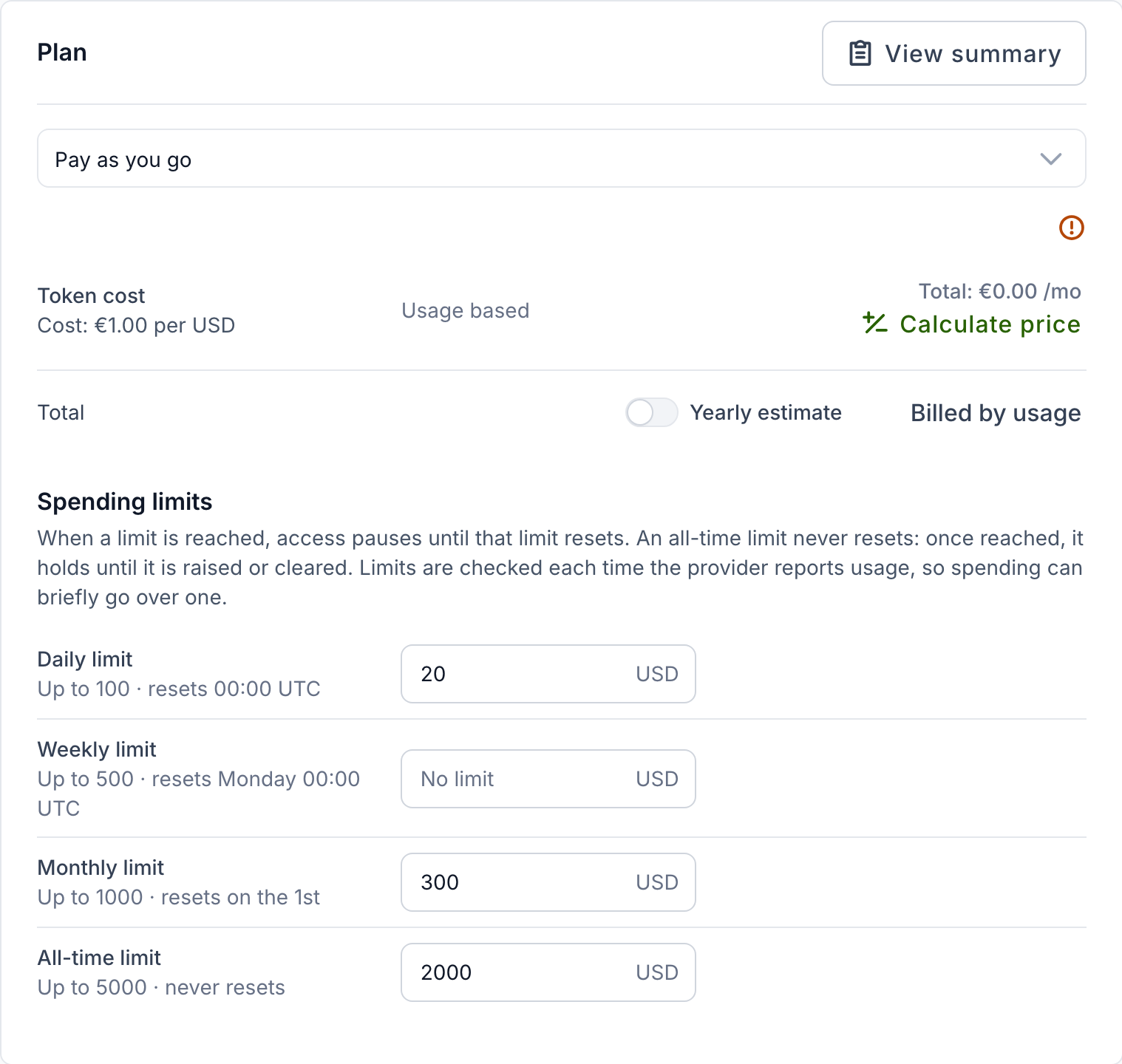
When the chosen plan bills a component on usage and the provider lets customers cap it, the Plan step of the order form shows a Spending limits section with one field per period the provider offers:
- A field starts from the provider's default, if there is one. Leave it empty for no limit on that period.
- Up to … under a field is the provider's maximum. The reset time is shown next to it.
- A value above the maximum, a negative value, more than two decimal places, or a shorter period's limit above a longer one's is refused, and the order cannot be submitted until it is corrected.
- A limit of 0 keeps the resource restricted for as long as it is set.
- A notice above the fields says what reaching a limit does on this offering (see What happens at a limit): access pauses, or the resource is downscaled, until that limit resets — or, where the provider has set neither, reaching a limit is only reported. Where an all-time limit is offered, the notice adds that it never resets and holds until it is raised or cleared.
A plan that bills the component by limit takes no spending limits on it, so the section is not shown for it.
Changing limits
Use Actions → Change spending limits on the resource. Clear a field to remove that limit, and save. The new limits apply at once, with no order and no provider approval.
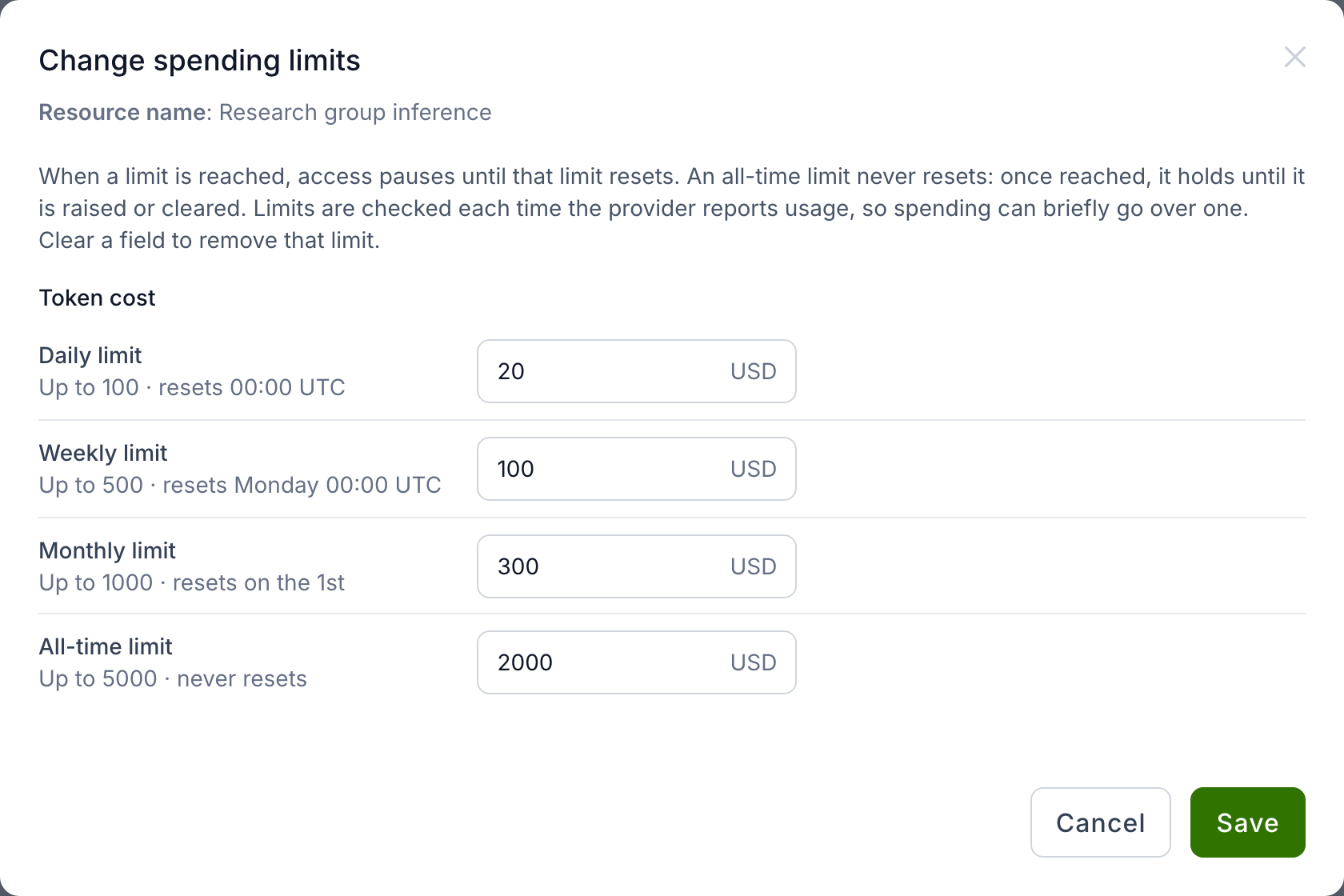
- Organization owners, project administrators and project managers can change spending limits: the roles that hold the permission to change a resource's limits.
- Limits can be changed while the resource is Creating, OK, Erred or Updating.
- The change is recorded in the resource's event log, and the limits are checked again straight away: if raising or removing limits brings usage under every limit, a restriction they caused lifts without waiting for the next usage report. This is the only way to lift a restriction held by a reached all-time limit.
- The dialog shows the same notice as the order form on what reaching a limit does on this offering.
A limit stays in force if the provider later stops offering its period. The dialog warns that some limits are on periods the provider no longer offers, and saving it removes them.
Following usage
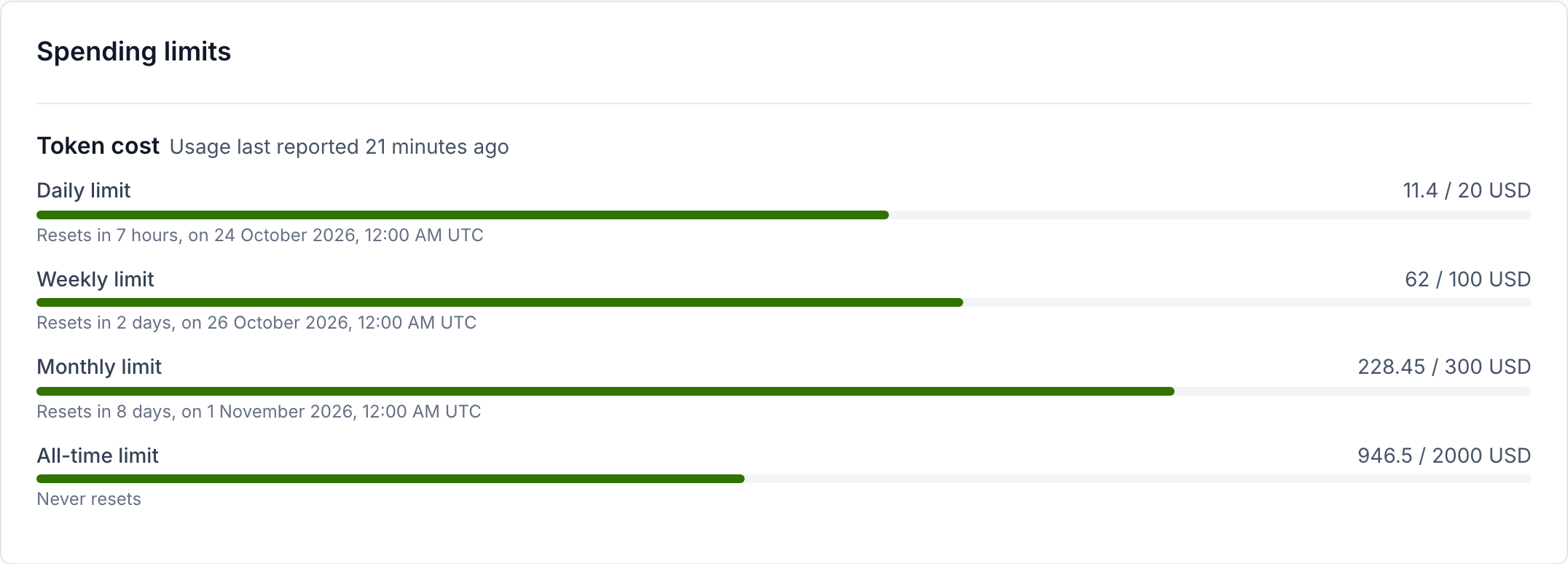
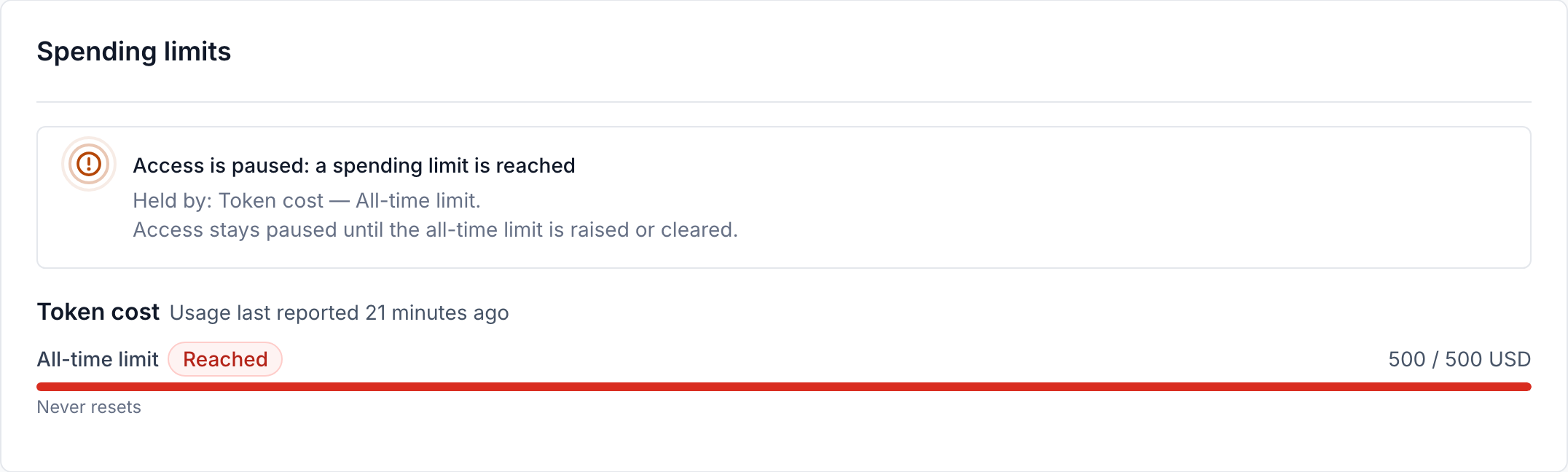
The resource's Usage tab has a Spending limits card. For each component it shows every limit as used / limit, a Reached badge on a reached one, when each limit resets, and when usage was last reported. An all-time limit reads Never resets.
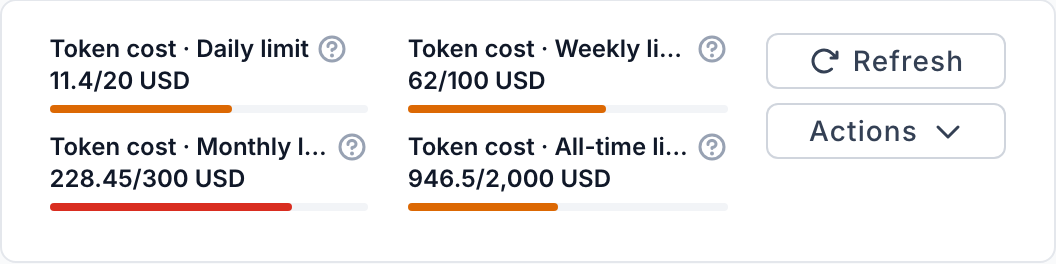
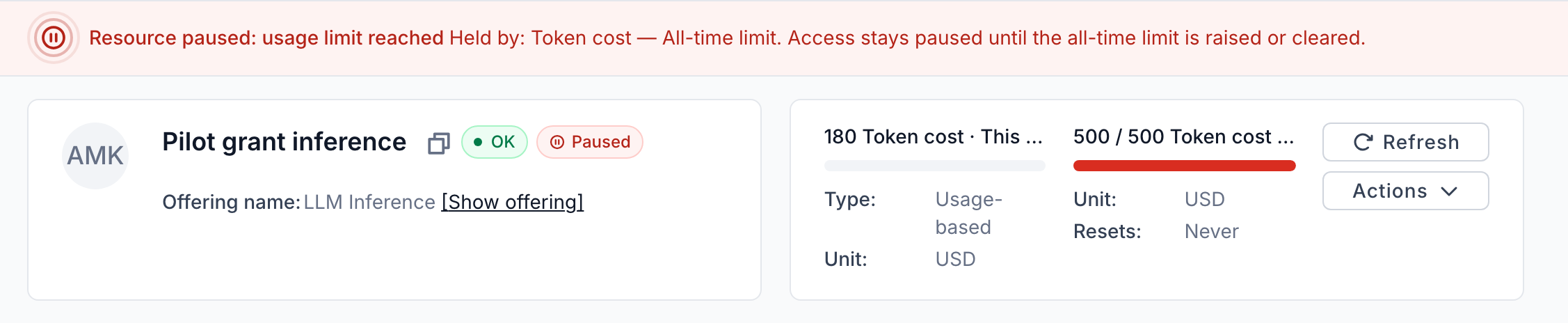
The components panel at the top right of the resource page lists each component followed by one entry per period it has a limit for, such as Token cost · Daily limit with its usage and limit. Hover over an entry's help icon to see when it resets. Beside its limits, a component's own usage is named This month, and shows 0 until something is reported for the month. Where the component has a monthly limit, the monthly entry already shows this month's usage, so the component's own entry is left out. With only one or two entries the panel shows them in full, with a Resets line, Never for an all-time limit.
What happens at a limit
- When usage in a period reaches that period's limit, the resource is paused or downscaled, as the provider set up the offering. A banner at the top of the resource page, and the Spending limits card, then say which limits hold the resource and when access resumes.
- The restriction lifts by itself once usage is under every limit again: within five minutes of the reset of the last limit reached, without waiting for a new usage report, or as soon as you raise or remove the limits reached.
- A reached all-time limit never resets, so it holds the resource until you raise or clear it. The banner and the card say so instead of giving a time when access resumes.
- Spending limits lift only a restriction they applied themselves. A resource paused by hand, by the project's grace period or by a cost policy stays paused, and so does one that the grace period or a cost policy still holds when the limit resets.
Note
Usage is checked each time the provider reports it, so spending can go somewhat over a limit between two reports. Where the provider has not set the offering to pause or downscale resources at a limit, limits and their usage are still shown, but nothing is restricted when one is reached.
A resource's API keys can have limits of their own, each within the resource's limits for the same and every longer period: under a resource limit of 40 a month, no key can have a daily limit of 50, and under an all-time limit of 500, no key can have a limit above 500 on any period. A key that reaches its limit is paused alone, and the resource keeps working.
For service providers
Letting customers set limits
- Open the offering's Edit page and go to Accounting → Components. Choose Add component, or Edit in the actions menu of an existing Usage-based component.
- Under Accounting type settings, turn on Customers can set spending limits.
- Tick the periods customers can set a limit for: Daily, Weekly, Monthly, Quarterly, Yearly or All-time. At least one is needed.
- For each ticked period, optionally set a Default, which the order form starts from, and a Maximum, the highest limit a customer may set.
- Click Confirm for a new component, or Save for an existing one.
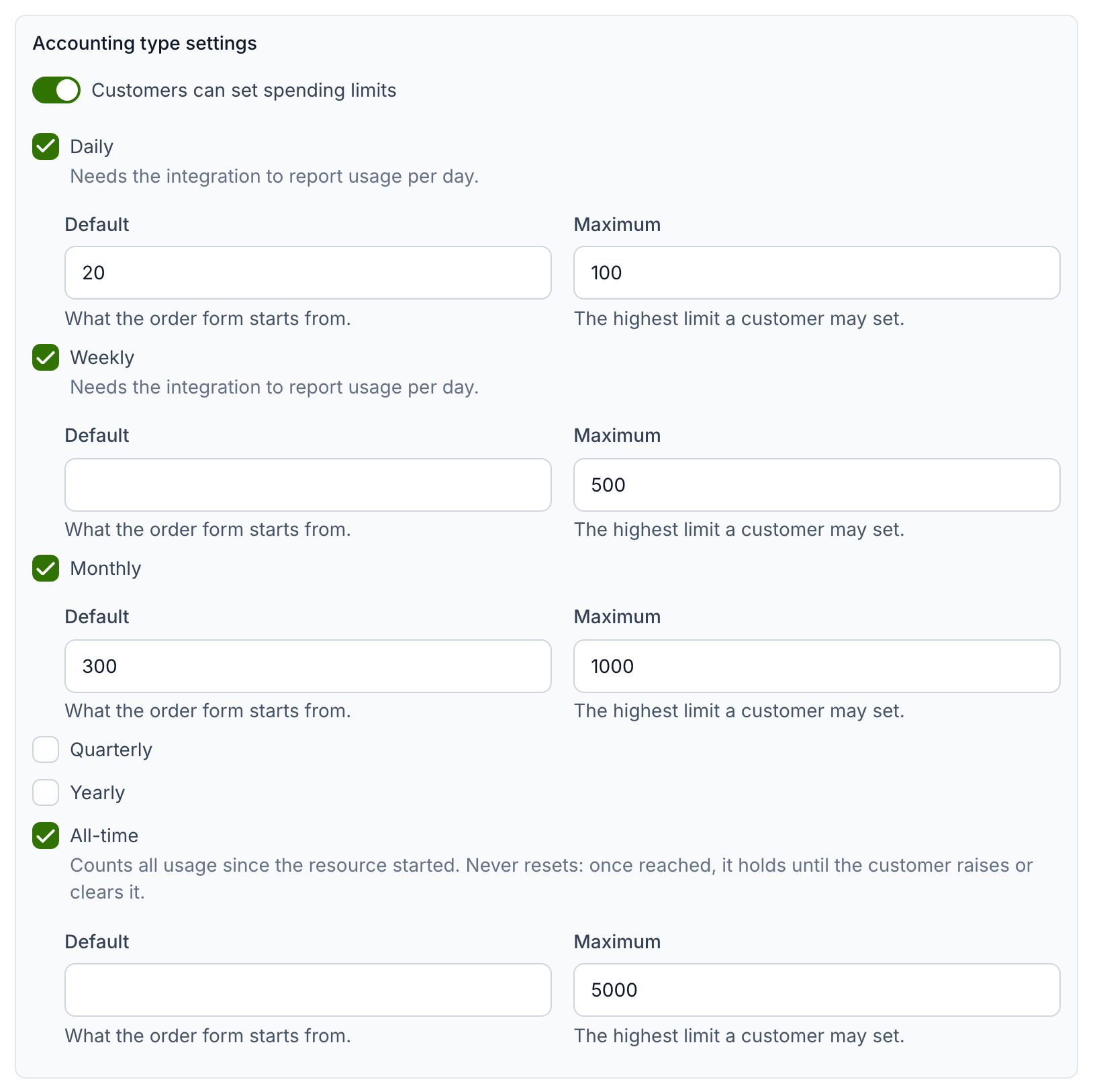
A default may not exceed its maximum, and a shorter period's default may not exceed a longer one's. Amounts take at most two decimal places. Spending limits are accepted on usage-based components only, and not on a component whose limit a resource option already shows.
Daily and weekly limits need usage per day
The dialog marks Daily and Weekly as needing the integration to report usage per day. Those limits add up the amounts reported for each UTC day, so offer them only where the site agent or integration reports per-day usage. An integration that reports a total for the month can offer monthly, quarterly, yearly and all-time limits.
API keys have a setting of their own for this: a key is offered daily, weekly, quarterly and yearly limits only where the offering declares that the site agent reports each key's usage per day. Monthly and all-time limits need no per-day usage (see Resource API keys).
All-time limits and late usage
An all-time limit adds up every monthly figure reported for the resource, so
it counts usage reported late for a past month as well. Keep the integration
re-sending the previous month once a new one has begun — the site agent does
so on every run by default (reporting_periods: 2, see the
site agent configuration) —
or the usage between its last report of a month and midnight is never
counted.
Pausing or downscaling at a limit
A reached spending limit restricts the resource with the offering's Action on usage limit, the same setting that acts on limit-based components (see Pausing or downscaling resources on usage limit). Without it, customers can still set limits and see their usage, but nothing is restricted.
A limit set before spending limits
A usage-based component could carry a single limit before spending limits existed. The component dialog shows such a limit as, for example, Limit 50 per month — not enforced: reports above it are accepted and billed. It can no longer be configured; Clear limit removes it. Use spending limits to cap usage instead.