Microsoft Entra ID
Waldur signs users in with Microsoft Entra ID (formerly Azure AD) over OpenID Connect. Entra ID is configured as Waldur's generic OIDC provider, which the administration interface lists as Keycloak.
One generic OIDC provider per deployment
Waldur has a single Keycloak (generic OIDC) slot. If your deployment already signs users in through Keycloak, configuring Entra ID here replaces it. In that case, add Entra ID to Keycloak as an identity provider instead and keep Waldur pointed at Keycloak.
Version
Mapping claims that Entra issues only in the ID token, such as preferred_username, needs a
Waldur release newer than 8.1.5-rc.1. Earlier versions read UserInfo only, so such a mapping
stays empty.
You need:
- at least the Application Developer role in Entra, which can register applications;
- the public URL of the Waldur API (Mastermind), for example
https://api.waldur.example.com; - the public URL of HomePort, for example
https://waldur.example.com; - a Waldur staff account.
Registering Waldur in Entra ID
- In the Microsoft Entra admin center, browse to Entra ID → App registrations and click New registration.
- Name the application, for example
Waldur. - Under Supported account types, select Single tenant only - <your tenant> (named Accounts in this organizational directory only (Single tenant) in older versions of the admin center). See Why a single tenant.
-
Under Redirect URI, select the Web platform and enter the API's callback URL:
1https://<waldur-api-host>/api-auth/keycloak/complete/The path is fixed, including the trailing slash. Entra rejects a login whose redirect URI does not match exactly (
AADSTS50011). -
Click Register. On the application's Overview page, copy the Application (client) ID and the Directory (tenant) ID.
- Open Authentication and add a second Web redirect URI: the HomePort URL from
Waldur's branding settings (
HOMEPORT_URL) followed by/login/, for examplehttps://waldur.example.com/login/. When Enable Post-Logout Redirect is on (the default), Waldur sends signed-out users there, and Entra redirects only to registered URIs. Leave Implicit grant and hybrid flows unticked: Waldur uses the authorization code flow, which returns the ID token without them. - Open Certificates & secrets → Client secrets → New client secret. Copy the secret's Value, not its Secret ID; Entra shows it only once. Note its expiry date: when the secret expires, sign-in stops working until you create a new one and enter it in Waldur.
- Open API permissions. The default delegated Microsoft Graph → User.Read permission
is enough. The OpenID scopes Waldur requests (
openid,profile,email) need no extra permissions. Users consent to them at their first sign-in; if your tenant does not let users consent to applications, click Grant admin consent for <your tenant>.
Configuring Waldur
The discovery wizard reads Entra's OIDC metadata and walks you through the claim mapping.
-
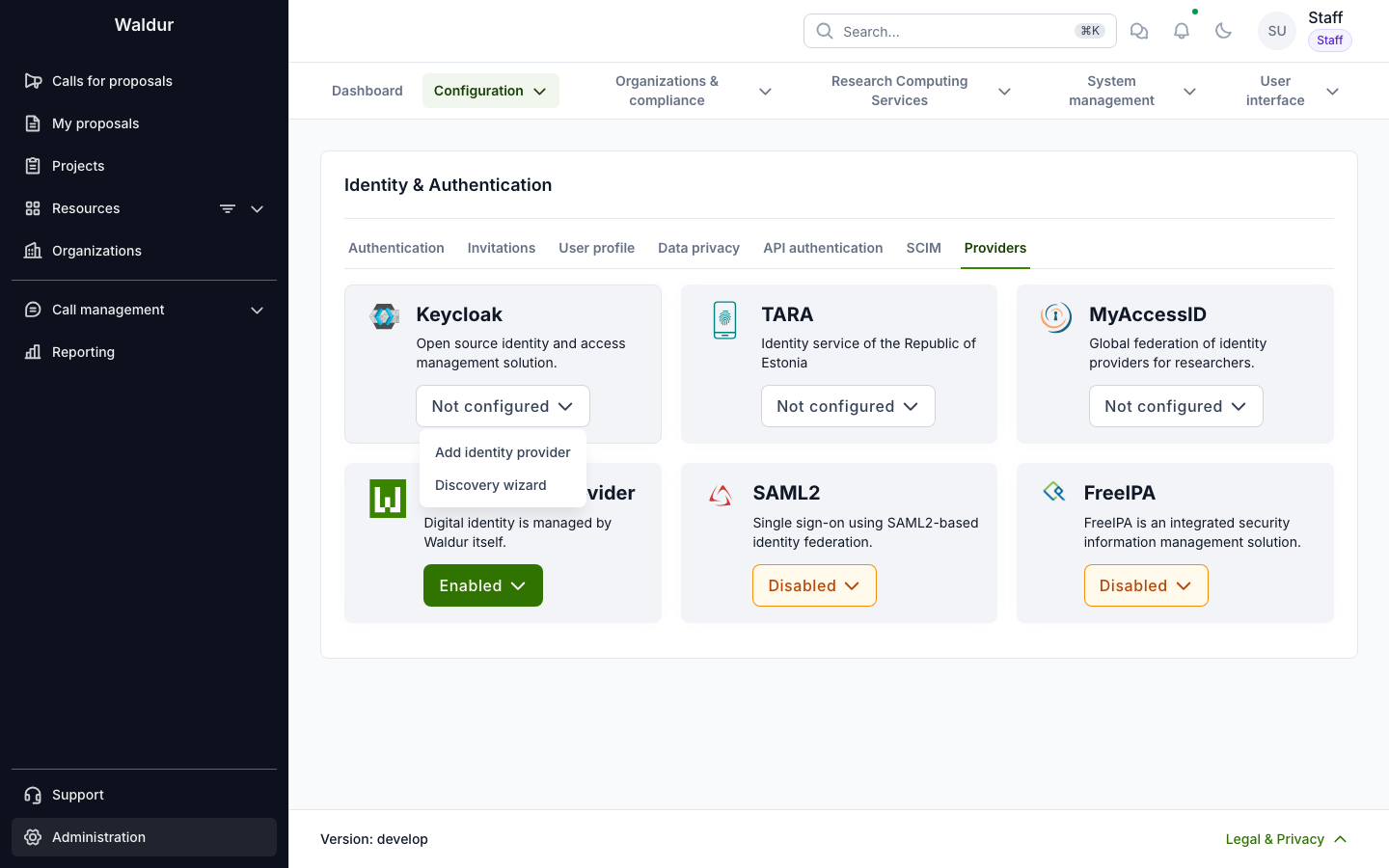
Open Administration → Configuration → Identity providers and select the Providers tab. On the Keycloak card, click Not configured and select Discovery wizard.
-
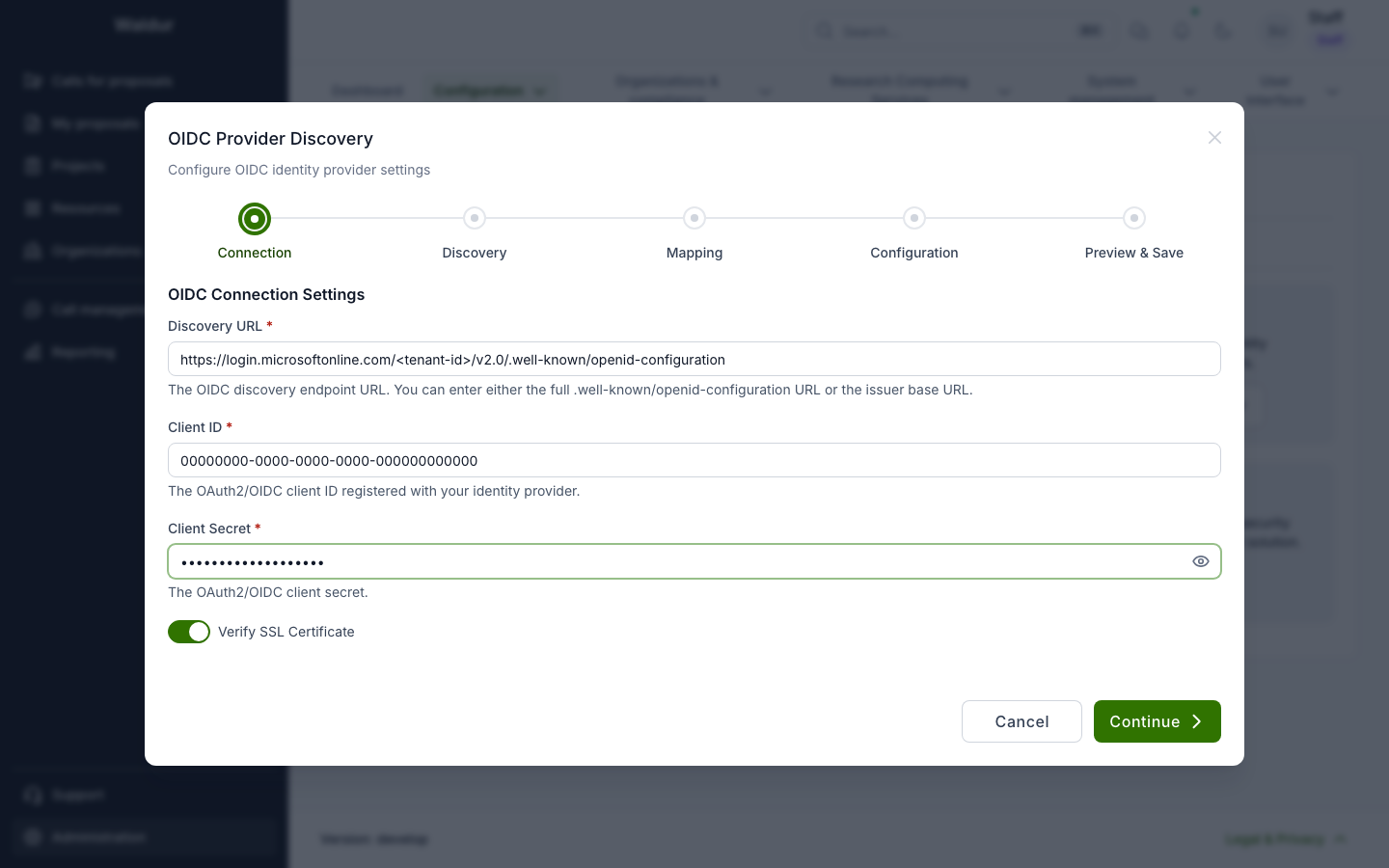
Connection. Enter the tenant's discovery URL, with your Directory (tenant) ID in place of
<tenant-id>:1https://login.microsoftonline.com/<tenant-id>/v2.0/.well-known/openid-configurationEnter the Application (client) ID and the client secret value from the registration.
Use the tenant's own URL
Do not use the
commonororganizationsendpoints. Entra refusescommonfor a single-tenant application (AADSTS50194). Their metadata also gives the issuer as a template (https://login.microsoftonline.com/{tenantid}/v2.0), and Waldur checks every ID token against the issuer it discovered, so even a multi-tenant application would have every login rejected. -
Discovery. Check that the authorization, token, logout and JWKS endpoints contain your tenant ID; the UserInfo endpoint is on
graph.microsoft.comand has none. Entra publishes the claims below. The protocol claims among them (iss,aud,exp,nonce,at_hash, …) describe the token rather than the user, so the next step does not offer them.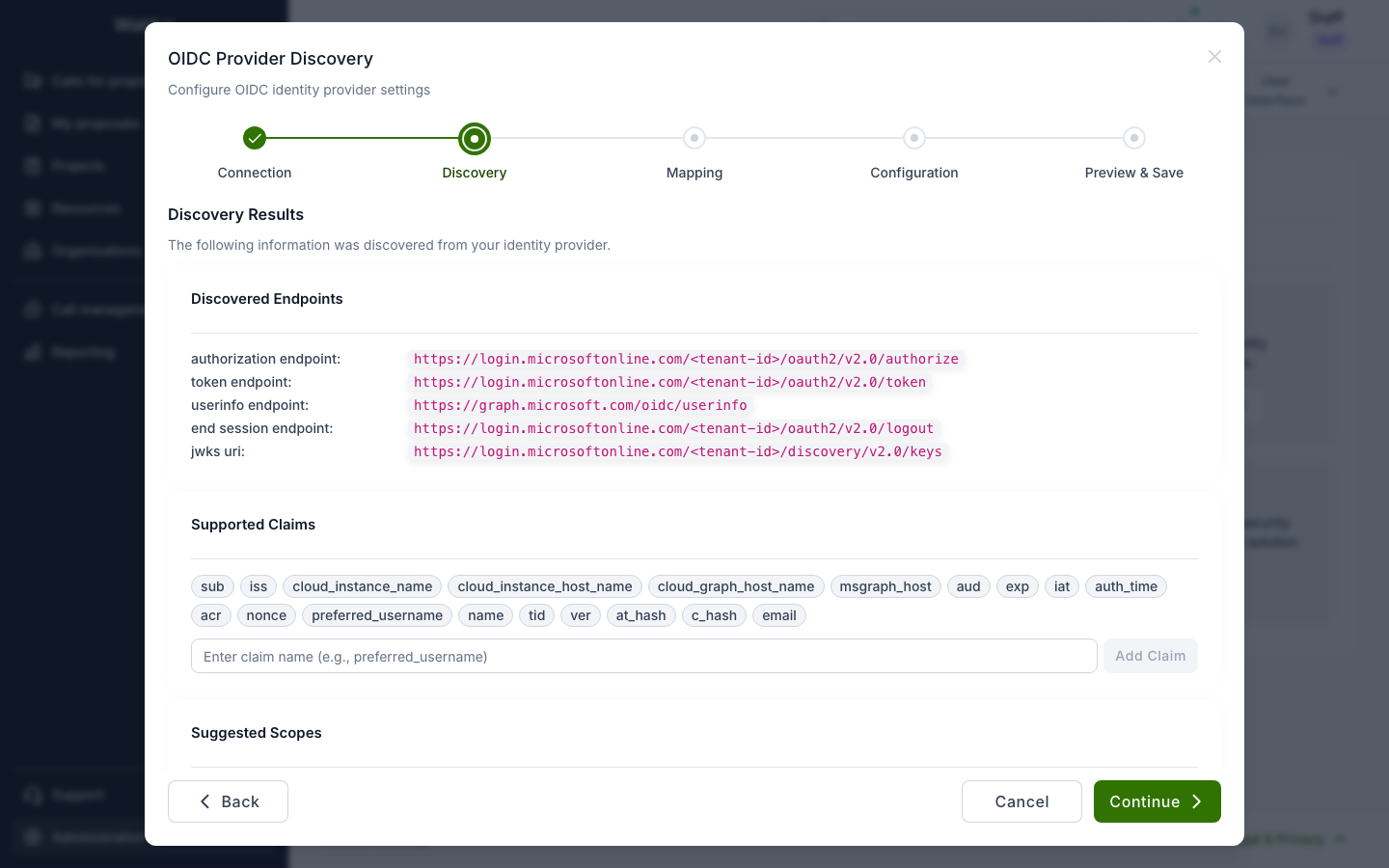
-
Mapping. Map the user's name and email:
Waldur field Claim Notes first_namegiven_nameChoose Custom claim. Entra's UserInfo returns it, but the discovery document does not list it. last_namefamily_nameChoose Custom claim, as above. emailemail, orpreferred_username emailSee Choosing the email claim. A custom claim can be a space-separated list. Waldur uses the first claim the user has, so
preferred_username emailfalls back toemailfor a user without a sign-in name. Leave fields with no Entra equivalent unmapped. Waldur stores its defaults for them, which the edit form then shows; Entra issues none of those claims, so they stay empty.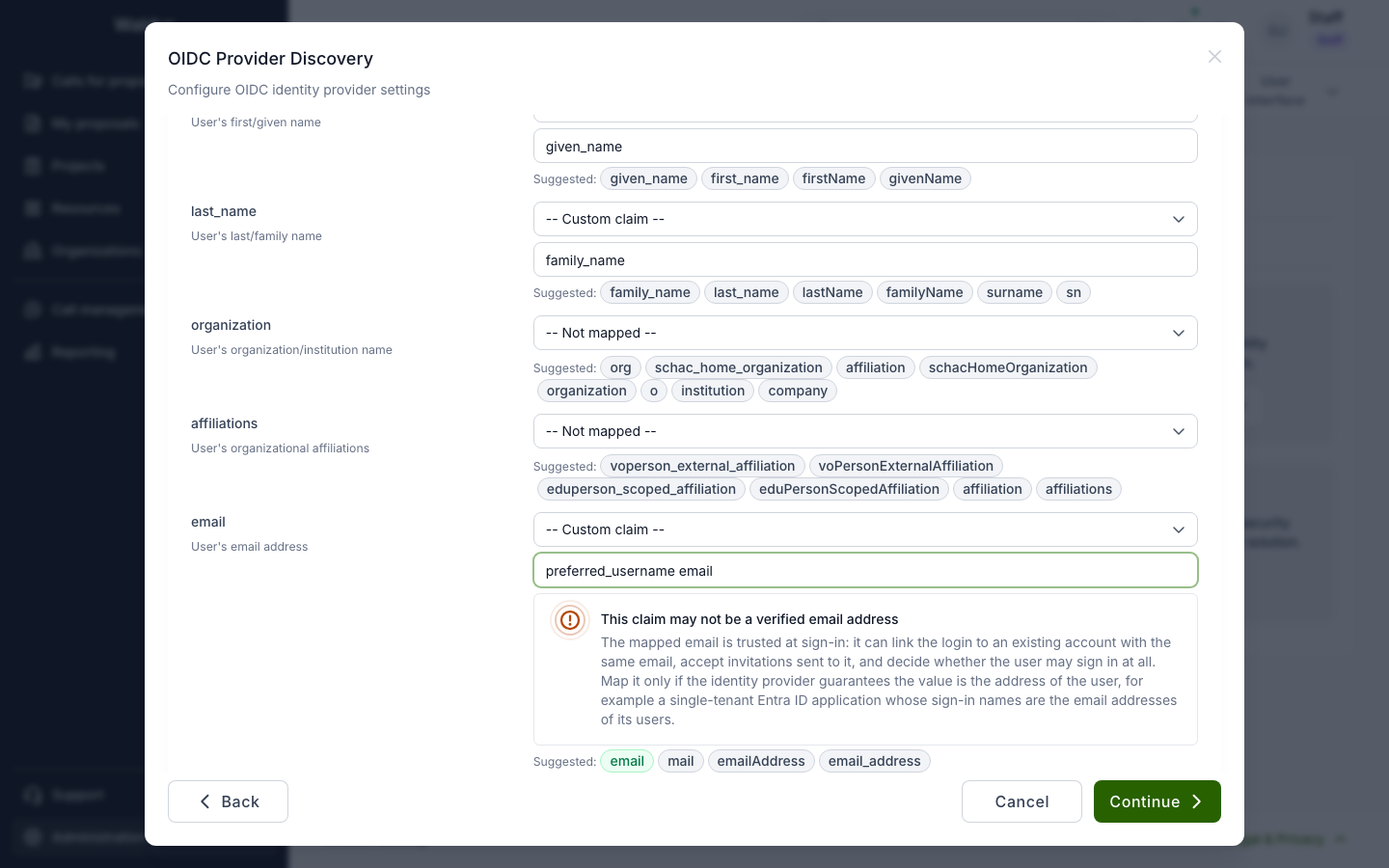
The warning under
emailappears whenever it is mapped topreferred_username,upnorunique_name. -
Configuration. Give the provider a label users will recognise, for example
Microsoft Entra ID. Set Extra Scopes toprofile emailand leave User Claim assub. Leave Allowed Redirect URIs empty to use the HomePort URL from the branding settings, or list the HomePort origins that users sign in from, such ashttps://waldur.example.com(no path).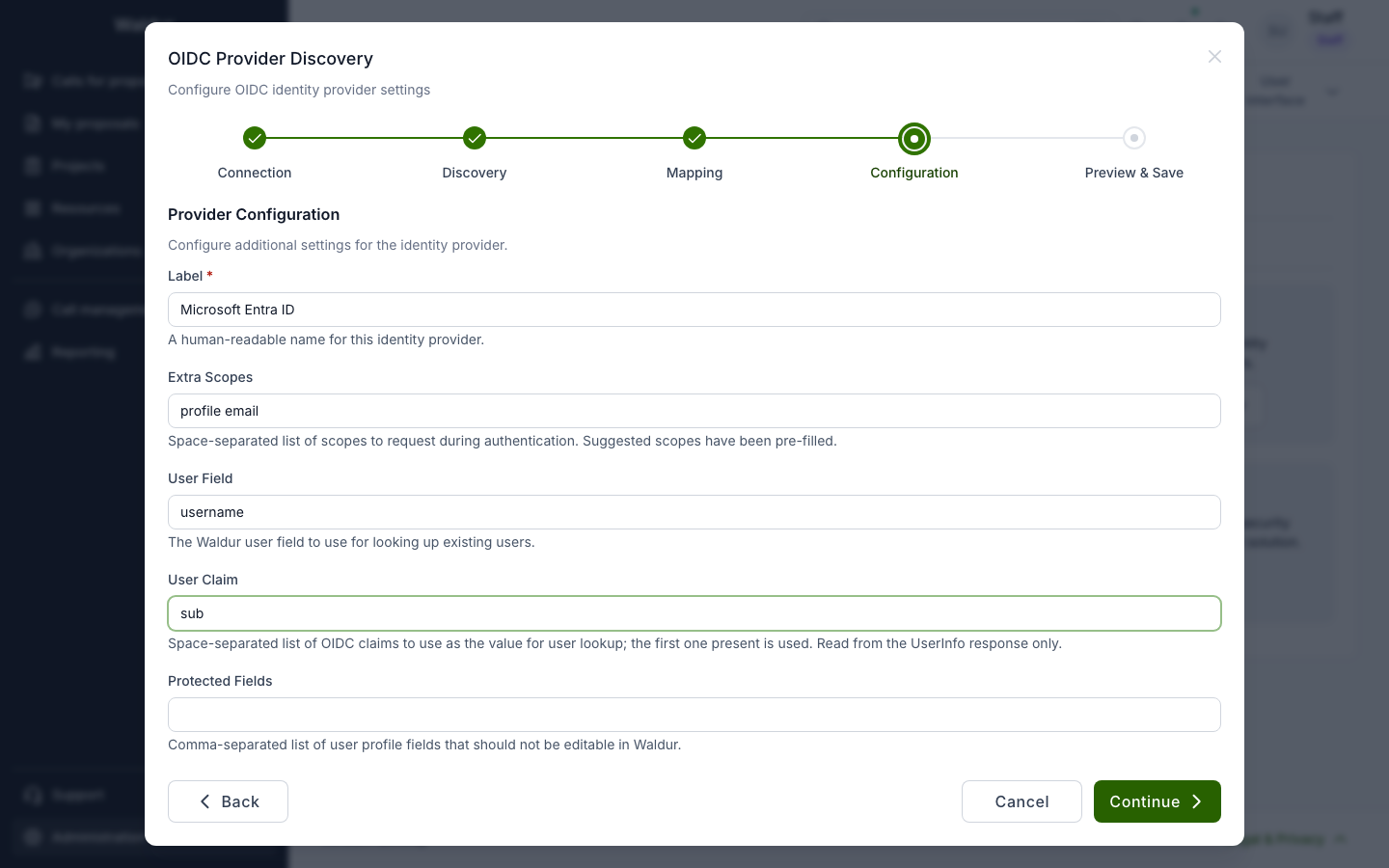
-
Preview & Save. Check the summary and click Create Provider.
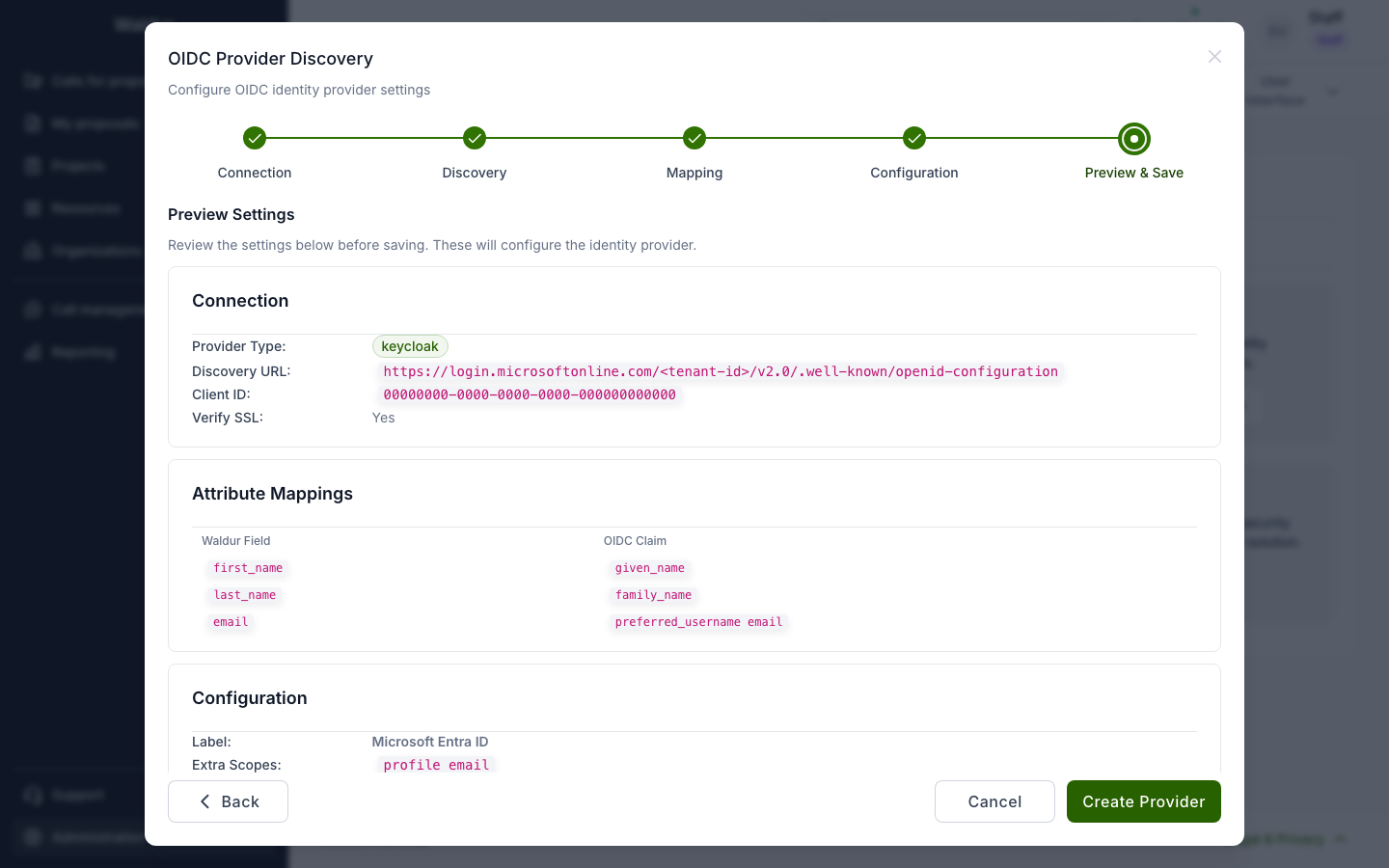
To change the settings later, use Edit in the card's menu. The edit form holds the same settings, plus every mappable field, and shows the same email warning. Re-discover reruns the wizard over the existing configuration.
How Waldur reads Entra's claims
Entra's UserInfo endpoint
returns a fixed set of claims (sub, name, given_name, family_name, picture, email),
and it cannot be extended. preferred_username and any
optional claims are issued only in the ID token. Waldur reads the settings from different
sources:
| Setting | Read from |
|---|---|
Attribute mapping (first_name, email, …) |
UserInfo and the validated ID token. UserInfo wins where both carry a claim, unless its value is empty. |
| User Claim (account lookup) | UserInfo only |
| Extra fields (stored in the user's details) | UserInfo only |
Roles claim (WALDUR_AUTH_SOCIAL_ROLE_CLAIM) |
UserInfo only |
Some consequences:
- User Claim must be a UserInfo claim. Keep
sub, which is stable for each user and application.oidandpreferred_usernameare not in UserInfo and cannot identify accounts. - Entra app roles and group claims are issued only in tokens. They cannot set staff or support
flags, and cannot be stored through extra fields. To use them in
role assignment from claims, add the claim to the ID
token and map it to a profile field that rules read, such as
affiliations. - To map an optional claim, add it to the ID token under Token configuration in the app registration. Then map it as a custom claim.
The developer guide covers the details in user profile attributes.
Choosing the email claim
Microsoft's ID token claims reference describes both candidates:
emailis the user's primary email address. It is empty for users without a mailbox or a configured address. Microsoft notes that it "isn't guaranteed to be correct and is mutable over time", so the warning below applies to it as well.preferred_usernameis the sign-in name. Microsoft describes it as "an email address, phone number, or a generic username without a specified format" that can change. Use it only where the tenant's sign-in names are its users' email addresses, as is common when the UPN matches the mailbox. A B2B guest's sign-in name in your tenant has the formjohn_contoso.com#EXT#@yourtenant.onmicrosoft.com, not an address, so preferemailin a tenant with guest users.
Warning
Waldur trusts the mapped email at sign-in:
- with
OIDC_MATCHMAKING_BY_EMAIL, a sign-in whose email matches an existing account is linked to that account; - with
OIDC_BLOCK_CREATION_OF_UNINVITED_USERS, a pending invitation to the email lets a new account be created, andOIDC_ALLOWED_USER_EMAIL_PATTERNSdecides from the email whether the user may sign in; - autoprovisioning rules can match on the email.
A claim that is not the user's address can give one person another's account, invitation or
access. Map email only to a claim your tenant guarantees is the user's address.
Why a single tenant
Waldur accepts ID tokens from the one issuer it discovered, which is your tenant. Signing in
users from other tenants would need the common or organizations endpoints, which Waldur
cannot use (see the Connection step above). Their preferred_username and email claims would
also be set by other tenants' administrators, so the warning above would apply to all of them.
To admit people from other organisations, invite them to your tenant as B2B guests, who sign in
through your tenant's endpoint, or put a federation broker such as Keycloak in
front of their identity providers.
Troubleshooting
| Symptom | Cause and fix |
|---|---|
AADSTS50011 on the Microsoft sign-in page |
The redirect URI does not match. Register https://<waldur-api-host>/api-auth/keycloak/complete/ exactly, including the trailing slash. |
AADSTS50194 on the Microsoft sign-in page |
The discovery URL uses common with a single-tenant registration. Use the tenant-specific URL. |
Login fails with AADSTS7000215 (shown by Waldur and in the failed-login event) |
The Secret ID was entered instead of the secret's Value. Enter the Value. |
Login fails with AADSTS7000222 |
The client secret has expired. Create a new secret and update it in Waldur. |
Login fails with Invalid ID token after Microsoft signs the user in |
Waldur rejected the token, for example because a multi-tenant registration uses the common discovery URL. Use a single-tenant registration and the tenant-specific URL. |
| Users sign in with an empty email | They have no mail attribute. Set it in Entra, or map email to preferred_username email if your tenant's sign-in names are addresses. |
| Users are not sent back to Waldur after signing out | Register HOMEPORT_URL + /login/ as a Web redirect URI, keep Enable Post-Logout Redirect on, and check that HOMEPORT_URL in the branding settings is correct. |