Interface introduction
This page is a tour of the Waldur interface: what each part of the screen is for, and where to find the things you will use most often.
The main screen
After signing in you land on your user dashboard — a summary of your profile, the resources you can reach and the roles you hold.
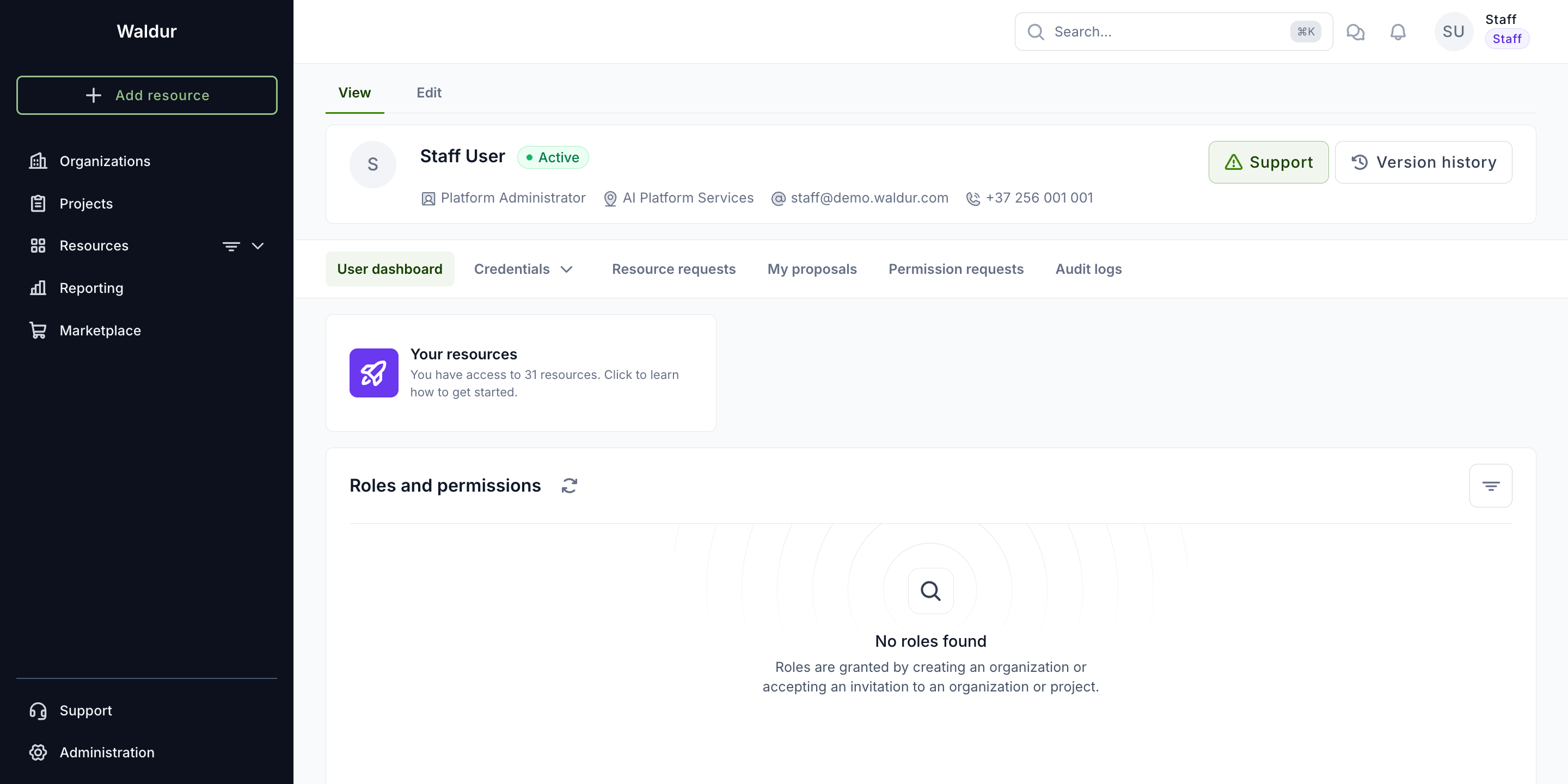
Three areas make up every page:
- Sidebar (left) — your main working tool. Organizations and Projects list the ones you belong to, Resources filters everything you have access to, and Reporting, Marketplace, Support and Administration appear according to your role. Add resource at the top starts an order.
- Top bar — search (
⌘KorCtrl+K), the support drawer, pending tasks, and your user menu. - Workspace — the page content itself, with its own menu of tabs just underneath the title.
Organization and project workspaces
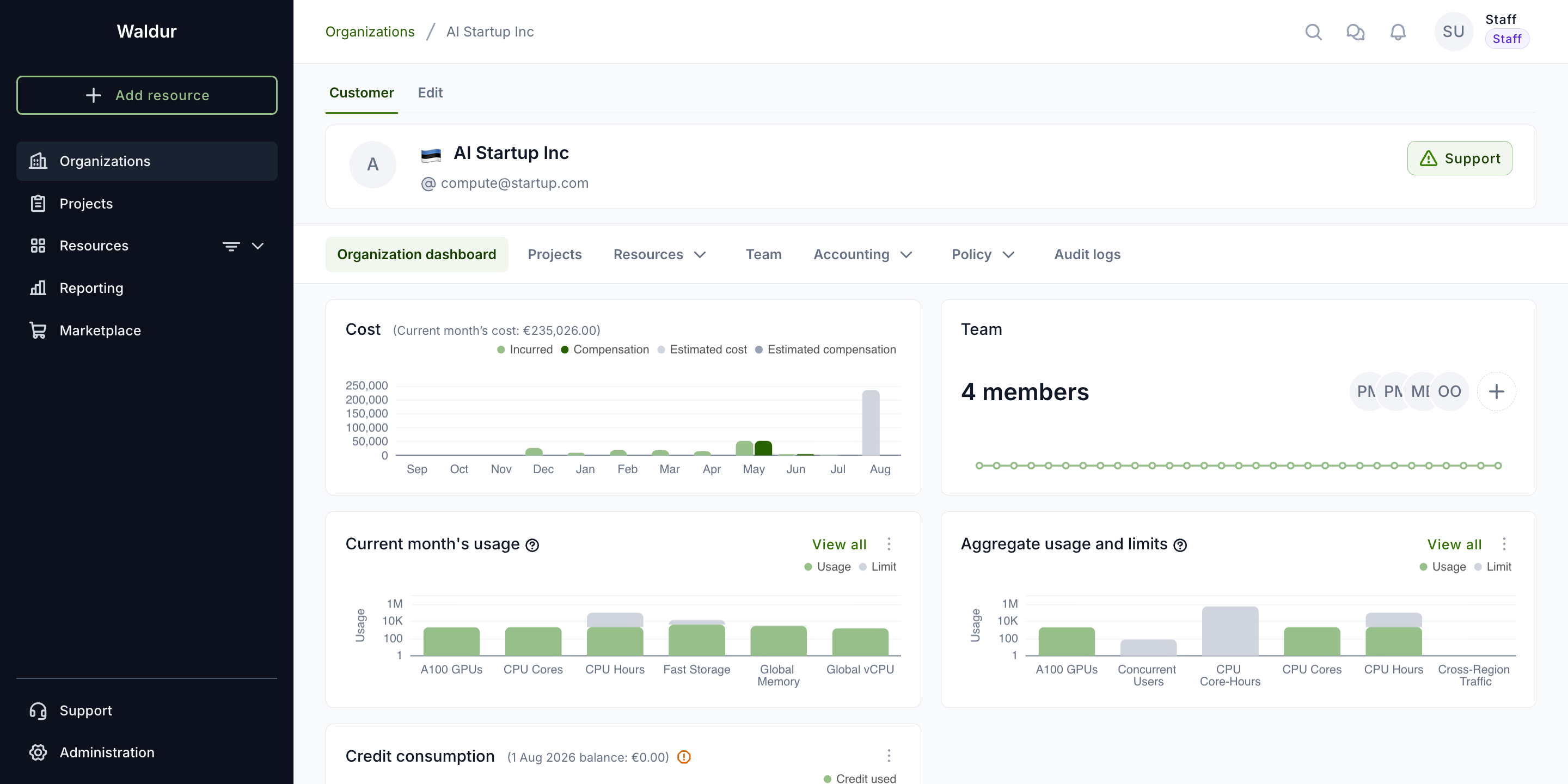
Selecting an organization or a project switches the workspace to it. The tabs under the name are scoped to that object — for an organization: its dashboard, projects, resources, team, accounting and policies.
Note
Which tabs you see depends on your role. Organization-level tabs are only available if you hold a role in that organization; a project member sees the project workspace instead.
User menu
Click your name in the top-right corner to open the user menu.
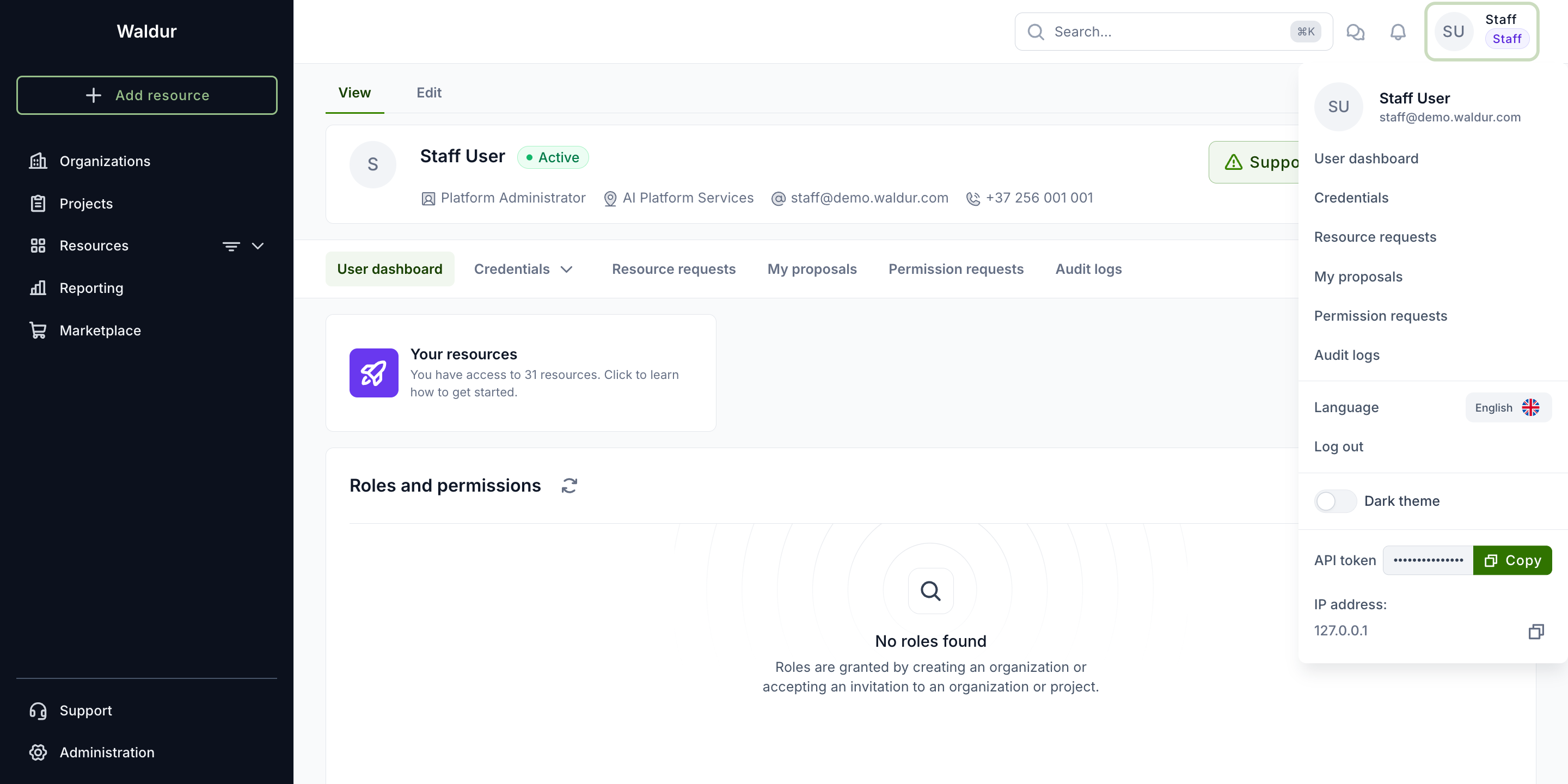
| Entry | What it is for |
|---|---|
| User dashboard | Your profile, resources and roles |
| Credentials | Password, SSH keys and personal access tokens |
| Resource requests | Resources you have requested |
| My proposals | Proposals you have submitted to calls |
| Permission requests | Requests to join an organization or project |
| Audit logs | A record of your own actions |
| Language, Dark theme | Interface language and colour mode |
| API token | Your token for the REST API, with a copy button |
Getting help
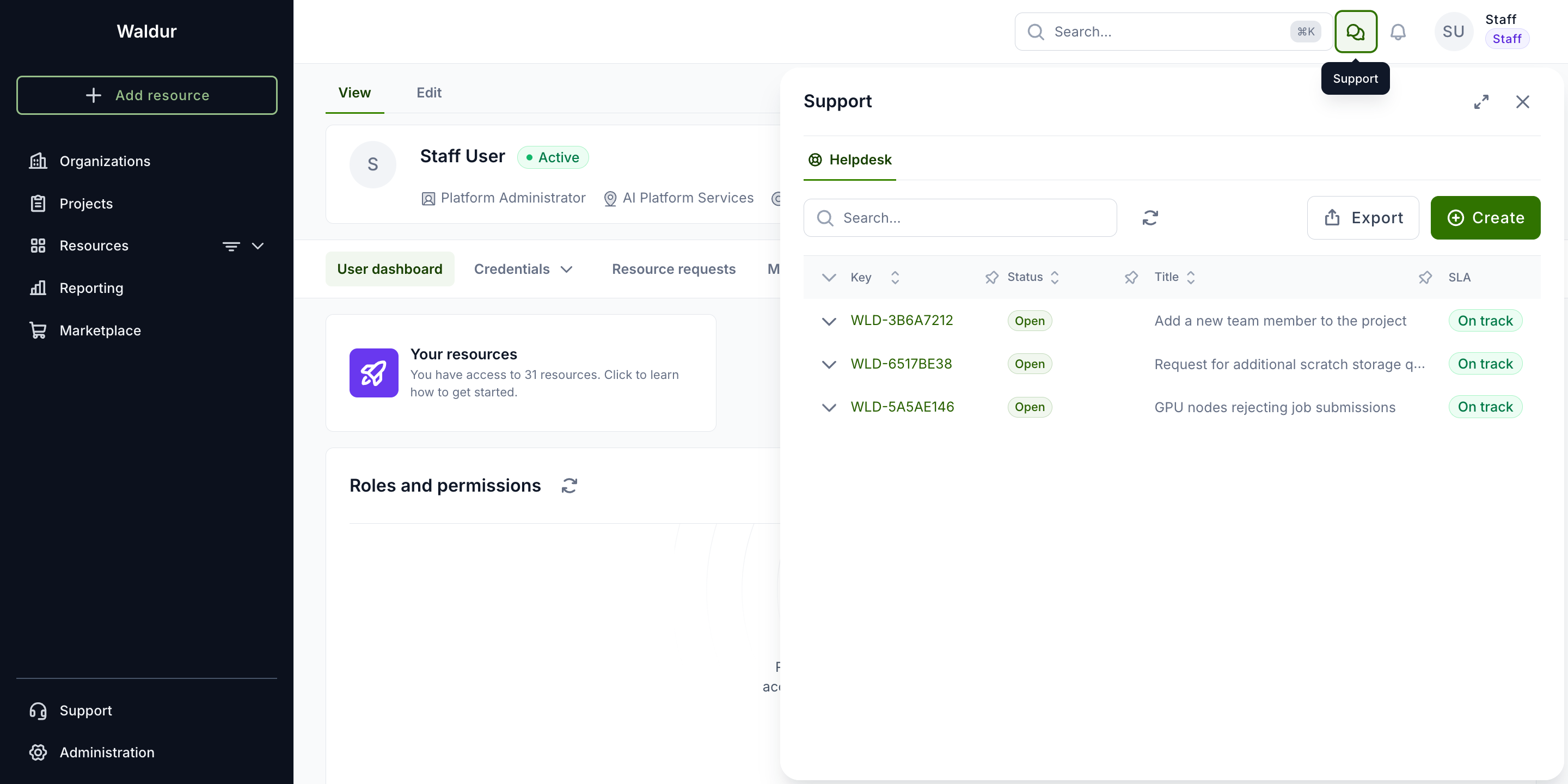
The speech-bubble icon in the top bar opens the Support drawer: your requests, their status, and a Create button for raising a new one — without leaving the page you are on.
The bell icon beside it opens Pending tasks, listing the confirmations waiting on you — orders to approve, invitations to accept, requests to review. It is empty when there is nothing to act on.