Workflow configuration
Waldur supports configurable evaluation workflows for calls. Each call enables a subset of predefined evaluation steps, assigns a responsible role and an optional deadline to each, and attaches evaluation checklists. Proposals progress through the enabled steps in a fixed order, with per-step status tracking and outcome recording.
Workflow steps
Six evaluation steps are available. Each call enables the steps relevant to its evaluation process.
| Step | Purpose | Default responsible role | Mandatory |
|---|---|---|---|
| Administrative check | Eligibility and completeness validation | Call manager | No |
| Technical assessment | Service provider verifies technical feasibility | Offering manager | No |
| Expert review | Independent peer review with scoring | Reviewer | No |
| Panel review | Collective panel evaluation consolidating expert reviews | Panel member | No |
| Allocation decision | Final approve/reject decision and resource allocation | Call manager | Yes |
| Award response | Applicant explicitly accepts or declines the award | Applicant | No |
Note
The Allocation decision step is mandatory — it cannot be disabled, and a call cannot be activated without it. All other steps can be enabled or disabled per call.
Defaults on call creation
When a call is created, workflow steps are seeded automatically:
- Administrative check and Allocation decision are enabled
- Technical assessment, Expert review and Panel review are seeded disabled
- Award response is not seeded at all
Note
Award response cannot be added as a step directly — the API rejects that. It is provisioned by the Include award response toggle on the Allocation decision step: turning it on creates and enables the award response step, and turning it off disables it again. For the same reason the award response row offers no add, remove or enable/disable action of its own.
Step dependencies
- Panel review requires Expert review — you cannot consolidate reviews that do not exist. Enabling Panel review while Expert review is disabled is rejected with a validation error.
- Steps always run in the order shown in the table above. Disabled steps are skipped.
Configuring workflow steps
Performed by: Call organiser or staff
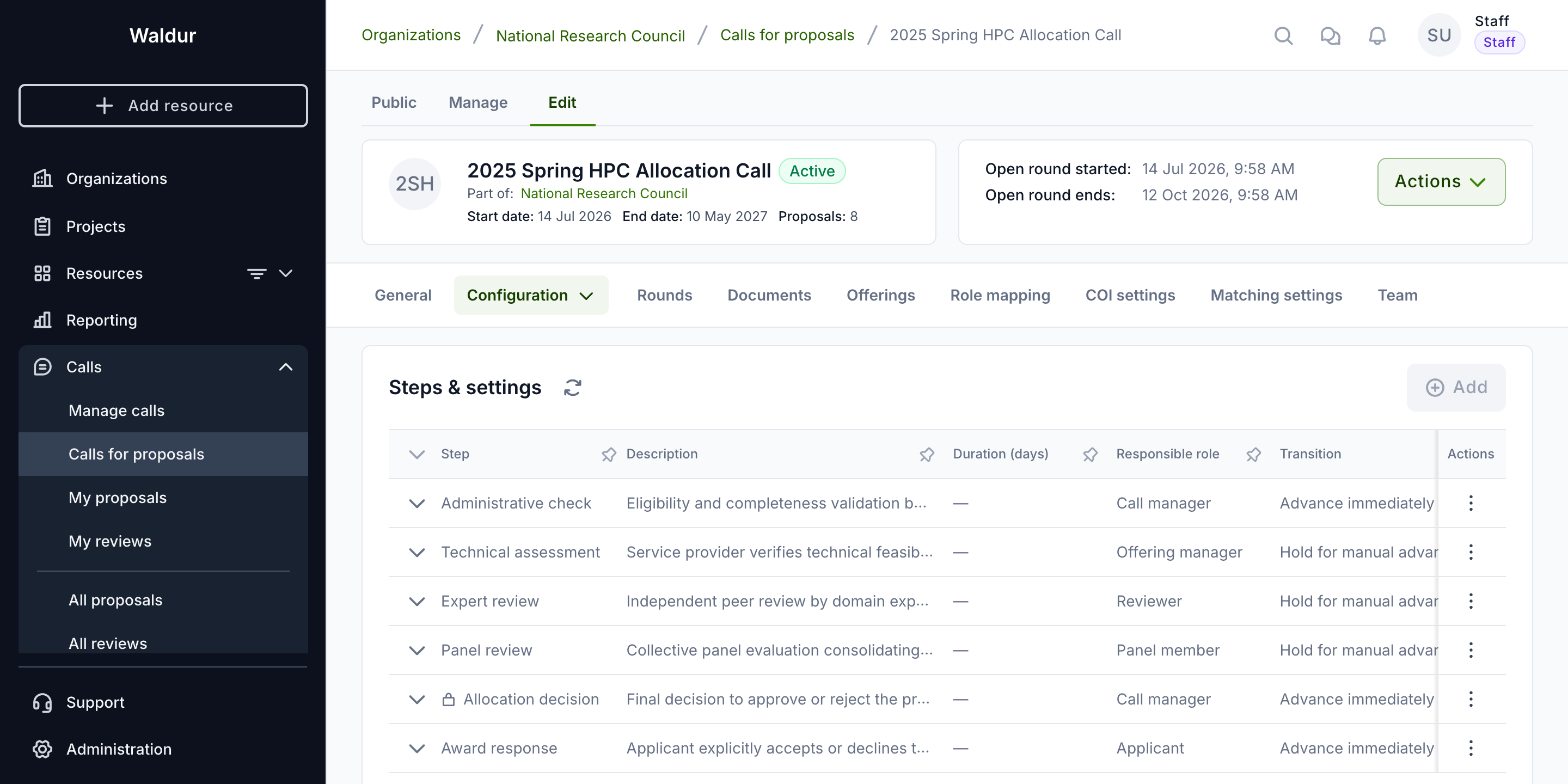
- Open the call's Edit page
- Select the Configuration tab, then the Steps & settings sub-tab
The steps are listed in a table showing Step, Description, Duration (days), Responsible role and Transition, with a sequence preview beneath it that shows the resulting order. Each row has an actions menu offering Configure, Enable or Disable, and Remove.
Note
Mandatory steps have no Enable/Disable action — the Allocation decision row simply omits it.
Per-step settings
For each enabled step, you can configure:
| Setting | Meaning |
|---|---|
| Duration (days) | Deadline for completing the step. Optional — when unset, the step has no deadline. |
| Responsible role | The single role expected to complete the step: Call manager, Offering manager, Reviewer, Panel member, or Applicant. |
| Evaluation checklist | A checklist form to fill during evaluation, plus Checklist required, which controls whether it must be answered before the step can be completed. |
| Blind review | Evaluators cannot see each other's assessments. |
| Requires CoI confirmation | The evaluator must confirm absence of a conflict of interest before starting. |
| Minimum reviewers | Minimum number of reviews required before the step can be completed. |
| Minimum score threshold | Minimum average score required to complete the step. |
| Applicant visible | Whether the applicant sees this step by name on their progress tracker. Off by default: while an invisible step is the current one the applicant sees only that the proposal is in review, and once it has passed it leaves no trace on their tracker at all. Call managers and reviewers always see every step. |
| Transition | Advance immediately on completion moves to the next step as soon as the step is completed; Hold for manual advance parks the proposal so a manager advances it explicitly. |
Two further settings appear on the Allocation decision step only:
- Allocation time — On decision starts allocation immediately; Fixed date defers it to the round's allocation date.
- Include award response — whether the applicant must respond to the award. This toggle is what creates and enables the Award response step; it is the only way to add that step.
Note
Transition governs only whether advancing needs a second manual action after a human completes the step. It never decides the outcome from review scores — Minimum reviewers and Minimum score threshold remain completion gates that a human must clear.
Expert review additionally supports scoring criteria, which are not available on the other steps.
How proposals progress through the workflow
On submission
When an applicant submits a proposal to a call with workflow steps configured:
- A step instance is created for every one of the six steps
- Instances for enabled steps start as Pending; instances for disabled steps are marked Skipped
- The first enabled step becomes Active. If that step has a duration set, its deadline is calculated from the duration; otherwise it has no deadline
- The proposal state changes to In review
Steps 3 and 4 happen at once only when the call starts evaluation on submission, the default. When the call starts evaluation at the round cut-off, the proposal stays Submitted with every enabled step Pending until its round's cutoff date. An hourly job then activates the first enabled step of each such proposal and moves it to In review; the step's deadline counts from that moment, not from submission. See When evaluation starts.
Note
A proposal must have a project team before it can be submitted. If the call has no enabled steps at all, the proposal goes to Submitted rather than In review.
Step completion
On the proposal page, a user holding the step's responsible role can:
- Complete step — opens a dialog asking for an Outcome (required) and an optional Comment. When the step advances immediately, this also moves the proposal to the next enabled step.
- Reject at step — asks for a Rejection reason (required) and ends the workflow
- Advance workflow — shown only when the step is held for manual advance and is waiting to be advanced
Steps whose responsible role is Applicant are acted on by the applicant, not the call manager: the Award response step offers Accept award and Decline award. Staff users can act on applicant steps as well.
Each step accepts only its own outcomes:
| Step | Allowed outcomes |
|---|---|
| Administrative check | Eligible, Ineligible |
| Technical assessment | Feasible, Infeasible |
| Expert review | Reviewed |
| Panel review | Approved, Declined |
| Allocation decision | Approved, Declined |
| Award response | Accepted, Declined |
A negative outcome ends the workflow early: Ineligible, Infeasible or Declined reject the proposal, except Declined on Award response, which cancels it.
When the last enabled step completes with a positive outcome, the proposal is Accepted, the project and its requested resources are provisioned, and the approving user is recorded.
Step statuses
| Status | Meaning |
|---|---|
| Pending | Not yet reached in the workflow |
| In progress | Current step, work under way |
| Completed | Step finished with a recorded outcome |
| Overdue | Deadline passed before the step was completed |
| Skipped | Step was disabled for this call |
Deadline handling
Deadlines are enforced automatically. An hourly job checks active steps against their deadlines:
- When a step's deadline passes, the step is marked Overdue and records an Expired outcome
- The workflow then advances to the next enabled step
- If the overdue step was the last enabled step, the proposal is rejected
Warning
Expiry is enforced, not advisory. An overdue step can no longer be completed — attempting to complete it fails. Set Duration only where the deadline should carry that consequence, and leave it unset for steps that should wait indefinitely.
Viewing workflow progress
For applicants
Applicants see a timeline on the proposal page showing its progress, starting from submission. Only steps marked Applicant visible are named there — the setting is off by default, so a call that has not turned it on for any step shows the applicant the coarse Submission → Review → Decision tracker instead of the evaluation steps.
While an invisible step is the current one, it appears under the name of its stage rather than its own — Decision for the allocation decision, Awaiting your response for the award response, Evaluation for any other step — so the tracker still shows where the proposal has got to; once it has passed, it leaves no trace. Steps that were not reached because of an earlier rejection are struck through and marked Not reached. The timeline appears once the proposal leaves draft state; calls without a configured workflow fall back to the coarse tracker as well.
A short line under the tracker says what is happening — the expected decision date where the step has a deadline, or that the applicant's own confirmation is needed on an award response.
For call managers
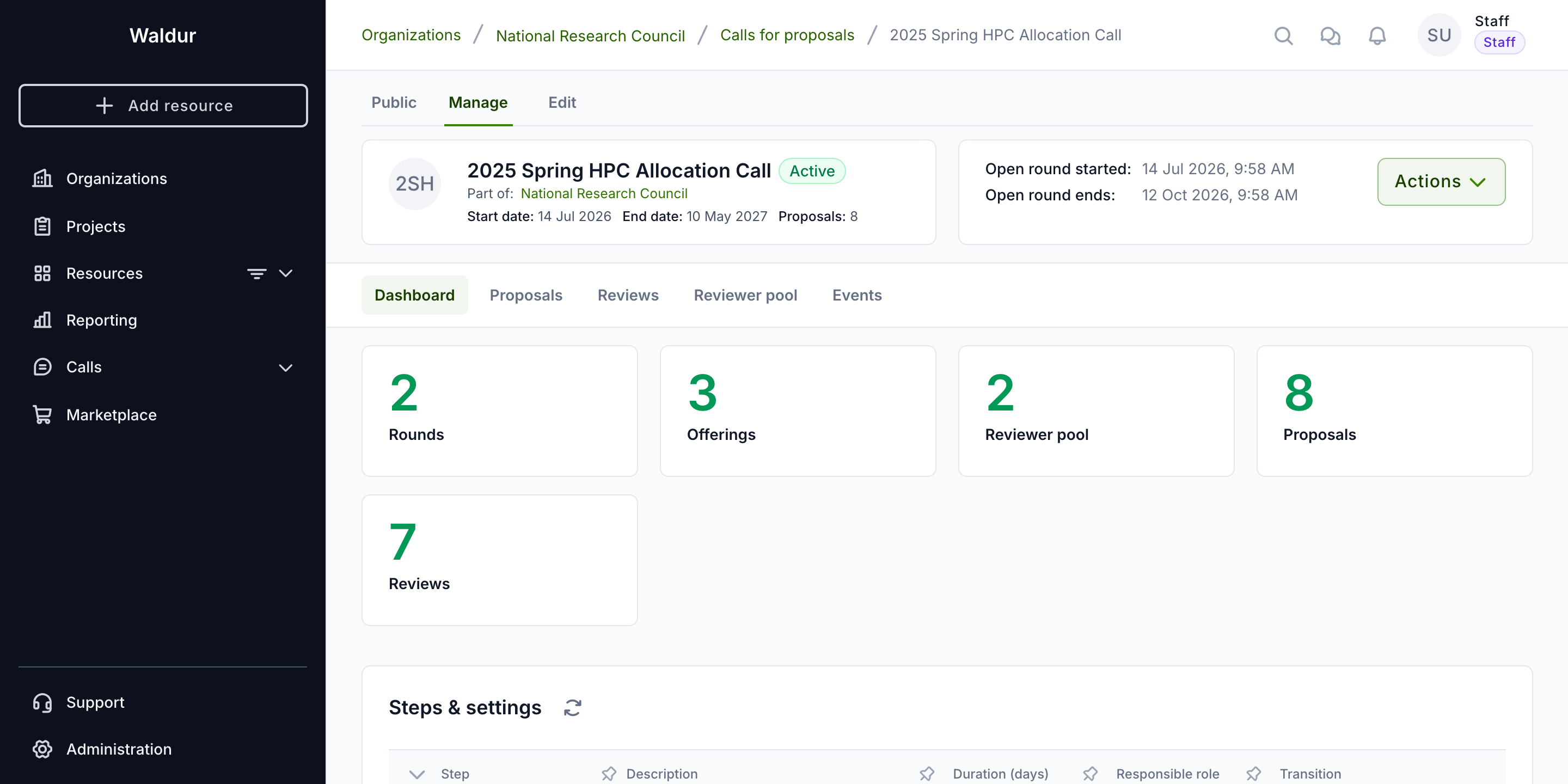
Call managers see the same timeline with full details — each step's status, responsible role, date and recorded outcome. The Proposals list on the call manage page also carries a Step column showing each proposal's current step and its responsible role.
For reviewers
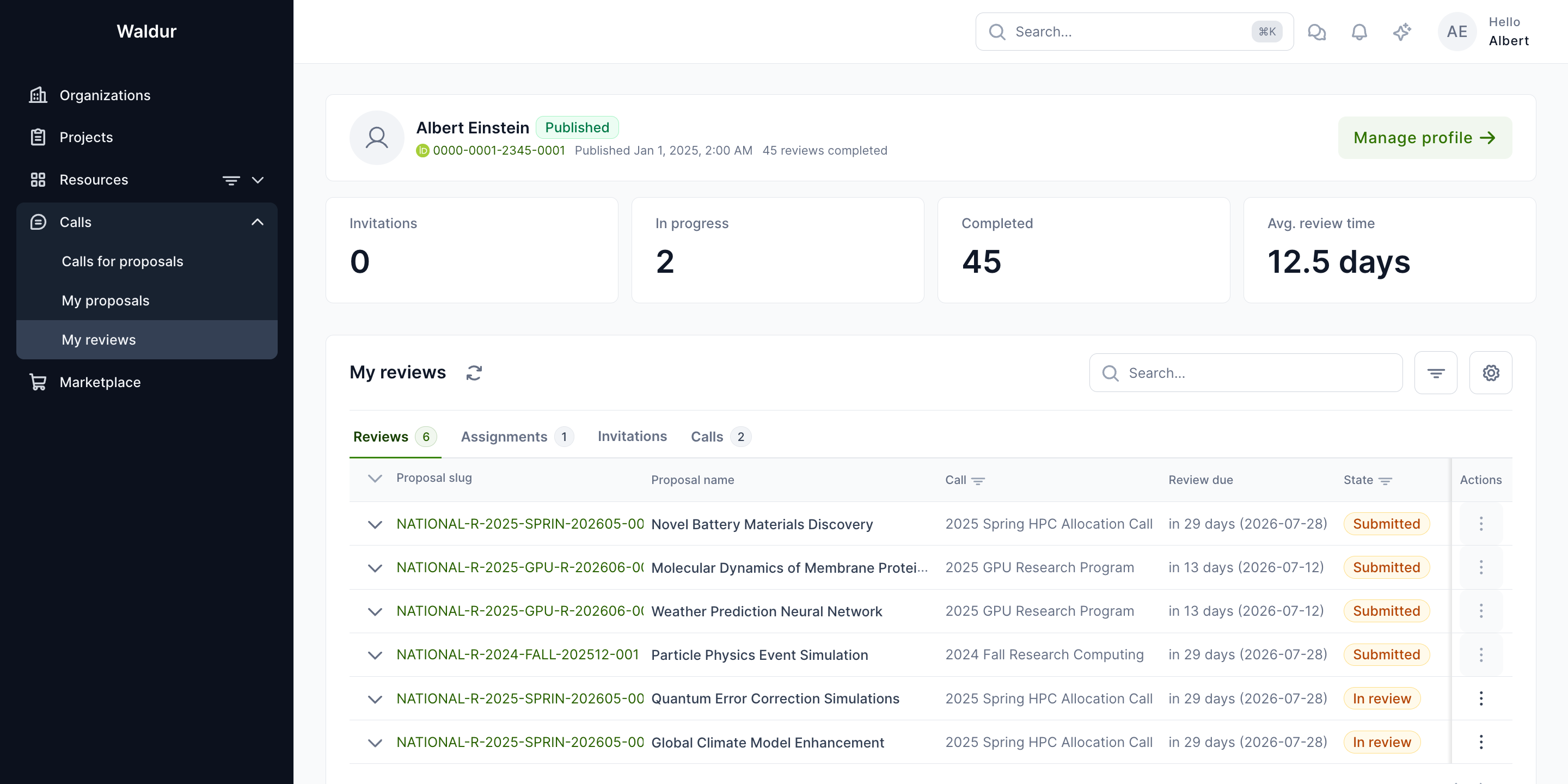
Reviewers open their assigned reviews from the Reviews page. The current workflow step is shown on the individual review page as a badge reading "Step n of N", not on the reviews list itself.
Evaluation checklists
Each workflow step can have an attached checklist — a structured form filled in during evaluation. Checklists support 18 question types, including yes/no, single and multiple select, text and rich text, numbers, dates, file uploads, ratings and Likert scales, with conditional visibility.
For example:
- Administrative check checklist: "Is institution eligible?" (yes/no), "Rejection reason" (conditional text)
- Technical assessment checklist: "Is proposal feasible?" (yes/no), "Assessment notes" (text area)
- Allocation decision checklist: "Decision" (single select), "Allocation notes" (text area)
When a checklist is attached and marked as required, the step can only be completed after all required questions are answered.
See Checklists and forms for details on configuring evaluation checklists.