Applicant guide
This guide follows an applicant (a principal investigator or proposal submitter) end to end: finding an open call, creating and filling in a proposal, answering the call's compliance checklist, submitting, tracking the proposal through the evaluation workflow, reading technical-assessment feedback when the call shares it, and finally responding to an award.
For the call manager's side of the same workflow see the Call manager workflow; for the reviewer's side see the Reviewer workflow.
Note
Screenshots in this guide use the 2025 Spring HPC Allocation Call demo call, which shares its technical assessment with applicants and includes an award-response step. Your calls will show different names, offerings, checklists and reviewers, and the steps you see depend on how the call manager configured the call.
Service access modes
How applicants reach calls depends on the deployment's service access mode. In a marketplace-only deployment they apply from an offering and see access requests instead of proposals — see How you reach services.
Finding an open call
Open Calls → Calls for proposals from the sidebar. The dashboard lists Open calls you can apply to and the Available offerings they grant access to. Each call card shows the managing organisation, a short description and the submission cutoff.
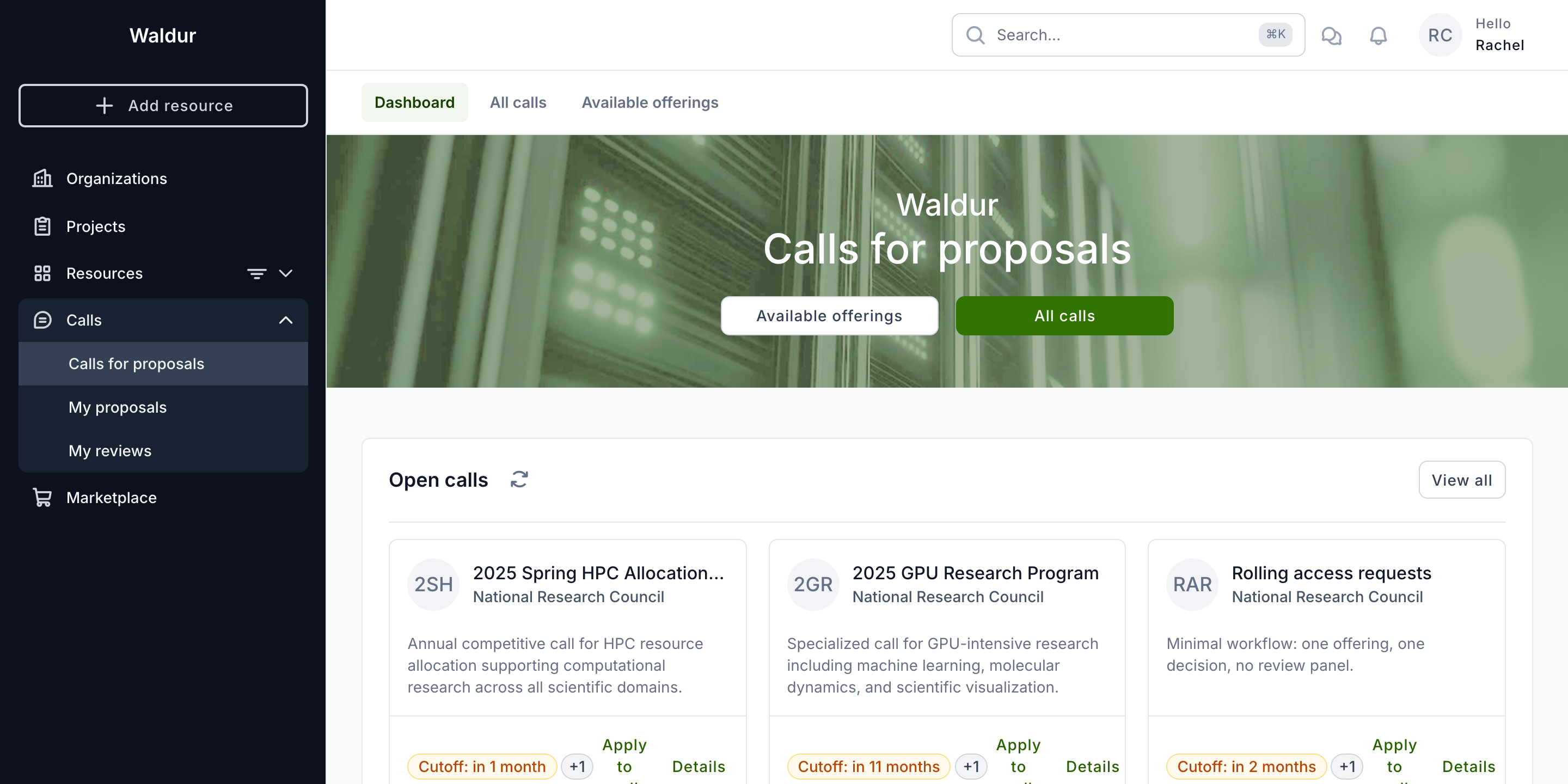
Use Details to read a call's full description and eligibility rules, or View all (or All calls in the banner) to browse the complete catalogue. When you have found the call you want, click Apply to call.
Tip
The Calls for proposals catalogue is also reachable without signing in, from the public landing page — handy for sharing a call with colleagues.
Starting a proposal
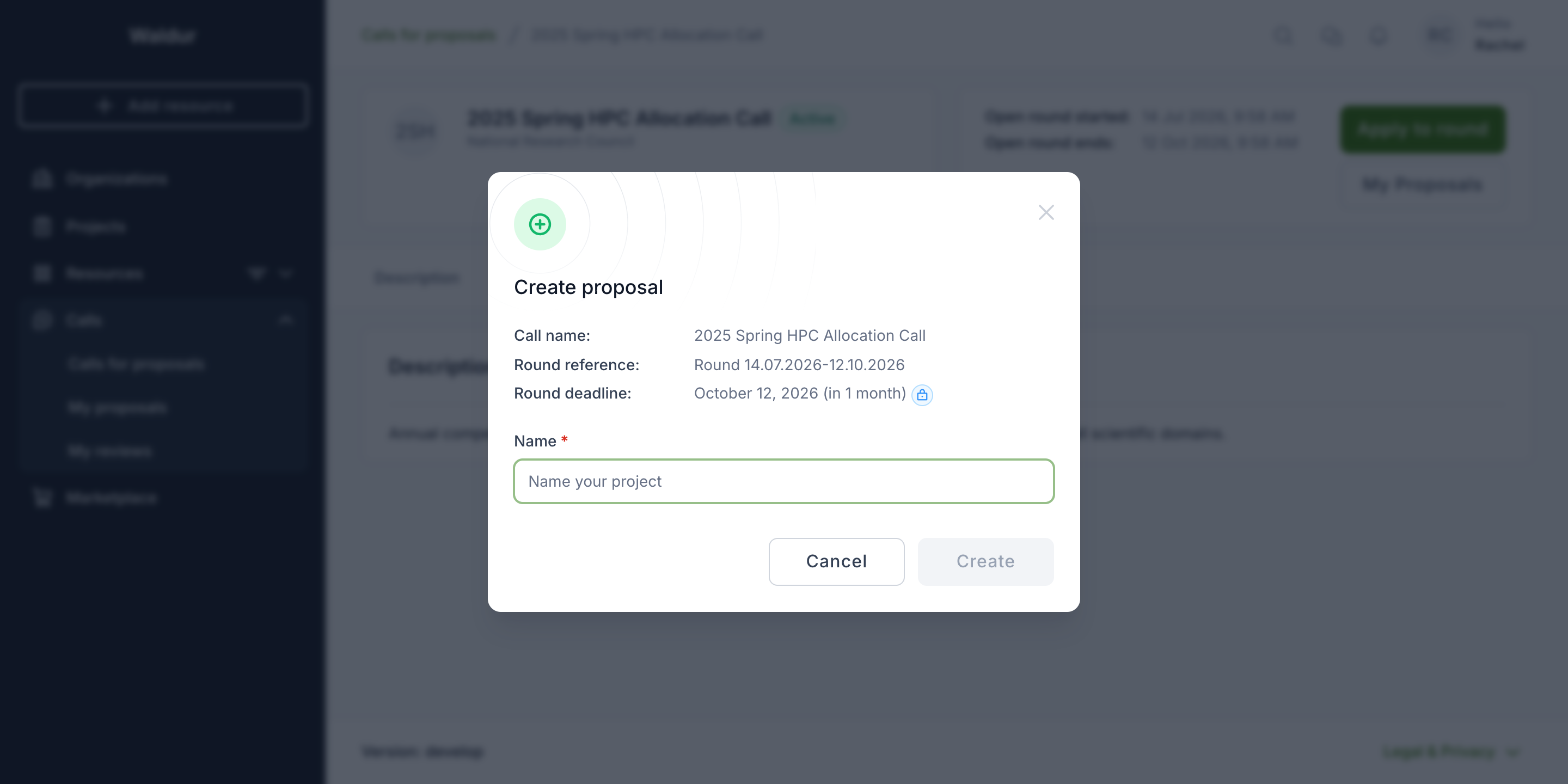
Apply opens the Create proposal dialog. It confirms the call name, the round you are applying to and the round deadline. Give your proposal a Name and click Create.
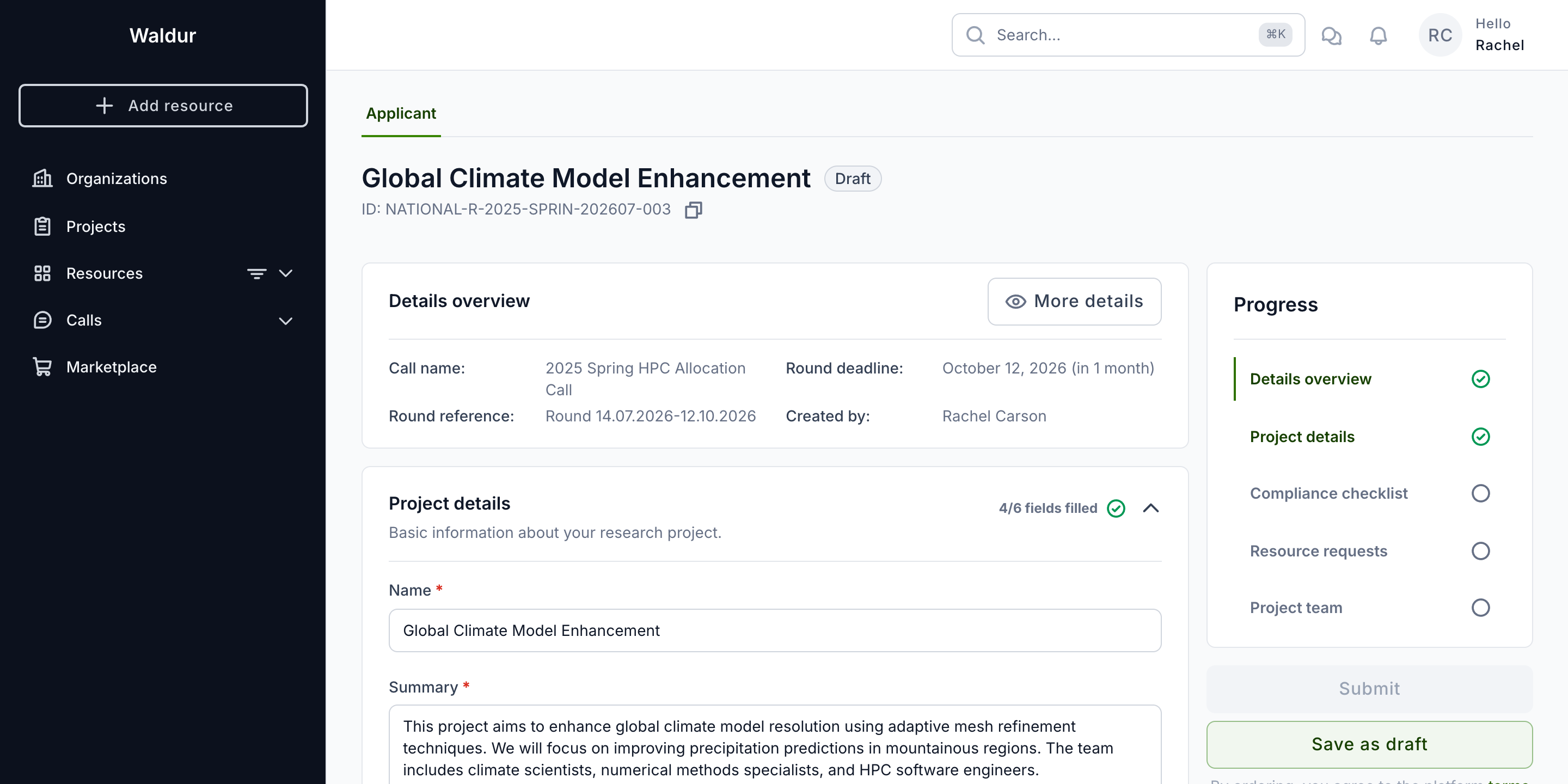
The proposal opens in the Applicant editor. The Progress panel on the right tracks each section's completion and holds the Submit and Save as draft actions; the main area presents the sections as expandable cards. A proposal stays in Draft — and is never seen by the call team — until you submit it, so you can save and return as often as you like.
The editor opens on Details overview, a read-only summary of the call, round and deadline you are applying under. The editable sections follow.
Project details
Expand Project details and describe your project:
| Field | Notes |
|---|---|
| Name | Required |
| Summary | Required |
| Description | Optional, longer free text |
| Science domain | Optional; pick a domain, then a sub-domain from the taxonomy your deployment maintains |
| Project duration | Read-only. The longest subscription you request under Resource requests, or the duration the call fixes; see below |
| Upload supporting documentation | Optional attachments |
Required fields are marked with a red asterisk, and the card header shows how many fields are filled. Project details is expanded when the page opens, so this is the first section you see.
Which of these fields you see, and which you must fill in, is set per call. Name is always required; each of the others may be required, optional, or not asked for at all. A call that does not ask for a field simply does not show it, so your form may be shorter than the table above. See Project details fields for the call manager's side of it.
Project duration
You are not asked how long the project should run. When the call sets a fixed duration, the project lasts exactly that long, and any subscription length you choose must fit inside it. Otherwise, when a resource you request is sold by the month, you choose the subscription length on that request, and the project lasts as long as the longest subscription. When the call sets no fixed duration and nothing you request is sold by the month, the project has no end date. The Project details card and the Summary panel state the length this comes to.
Resource requests
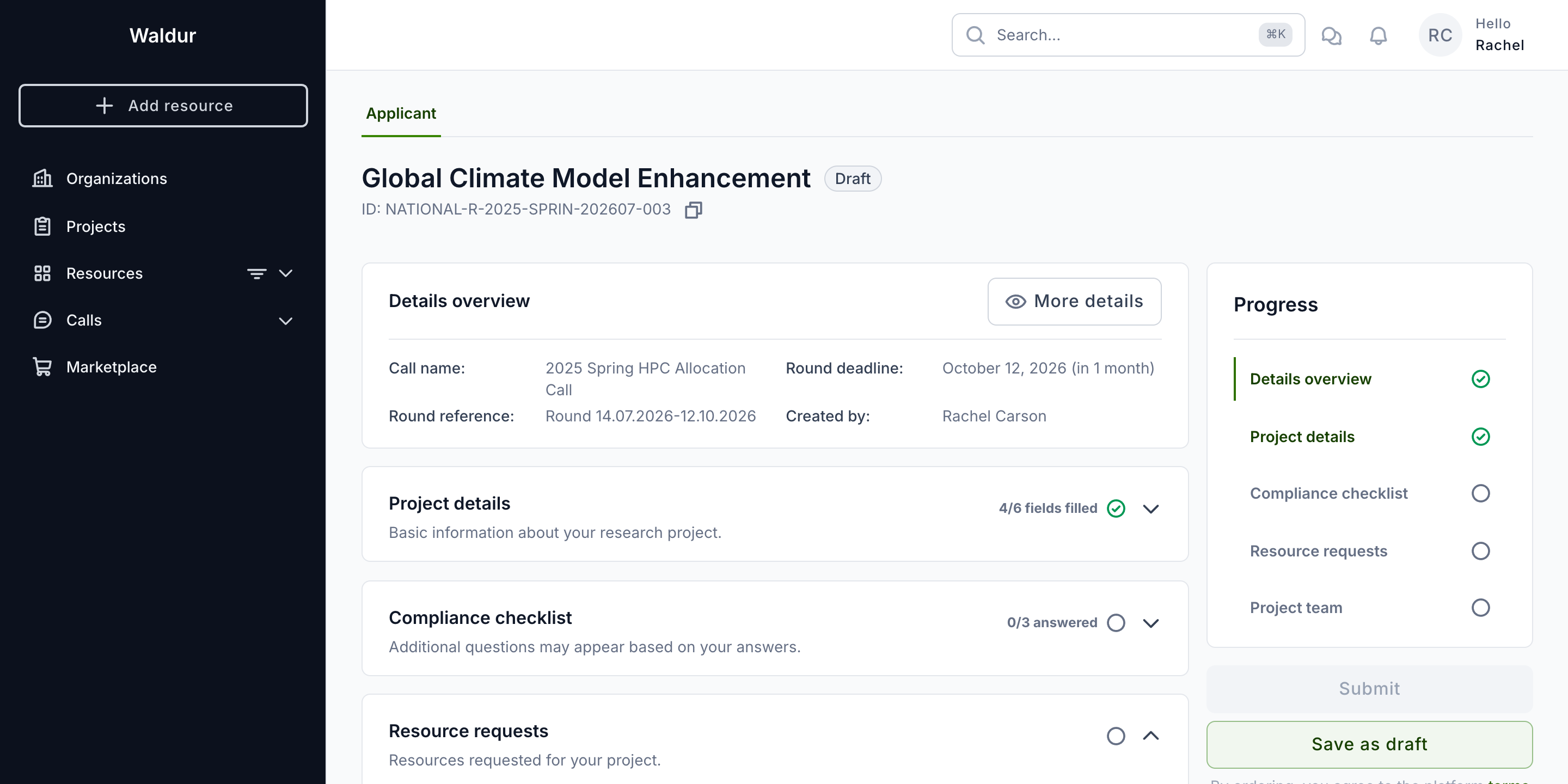
Expand Resource requests to choose what you need. On a template-based call you request resources only through the call manager's resource templates; each fixes its offering, plan, amounts and attributes. Depending on the call:
- Several templates — tick the ones your project requires (here, the GPU Compute Package) and click Save.
- One template — choose one with its radio button and click Save. Choosing another replaces it. The proposal cannot be submitted without one.
A proposal started from an offering page already requests that offering's template, unless several templates use it; then choose one here.
Requests that are not from a template
A request whose template was deleted, or that was not made from one, is flagged above the templates. Choose a template and click Save to replace it; until then the proposal cannot be submitted.
Compliance checklist
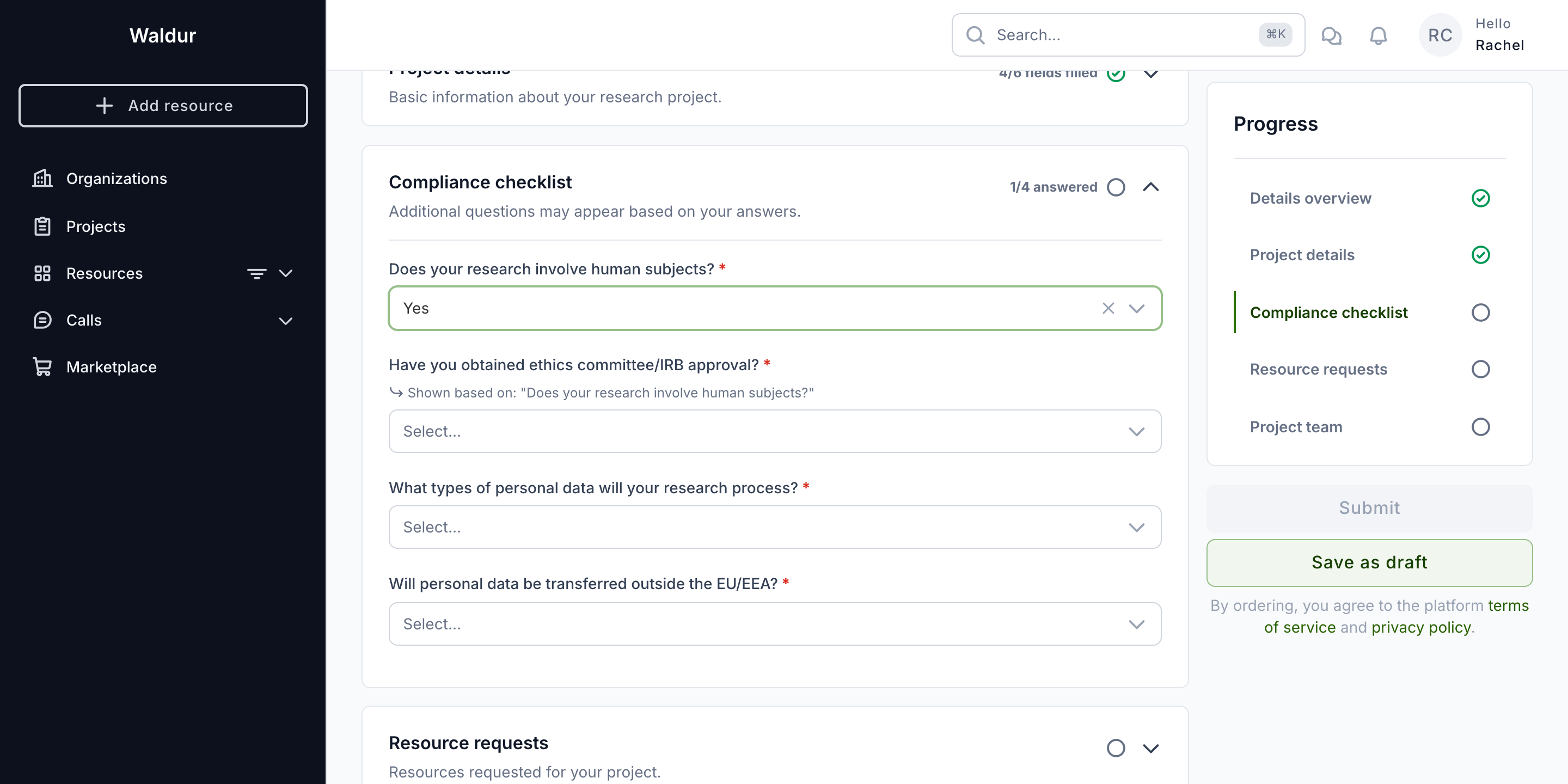
When the call has a compliance checklist, a Compliance checklist step appears between project details and resource requests. Answer every required question; the card header tracks your progress as n/N answered, and its subtitle warns that additional questions may appear based on your answers — so the total can grow as you answer.
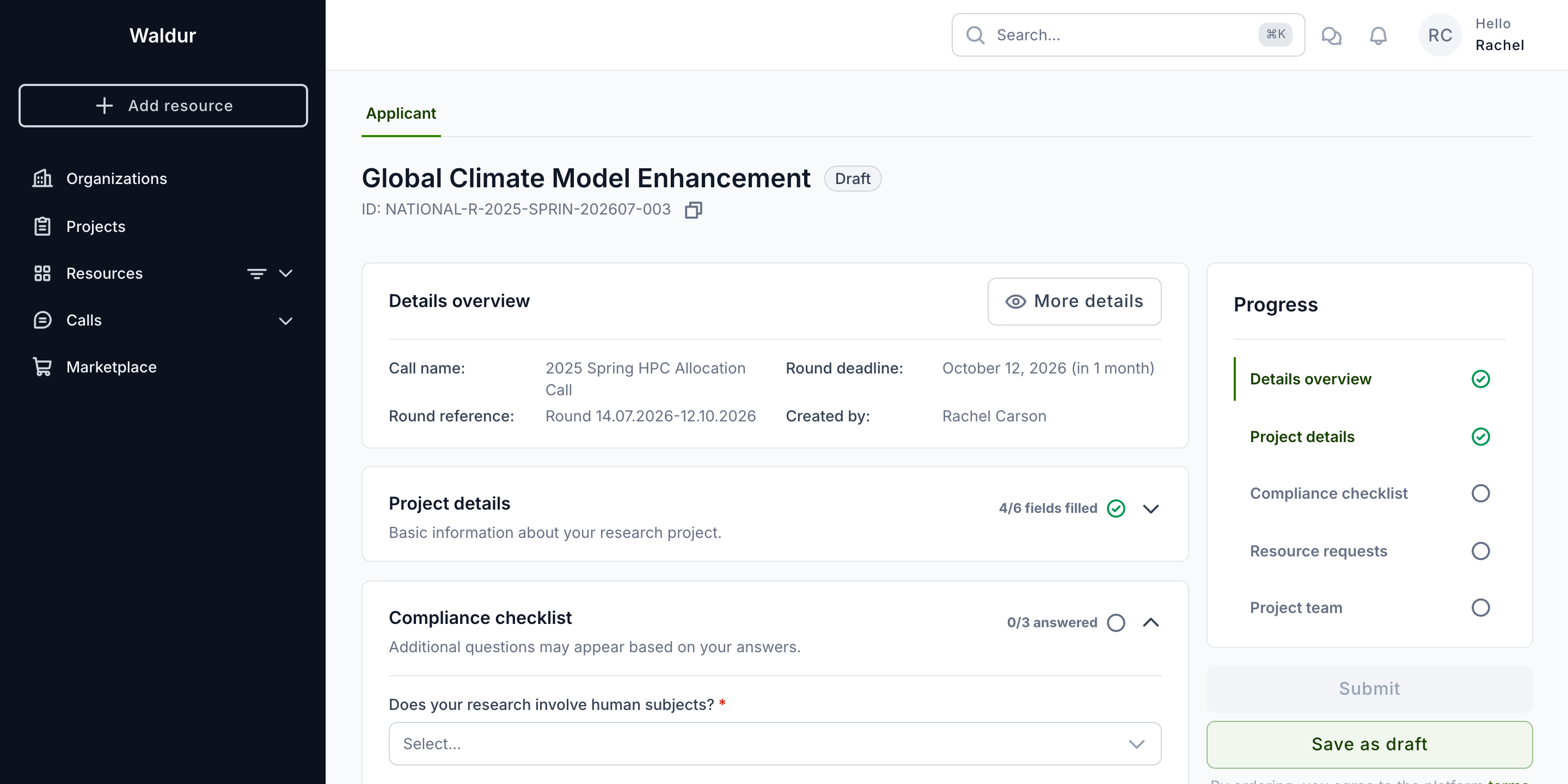
Checklists support many question types — single- and multi-select, numbers, dates, file uploads, confirmations and more (see Checklists and forms). Some questions are conditional: answering one may reveal a follow-up, flagged with a Shown based on: … hint naming the answer that triggered it.
Project team
Expand Project team to add colleagues who should have access to the resulting project and set their roles. You are added automatically as the creator.
Reviewing and submitting
Before submitting, review each section. The Submit button stays disabled until every required step is complete — the Progress panel shows a green tick against finished sections and an empty circle against those still needing input.
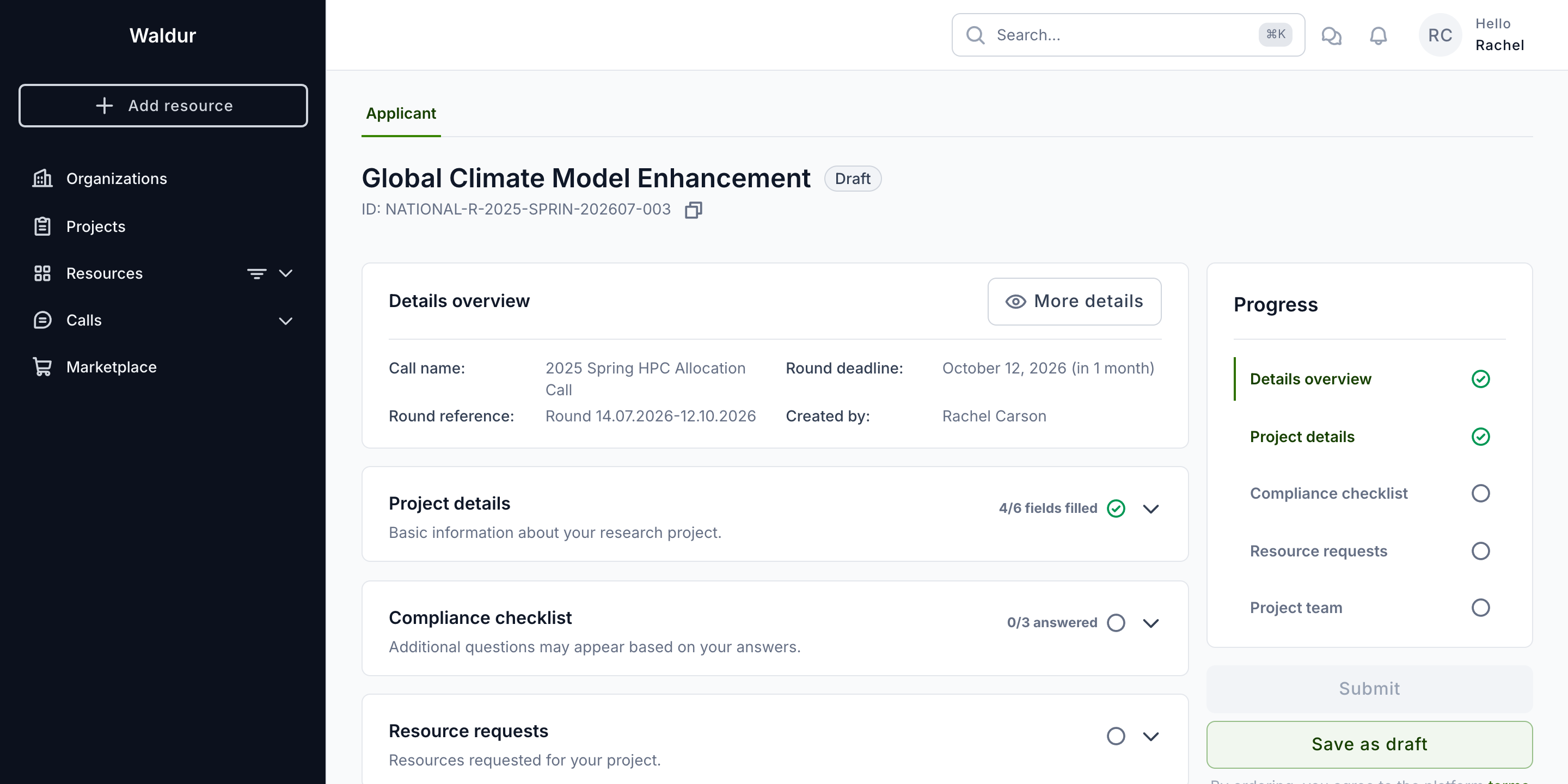
When everything is complete, click Submit. A note beneath the button records that submitting means agreeing to the platform's terms of service and privacy policy. The proposal moves out of Draft and into the evaluation workflow, and the call team can now see it.
Warning
Submit before the round deadline. Once the round closes you can no longer submit, and a proposal left in Draft is not evaluated by that round. On most calls it is not lost either: it moves into the call's next round and stays editable, and you are emailed the new deadline. A draft left at the last round's cut-off, or on a call that has carry-over turned off, is cancelled — see Drafts at the cut-off.
Waiting for the round cut-off
Some calls evaluate all proposals of a round together. On such a call your proposal stays Submitted after you submit it, and nothing happens to it until the round's cutoff date has passed. Evaluation then starts for every proposal of the round at once, and yours moves to In review, usually within an hour of the cut-off. Until then the proposal's stepper shows Submitted — evaluation starts after the round cut-off. under Submission, with no later step highlighted. Waiting as Submitted is expected, not a sign that something is wrong.
Your proposals
Open Calls → My proposals to see everything you have created, across all calls, with its call, round deadline and current state. Use the state filter to focus on drafts, submitted, in-review or accepted proposals.
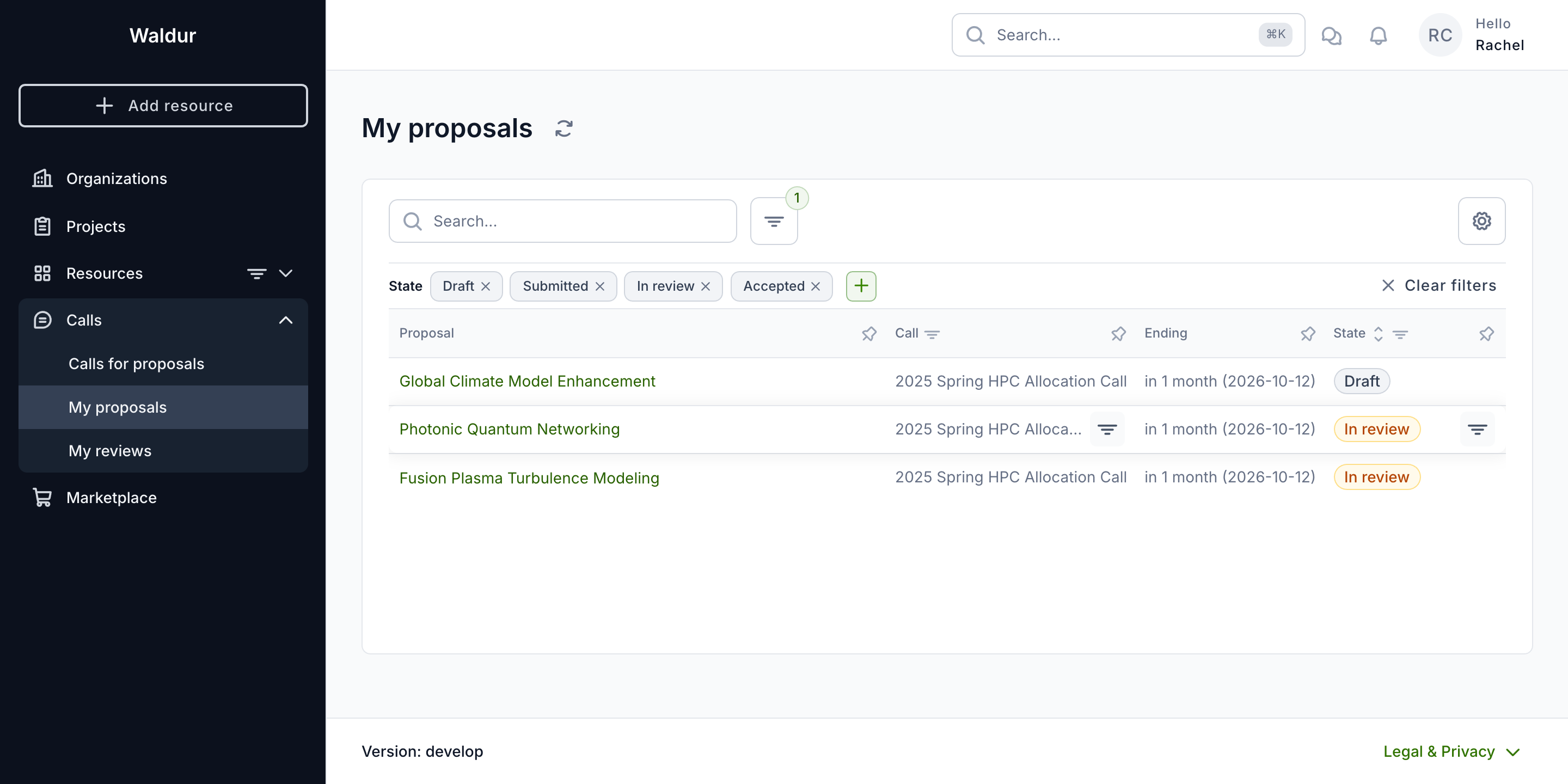
Proposal states an applicant sees:
| State | Meaning |
|---|---|
| Draft | Not yet submitted — only you can see it |
| Submitted | Submitted and awaiting evaluation — on calls that evaluate at the round cut-off, until the cut-off has passed |
| In review | Moving through the evaluation workflow — on calls that announce results together for the whole round, until the round's results are published |
| Accepted | Approved — a project and resources have been (or are being) provisioned |
| Rejected | Not funded |
| Canceled | Withdrawn, or an award you declined |
Tracking progress
Open a submitted proposal to follow it through the call's evaluation workflow. The stepper at the top shows every step, with completed steps ticked, the current step highlighted, and later steps greyed out. Here the proposal has cleared Administrative check and Technical assessment and is in Expert review.
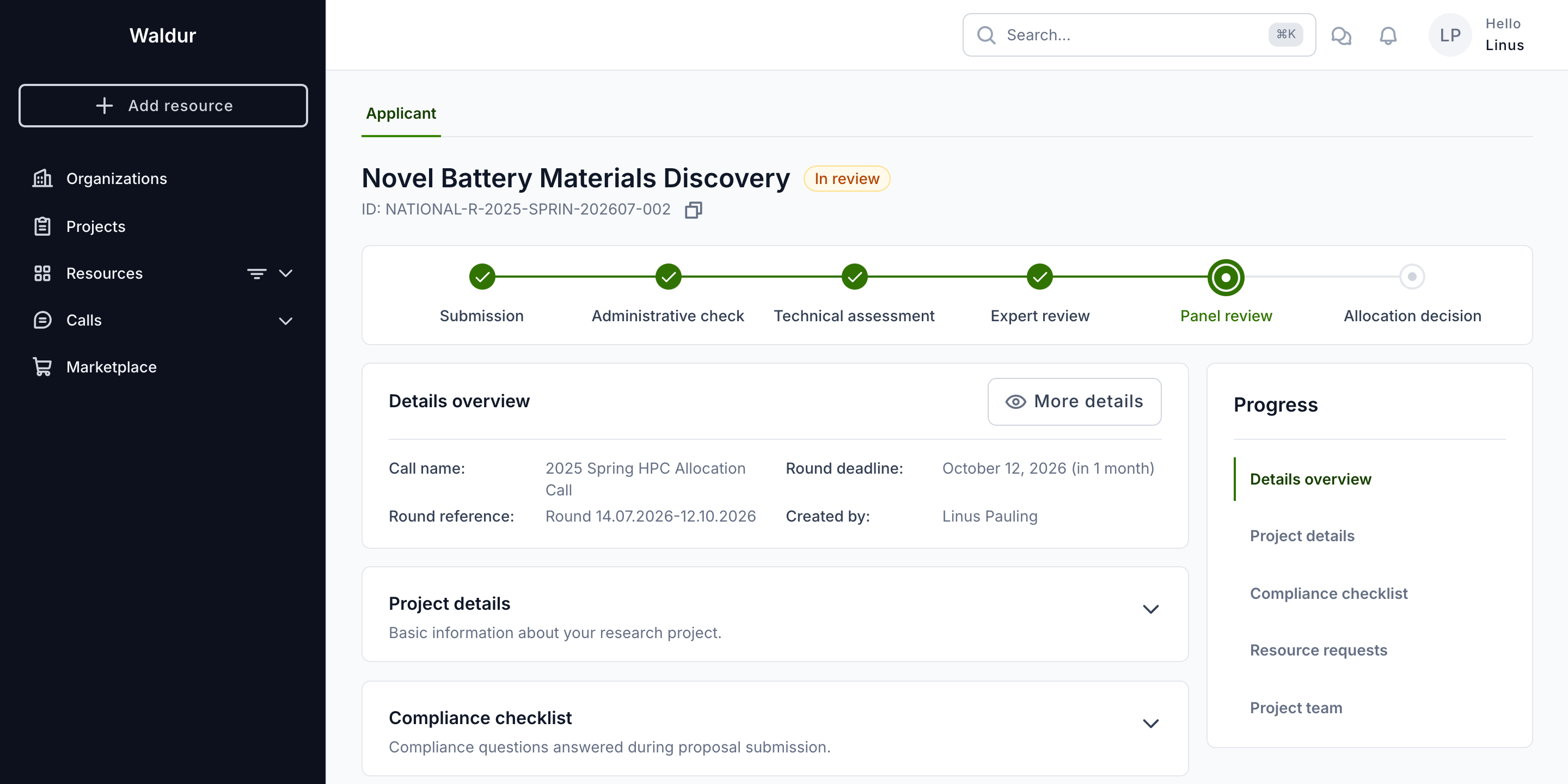
The sections below the stepper are read-only once submitted, so you always see exactly what you sent. Editing a submitted proposal is refused outright, not just hidden: your requested resources, documents and checklist answers are fixed at the moment you submit, and only the call team can change them afterwards. A draft you leave open when the round closes is the one exception — it moves into the call's next round and stays editable, because it was never submitted (see Drafts at the cut-off).
Which steps appear, and how much of each you can see, depends on the call's configuration at the moment you submitted (see The evaluation workflow). Steps that were not part of your proposal's sequence are omitted from the stepper, so two proposals in the same call can show different steps if the call was reconfigured between their submissions.
When you hear the decision
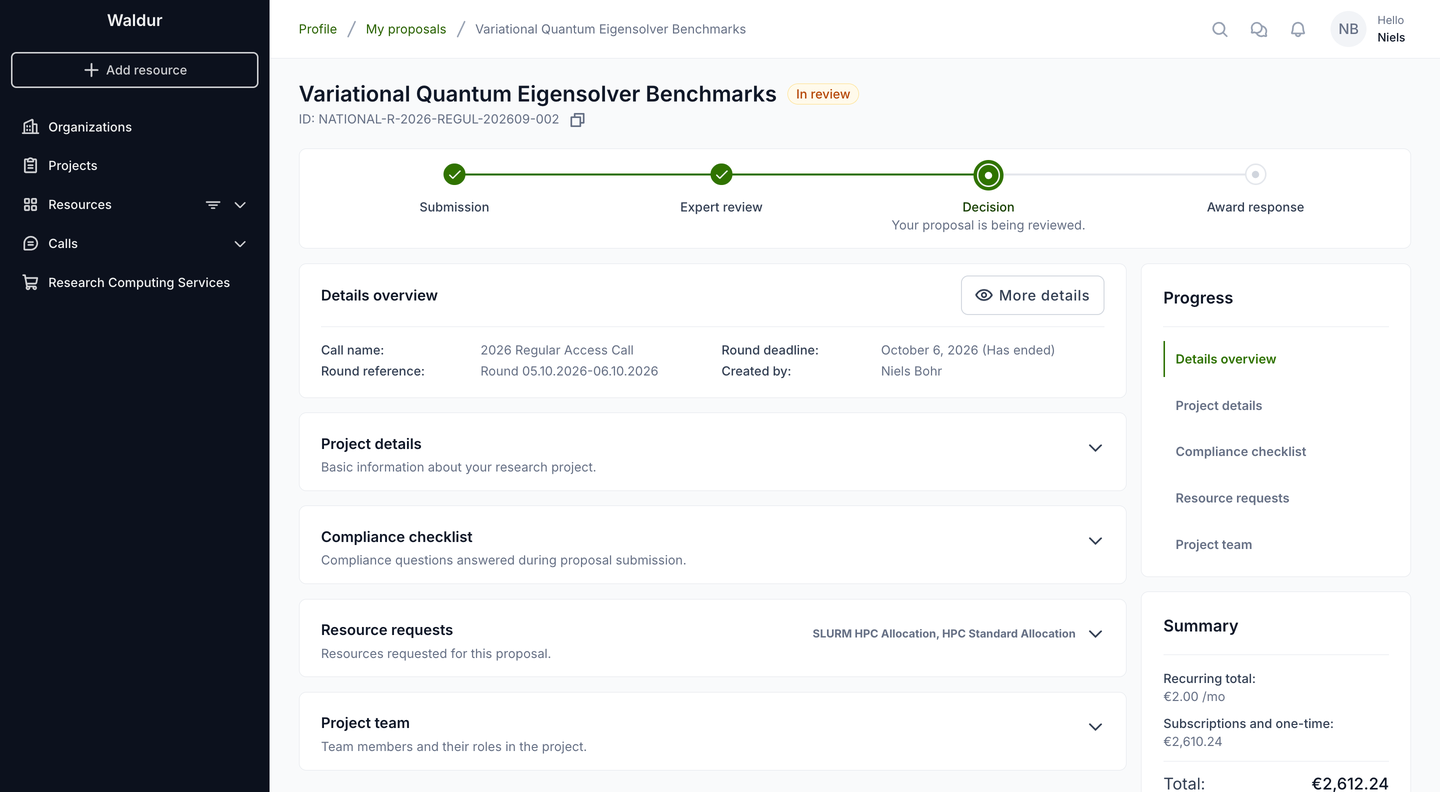
Some calls announce every allocation decision of a round together. On such a call your proposal stays In review until the call manager publishes the round's results, even if the decision has already been taken. The tracker shows the decision as the current step — named Decision when the call keeps the step internal — with Your proposal is being reviewed. beneath it. Then every applicant of the round is notified at the same time, and the proposal moves on: to Responding to an award, to Accepted, or to Rejected.
Technical-assessment feedback
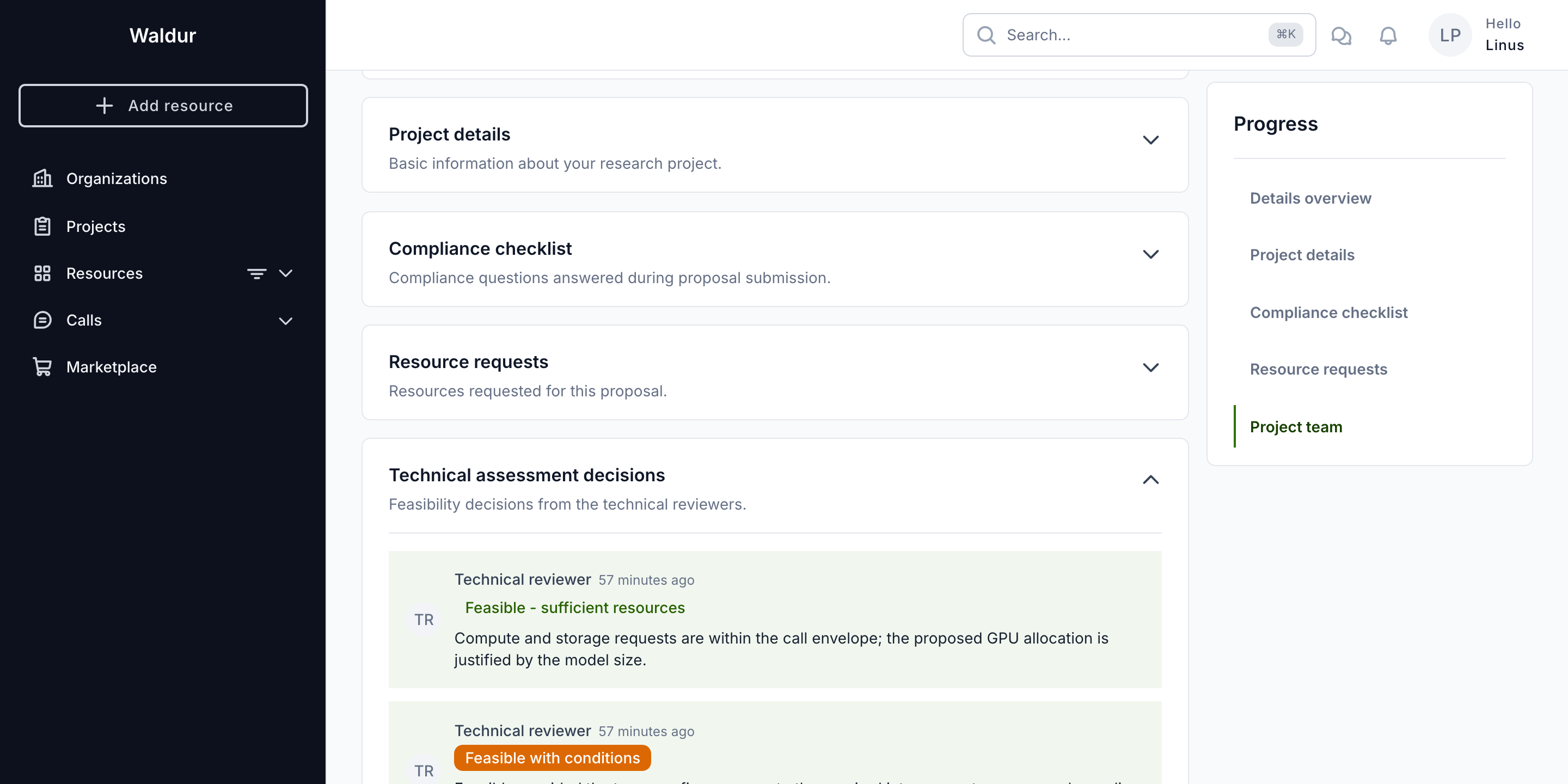
Some steps can be made visible to applicants by the call manager. When the Technical assessment step is shared, a Technical assessment decisions section shows the feasibility decisions from the technical reviewers — one entry per reviewer, each with a colour-coded decision badge and comment.
Note
You only see this section when the call manager has marked the step applicant-visible. On calls that keep technical assessments internal, the section does not appear — this is expected, not an error. The decision wording and badge colours come from the call's own technical-assessment checklist, so they differ between calls.
Responding to an award
If the call includes an award response step, an approved proposal pauses for your decision before resources are provisioned. The stepper shows an Award response step, and the Progress panel offers Accept award and Decline award.
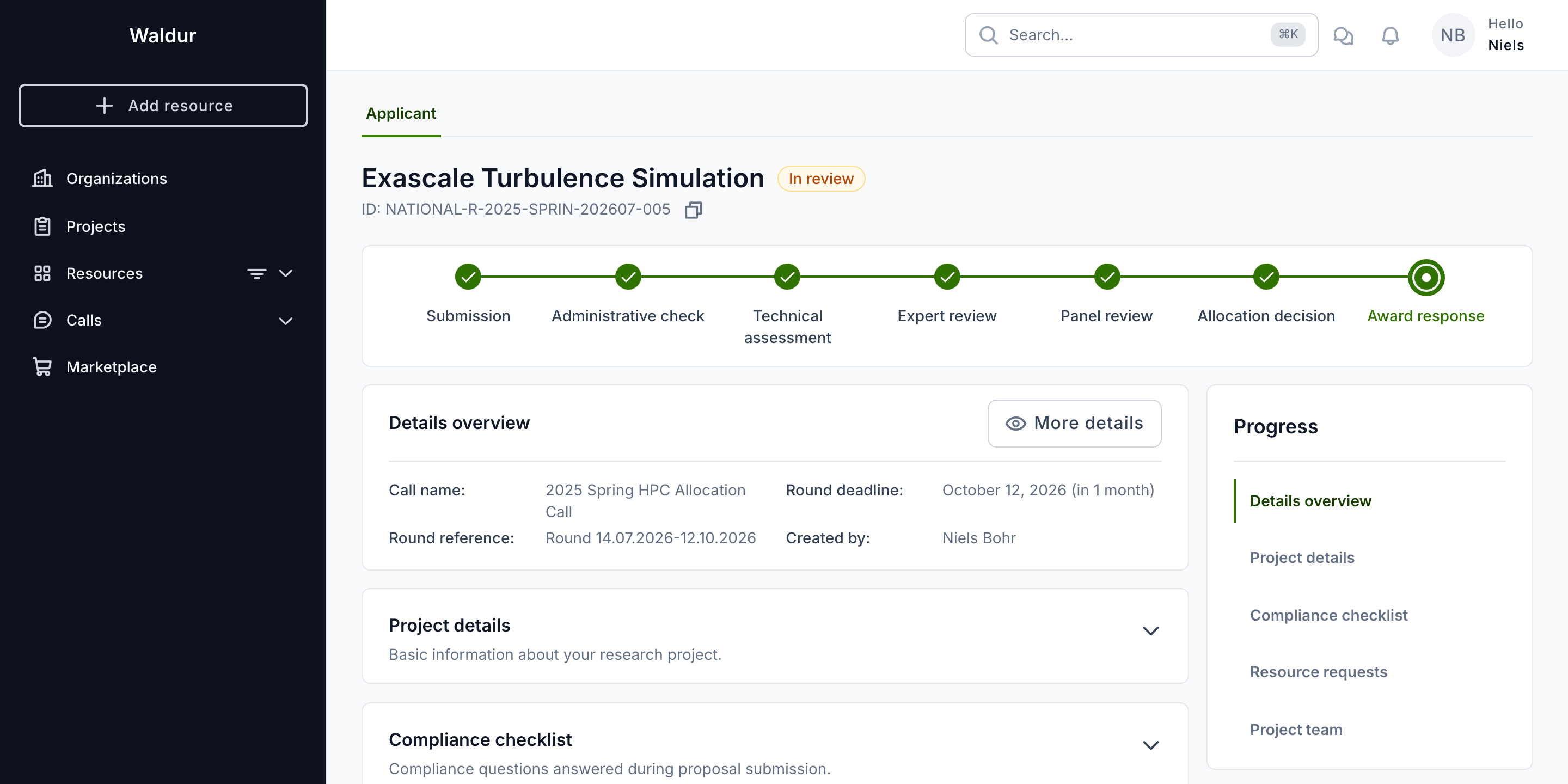
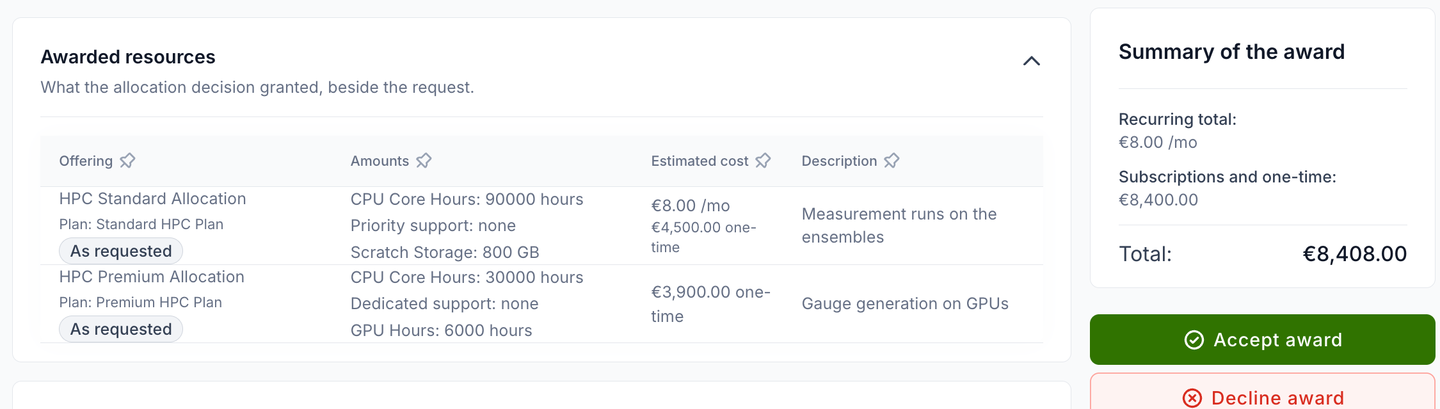
The award may differ from what you requested: the call manager can change amounts, move an item to another offering of the call, or add and remove items. The Awarded resources section on the proposal shows what was granted, each item marked As requested or Changed, and the Summary of the award totals its estimated cost. You see this section once the decision is released to you; it is read-only.
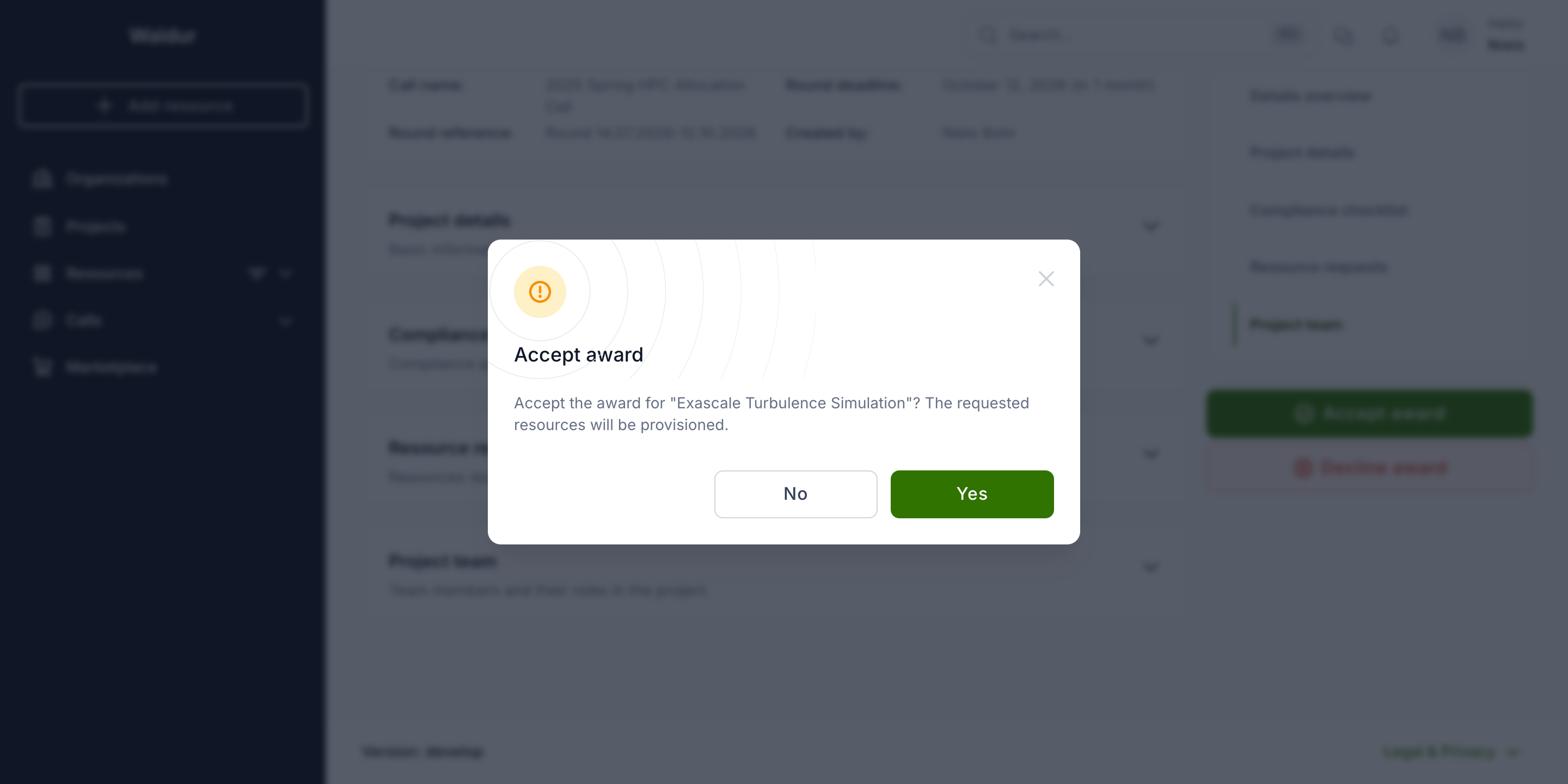
Accept award asks you to confirm; once you do, the awarded resources are provisioned, a project is created under your organisation and your team is granted access.
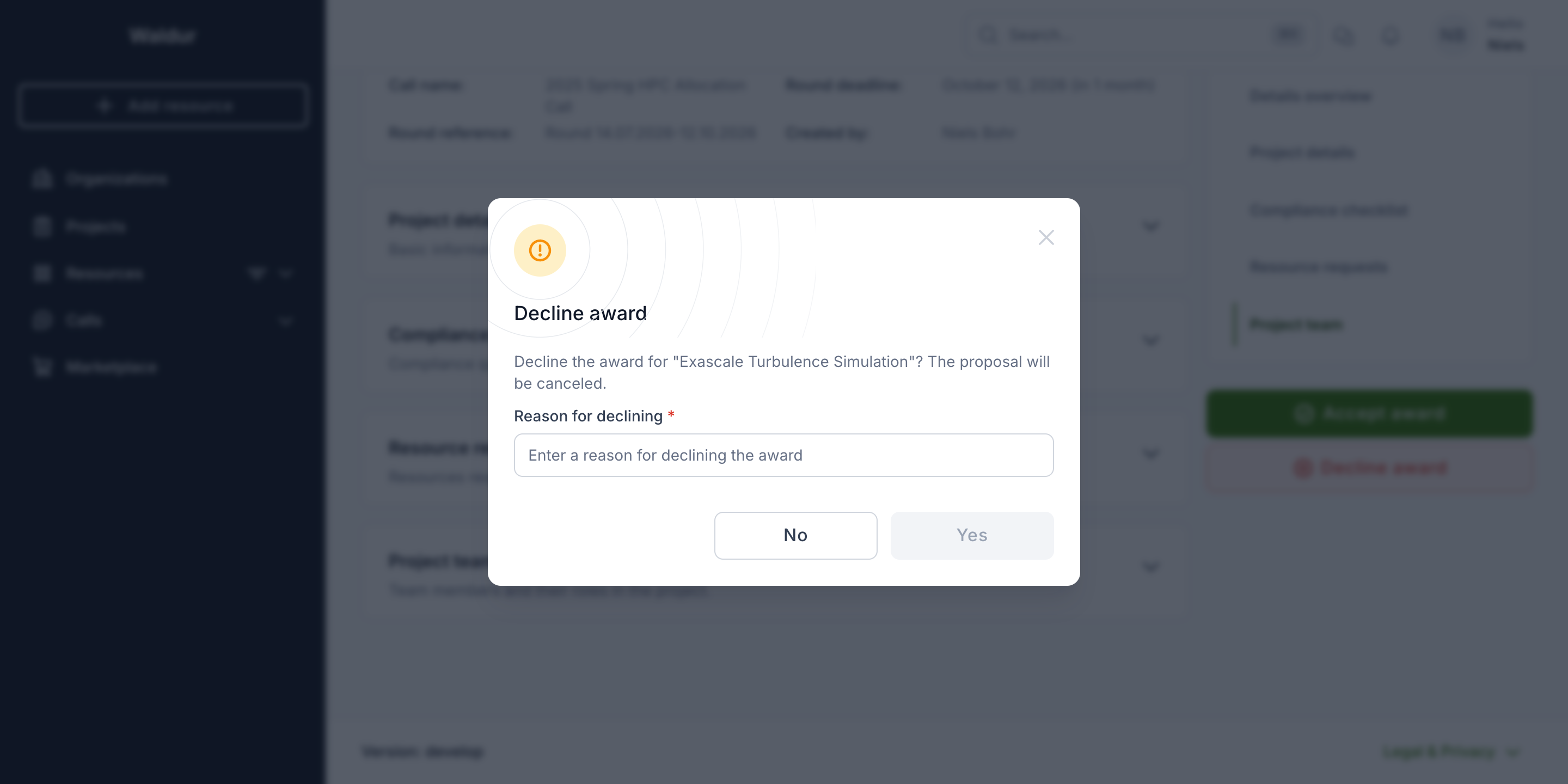
Decline award asks for a Reason for declining — it is required — and moves the proposal to Canceled. Use it when you can no longer take up the allocation.
Tip
Not every call uses an award response step. When it is absent, an approved proposal is provisioned automatically at the Allocation decision step without asking you to confirm.
Related guides
- Call management — the call lifecycle and rounds
- Checklists and forms — question types and conditional visibility
- Call manager workflow — how call managers drive proposals through the workflow
- Reviewer workflow — the reviewer's perspective