Resource buckets
An S3 storage resource holds its data in buckets. Where the provider has turned the bucket browser on, the resource has a Buckets tab next to API keys. On it you can see the resource's buckets and files, download files, upload small ones, and create and delete buckets, without installing an S3 client.
The tab works through one of the resource's API keys. Waldur signs each request to the storage service with that key, so the tab can do whatever the key can, and it is open to exactly those who may reveal the key. The key's secret never reaches your browser.
The bucket list
Open the resource and select the Buckets tab.
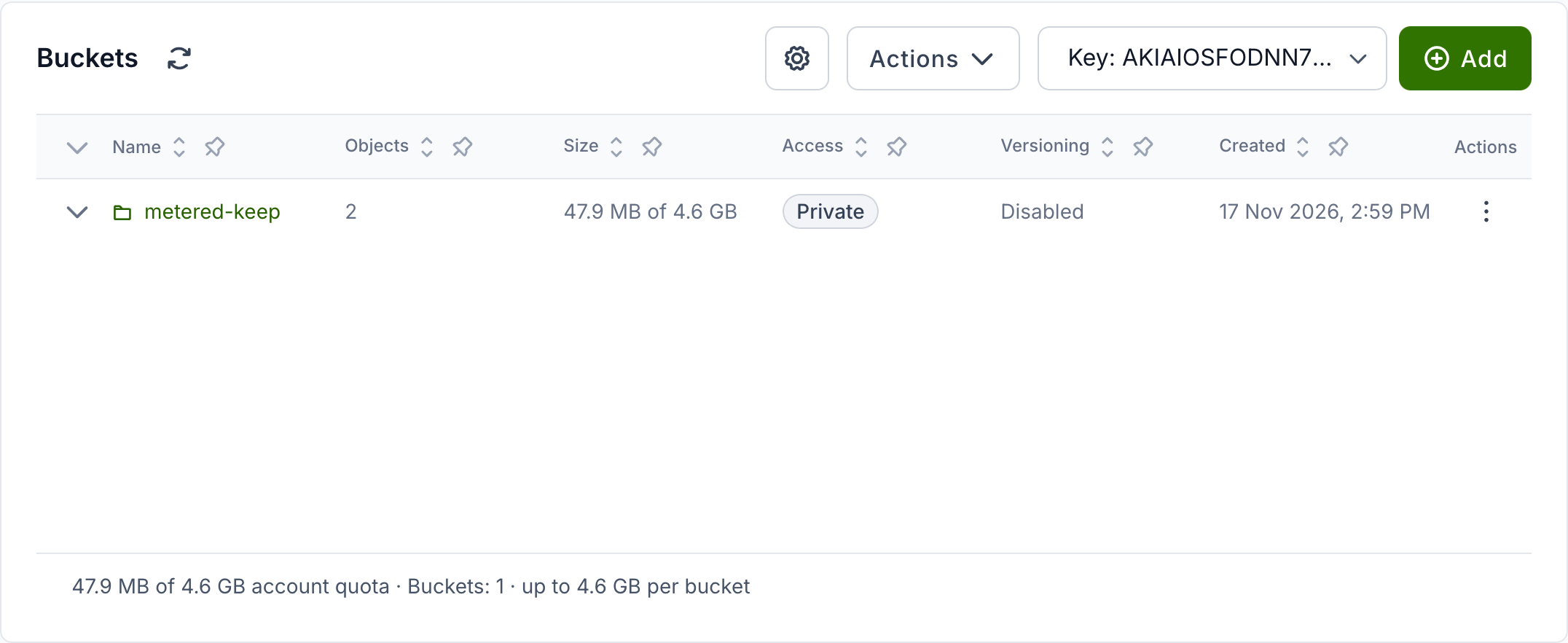
Each row is one bucket:
- Name: select it to open the bucket.
- Objects: how many files the bucket holds.
- Size: how much it stores, against the limit on each bucket when the provider sets one.
- Access: Public when anyone can read the bucket, through its access control list or its policy; otherwise Private.
- Versioning: Enabled when the bucket keeps earlier versions of files it overwrites or deletes, Suspended when it no longer does, or Disabled when it never did.
- Created: when the bucket was created.
Storage services differ in what they keep track of, and the tab shows only what the provider's one supports. Objects and Size appear on Ceph storage, which reports them per bucket; Access and Versioning are left out where the storage service has no access control lists or versioning, as on Garage.
Select a column's sort button to sort by it, and the gear button to choose which columns to show. The line under the table sums up storage: how much the buckets hold against the resource's quota, how many buckets there are, and the limit on each bucket. The quotas are the ones the provider's site agent last reported.
When you can use more than one of the resource's API keys, the header shows Key to choose which one the tab works through: the keys shared by the project, and any assigned to you. Each key sees what its permissions allow, and if one cannot reach the storage service, you can still switch to another.
Bucket details
Expand a row to see how the bucket is set up:
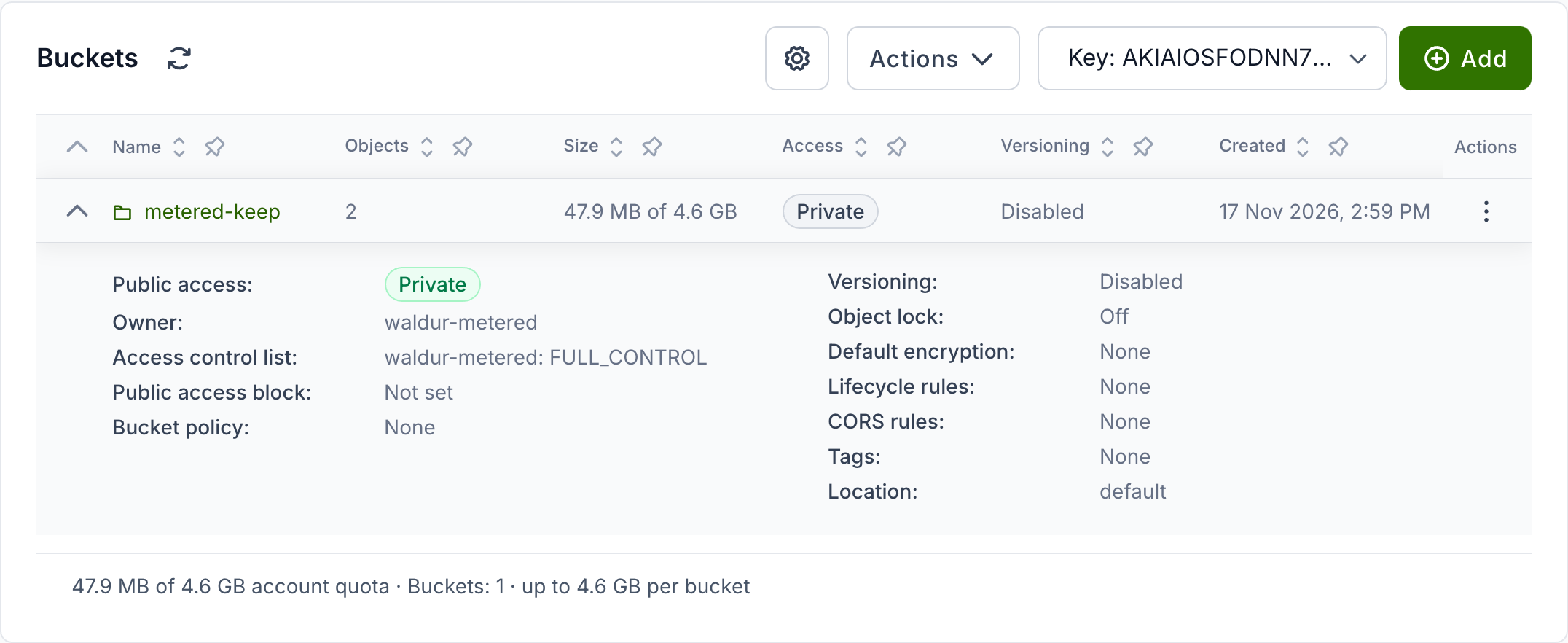
- Public access: whether anyone can read the bucket, and whether through the access control list or the policy.
- Owner and Access control list: who owns the bucket and who has been granted access to it. A grant to Everyone (anonymous) or Any authenticated user makes the bucket public.
- Public access block: settings that stop the bucket from being made public.
- Bucket policy: the bucket's policy, if it has one.
- Versioning, Object lock and Default encryption.
- Lifecycle rules: rules that expire files or move them to another storage class after a time.
- CORS rules, Tags and Location.
The details are read-only. Change them with an S3 client. A part that the storage service does not support, or will not report to the key, is left out.
Creating and deleting a bucket
Select Add above the bucket list and enter a name of 3 to 63 lower-case letters, digits, dots or hyphens. Depending on how the provider set up the storage service, bucket names may be shared with its other users, so a common name may already be taken.
To delete a bucket, open its row's actions menu and select Delete. Only an empty bucket can be deleted.
Files in a bucket
Select a bucket to open it. Folders come first, then files, in the order the storage service lists them. When a folder holds more files than fit on one page, select Load more under the table. The breadcrumb above the table leads back to the bucket and to the list of buckets.
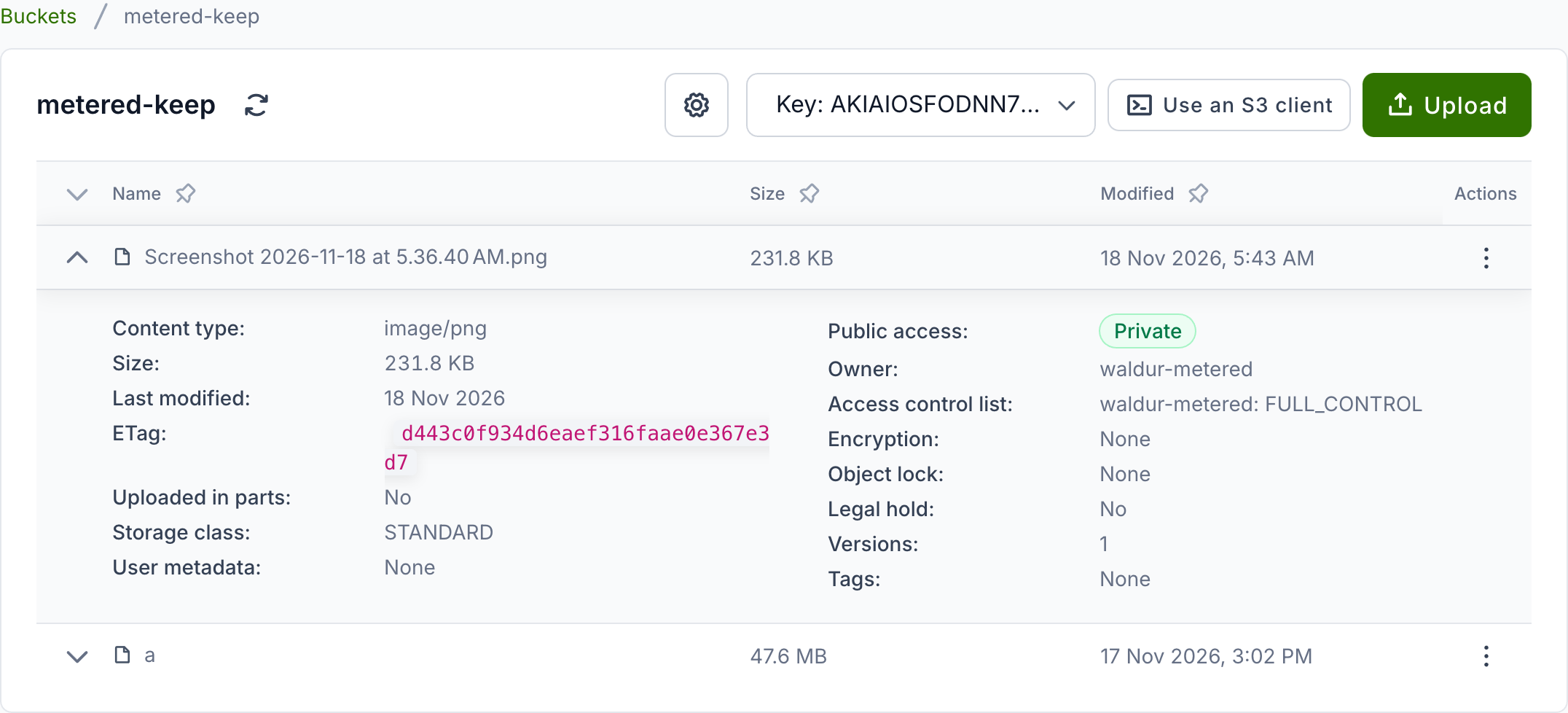
Expand a file's row to see its details:
- Content type, Size, Last modified and ETag.
- Uploaded in parts: the number of parts, for a file uploaded in parts.
- Storage class, and any other content headers the file was stored with.
- User metadata: the metadata the uploader attached to the file.
- Public access, Owner and Access control list, as for buckets.
- Encryption, Object lock and Legal hold.
- Versions: how many versions of the file the bucket keeps, and how many delete markers.
- Tags.
As for buckets, parts the storage service does not support are left out.
A file's actions menu offers Download and Delete, and a folder's offers Open and Delete folder, which deletes everything in it. Deleting cannot be undone. In a bucket with versioning, earlier versions stay. When the storage service refuses to delete a file, for example because a bucket policy forbids it, the tab says so and the file stays.
A download goes straight from the storage service to your browser, through a link that Waldur issues and that expires after five minutes.
Uploading
Select Upload to add files to the open folder. The browser uploads files up to a size the portal's administrators set, 50 MB unless they changed it; the button's tooltip shows the limit. Larger files are not sent: Upload with an S3 client opens instead. If a file of the same name is already there, you are asked before it is replaced.
Using an S3 client
For large files, whole folders, or anything the tab does not do, use an S3 client. Select Use an S3 client, above the files of an open bucket or in the bucket list's Actions menu, for commands filled in with the resource's endpoint, region, the open bucket and folder, and the API key's access key ID, for the AWS CLI, rclone and s3cmd:
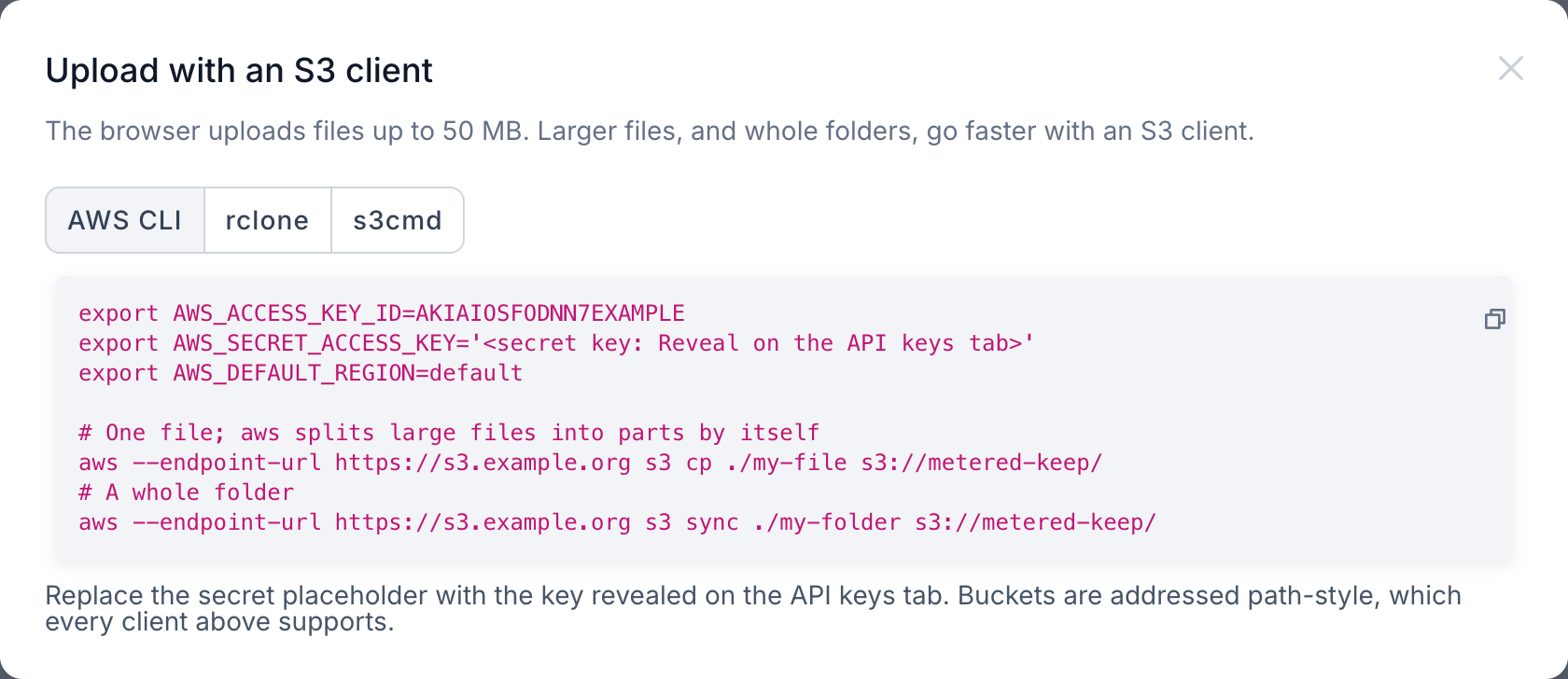
The commands leave out the secret key. Reveal it on the API keys tab and put it in place of the placeholder.
Bucket activity
Select Actions → Bucket activity above the bucket list to see what was done through the tab: every download, and every bucket created or deleted and file uploaded or deleted, with who did it, with which key, and when. Expand a row for the details.
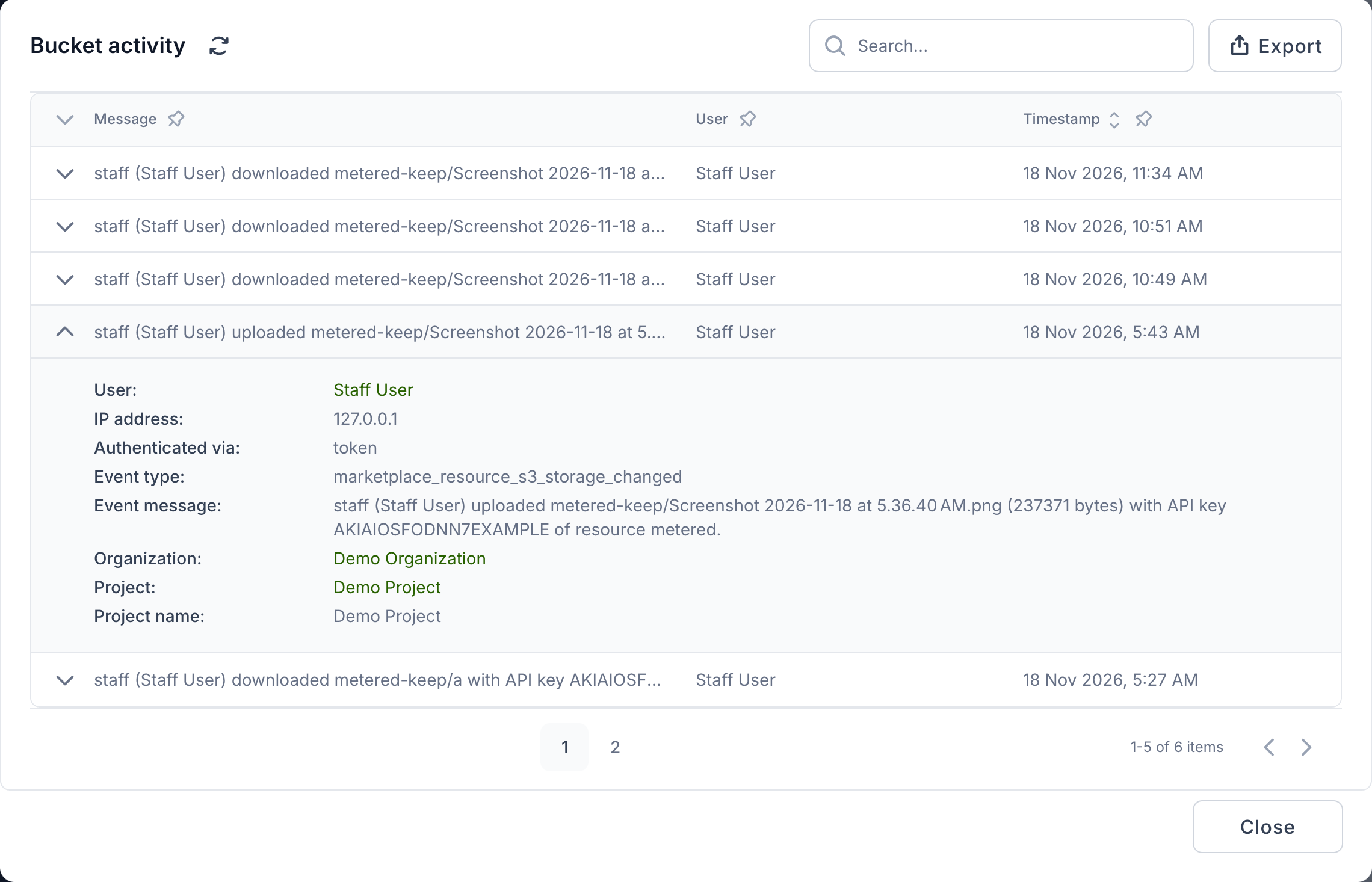
Changes made with an S3 client go straight to the storage service and do not appear here.
For service providers
The bucket browser is off by default. Turn it on for an offering in Integration → Resource display options → Enable S3 bucket browser. The option is available on site-agent offerings whose resources are S3 storage.
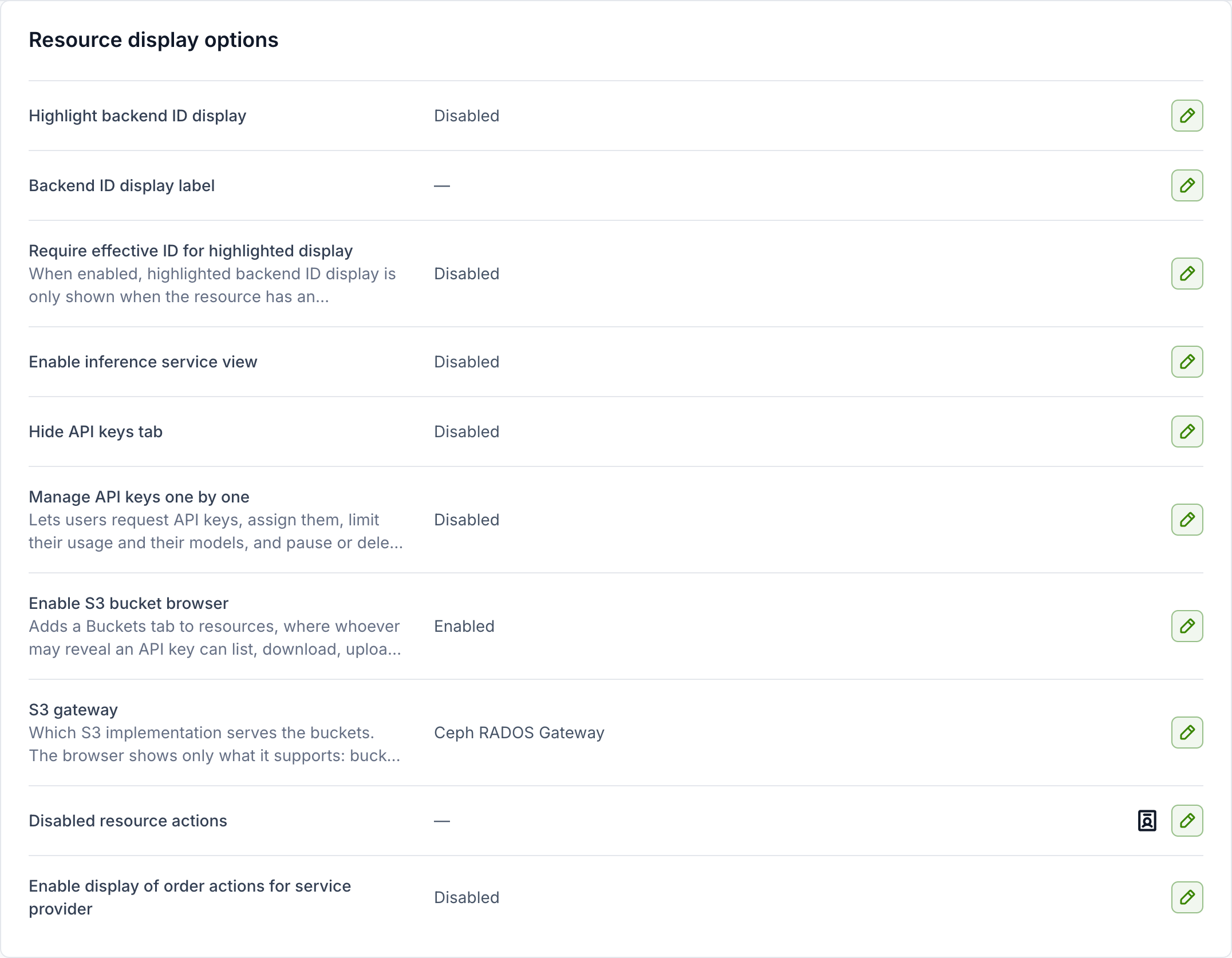
Once it is on, choose the offering's S3 gateway, the S3 implementation that serves the buckets. It decides what the browser asks the storage service for and shows:
| S3 gateway | Shown |
|---|---|
| Ceph RADOS Gateway | Everything, including each bucket's object count and size. |
| MinIO-compatible (MinIO, RustFS) | Everything except bucket object counts and sizes. |
| Garage | Files, location, lifecycle and CORS rules. No versioning, access control lists, policies, object lock, encryption or tags, which Garage does not implement. |
| Other S3-compatible gateway (default) | Whatever the gateway answers; parts it refuses are left out. No bucket object counts or sizes. |
When the site agent publishes no region for a resource, requests are signed
for the gateway's usual default: default on Ceph, garage on Garage and
us-east-1 otherwise. Garage refuses any region but its configured one, so a
Garage deployment with another region must have the agent publish it.
The browser reaches the storage service from the Waldur server, at the S3 endpoint the site agent publishes for each resource. A staff user must also allow that endpoint, as described below.
For staff
Three settings, under Administration → Settings → S3 bucket browser, govern the browser for the whole portal:
- S3_BROWSER_ALLOWED_ENDPOINTS: the storage endpoints Waldur may contact,
by host name or address, optionally with
:port, separated by commas or spaces. It is empty by default, and the browser works with no endpoint until one is listed. Waldur refuses endpoints that carry credentials, and plain HTTP to anything other than a private address. - S3_BROWSER_VERIFY_TLS: whether Waldur checks the endpoint's TLS certificate. On by default; turn it off only for a test endpoint with a self-signed certificate.
- S3_BROWSER_MAX_UPLOAD_SIZE_MB: the largest file the browser uploads, 50 MB by default. Larger files go through an S3 client.
Downloads and every change made through the browser are recorded in the resource's event log.